Choose a wallet · For website sign-in

Hardware wallets that work as a security key

For a new wallet that also handles website sign-in, start with Trezor Safe 5 with Universal firmware for USB on a computer, or Ledger Flex for its documented NFC phone route. Already own a compatible wallet? Use it if your account accepts its protocol and connection. If website sign-in is all you need, a dedicated security key is usually more practical. Keep another way into each account.

Our picks: 2 · Matching wallets: 15

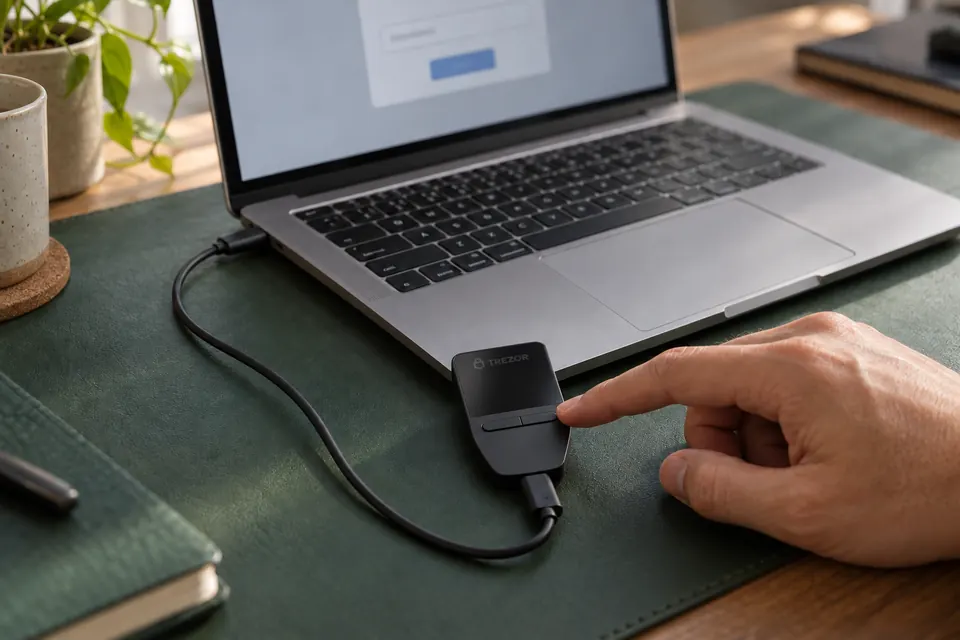
Illustration of a Trezor Safe 3 on a dark green desk mat, connected by a USB-C cable to a laptop, with a fingertip on its right button while the laptop shows a blurred sign-in prompt.

Wallets with documented security-key support

Beyond our picks above, the catalog includes 13 other wallets that match this category.

Before you choose

Check website sign-in requirements.

Which wallets qualify

Trezor Safe 3, Safe 5 and Safe 7 with Universal firmware, the Ledger models listed below and OneKey Pro support FIDO2 and U2F. OneKey Classic 1S supports both with general firmware. OneKey Classic 1S Pure Multi, BitBox02 Multi, BitBox02 Nova Multi and Passport Prime have documented U2F support. The exact device still needs to meet your service's requirements.

The catalog filter matches checked protocol records for the exact edition. A missing record means we have not confirmed the feature; it does not mean the wallet cannot support it. Phone and Bluetooth support for crypto transactions does not establish support for website sign-in.

FIDO2 or U2F: check what your account needs

For passwordless sign-in with a passkey, start with FIDO2 and check the service's requirements. For a second step after a password, the service may accept FIDO2, U2F or both.

FIDO2
Supports security-key authentication and passwordless passkeys. Which features work depends on the device and service.
U2F
Adds a second factor alongside your password. It does not provide passwordless passkeys.
WebAuthn
The browser interface websites use for this authentication. It can work with U2F keys too, when the service does not require FIDO2-only features.

If your account settings say only “security key” or “WebAuthn,” check the service's supported-key requirements before choosing a protocol filter. Those labels alone do not tell you whether U2F is enough. Some services require passkeys stored on the key, called resident or discoverable credentials.

What each wallet needs before it works

Use the exact edition and firmware below. Register the device separately with each website; ordinary crypto-wallet setup does not register a security key. Ledger's current Security Key app does not support resident or discoverable credentials (passkeys stored on the key).

Documented security-key support by current model
ModelProtocolsWhat to set up firstSign-in connection and limits
Trezor Safe 3 and Trezor Safe 5FIDO2 and U2FUniversal firmware; unlock with the PINUSB
Trezor Safe 7FIDO2 and U2FUniversal firmware; unlock with the PINUSB only; no Bluetooth
Ledger Nano S Plus and Ledger Nano XFIDO2 and U2FInstall Security Key from Ledger Wallet; Nano S Plus OS 1.1.0+, Nano X OS 2.1.0+USB; no iPhone sign-in
Ledger Flex, Ledger Stax and Ledger Nano Gen5FIDO2 and U2FInstall Security Key from Ledger WalletUSB or NFC
OneKey Pro and OneKey Classic 1SFIDO2 and U2FBuilt in; Classic 1S needs general firmware, 3.11.0+ for FIDO2USB only
OneKey Classic 1S Pure MultiU2F documentedUse current firmwareUSB only
BitBox02 MultiU2F documentedSet up the wallet before registeringUSB
BitBox02 Nova MultiU2F documentedMulti edition, per its datasheetAuthentication connection not confirmed
Passport PrimeU2F only; FIDO2 and passkeys are not yet supportedOpen the Keys app; create a key and register it with each serviceUSB to a computer or NFC to a compatible phone; exact phone OS/browser support unconfirmed

Trezor's Bitcoin-only firmware excludes FIDO2 and U2F. BitBox documents Multi editions. Classic 1S requires general firmware for USB sign-in; its Bitcoin-only firmware 3.20.0 disables that function. We have not confirmed the function for OneKey's other Bitcoin-only editions.

Already own an archived model? Trezor Model T supports FIDO2 and U2F, and Trezor Model One supports U2F only, using Universal firmware. Ledger Nano S remains listed for the Security Key app with OS 2.1.0+, over USB rather than iPhone. These are existing-owner options, not current buying recommendations.

Ledger recommends the latest device OS. Its Security Key app needs a new registration if you previously registered through the separate Ledger FIDO U2F app; credentials from that older app are not compatible.

Official instructions and compatibility

Where sign-in works: computer, Android, iPhone

For a computer, the documented routes use USB. Phones need a closer check: the wallet's usual crypto app and connection are separate from its security-key function.

Documented phone sign-in routes
WalletiPhoneAndroid
Ledger Flex, Ledger Stax and Ledger Nano Gen5NFC; Ledger lists Chrome, Safari and FirefoxUSB or NFC; Ledger lists Chrome with Android 14 and the required system update
Ledger Nano S Plus and Ledger Nano XExplicitly excluded by LedgerUSB; Ledger lists Chrome with Android 14 and the required system update
OneKey models aboveExact phone/connector route not established in the checked articleExact phone/connector route not established in the checked article
Trezor models above and original BitBox02 MultiNo phone sign-in route confirmed in the checked instructionsNo phone sign-in route confirmed in the checked instructions
BitBox02 Nova MultiAuthentication connection not confirmedAuthentication connection not confirmed
Passport PrimePhone NFC documented; exact iPhone/browser support unconfirmedPhone NFC documented; exact Android/browser support unconfirmed

Ledger's Android requirement includes a Google Play system update dated 1 March 2024 or later; Firefox is unsupported. OneKey lists Android 7+ with Chrome and iOS 14.5+ with several browsers in a general WebAuthn compatibility table, but its registration example uses a computer. That table alone does not establish the cable or adapter route for a particular OneKey and phone.

Bluetooth is not a documented sign-in route for these wallets. Use the documented USB or NFC route where available; Nova’s authentication connection remains unconfirmed. Foundation documents phone NFC for Prime without identifying the supported phone operating systems or browsers.

What happens if you lose or wipe the wallet

What your wallet backup restores depends on the maker and the kind of credential you registered.

Can the wallet backup restore website sign-in?
Wallet or credentialDocumented outcome
Trezor U2FRestoring the wallet backup on another Trezor restores the registrations.
Trezor stored FIDO2 passkeysThe wallet backup alone does not restore them. Use your account fallback and register again, unless you made the separate advanced credential backup described by Trezor.
Ledger Security Key appSetting up a Ledger with the same 24 recovery words restores the current app's credentials.
OneKey FIDO/FIDO2The recovery phrase alone is insufficient; credentials also depend on device-specific information.
Original BitBox02 MultiRestoring on a new BitBox02 restores its U2F registrations.
BitBox02 Nova MultiThe checked datasheet does not establish authentication recovery. Do not assume the original BitBox02 procedure applies.
Passport Prime KeysFoundation documents encrypted Keys backups through Magic Backups, including automatic device-data restoration after Master Key recovery. Recovery words alone are not a confirmed route to restoring website registrations; check the unresolved manual data-restoration procedure with Foundation.

Your wallet as the key, or a dedicated key?

Use a wallet you already own for occasional website sign-ins when the account accepts its protocol and you can use its documented connection. For daily sign-ins, a dedicated FIDO2 key is usually more convenient: you can carry it separately and leave the crypto wallet stored away.

Choose a dedicated key with a checked phone connection if mobile sign-in is your priority. Also consider one if you want a second physical key registered to your accounts. Check its features against the service's requirements, just as you would for a wallet; a FIDO2 label alone is not a guarantee. Buying a hardware wallet solely for website sign-in usually adds setup and everyday handling you do not need.

Make your shortlist

Start with one account you want to protect, then confirm the device and fallback before relying on them.

  1. Check the account's requirements.Open its security settings and supported-key help. Confirm whether it accepts U2F or requires FIDO2 features such as a passwordless passkey. If it says only “security key” or “WebAuthn,” resolve that question before buying.
  2. Check the exact wallet route.Use the protocol filter, then read the model's security-key facts and source dates. Confirm the edition, firmware or app and the connection to the computer or phone you will use. Do not treat the catalog's crypto-signing platform or connection filters as proof of website sign-in support.
  3. Prepare independent access.While you can still access the account, register a second accepted key or save its backup codes offline. Keep this fallback separately from the wallet.
  4. Register and check sign-in.Add the wallet in the account's security settings, following the service and manufacturer instructions. Keep an existing signed-in session open while checking that wallet sign-in and your fallback work. If you test with a one-use backup code, retain unused codes or obtain replacements as the service instructs.

Weighing up another pair?Compare any two or three wallets