

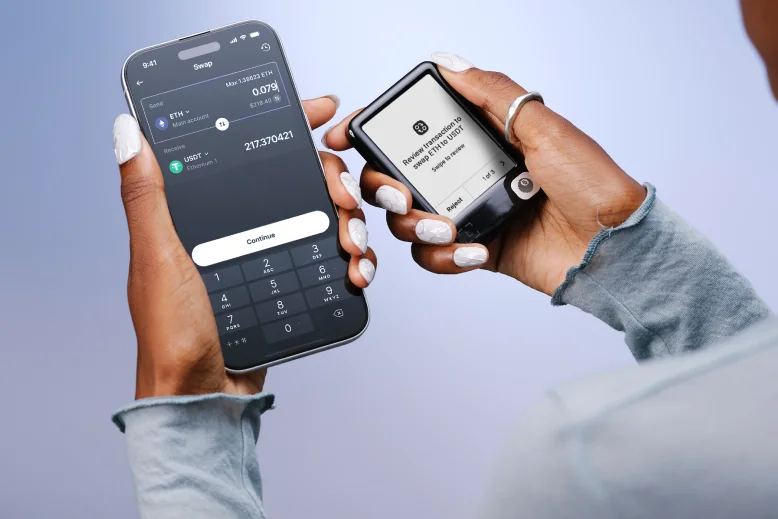
Find your manufacturer or model
If your device already holds a wallet, follow the app’s hardware-connection instructions. Do not import its recovery phrase merely to connect it. The same app may also offer a separate software wallet.
Ledger Wallet was previously called Ledger Live. The Ledger entry below is the current app page. For brands using third-party apps, start with the exact device’s connection instructions; a listed app is not a promise of every asset, network or platform.
- BitBox Download BitBoxApp · bitbox.swiss
- Bitkey App download instructions · support.bitkey.world
- Blockstream Download Blockstream app · blockstream.com
- Coinkite COLDCARD Compatible wallet apps · coldcard.com
- Coinkite TAPSIGNER Compatible wallet apps · tapsigner.com
- CoolWallet App download on the manufacturer site · coolwallet.io
- DCENT Official app page · store.dcentwallet.com
- ELLIPAL Official app page · ellipal.com
- Foundation Envoy downloads · docs.foundation.xyz
- Foundation Passport Prime App connection instructions · docs.foundation.xyz
- KeepKey KeepKey Desktop (also named KeepKey Vault) — GitHub releases via keepkey.com
- Keystone 3 Pro Connect OKX Wallet Mobile · guide.keyst.one
- Ledger Download Ledger Wallet · shop.ledger.com
- NGRAVE LIQUID app · ngrave.io
- OneKey App downloads · onekey.so
- SafePal App download center · safepal.com
- SecuX Choose the app for your model · secuxtech.com
- Tangem App download on the manufacturer site · tangem.com
- Trezor Trezor Suite downloads · trezor.io
Check the source before installing
Check the website name (domain) in the address bar and use the platform link on that official page. If it opens an app store, follow that link rather than searching again by name. For a desktop download, read the publisher’s verification instructions before opening the installer. The two guides below show different kinds of check.
BitBoxApp: a checksum is a value calculated from a file. The guide shows how to calculate it for your downloaded installer and compare it with BitBox’s published value for that exact version and platform. The calculated value must match the published one. This checks that the files agree; it does not independently prove who published the reference value.
Trezor Suite: the signature check uses Trezor’s published signing key to check who signed the download and whether it has changed. Read the instructions for your operating system first: they identify the checking tool and the installer, signature and signing-key files you need. Follow the steps and compare your result with the one the guide describes.
If a check fails or you cannot interpret the result, do not install the file. Follow the guide’s troubleshooting steps or contact the publisher through its official site. For another app, use that publisher’s download or help page to find its procedure; the support section below explains how to ask for help without sharing wallet secrets.
A web page is not automatically a fake wallet. Trezor provides a genuine Suite web app, and SecuX offers a web app for specified models. Use the manufacturer’s route to it. Browser, phone and desktop versions can support different tasks.
An official app can also link to exchanges or other services with their own accounts. A service sign-in is separate from unlocking your device or restoring its wallet.
Manufacturer support
Connecting, unlocking and recovering are different tasks
To connect a hardware wallet you already use, follow the instructions for your exact model. The app may pair with the device or add its existing accounts. Adding accounts lets the app display their addresses and balances; it does not import the wallet’s recovery words. Restoring the keys from a backup is a separate task.
For the Keystone 3 Pro example linked below, check the connection guide’s firmware requirement before connecting. Install OKX Wallet Mobile from OKX’s download page, then follow Keystone’s hardware-wallet connection steps. After connecting, compare the account address in the app with the address shown on Keystone; they must match.
The recovery procedure and where you enter the information depend on the model. For example, Trezor Model One’s documented standard recovery asks for words in Suite in the order instructed by the device. Do not turn an unexpected “verify your wallet” request into a recovery attempt: independently open the exact model’s maintained procedure first.
- Device PIN: unlocks the hardware. Follow the device’s actual method; PIN entry is not always on its own screen.
- App lock: protects access to the local app. It is not the wallet’s recovery phrase.
- Service account: signs you into a separate provider. Its password does not restore hardware-held keys.
- Recovery: restores access using the model’s backup method and any required passphrase. This is not ordinary app pairing.
- Signing request: asks the wallet to authorize an action. Even in an authentic app, check the payment or permission itself.
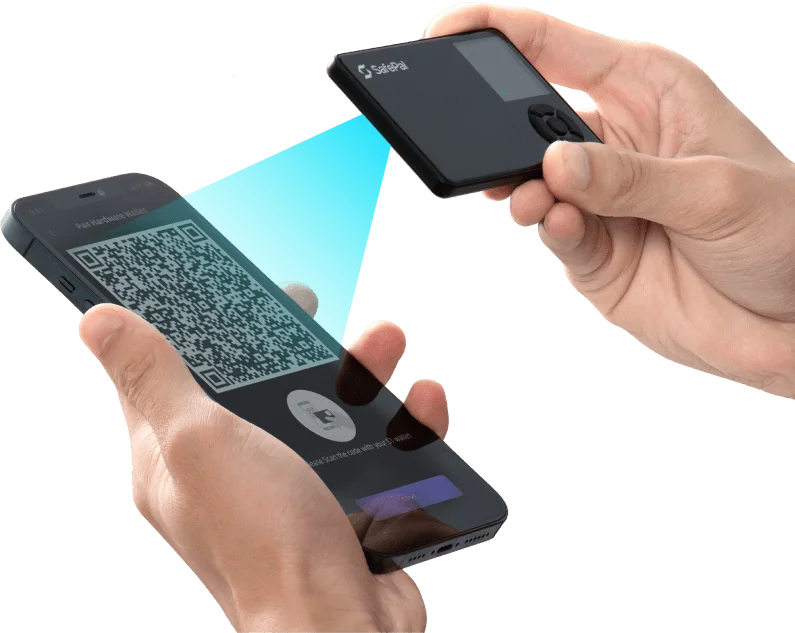
SafePal’s manufacturer illustration shows pairing a SafePal S1 with its phone app. This is a hardware-connection example, not a recovery-phrase entry screen.
Trezor Model One: PIN entry and recovery methods
Understand connection, permission and payment requests
Manufacturer support
Get support without handing over your wallet
For KeepKey or Keystone, use the support links below. For other makers, open their entry in the manufacturer directory and look for the manufacturer’s support or contact details. A support agent does not need your recovery words, private key or optional passphrase. Do not send those secrets in a chat, form, photo or screen-sharing session.
On KeepKey’s support page, choose “Open Ticket”. For Keystone, use the support email shown at the bottom of its official website. These routes are separate from KeepKey’s GitHub download page and Keystone’s app-connection guide.
Explain which device and app you use, what you were trying to do and the error or unexpected request you saw. Keep wallet secrets out of your description and any screenshots.
If a prompt does not match the task you started, stop before entering secrets or approving anything. If you have already acted, the next step depends on whether you only saw a message, signed a permission, sent a payment or exposed recovery information.
Open the manufacturer directory to find official support
Manufacturer support