

What lets you recover a wallet
Many wallets ask you to write down a list of words during setup. This is the recovery phrase, also called a seed phrase. Those words, in their original order, let you recover access without the old device. Other wallets save a backup differently: for example, BitBox can use a microSD card.
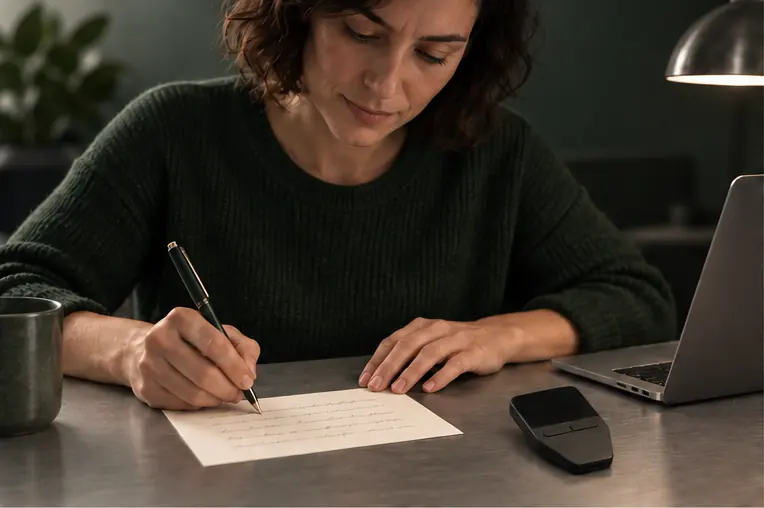
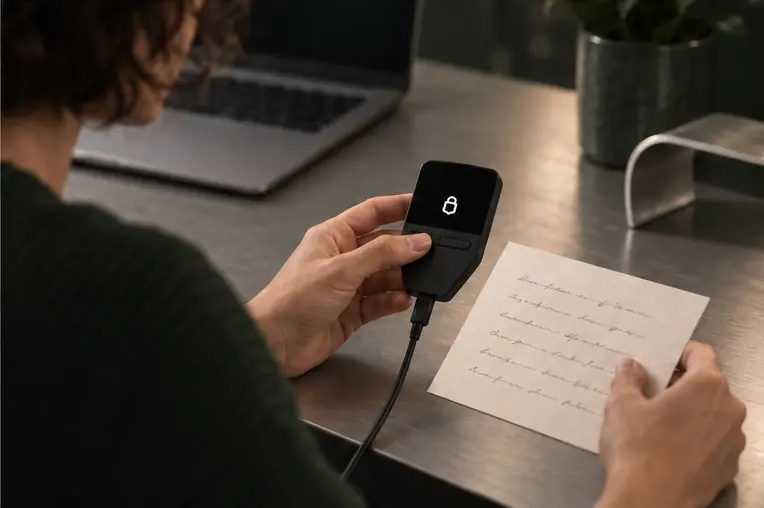
Example: when setting up her Trezor Safe 3, a wallet owner writes down the recovery words in order.
- Recovery phrase or backup
- Used to restore access on a replacement wallet. Keep it even when you no longer use the original device.
- Optional passphrase
- Only needed if you chose to use this feature. Keep it as well as the recovery phrase or card backup.
- Device PIN
- Unlocks the device you already have. You do not recover a lost wallet by entering its PIN on a new one.
Trezor Model T: why microSD protection is not a wallet backup
Keep the recovery phrase private
Someone who gets your recovery phrase may be able to access your crypto from another wallet. Do not photograph it or save it in email, chat or cloud notes. Protect the written record from theft and damage.
- If you keep more than one written copy, protect each one.
- A BitBox microSD backup also contains secrets. Keep the card offline; BitBox says not to insert it into a computer or phone.
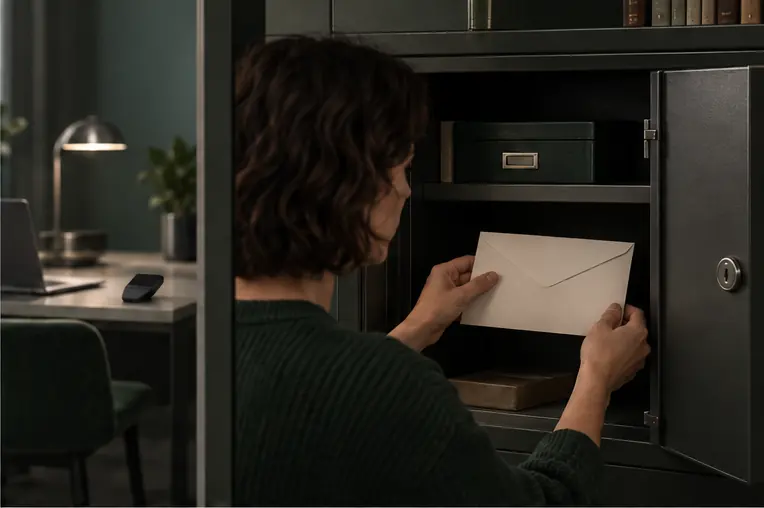
She puts the written words away, separately from the wallet.
If the wallet is lost or broken
To restore access after device loss or failure, you need the recovery phrase or backup saved for that wallet. Buying another hardware wallet is not enough by itself: the replacement must accept what you saved. If no working device or other access remains and you have neither a usable backup nor another recovery method supported by that wallet, replacing the device will not restore access. Before choosing or setting up the replacement:
- Identify your backup’s format. Recovery words and microSD backups are not all interchangeable; the format examples below explain what the replacement needs to support.
- If you used a passphrase, have the exact same passphrase as well as the backup. Check that the replacement supports that feature with your backup format.
- Check that the replacement and its wallet app support the coins and networks you use. Accepting the backup format alone does not confirm that you can use all your existing accounts.
- Follow the manufacturer’s official recovery instructions for the exact replacement model and backup method.
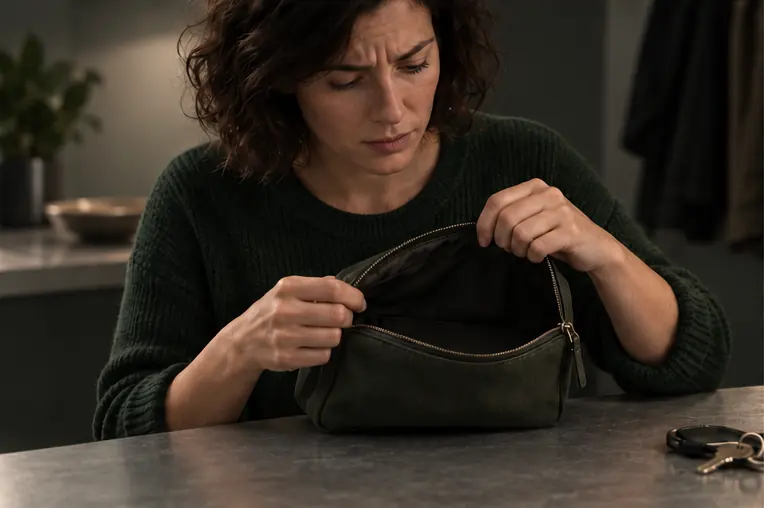
Later, she loses the wallet. The written words are still where she stored them.
Check which recovery formats a replacement must support
Original Ledger Nano S: checks if its screen is blank or dim
Leave yourself a useful reminder
A few years from now, you may remember where the recovery phrase is but not which wallet it belongs to. A separate note with the model and the manufacturer’s instructions can save that confusion. In this example, SLIP39 is the name of the recovery format; the differences between formats are explained below.
Example reminder
- Wallet model
- Trezor Safe 3
- Recovery format
- SLIP39
- Official recovery instructions
- Trezor Safe 3: restore access with your recovery words
Will the replacement accept your backup?
Two wallets can both use recovery words and still use different formats. These names identify how the backup works. They are worth recording when you set up the wallet, so you can choose a compatible replacement later.
- BIP39: a recovery phrase
- One ordered list of words. The replacement must support BIP39 and, if you use one, a passphrase.
- SLIP39: one or more shares
- Each share is its own list of words. With several shares, you choose how many are needed for recovery during setup. The replacement needs SLIP39 support; BIP39 alone will not work.
- BitBox: a microSD backup
- The card holds the backup. To use it, the replacement must accept BitBox backups. Having a microSD slot does not make another wallet compatible.
With the words she saved, she restores access on a replacement Trezor Safe 3.
If you added a passphrase
A passphrase is an optional password used alongside the recovery phrase. For example, on Trezor it opens a separate wallet: a different passphrase, even a typo, opens a different wallet. To return to the one you used, you need the original passphrase as well as the recovery phrase. If you use this feature, keep a secure record of the passphrase too. A BitBox microSD backup does not include an optional passphrase either: you must enable that feature again after restoring and enter the same passphrase.
Know what your wallet’s backup check confirms
A backup check can help catch a mistake while you still have access to the wallet. Use the method for your exact model. On Trezor Safe 3, Check backup compares the words you enter with the backup stored on the device. A match confirms that those words agree with it, without replacing the stored backup. That result does not demonstrate restoration on another device or confirm access to a passphrase wallet.
Open Check backup
Connect Trezor Safe 3 to a computer with a USB cable and open the Trezor Suite desktop app. In the device settings, choose Wallet backup, then Check backup.
Enter the words on the device
Use the Safe 3 buttons to enter the words from your written record in order. The device screen guides you through the check.
Read the result
A match confirms that the words you entered agree with the device’s backup. If there is an error, check your entry and follow Trezor’s instructions before relying on that record.
Do not reset your only working device to test recovery.
Trezor Safe 3: full backup check instructionsOther wallets have their own checking methods and preparation. Read the official instructions for your exact model before starting. Enter recovery information only as that procedure requires, during a backup check you started. If the procedure uses prompts on the physical device, follow those prompts. Never enter recovery words into an unsolicited form or send them to a support agent.
If your backup is missing or still fails after you have checked your entry, keep your device configured; do not reset it. On Safe 3, leave Check backup mode from the Backup check screen: press the left button, scroll down with the right, then press the right button under Cancel. The official Safe 3 instructions linked above illustrate this exit. Other models have their own exit procedure.
Some devices can make another backup of the wallet already on them. For example, if you can unlock your BitBox02, you can create another microSD backup using the linked instructions. Trezor’s Create new backup option for SLIP39 works differently: you must supply enough valid words or shares from your current backup to recover the wallet. It cannot replace a missing backup when you have none of those words or too few shares.
If you are unsure which option your model supports, use the official support route below before changing it. Explain the model and the error you see, but never send your recovery words, private key or passphrase.
Move funds when your backup is missing
Find your wallet maker’s official support
Manufacturer support
Could someone you trust recover access?
If someone may need to handle your crypto when you cannot, they need more than a note saying that you own some. Prepare the information below, without putting the recovery phrase or password in a shared document.
Being able to open a wallet does not establish a legal right to its funds. Inheritance arrangements may also need qualified advice under local law.
- Record the wallets and networks you use, so the person knows what to look for.
- Arrange how they will find the recovery phrase or card and any passphrase when needed. You can discuss the plan without revealing the phrase or password.
- Review the plan if you change wallets or the person you trust.
If the backup is missing but you can still sign
If you cannot make a usable backup but your device still approves payments, you can move the funds to a separate wallet with its own new backup. Keep the current device configured; do not reset it or change its firmware first. A displayed balance alone does not mean you can authorize a transfer.
- Check that the destination wallet and its app support each asset and network you need. Follow its official new-wallet setup, save the new recovery material and exact optional passphrase if you use one, and complete any backup checks that model provides. Keep your current signing device intact while you do this.
- For each asset, get the destination wallet’s receiving details on the network you will send over. Verify the full address using that model’s official method, including its hardware display if supported. Keep any required memo or tag and check the receiving minimum.
- Prepare a small test transfer in the current wallet’s official app, choosing an amount that allows for fees and meets the receiving minimum. Enter any required memo or tag from the receiving details. Check the full destination address, asset, network, amount, any required memo or tag and fee in the app. Keep enough of the network’s fee-paying asset for the transfers you still need to make. Then review the details your device displays and authorize and send the test using your model’s instructions.
- Wait until the test is credited to the intended destination account; a signature or submitted transaction is not proof of receipt. Before sending the rest, recheck the full receiving address, asset, network, any required memo or tag, amount and fees. Follow your model’s review, signing and sending instructions for the remaining funds.
- Repeat the checks for your other assets and accounts. Keep the old device configured until all planned transfers have arrived and no remaining funds still depend on it. Do not reset it merely because the main balance has moved.