

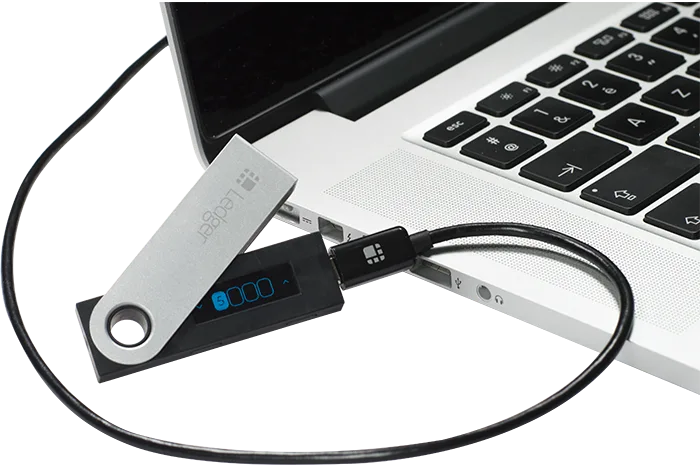
What support remains?
Do not reset a working Nano S while checking support for the coin, network and task you need. If its screen is unreadable or a required device app is no longer supported, consider restoring access on a compatible wallet. Transferring to a new wallet is an alternative only if you can still read, check and approve the transaction on the old device.
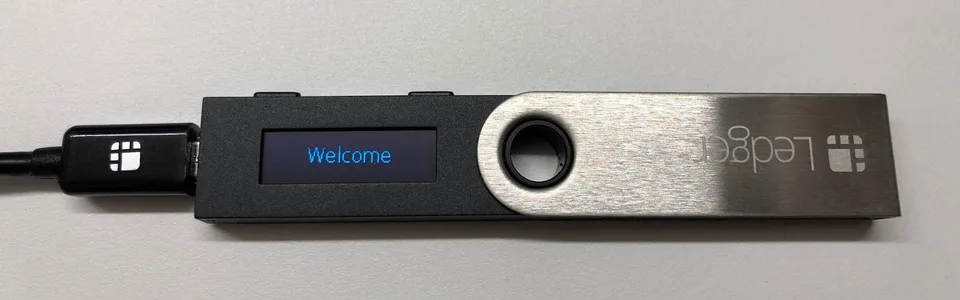
The original Nano S has a micro-USB connection on the left and two buttons above the screen.
Ledger ended production of Nano S in 2022. This is the older micro-USB model, not Nano S Plus. Ledger is now phasing out its support, and some of the apps installed on the device have already lost support, including XRP and Exchange. That does not erase assets from their networks, but it can prevent you from using this device to manage them.
Ledger's end-of-life policy covers its device operating system and Ledger-developed device apps. Ledger Wallet (formerly Ledger Live) is the companion app on your computer or phone. It and device apps developed by other teams have separate support arrangements. Ledger Wallet may still open on your computer even when a particular Nano S device app can no longer work with the network you need.
If the guidance for your asset is unclear, ask Ledger support about the original Nano S. Name the coin or token, its network, and whether you need to receive or send it.
Manufacturer support
An unreadable screen or a USB connection problem
For a dim screen, Ledger suggests adjusting brightness in the device settings. Only try this if you can still read the screen well enough to navigate. If you cannot read it, do not guess the PIN or approve a transaction blindly. Three incorrect PIN attempts reset a Ledger device.
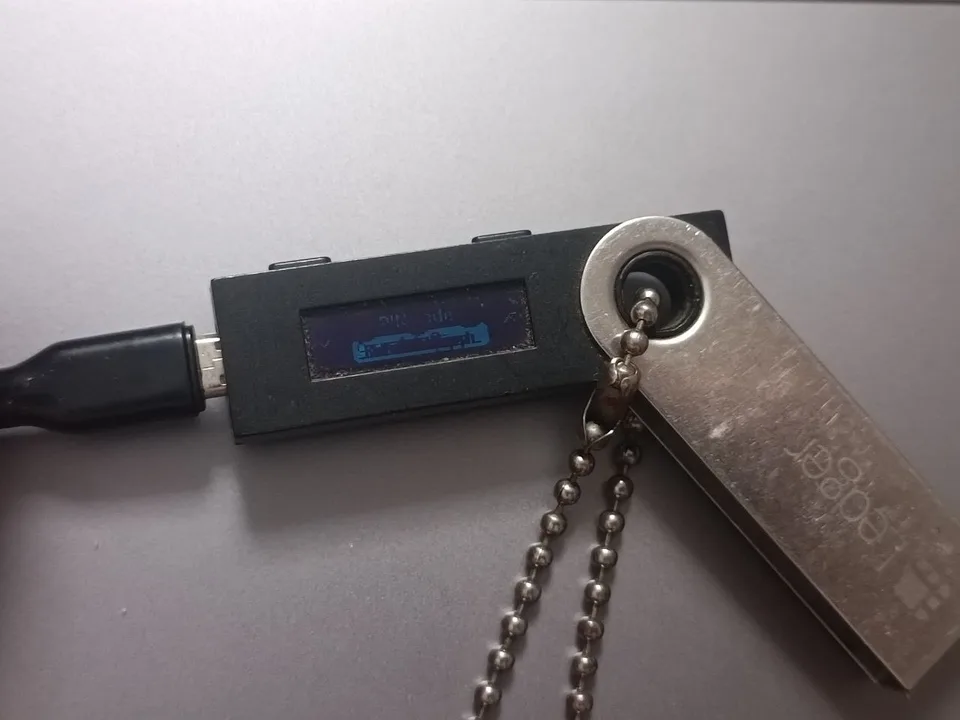
Original Ledger Nano S connected by micro-USB.
If Ledger Wallet does not detect the device, try another micro-USB data cable and USB port. A cable that only supplies power will not carry data. A dim or blank screen does not identify the cause of the fault; if the problem persists, contact Ledger support. Resetting the device is not a troubleshooting step for an unreadable screen.
We’ve encountered this ourselves with a Nano S that had spent years in storage. Its screen became progressively dimmer while it was powered on and remained almost unreadable.
Manufacturer support
Before updating a device you have not used for years
Find your recovery phrase before updating the device software (OS). Ledger warns that the device can reset during an update. If this Nano S is the only way you can still approve transactions from your accounts and the phrase is missing, do not update or reset it. You may be able to transfer to a new wallet if the Nano S can still approve transactions for the assets you need to move; see the next section.
Very old Nano S software needs a particular update sequence, which can involve an older version of Ledger Wallet and several updates. Use Ledger's dedicated procedure rather than starting with a general update guide. The latest Nano S OS listed in the release notes is 2.1.0, released on 30 November 2021.
Manufacturer support
Restore the same wallet, or transfer to a new one
With the original recovery phrase, you can restore the same wallet on a compatible replacement. This gives the new device access to the same accounts; it does not send your crypto anywhere. A wallet created on Nano S uses 24 words, while an imported wallet may use 12 or 18. For accounts protected by an additional passphrase, you also need that exact passphrase.
Before choosing a replacement, check that it accepts your recovery phrase and any additional passphrase, and that its wallet app supports your assets, networks and account types. Follow the recovery instructions for that exact model.
With a replacement Ledger, enter the recovery words on the device itself, never in Ledger Wallet, a website or support chat. Then install the required device apps and add your existing accounts in Ledger Wallet where supported. For assets that use another wallet app, follow the manufacturer’s instructions for that app. Confirm that the accounts and balances are the ones you expect.
A replacement device or support agent cannot recreate missing keys if the old device is unusable and you have neither the recovery information nor another device or wallet app that can still authorize transactions from those accounts.
If the old Nano S can still approve transactions but you have lost the phrase, you can create a new wallet on another device and transfer your assets to it. First record and check the new wallet’s backup using its manufacturer’s instructions.
Set up a receiving account for the asset and network you are moving. If the new model can display receiving addresses, compare the full address in the app with the one on the device. Otherwise, follow that model’s official instructions for checking receiving details. The transfer involves network fees. Start with a small test and confirm it arrives in the intended account before sending the rest; the transfer checklist below explains the checks.
Keep the old Nano S configured after the move. You may later discover an old account you overlooked.
Recovery formats and compatible replacements
Check receiving details, fees and a test transfer
Manufacturer support