

Use the screen to read the PIN grid
Model One shows shuffled numbers on its screen. In Trezor Suite, click the matching positions on the blank grid, in the order of your PIN. The numbers move, so follow the layout currently shown on your device rather than the layout in a photograph.
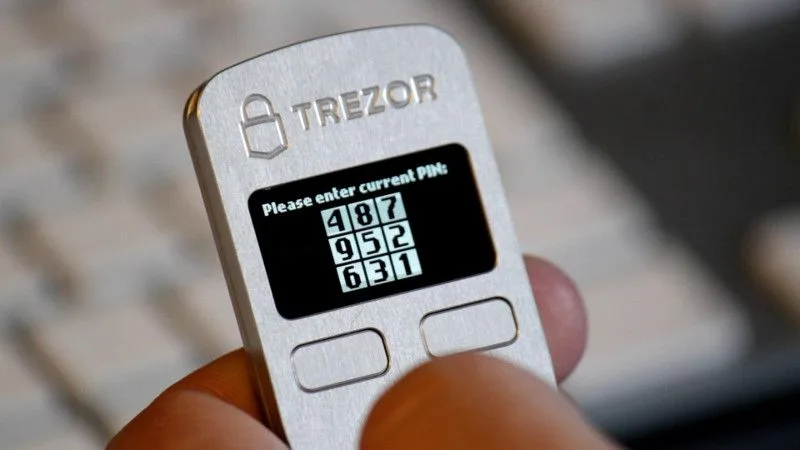
Read the numbers on Model One and select their positions in Trezor Suite. The pictured layout is an example; use the one on your own device.
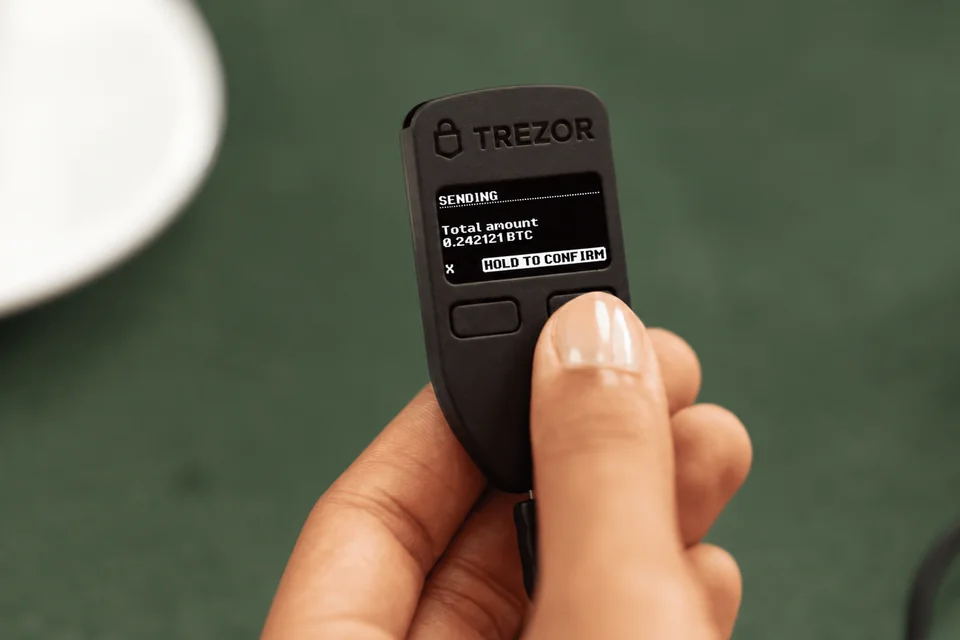
The two physical buttons confirm requests on the device. They do not replace the app’s PIN grid. If you cannot read the screen, do not guess positions or approve a transaction blindly.
Manufacturer support
A forgotten PIN and a forgotten passphrase need different answers
A forgotten PIN can be replaced by resetting the device and restoring the wallet, but the reset erases its stored wallet. Before considering that route, make sure you have the correct recovery phrase and the exact passphrase if you used one. Without them, keep the device as it is and seek official guidance before changing anything.
A passphrase cannot be reset like a device PIN. A different spelling, space or capital letter opens a different wallet. Model One requires passphrase entry in Trezor Suite on the connected computer or phone. Resetting the device will not recover a forgotten passphrase.
Manufacturer support
Choose the right recovery method
Normal Model One setup creates a 24-word BIP39 backup; 12-word creation requires advanced setup. It can restore 12-, 18- or 24-word BIP39 backups, but not SLIP39 shares. With a passphrase wallet, restoring the words alone does not open that wallet.
Choose Advanced Recovery to keep whole recovery words off the computer: Model One shows changing letter groups, and you select their positions in Trezor Suite. Standard Recovery instead asks you to type whole words into Suite in the order shown on the device. It remains available for 24-word backups. Trezor disabled it for 12- and 18-word backups with safety checks enabled after finding a weakness in repeated recovery attempts and backup checks. Use Advanced Recovery for those lengths; do not disable the checks.
To restore a wallet on an empty or reset Model One, follow the official Advanced Recovery instructions below. Enter recovery information only when the physical device prompts you during the procedure you started. Never enter words into an unsolicited recovery form or send them to support.
If you can unlock Model One with its PIN and read its screen, you can check your saved backup without resetting it. On your computer, open Trezor Suite Desktop or Trezor Suite for web. Go to Device settings, find Wallet backup and choose Check backup. Select your word count and Advanced recovery, then follow the device prompts. The device should report that the backup matches the one stored on it. This does not check your passphrase or prove that another model can restore the wallet. If the words do not match, keep the device as it is and check your written backup and entry before proceeding.
Check recovery-format compatibility before changing wallets
Manufacturer support
Before an update or a return after long storage
Find your backup before updating old firmware. An update can erase the configured wallet; Trezor specifically states that updating from installed firmware 1.6.1 to a newer version wipes the device. Without a usable backup, keep Model One configured and do not update it yet.
If you can still unlock Model One, read transaction details and approve payments on it, transferring to a separate wallet may be an option. First set up that destination using its manufacturer’s instructions, confirm support for your coins and networks, and save and check its new backup using the method for that model. Keep Model One configured until you have transferred your funds and confirmed they arrived. If you cannot authorize payments, this transfer route is unavailable; viewing a balance in an app is not enough.
Trezor stopped selling Model One in its own shop on 8 January 2026. Its stated commitments distinguish basic maintenance until at least 2031 from critical security fixes until at least 2036. That does not guarantee support for new coins or unchanged app compatibility.
What to do when your wallet backup is missing or fails a check
Manufacturer support