Your setup: phone or computer, several cryptocurrencies, no control preference. They differ in apps, controls, and backup options. Choose the setup that suits you. Compare wallets
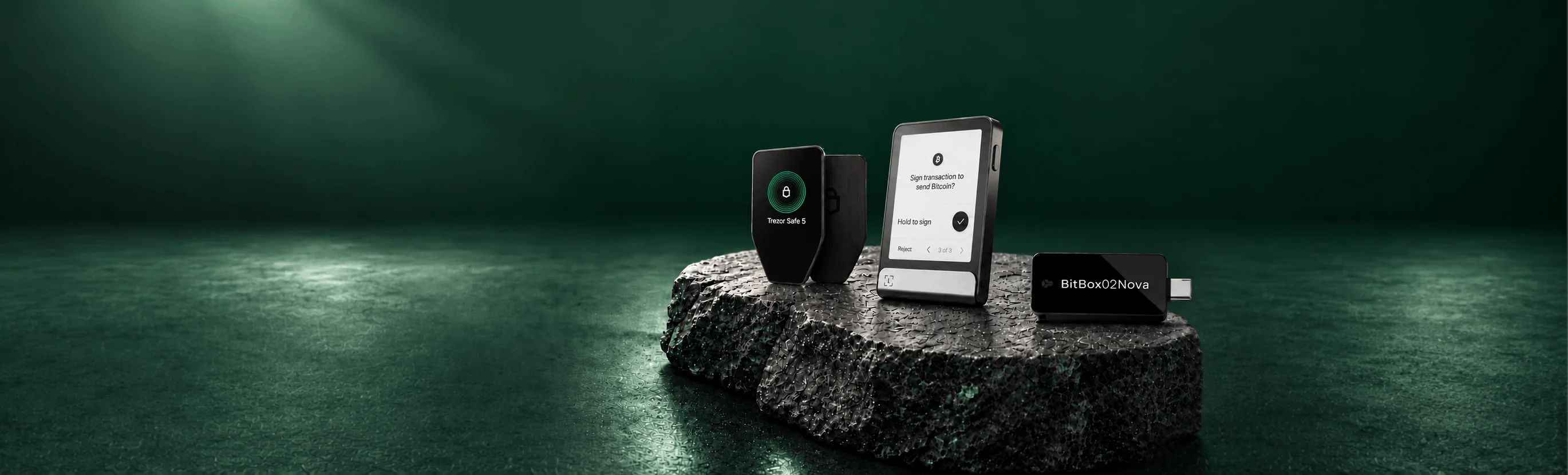
Three wallets we’d start with. Your setup: phone or computer, several cryptocurrencies, no control preference. Trezor Safe 5, Ledger Flex, and BitBox02 Nova
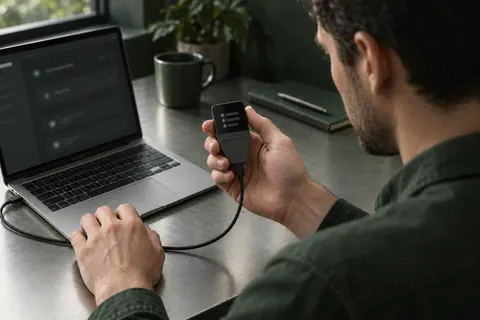
Our wired pick for Trezor Suite on a computer or compatible Android phone. Enter your PIN and recovery words on the colour touchscreen; USB also supplies power.
Approve transactions with Trezor Suite
Computer:USB
iPhone:Not supported
Android:USB
Before you choose:This model connects by USB; choose another model if you need to sign with an iPhone.
Choose BitBoxApp, edge controls and a microSD backup made during setup. Keep the card separate: the default backup can restore access without the old device password. You’ll still need any optional passphrase.
Approve transactions with BitBoxApp
Computer:USB
iPhone:BluetoothMust stay plugged in
Android:USBPhone needs USB OTG
Before you choose:You control it by touching its edges, not the screen.
Consider Nova if you want a compact wallet with microSD backup. When using it with an iPhone, you need to connect it to the phone or another suitable power source.
Flex
Consider Flex if you want more screen space for checking transactions and a rechargeable battery for Bluetooth use with Ledger Wallet.
Your routine stays on USB with a computer or Android device. You do not need iPhone support and are comfortable reviewing details on the original OLED display.
Nova
You need iPhone signing or prefer Nova's glass-covered display. Allow for external power and Bluetooth pairing when using it with an iPhone.
You prefer Trezor Suite, a colour touchscreen and USB. You are not depending on this device to approve transactions from an iPhone.
Flex
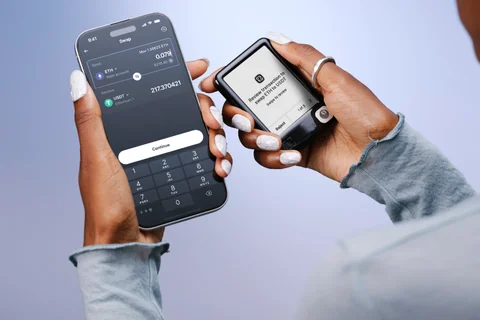
You want an E Ink touchscreen and Bluetooth for use with a phone. You prefer Ledger Wallet; some cryptocurrencies may need a compatible third-party app.
Build safer habits for any wallet. Open a rule to see why it matters.
01Control your keysKnow who can authorize a transaction.
Self-custody starts with knowing who holds the keys. An exchange account and a wallet you control are different arrangements. Before moving funds, understand who can sign and how you would recover access.
A hardware wallet can isolate signing keys from your everyday computer. It still depends on careful setup, a protected backup, and checking what you authorize.
Your recovery phrase gives access to your wallet. Never share it with support or enter it into a website. Follow the manufacturer’s official recovery instructions.
Review the full address and payment details in the app before approving. If that payment uses hardware approval, check the details your model shows there too. A screenless wallet has no separate hardware display to check. Pause if you cannot understand the request.
Use saved official addresses and verify downloads at the source. A familiar logo or a convincing support message is not proof of authenticity. No legitimate support agent needs your recovery phrase.
Learn how you would restore access before your device is lost or broken. If your model offers a backup check, follow its official instructions and preparation, and understand what the result confirms. Keep the backup separate from the device.
Plan how a trusted person could locate instructions and recover access without exposing your keys in everyday life. Complex arrangements may need appropriate professional advice.