A good fit if
You use a computer for crypto transfers and want to review them on a touchscreen. W10 suits a wired routine: its Micro-B USB connection provides power, and it has no battery to charge.


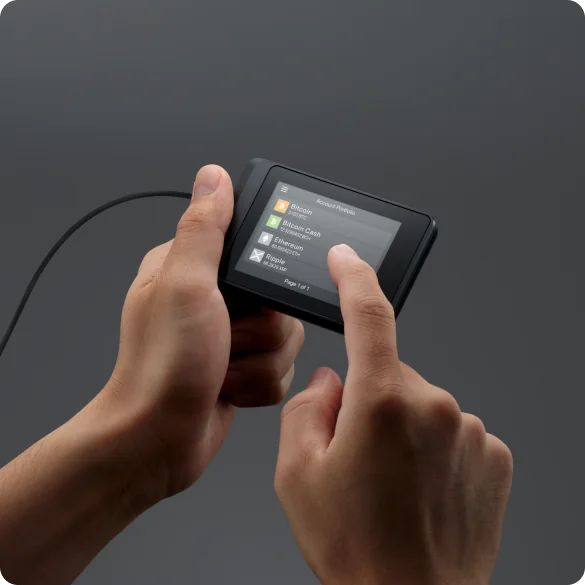
A hardware wallet for transactions on a computer, with a 2.8-inch touchscreen and Micro-B USB. W10 has no battery and runs from connected USB power.

Approve transactions with
Backup
Recovery phrase
Power
USB power
Is it right for you?
You use a computer for crypto transfers and want to review them on a touchscreen. W10 suits a wired routine: its Micro-B USB connection provides power, and it has no battery to charge.
Your phone is your main device, or you want to use the wallet away from USB power. W20 and V20 have a battery and Bluetooth phone support; V20 also changes the computer connection to USB-C.
For a rectangular touchscreen wallet with Micro-B USB that also has a battery and Bluetooth phone support.
Compare SecuX W10 and SecuX W20For USB-C and a round aluminium body, with computer use over USB and phone use over Bluetooth.
Compare SecuX W10 and SecuX V20Phones and computers
Check the app and connection for each device. Setup and transaction signing are confirmed separately.
USB
Linux
Unlock W10 and connect it by USB to a computer. Use SecuXess in a supported browser such as Chrome.
Connect W10 to your computer with a Micro-B USB cable, unlock it with its PIN and open SecuXess in Chrome. The computer prepares and sends the transaction; W10 is where you review and authorize it on the 2.8-inch colour touchscreen.
Enter the recipient address and amount in SecuXess, compare those details on the wallet and tap AUTHORIZE on W10. Then return to SecuXess for the final Send action.
W10 has no Bluetooth and no battery. It needs external power while you use it, so keep the USB connection in place. SecuX’s computer connection guide lists Windows, macOS, Linux and Chrome OS.
Official guidance
W10 supports Bitcoin and Ethereum transfers through SecuXess. For tokens on Ethereum, use an Ethereum account in the web app. For another token or network, use the desktop column of SecuX’s supported-assets list; the mobile app’s coverage is not the right reference for W10.
When receiving, select the cryptocurrency and account in SecuXess, then compare the receiving address with the one shown on W10. At your exchange, select the intended token and confirm that the receiving account supports it. The withdrawal network must match that account’s network.
Official guidance
When you create a new wallet, W10 generates a 24-word recovery phrase on the device and asks you to confirm the words there. Its package includes two paper recovery sheets. Record the words in order and keep them offline, separate from W10; the device PIN is not a replacement for this backup.
To restore an existing wallet, W10 accepts a compatible 12-, 18- or 24-word phrase entered on its touchscreen. Moving a backup also depends on its recovery format and support for the accounts and networks you use.
Hidden Wallet lets you create a separate wallet alongside your original one. It uses an additional recovery password, called a passphrase, and has its own PIN. Restoring it needs both the recovery words and exactly the same passphrase. Include that password in your backup plan if you use the feature.
Settings → SEED checks the words you have recorded while W10 is working. It is a backup check, separate from resetting the wallet or restoring access.
Official guidance
W10’s web update procedure uses SecuXess in Chrome with the wallet connected by USB. Have your recovery words and any Hidden Wallet passphrase available before starting, in case recovery is needed.
The update switches W10 into firmware update mode. Keep the USB cable connected and stay on the update page until it finishes. That connection also powers this battery-free model.
| Detail | Value |
|---|---|
| DisplayDisplay type | LCD |
| Screen diagonal | 2.8″ |
| Colour mode | Colour |
| Size and weightDimensions | 13 × 89 × 59 mmDimensions as listed by the manufacturer |
| Device weight | 49 g |
| Power and chargingBattery | No battery |
| Operating power | USB power |
| Device connectionsUSB port | Micro-USB |
| Security and softwareSecurity chip | Infineon SLE Solid Flash · CC EAL5+ |
This page is based on manufacturer documentation.
Documentation checked: ·
How we compareSecuX W10

