Choose CoolWallet Go if you want a battery-free card for payments from your phone and are comfortable checking transactions on the phone alone. You approve with an NFC scan. Its two-card backup system suits you if you can keep a spare card and a durable record of the pairing password safe.
Consider another model if
Choose CoolWallet Pro if you want to check payment details on a card screen and approve with a button. Pro uses Bluetooth and needs charging. If you want a backup that can restore access without the Go cards, understand the app-generated recovery-phrase option before setting up Go.
Choose CoolWallet Pro if you want to review the recipient and amount on a card screen and approve with a button. It connects to the phone over Bluetooth and needs its contact charger.
CoolWallet Go works with the CoolWallet app on an NFC-capable iPhone or Android phone. The app prepares the payment; scanning the primary Go card authorizes it. There is no screen or button on Go, so you cannot compare the phone’s payment details with an independent display on the card.
Before buying, check your exact phone’s NFC support and the app’s current requirements. CoolWallet’s product pages disagree on the minimum Android version, so an older phone meeting one published minimum is not enough to establish compatibility.
Use the wallet connected to your Go card. The same app also offers HOT, a separate software wallet whose keys are held on the phone. Importing your Go recovery phrase into HOT would give the phone access to those same keys.
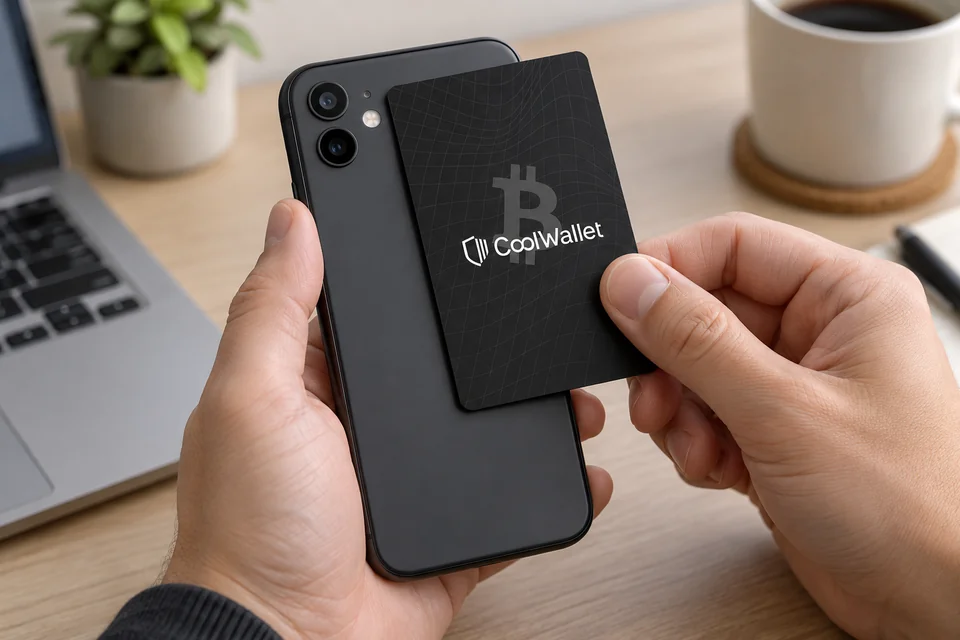
Hold the Go card near your phone’s NFC antenna and keep it still while scanning. This illustration shows the positioning; the antenna’s position depends on your phone. Review the payment in the app before approving.
The Go set contains two electronic cards for the same wallet. Use the primary card for everyday signing and keep the backup card separately. The paper recovery-phrase card in the box is a place to write words; it is not the electronic backup card.
You need the pairing password to promote the backup to primary. CoolWallet says the previous primary then takes the backup role and must be switched back before it can sign. This changes the cards’ roles, not the wallet’s private key: do not treat it as revoking a stolen or exposed key.
The second card is not a separate wallet for another person, and Go does not require both people or both cards to approve each payment.
Choose your backup before adding funds
Go offers two ways to create a new wallet. The choice determines whether you have written recovery words as well as the cards. Decide before setup; a card-generated phrase is not shown for you to copy later.
What each backup choice gives you
Choice
What to do
What you must keep
Generate on the card
What to doScan both electronic cards as setup directs, completing the backup on the second card. The phrase stays inside the cards and is not displayed.
What you must keepThe cards and a durable record of the pairing password. There is no written phrase to enter into another wallet.
Generate in the app
What to doWrite down the words shown during setup and complete the electronic backup-card setup. The phrase has been visible on your phone.
What you must keepThe complete written phrase, as well as the Go cards and pairing password for their normal use.
Install the official app, choose the Go setup option and create its eight-digit pairing password. Record that password somewhere you can find without your only phone. Complete the selected backup process before receiving funds.
With a written recovery phrase, keep the complete words in order, offline and private. Do not photograph them, put them in cloud notes or send them to support. Card-only backup instead depends on retaining a usable card and the credentials needed to use it; losing or erasing both cards removes that recovery route.
Written words give you a recovery route beyond the Go cards only if the replacement wallet supports that backup and your networks and accounts. Card-only backup still needs compatible software to use the card; it is not a recovery phrase you can enter into an unrelated wallet.
CoolWallet’s documented phrase test involves resetting and restoring a card. It is not a harmless in-place backup check. Do not reset a funded card just to find out whether your written record is correct.
Match the receiving network and review before scanning
In the Go wallet in the app, open Receive and select the asset on the network the sender will use. Check those receiving details before sharing the address or QR code. A token with the same name on another network is not interchangeable.
To send, open Send in the Go wallet, choose the transfer and asset, and enter the recipient and amount.
Compare the full recipient address with the recipient’s trusted receiving details. Check the network, amount and fee on your phone. Stop if anything does not match your intended payment.
When the app asks for approval, scan your primary Go card. The button and card-screen steps in the manufacturer’s guide apply to Pro/S; Go uses the NFC scan.
Use the app’s transaction history to follow confirmation. Signing is not the same as the destination receiving the payment.
Check support for Go specifically on the manufacturer’s coin-and-network page. If your exact asset or network is unclear or the list does not load, confirm it with official support before transferring. A general app listing is not proof of every Go signing task.
An established address can receive an ordinary on-chain payment while the card is disconnected. Receiving a payment is different from approving a transaction with the card.
For a new destination, send a small test that meets any minimum deposit and allows for fees. Wait until it is credited to the intended account before sending more. Token transfers may also need the network’s native coin for fees.
The eight-digit pairing password is normally not needed for everyday transfers, but it is needed to connect a new phone or promote a backup card. It is separate from a written recovery phrase. CoolWallet cannot retrieve it, and its staff should never ask you to disclose it. Do not guess a forgotten password: five incorrect attempts can block pairing with a new phone. Keep the old phone and card intact; they may still let you authorize payments.
Which phone-change route matches your app?
New phone
Manufacturer’s route
You installed the app afresh
Manufacturer’s routeChoose I already have a card → CoolWallet Go → Restore Wallet → Bind with CoolWallet Go. Enter the pairing password and scan the card when prompted.
The app came across with a phone transfer
Manufacturer’s routeAt New device detected, choose Re-pair, scan the primary card and enter the pairing password.
Keep a password record away from your only phone. CoolWallet’s backup guide says an already-paired phone may still work with the card after new-phone pairing has been blocked. Do not assume it will, or reset it to test the password.
The September 2026 phone-change guide distinguishes a fresh app installation from an app transferred with your phone data. Re-pairing connects the card you already have; it does not require importing recovery words.
After a fresh installation, BTC Taproot and ETH appear automatically. Re-add other assets and address types you used, such as BTC Custom Segwit, BNB or USDT, so their balances can appear. A missing entry alone does not mean funds were lost.
Keep the old phone and cards intact until you have checked the intended accounts on the new phone and can use the card to authorize a payment. The pairing password stays the same.
Choose the recovery route before resetting anything
What you still have determines the next step. A phone that only shows a balance is not enough for the transfer route: it must still work with your primary card to authorize payments. Preserve that route while you establish another way to access the funds.
Start with what you still have
Situation
Next step
Primary card lost; spare and pairing password available
Next stepIn the app’s Settings, use Replace Primary Card, enter the pairing password and scan the spare. If the phone is also lost, use the official new-phone route with the spare and password. Arrange a replacement backup card.
Pairing password forgotten; correct written recovery phrase available
Next stepThe official phrase-import route resets the card. If the written record is uncertain, do not reset usable access: first establish restoration on a separate compatible device and check the original accounts, or use the still-signing migration route below.
No password or usable phrase; old phone and primary card can still authorize
Next stepPreserve them and move to a separate wallet with its own new backup, using the checks below. Do not reset the cards or old phone first.
Moving funds while the old phone and card can still sign
Set up a separate destination wallet that supports your exact assets and networks. Make its own new backup and check it using that model’s documented method. Confirm you can access the destination; do not import the old Go phrase as a way to create an independent backup.
List every account, network, token, NFT and staked asset you used, including entries missing from the app’s default list. Unstake where necessary and allow for unlock delays.
Verify the destination’s receiving details. Send a suitable small test, allowing for minimums and fees, and confirm it is credited to the intended account before continuing.
Move the remaining assets and confirm their receipt. Keep enough native coin for each network’s outstanding fees; move that coin last only after the other transfers on that network are complete.
Check every original account and outstanding position, not just the main balance. Keep the old phone and cards intact while any assets still depend on them. Once everything has arrived in the separately backed-up wallet, you can keep using it; resetting Go is optional.
If you have a written phrase but are unsure it is complete and correct, keep any working card and phone as they are. Having words on paper is not proof that they restore this wallet. Do not erase your only usable access to try them. You can establish restoration on a separate compatible device, following that device’s instructions and checking the original accounts, or move funds using the separately backed-up destination route while you can still sign.
If you restore Go from a confirmed recovery phrase, follow the manufacturer’s phrase-import procedure. It resets the card and sets a new pairing password. Once the intended wallet is restored, the original spare must be set up again through Add Backup Card; until then it retains its old password setup. Keep any still-usable access until the restored accounts and new backup are established.
With a card-only backup, losing both cards leaves no written phrase to restore elsewhere. Without the pairing password, a spare cannot simply be promoted. If neither a usable signing route nor a suitable recovery backup remains, do not assume support can recover the wallet. Never send support your words, private key or pairing password.
Go has no battery to charge. If a scan fails, check where your phone’s NFC antenna is, align the card with it and keep the card still while the app reads it. Antenna positions vary between phones.
App updates install on the phone; firmware updates change software on the card. CoolWallet’s asset release notes specify Go firmware requirements as well as app versions, so updating the app alone does not establish support for a new asset.
To see the card firmware version, CoolWallet directs you to Settings → Card Settings → Firmware Update. Keep your cards, pairing password and any written backup available before making changes. Follow Go-specific prompts; instructions to charge or reset CoolWallet S do not establish a Go update procedure.
We have not confirmed a complete current Go procedure for an interrupted or failed firmware update. If the prompt is unclear, preserve the card and app as they are and contact official support before resetting anything.