A good fit if
Choose TAPSIGNER if you want a compact Bitcoin signing card for an NFC phone, are comfortable reviewing payments in the companion app, and will keep the encrypted backup, separate decryption key and wallet configuration.


A Bitcoin signing card for Nunchuk on an NFC phone or Sparrow with an external NFC reader. The companion wallet shows the payment; the card holds the signing key.
More Bitcoin-only wallets
Approve transactions with
Controls
No controls on the wallet
Backup
Encrypted backup file, decryption key and wallet configuration. Keep the file and key separately.
Power
No battery
Is it right for you?
Choose TAPSIGNER if you want a compact Bitcoin signing card for an NFC phone, are comfortable reviewing payments in the companion app, and will keep the encrypted backup, separate decryption key and wallet configuration.
Choose Trezor Safe 3 Bitcoin-only for a separate screen and buttons with USB on a computer or compatible Android phone. Choose Ledger Flex for touchscreen payment review with Bluetooth on a compatible iPhone or Android phone. TAPSIGNER cannot show the payment independently.
Choose the Bitcoin-only edition for device-screen review and button confirmation through Trezor Suite over USB on a computer or compatible Android phone. It cannot sign with an iPhone.
Compare TAPSIGNER and Safe 3Choose Flex for a separate touchscreen to review payments while using Ledger Wallet over Bluetooth on a compatible iPhone or Android phone.
Compare TAPSIGNER and FlexPhones and computers
Check the app and connection for each device. Setup and transaction signing are confirmed separately.
NFC
Needs an NFC phone and a compatible Nunchuk version. Keep the encrypted backup file, its decryption key and the wallet configuration. Store the file and key separately.
NFC
External NFC reader requiredLinux
Needs a compatible external NFC reader and smart-card support configured on the computer. Keep the encrypted backup file, its decryption key and the wallet configuration. Store the file and key separately.
NFC
Needs an NFC phone and a compatible Nunchuk version. Keep the encrypted backup file, its decryption key and the wallet configuration. Store the file and key separately.
Use TAPSIGNER with Nunchuk on a compatible iPhone or Android phone with NFC. The current iPhone app requires iOS 15.0 or later. The minimum Android version for the current app is unconfirmed. Check installation on your actual phone as well as its NFC support.
The card has no battery to charge. Nunchuk manages the wallet’s addresses, balance and payment details; TAPSIGNER holds the signing key. The app being connected to the internet does not mean it holds that card’s unencrypted private key during normal signing.
Official guidance
Use Nunchuk’s TAPSIGNER setup flow to verify the card and create its new signing key. The factory PIN is printed on the card. Capture the encrypted backup file and make a separate copy of the printed decryption key before changing that PIN: the card requires at least one backup first.
Enter the PIN in the companion app. After the first backup, choose a new numeric PIN of 6–32 digits. The old factory PIN stops working; there is no PIN-reset option. Changing the working PIN does not change the printed decryption key or protect earlier backup files with a new key.
You can use the card as the only signing key in a single-signature wallet, or as one cosigner in a multisignature wallet where the stated number of signers must approve. Nunchuk’s subscription workflows are separate options with their own service and recovery conditions.
Once you create the intended wallet, export its configuration and record its account path. Before funding, follow Coinkite’s backup check in a trusted offline environment: confirm that the saved file decrypts with the copied key and that the saved configuration reproduces the intended receiving addresses. Decryption exposes the master private key (XPRV) outside the card, so treat that environment as having seen the key. Then check receiving and a small outgoing payment.
Official guidance
Prepare an ordinary Bitcoin payment in Nunchuk and check the recipient, amount and fee, along with the selected inputs and change. Inputs are the bitcoin being spent; change is the remainder returned to your wallet. These details are reviewed in the app, because TAPSIGNER has no screen.
Use the current PIN and complete the NFC scan when the app asks. The card signs the request supplied by the wallet; the tap does not independently confirm that the phone displayed the same payment.
After signing, inspect the finalized payment before broadcasting it to the Bitcoin network. Network confirmation comes afterward. Signing with the card and having the payment arrive are separate events.
In Nunchuk, generate a receiving address for the Bitcoin wallet you configured and give that address to the sender. TAPSIGNER cannot display it for an independent check. Once configured, the wallet can generate addresses from its public information; receiving an ordinary payment does not require the card to sign.
For a meaningful deposit, compare the address with one derived from the same saved wallet configuration in another trusted tool or a watch-only wallet, which can show addresses without signing. A small test transfer helps check that the payment reaches the intended wallet before you send more.
For desktop use, you need Sparrow, a compatible external NFC reader and smart-card support configured on the computer. The reader connects to the computer; TAPSIGNER communicates with the reader over NFC. The card itself is not a USB signing device.
Review the payment in Sparrow before entering the card PIN and signing through the reader. Sparrow then has a separate Broadcast Transaction step; the network’s confirmation follows later. Its Receive screen supplies the wallet’s receiving address, without an independent card display.
Sparrow’s smartcard tutorial illustrates Keycard and separately notes TAPSIGNER’s factory-PIN and encrypted-backup differences. Use the TAPSIGNER backup and PIN instructions here for the card-specific parts. The reader FAQ links supported hardware and the required Linux smart-card packages.
Official guidance
TAPSIGNER has no word-based recovery phrase. The encrypted backup file contains a protected copy of the card’s master private key, called an XPRV, and its current account path. This is the key material recovery needs; the file alone cannot unlock it. Save durable copies before relying on the card.
The printed decryption key unlocks that file. It is the fixed 32-character hexadecimal value on the card, separate from the working PIN. Keep an accurate copy away from the encrypted files, so losing the card does not also lose your only copy of the key. Ordinary backup creation does not require entering this printed key into the app.
The wallet configuration records how the wallet builds its addresses and who must sign. Export the descriptor or configuration with the actual account path; for multisig it must also preserve the cosigners and signing threshold. It does not replace the private-key backup. Having the recovered key without the right configuration may not reconstruct the wallet you used.
Official guidance
Losing your phone leaves the signing key on the card. With a working card, its current PIN, a compatible wallet and your saved configuration, you can reconstruct the intended wallet. If the card is lost or unusable, or you forget a changed PIN, recovering this card’s key takes place outside the card using your saved recovery records.
| What happened | What you need | Next step |
|---|---|---|
| Phone lost; card and PIN still work | The working card, current PIN, a compatible wallet and saved wallet configuration. | Reconstruct the intended wallet using its recorded account path and, for multisig, original cosigners and signing threshold. |
| Encrypted file lost; card and PIN still work | The working card, current PIN and a compatible wallet that can create a TAPSIGNER backup. | Create and save a fresh encrypted backup file. |
| Card lost or unusable | The saved encrypted backup file, a separately stored copy of the printed decryption key and the wallet configuration, including the actual account path and any multisig cosigners and signing threshold. | Recover this card’s key in a trusted offline environment. Read the external-recovery conditions below first. |
| Changed PIN forgotten | The saved encrypted backup file, a separately stored copy of the printed decryption key and the wallet configuration, including the actual account path and any multisig cosigners and signing threshold. | Recover this card’s key in a trusted offline environment. Read the external-recovery conditions below first; the card cannot reset a changed PIN. |
Use the actual saved account path when reconstructing the wallet. For multisig, the saved configuration must retain the original cosigners and signing threshold. If enough other cosigners can still meet that threshold, you may be able to spend without recovering this card’s key.
The printed factory PIN stops working when you change it; a forgotten changed PIN cannot be reset. The current PIN is not the printed decryption key and cannot unlock an encrypted backup file.
Someone who has both the encrypted file and its decryption key can recover the master private key without the card or PIN. Keep them separately. If the card is gone and either recovery material is missing, recovery may fail.
Recovery is different from ordinary NFC signing. Decrypt the saved file only in a trusted offline environment using the current manufacturer or Nunchuk procedure. The recovered XPRV and account path then let compatible software reconstruct the keys; the saved wallet configuration supplies the address and signing rules.
There is no command to import that recovered key into another TAPSIGNER. A new card creates a new key. External recovery may let you sign or move funds, but it does not restore the original arrangement in which the unencrypted key stayed on the card.
An environment that saw the recovered private key may have retained it. Remove temporary plaintext after the recovery check while keeping the encrypted backup copies. Deleting a temporary file does not prove the key was never copied.
Official guidance
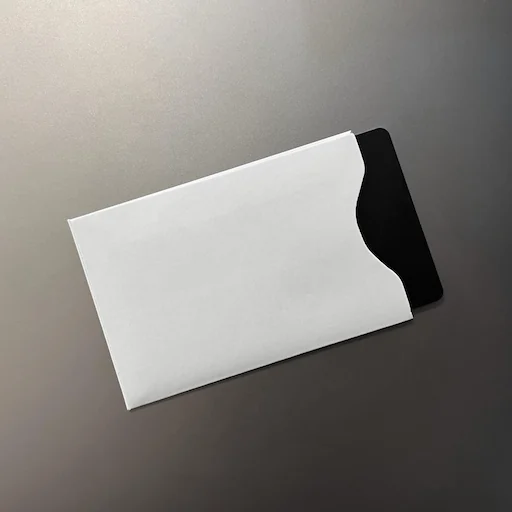
TAPSIGNER comes with an RF-blocking sleeve. Slide the card fully inside when storing it; Coinkite warns that even a small exposed edge can still allow NFC communication. Take the card out when you want to scan it with the phone or reader.
| Detail | Value |
|---|---|
| Size and weightWidth × height | 85.6 × 53.98 mmThickness not recorded |
| Power and chargingBattery | No battery |
This page is based on manufacturer documentation.
Documentation checked: · ·
How we compareCoinkite TAPSIGNER

