A good fit if
Choose X Card if you want a battery-free card for a compatible NFC phone and are comfortable checking addresses and payments on that phone. Keep the separate X Card Starter for initial setup or restoring a wallet onto a card.


A battery-free NFC card for phone use, with a separate Starter for setup and restoration onto a card.

Approve transactions with
Controls
No controls on the wallet
Backup
Recovery phrase
Power
Powered by NFC
Is it right for you?
Choose X Card if you want a battery-free card for a compatible NFC phone and are comfortable checking addresses and payments on that phone. Keep the separate X Card Starter for initial setup or restoring a wallet onto a card.
Choose a wallet with its own screen if you want to review payment details independently of your phone. X Card has no display or buttons; the Starter’s screen is for setup and recovery, not everyday payment approval.
Choose Titan 2.0 if you want ELLIPAL’s app with payment review on a separate device screen and QR signing instead of a screenless NFC card.
Compare X Card and Titan 2.0Phones and computers
Check the app and connection for each device. Setup and transaction signing are confirmed separately.
NFC
Setup needs X Card StarterYou need the separate ELLIPAL X Card Starter accessory to set up an X Card or restore a wallet onto it. For everyday transactions, you use a compatible NFC phone.
NFC
Setup needs X Card StarterYou need the separate ELLIPAL X Card Starter accessory to set up an X Card or restore a wallet onto it. For everyday transactions, you use a compatible NFC phone.
X Card signs through NFC in the ELLIPAL app. The separate Starter initializes the card or restores a wallet onto it. Once the card is ready, ordinary signing uses the phone and card, without the Starter.
ELLIPAL specifies iPhone XS or newer, or an Android phone with NFC. Check that your phone can install the official app too. An app listing alone does not establish a computer workflow for X Card.
Before ordering, check the selected offer’s card count and whether it includes the Starter you need. Several cards can hold the same wallet as backups, or separate wallets. A card’s decorative design does not tell you which of these arrangements it has.
Official guidance
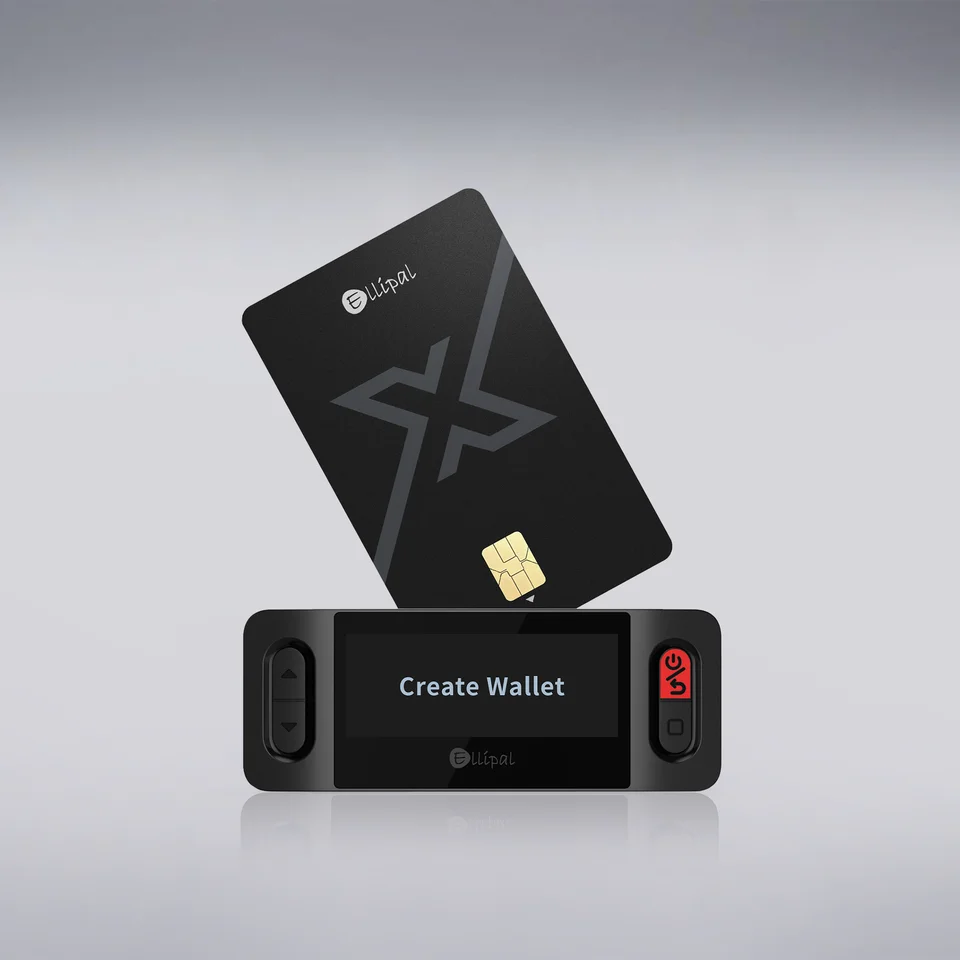
Start with a blank X Card, the powered-on Starter and a private place to record your backup. On the Starter, choose Create Wallet, select the recovery-word length and set a Card-PIN. The creation flow then asks whether you want a duplicate. Choose this only when you want another blank card to hold the same wallet, and follow the Starter’s prompts.
After the duplicate decision, write down and confirm the recovery words in their original order as the Starter instructs. Keep this backup offline and private. Remove the card only when prompted.
Then connect the prepared card to the app. In App 5.0, start at Connect wallet, select ELLIPAL X Card and choose Connect ELLIPAL X Card. Enter the Card-PIN and hold the card at the phone’s NFC area. App 4.X starts at Cold Wallet > X Card. Your wallet appears after connection. Do not enter the recovery words into the phone to connect the card.
Official guidance
In the ELLIPAL app, open Receive and select the token you intend to receive. Confirm the network with the sender or exchange before copying the receiving address or sharing its QR code. A token name alone is not enough to identify its network.
For an exchange withdrawal, use that address and the same network on the withdrawal screen. Start with a small transfer and check that it arrives before sending more. X Card cannot show the address on an independent device screen: this check takes place on your phone.
For Bitcoin, use the app’s address-type selector before sharing an address. ELLIPAL’s guide illustrates it at the top right of the Bitcoin account screen. Choose the required format, then use the receiving address for that format. If the asset is missing, check the network and token in ELLIPAL’s support list before making a deposit.
Official guidance
Open Send in the ELLIPAL app, select the token and enter the recipient and amount. Check the intended network, full recipient address, amount and fee before confirming. Include the destination memo or tag when the receiving platform requires one, and leave enough balance for the network fee.
After reviewing the details, enter your Card-PIN and hold the card at the phone’s NFC area until signing finishes. The card signs; the app submits the transaction to the network. The Starter is not a second screen for this check.
A submitted transaction can still be waiting for network confirmation. Check its status in the app before treating it as complete. If the card does not scan, check NFC availability and hold it steady at your phone’s NFC position; move it in small steps to locate that position if needed.
Official guidance
A prepared duplicate holds the same wallet as the original card. If one card is lost, another card that still signs with its Card-PIN can provide access without using the Starter. A displayed balance alone does not prove that you can authorize a transfer.
Your written recovery words serve a different purpose: restoring the wallet when you no longer have a usable card. Keep them separately from the cards, and preserve the exact original passphrase too if you used one. Creating independent wallets on several cards means backing up each wallet separately.
If the words are lost but a card still authorizes payments, keep that working card unchanged. Set up a separate destination wallet and store its backup securely. Follow that model’s official setup and backup instructions, including any backup-confirmation steps it provides. Verify the receiving address and network, then send a small test transfer. Confirm its arrival before moving the remaining funds while you can still sign. Creating a new wallet does not restore the missing backup or the old wallet.
To restore onto an X Card, you need the Starter and your original recovery words. If the original wallet used a passphrase, enable Options > Passphrase on the Starter before choosing Recover Wallet. Have that exact original passphrase ready: turning the option on is not enough.
Choose Recover Wallet on the Starter, select the word count and enter the words in their original order. If you used a passphrase, enter the exact original one when prompted. Set the Card-PIN as instructed, complete recovery and reconnect the card to the app.
Before relying on the restored wallet, compare an address with a saved address from the original wallet for the same asset, network, account and address format. A Bitcoin wallet can have several receiving addresses: compare corresponding addresses, not simply an old address with the latest one shown.
If you cannot identify the corresponding account or address, keep any working original device or card intact and follow the official recovery guidance before relying on the restored wallet. A missing balance or different address alone is not a reason to reset. Imported wallets can also differ in account or derivation path. Do not assume that a compatible word list restores every account automatically.
If you forgot the Card-PIN, stop guessing: ELLIPAL documents a factory reset after ten wrong entries. Before considering a reset, establish a usable backup or another card that can authorize transactions. The Starter is required for restoration onto X Card, not for every possible recovery route; a compatible wallet may restore the same backup subject to its asset and account support.
Official guidance
A passphrase combines with your recovery words to create a different wallet. It is not the Card-PIN. On the Starter, Options > Passphrase enables the prompt for creation or recovery; it does not add protection to an existing wallet after the fact. Use it only if you can preserve the exact spelling, case and characters alongside a workable recovery plan.
The card has no battery to charge, and ELLIPAL says its firmware is locked at manufacture with no card update route. Keep the phone app current through its official store listing. Titan firmware files and microSD update instructions are not X Card maintenance instructions.
For an unresolved scan or recovery problem, use ELLIPAL’s official support instructions and preserve working access. Never send support your recovery words or passphrase.
Official guidance
| Detail | Value |
|---|---|
| Size and weightWidth × height | 85.6 × 53.98 mmThickness not recorded |
| Power and chargingBattery | No battery |
| Operating power | Powered by NFC |
| Security and softwareSecurity chip | CC EAL6+ |
This page is based on manufacturer documentation.
Documentation checked: ·
How we compareELLIPAL X Card
