A good fit if
You want to enter your PIN and recovery words and review payments on a colour touchscreen. You will use Trezor Suite with a computer or compatible Android phone over USB.


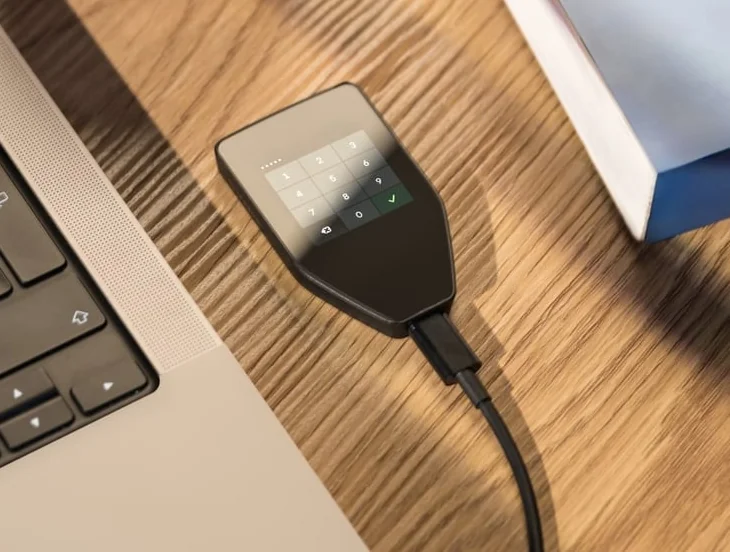
A hardware wallet with USB and a colour touchscreen for entering your PIN and recovery words and checking transaction requests. Use it with a computer or compatible Android phone.

Approve transactions with
Backup
Recovery phrase
Power
USB power
Is it right for you?
You want to enter your PIN and recovery words and review payments on a colour touchscreen. You will use Trezor Suite with a computer or compatible Android phone over USB.
Your iPhone is your only device for signing, or you prefer physical buttons. Compare Safe 7 for iPhone use, or Safe 3 for a wired button-operated Trezor.
Keep Trezor Suite and USB, with two physical buttons and a monochrome screen in place of Safe 5’s colour touchscreen.
Compare Safe 5 and Safe 3Choose iPhone signing or wireless phone use with a colour touchscreen and Trezor Suite.
Compare Safe 5 and Safe 7Choose an E Ink touchscreen and Bluetooth phone use with Ledger Wallet; its app and recovery choices differ.
Compare Safe 5 and FlexPhones and computers
Check the app and connection for each device. Setup and transaction signing are confirmed separately.
USB
Windows · macOS · Linux
USB
Trezor Suite is the companion app on your computer or phone. Connect Safe 5 with a USB data cable, which also supplies its operating power. The current Suite mobile app requires Android 12 or later. On iPhone, Suite can show balances and activity for eligible accounts synced from your wallet, but Safe 5 cannot connect to it to sign a payment or verify a receiving address.
For sending, choose the account and prepare the payment in Suite. Safe 5 then shows the request for you to review and approve on its touchscreen. Check the recipient, amount and fee for an ordinary payment before confirming. Suite sends the signed transaction to the network. Follow the device prompts for the particular request.
For receiving, choose the right account and network and verify the receiving address on Safe 5 before sharing it. Once the address is checked, the device can be disconnected while the payment arrives. You reconnect it when you need to verify another address or sign a transaction.
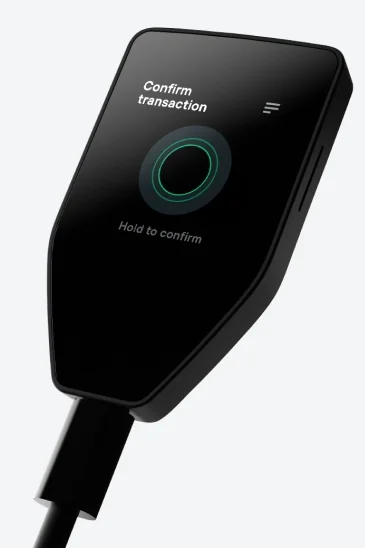
Start with Trezor Suite and a supported computer or Android phone. Suite guides you through installing firmware, the software that runs on Safe 5, and the device’s authenticity check. You then choose between creating a new wallet and restoring one from an existing backup.
For a new wallet, Safe 5 creates backup words, often called a recovery phrase. You will need them if the device is lost or stops working. Write each complete word list in order and keep it together. The default 20-word list fits on one of the included blank cards. For a 12- or 24-word backup, use a blank card or sheet of paper with space for the entire list. Complete the requested check before relying on the wallet; the backup formats and options are explained below.
During setup you also choose a PIN and enter it on Safe 5’s touchscreen.
Official guidance
Choose Universal if you want Ethereum or other supported crypto alongside Bitcoin, or want the ordinary option to change firmware type in Suite. The dedicated Bitcoin-only edition suits a deliberately Bitcoin-only setup.
On Universal hardware, Suite lets you switch between Universal and Bitcoin-only firmware. Bitcoin-only firmware deactivates other networks in Suite. The dedicated Bitcoin-only device does not have the ordinary Switch to Universal button. Trezor documents an advanced manual installation of official Universal firmware for that device, but it can erase the wallet from the device. Choose the edition you expect to use rather than planning on that installation.
For your crypto, match the coin or token, network and app to Safe 5 in Trezor’s support directory. Universal does not mean that every asset or task works in Suite; some need a compatible third-party app.
Safe 5 can also act as a security key with FIDO2 or U2F. FIDO2 supports passwordless sign-in on services that offer it; U2F adds a second factor alongside your password. Both require Universal firmware and are unavailable with Bitcoin-only firmware, even on a Universal device.
Official guidance
The PIN unlocks this device. An optional passphrase is an additional secret used with the wallet backup to open a separate wallet. The exact spelling matters: a different passphrase opens a different wallet. It cannot be reset if forgotten.
Safe 5 lets you enter the passphrase on its touchscreen; Suite also permits entry on the connected computer or phone. If you use it, keep a secure record of the exact passphrase as well as the backup words, and include both in your plan for recovering wallet access.
The microSD slot serves an optional advanced unlock-protection feature. When enabled, the paired card holds an extra secret needed alongside the PIN to unlock that device. It does not store your recovery words or replace the wallet backup. Ordinary use does not require a microSD card.
A new wallet currently starts with a complete 20-word backup in the SLIP39 format. This is called a single-share backup: that one recorded word list is enough to restore the wallet. An optional multi-share backup creates several separate word lists, and you choose how many are required for recovery. You need that number of matching shares; cutting an ordinary recovery phrase into pieces does not create a multi-share backup.
You can also create or restore a 12- or 24-word phrase in the BIP39 format. If you already hold an 18-word BIP39 backup, we have not confirmed Safe 5 restoration for it; establish that support with Trezor before choosing it as your replacement.
After device loss, use a replacement that accepts your actual backup format, plus the exact passphrase if you used one. Safe 5’s recovery starts in Suite, and you enter the backup words on the device’s touchscreen. A PIN or a new microSD card cannot replace missing recovery information.
While your wallet still works, Safe 5’s Check backup feature can test the recorded words by simulating recovery without replacing the wallet. Follow its device prompts and the maintained procedure below. This is a useful check before you need to depend on the backup after a failure.
Official guidance
Suite shows when a device firmware update is available. Safe 5’s documented routine uses USB with a computer or Android phone. Have your backup and any passphrase available first: a failed update or lost connection can leave you needing to restore the wallet.
Start the update in Suite, review and confirm the device prompts, and keep the connection in place until installation finishes. Routine updates and manually installing Universal firmware on a dedicated Bitcoin-only device are different procedures. Use the maintained instructions for the task you are actually doing.
Official guidance
| Detail | Value |
|---|---|
| DisplayScreen diagonal | 1.54″ |
| Resolution | 240 × 240 px |
| Colour mode | Colour |
| Size and weightDimensions | 65.9 × 40 × 8 mmDimensions as listed by the manufacturer |
| Device weight | 23 g |
| Power and chargingOperating power | USB power |
| Device connectionsUSB port | USB-C |
| Memory card slot | microSD |
| Security and softwareSecurity chip | OPTIGA Trust M (V3) · CC EAL6+ |
| Key datesReleased | June 14, 2024 |
FIDO2 · U2F
Multi-coin edition only
Requires Universal firmware
Contents of this offer
Trezor Safe 5Trezor Safe 5 Bitcoin-onlyThis page is based on manufacturer documentation.
Documentation checked: · ·
How we compareTrezor Safe 5Multi-coin edition