A good fit if
You want a touchscreen Bitcoin wallet that works with Envoy on your iPhone or Android phone. Prime suits you if you want to review payments on the device and prefer a choice between recovery cards and written recovery words.


A touchscreen Bitcoin wallet for Envoy on iPhone or Android, with recovery cards or written words as backup choices.

Approve transactions with
Backup
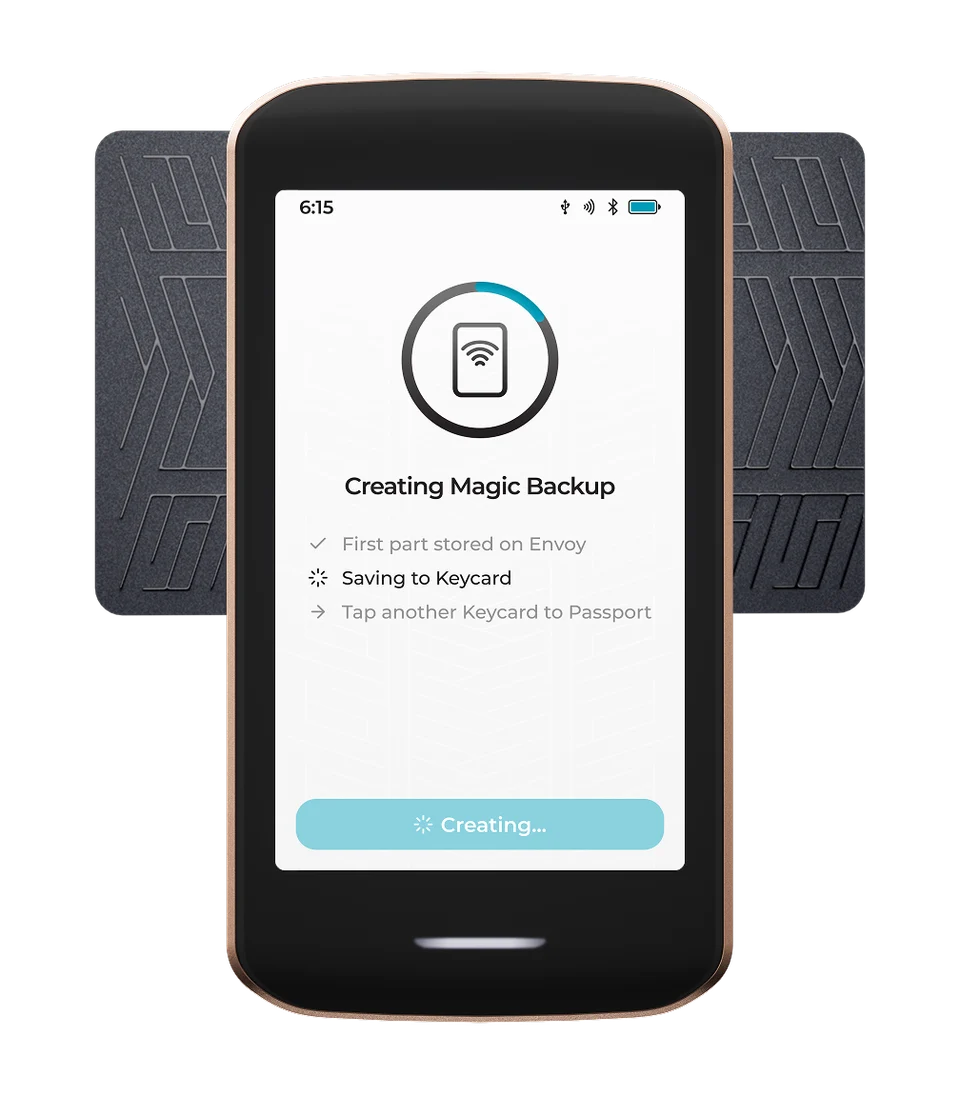
Magic Backups needs two of three recovery parts: two are on Keycards and one is backed up through Envoy and the phone’s cloud backup. A new wallet can instead use a manual backup: any two of three physical Keycards, or recovery words.
Power
Rechargeable battery
Is it right for you?
You want a touchscreen Bitcoin wallet that works with Envoy on your iPhone or Android phone. Prime suits you if you want to review payments on the device and prefer a choice between recovery cards and written recovery words.
You need a computer-only first setup, or an ordinary phone workflow for several cryptocurrencies. Prime’s initial setup uses Envoy and Bluetooth. Ethereum and Solana use a separate beta workflow on a computer. If you need to restore existing recovery words without Magic Backups, ask Foundation support to confirm the steps for your KeyOS version before setup.
Choose Nova Multi for BitBoxApp, a microSD wallet backup and documented Bitcoin and Ethereum use. With an iPhone it uses Bluetooth but still needs USB power; Android and computers use USB.
Compare Passport Prime and NovaChoose Jade Plus if camera-based Bitcoin QR signing is your priority and you prefer physical buttons. Check its PIN-unlock requirements against your routine.
Compare Passport Prime and Jade PlusPhones and computers
Check the app and connection for each device. Setup and transaction signing are confirmed separately.
Foundation lists Sparrow for multisig wallets with Prime as a cosigner. We have not confirmed the exact Prime–Sparrow import and transaction-transfer route. Check that integration with Foundation before proceeding; Passport Core or generic QR support is insufficient.
Bluetooth
For Bitcoin on a phone, Envoy connects to Prime through QuantumLink Bluetooth.
QR
Set up Prime with Envoy over Bluetooth first. After setup, Envoy can transfer Bitcoin transaction data to and from Prime using QR codes.
Bluetooth
For Bitcoin on a phone, Envoy connects to Prime through QuantumLink Bluetooth.
QR
Set up Prime with Envoy over Bluetooth first. After setup, Envoy can transfer Bitcoin transaction data to and from Prime using QR codes.
Envoy is Foundation’s companion app for iPhone and Android. QuantumLink is the name of Prime’s encrypted Bluetooth connection to that app. After pairing, Prime shares your Bitcoin account’s public details with Envoy, so the app can show addresses and prepare payments while the signing keys stay on Prime.
For computer use, check the companion wallet’s exact Passport Prime integration before connecting an account. Prime documents QR and transaction-file signing, including files on storage connected through USB-C. Those are transfer methods, not proof that every wallet app accepts Prime’s account export or signed transactions. We have not confirmed the complete Prime–Sparrow account-import and transaction-transfer route, or first-time setup using only a computer. Ask Foundation about the exact route before relying on it.
Envoy manages single-signature Bitcoin wallets. For multisignature wallets, where several keys must approve a payment, Foundation lists coordinators such as Sparrow: create the configuration in the coordinator and import it into Prime so it can verify addresses and sign as a cosigner. Envoy and Prime alone do not provide multisignature setup.
Official guidance
Prime calls the secret behind your wallet its Master Key. The default Magic Backup divides that secret into three recovery shares. Manual setup lets you keep all shares on physical Keycards, or write down the complete secret as recovery words. Choose the method you can store and recover reliably.
| Backup choice | Where the recovery information goes | What you need to recover |
|---|---|---|
| Magic Backup | One share on each of two Keycards; the third in Envoy, encrypted and backed up to your Apple or Google account. The third supplied card is a spare. | Two of the written Keycards, or one written Keycard plus the share recovered through Envoy. For a Bitcoin passphrase wallet, you also need that exact passphrase. |
| Manual 2-of-3 Keycard backup | One share on each of the three supplied Keycards. No recovery share is stored in Envoy or your cloud account. | Any two Keycards from that backup. One card cannot restore it alone. For a Bitcoin passphrase wallet, you also need that exact passphrase. |
| Manual recovery words | The complete BIP39 recovery phrase, recorded offline. Unlike a single card share, this is the complete secret. | The complete words in order, plus the exact Bitcoin passphrase if you used one. |
Restoring existing recovery words?
For a new wallet, tap Advanced on Prime’s Create Magic Backup screen before continuing. Foundation’s manual guide says this choice is offered only once. Envoy’s own Magic Backups toggle controls the software wallet on your phone; it is not the switch for Prime’s backup.
You can record recovery words from Prime’s settings even if you use Magic Backups. Those words are another way to recover the wallet, but writing them down does not disable Magic Backups. Keep each Keycard in a separate secure location; keep a complete written phrase protected as a whole.
Official guidance
Start with Envoy and Prime together. Both the ordinary and manual setup guides use the phone app for initial pairing, the manufacturer’s device check and updating KeyOS, the software that runs on Prime.
The PIN unlocks this device; it does not replace your recovery information. Prime erases its Master Key after ten consecutive incorrect PIN or password attempts, so access would then depend on the backup you kept.
Official guidance
To receive Bitcoin, select the account you intend to use in your companion app. On Prime, open that account and choose Verify Address, then scan the receiving-address QR code shown by the app. Check that Prime recognises the address as belonging to that account before sharing it with the sender.
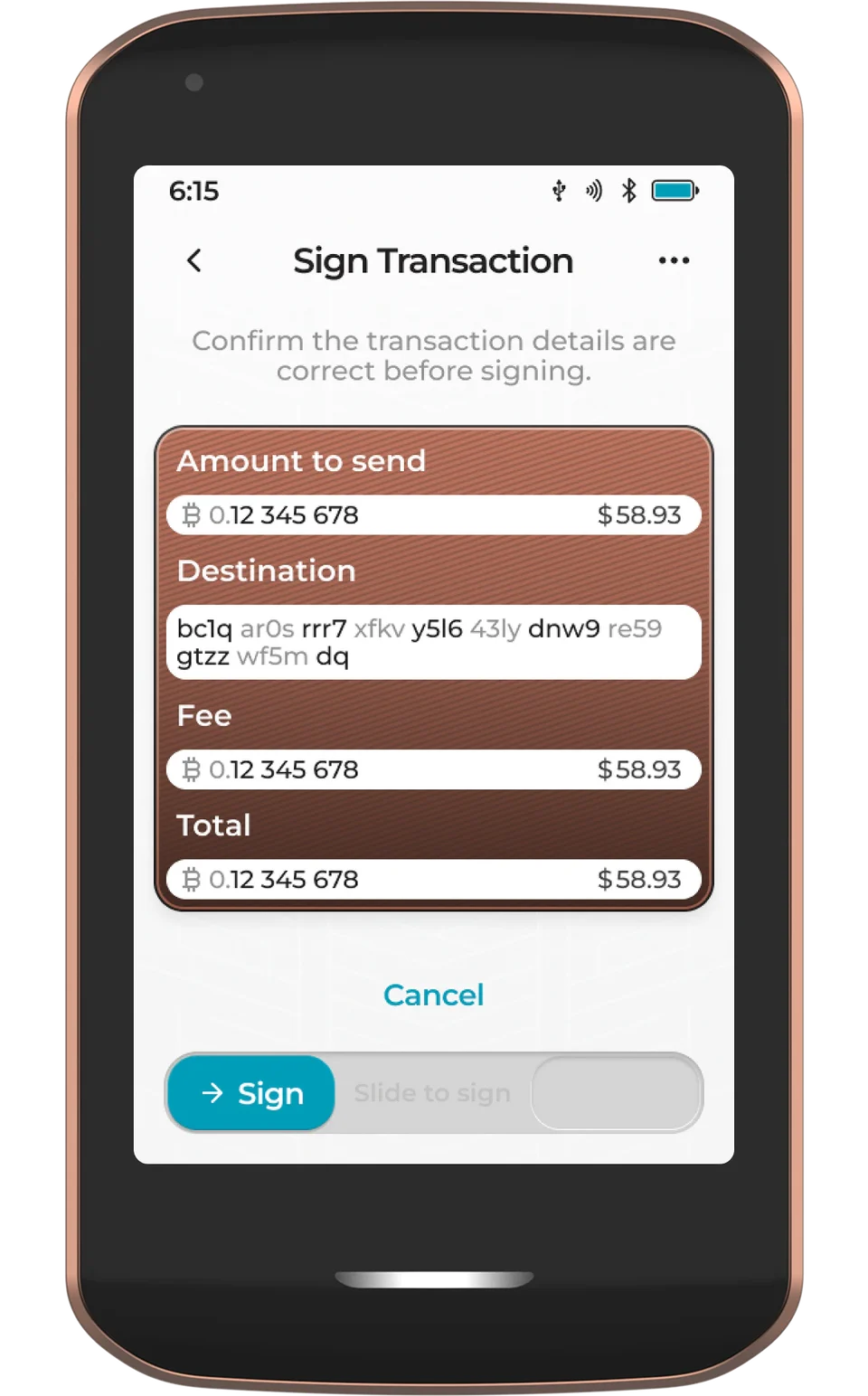
To send with Envoy, enter the recipient, amount and fee in the app. Envoy passes the transaction to Prime over QuantumLink. Review the details on Prime and slide its confirmation control to approve. Prime returns the signed transaction to Envoy, which broadcasts it to the Bitcoin network. Signing and network confirmation are separate stages.
QR signing is also documented with Envoy or another compatible wallet app: Prime scans the unsigned transaction, you review and approve it on Prime, then the app scans the signed QR codes from Prime’s screen. The app still needs to broadcast the result. Using QR for a payment does not replace the Bluetooth pairing used for first setup.
If Prime is lost, damaged or reset, use Restore on a replacement Prime with the recovery information for that wallet. A Magic Backup needs two matching shares; a manual three-card backup needs any two of its cards. Prime prompts for a second Keycard if the other Magic Backup share cannot be recovered through Envoy.
While the device still works, use Verify Keycards to check the cards you rely on. Take a card out of its Faraday sleeve and remove any case from Prime. Hold the card horizontally over the camera area on the back, forming a T shape with the device, and keep it still until Prime confirms. A card used this way holds recovery information; it is not a card for approving everyday Bitcoin payments.
If you use an optional Bitcoin passphrase, keep its exact spelling separately from the backup. Prime does not save it. That passphrase opens a different wallet from the one without it, and its accounts must be connected to your companion app. A different passphrase gives different accounts; restoring the words alone will not recover that wallet.
Recovering the Master Key and restoring device data are separate jobs. Magic Backups also maintains an encrypted Settings & Data backup; manual users must save and update that file themselves. It contains account labels, configurations and other app metadata.
Foundation’s guides disagree about restoring a manual Settings & Data file: the manual setup guide marks the import as coming soon, while the Backups settings page describes restoration after the Master Key. Confirm the current manual data-restoration route with Foundation support before relying on that file to recover your settings and app data.
Settings & Data backups exclude files saved in Prime’s Internal or Airlock storage. Keep separate copies of documents you need to recover.
Official guidance
Charge Prime sufficiently before an update. On Prime, open Settings, then Update and Check for New Version. If an update is available, choose Update with Envoy. Prime uses QuantumLink to download, verify and install it, then restarts.
Foundation also documents manual updates from an accessible Settings screen. Each Update.tar file starts from a specific installed version; choose the one matching Settings > Update and follow the official external-storage or Airlock instructions.
If initial onboarding has not reached Settings, Foundation documents a separate first-update route to KeyOS 1.4.0 using its signed Recovery.bin file and Firmware Recovery. Preserve any existing Master Key and device-data backups and follow that specific branch in the official instructions. This route still needs Envoy to finish initial pairing and the device-identity check. Do not use a Passport Core firmware file.
Official guidance
Legacy Mode is a beta compatibility environment, separate from Prime’s Bitcoin wallet and Envoy workflow. It requires KeyOS 1.4 or newer, a computer and a USB-C data cable. Install Legacy Mode first, then the Ethereum or Solana app you need, following Foundation’s instructions.
The beta does not support optional BIP39 passphrases. If your existing account depends on one, do not use that account through Legacy Mode. Software-wallet compatibility is still under development; Foundation names Rabby for Ethereum/EVM and Phantom for Solana as its tested examples.
Treat this as a separate choice before buying for those assets. It does not establish an Ethereum or Solana workflow through Envoy on a phone. If those are your everyday assets, choose a wallet with a documented routine for the app and device you intend to use.
Official guidance
| Detail | Value |
|---|---|
| DisplayDisplay type | IPS LCD |
| Screen diagonal | 3.5″ |
| Size and weightDimensions | 55.5 × 104.8 × 11 mmDimensions as listed by the manufacturer |
| Device weight | 93 g |
| Power and chargingBattery | Rechargeable |
| Battery capacity | 1,100 mAh |
| Charging methods | USB-C |
| Materials and finishMaterials | Body: Aluminium (Anodized finish) |
| Device connectionsUSB port | USB-C |
| Security and softwareSecurity chip | ATECC608C |
| Device software | KeyOS |
| ProcessorControllers | SAMA5D2 |
U2F
Required device app: Keys
USB or NFC for registration and sign-in
NFC sign-in requires a compatible phone with NFC and a compatible browser.
A compatible service and browser are required.
The device must also be registered as a security key with the website; installing the app alone does not register it.
This page is based on manufacturer documentation.
Documentation checked: ·
How we compareFoundation Passport Prime

