A good fit if
You want Ledger Wallet on an iPhone or Android phone, with a flat monochrome touchscreen for reviewing requests and entering your PIN and recovery words.


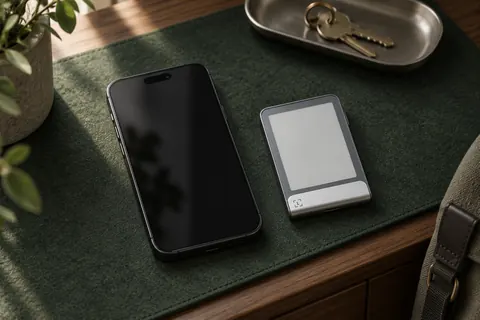
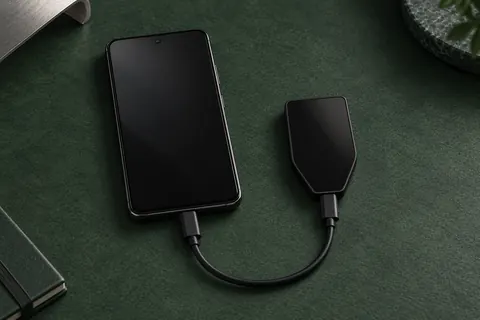
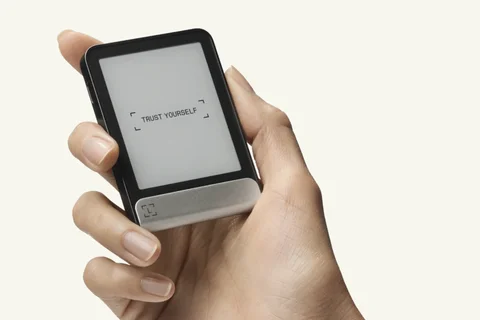
A hardware wallet with a flat E Ink touchscreen for entering your PIN and recovery words and reviewing transaction requests. Use Bluetooth with iPhone or Android and USB with a computer.

Approve transactions with
Backup
Recovery phrase
Power
Rechargeable battery
Is it right for you?
You want Ledger Wallet on an iPhone or Android phone, with a flat monochrome touchscreen for reviewing requests and entering your PIN and recovery words.
You want a colour touchscreen, prefer Trezor Suite or BitBoxApp, or specifically want dedicated Bitcoin-only firmware.
Choose Safe 5 for a colour touchscreen and Trezor Suite over USB. It suits a desktop or Android routine; it does not sign transactions with an iPhone.
Compare Flex and Safe 5Choose Safe 7 if you want Trezor Suite with Bluetooth signing on an iPhone or Android phone.
Compare Flex and Safe 7Choose BitBox02 Nova for BitBoxApp and a microSD wallet backup, rather than Ledger Wallet and Recovery Key.
Compare Flex and NovaPhones and computers
Check the app and connection for each device. Setup and transaction signing are confirmed separately.
USB
Not supported: Surface Pro
Linux
Bluetooth
Not supported: iPad and Tablets
USB or Bluetooth
Not supported: Tablets
Start with Ledger Wallet from Ledger’s official app page. You can set up Flex with the app on your phone over Bluetooth or on a computer over USB. For phone setup, compare the pairing codes shown on the phone and Flex before confirming the connection.
Ledger Wallet runs a Genuine Check during setup to check the device’s authenticity. Choose a 4–8-digit device PIN on Flex’s touchscreen, then decide whether to create a new wallet or restore one you already have.
A new wallet creates a 24-word recovery phrase in the BIP39 format. Write the complete list, in order, on the blank recovery sheet and confirm the words on Flex. The device PIN unlocks this Flex; the recovery phrase lets you restore the wallet if you lose or replace it.
If you are bringing an existing 12-, 18- or 24-word BIP39 phrase, choose restoration and enter the words on Flex itself. This restores the wallet behind that phrase instead of creating a new one. The physical Recovery Key card is another restore option, with its own setup and compatibility conditions explained below.
Official guidance
There are three parts to prepare. Ledger Wallet manages the accounts you see on your phone or computer. A currency app installed on Flex handles requests for its supported blockchain. An account is where you find the addresses and balance for that asset. For Bitcoin in Ledger Wallet, install the Bitcoin app on Flex through My Ledger, then add a Bitcoin account.
Flex has limited app storage. Your wallet’s private keys remain on Flex when you uninstall a currency app to make room; reinstall the app when you need it again. Removing a device app is different from resetting Flex or deleting an account from Ledger Wallet.
Some assets use a third-party wallet app rather than Ledger Wallet. Ledger’s asset directory identifies the supported wallet app and network, so check the entry for the asset you actually plan to use. Support for a coin name alone does not establish every token, network or phone task.
Official guidance
Ledger Wallet, formerly Ledger Live, is the companion app on your phone or computer. Use Bluetooth with an iPhone or Android phone, or USB with a computer. Installing the current iPhone app requires iOS 15.1 or later. On Android, Ledger Wallet requires Android 10 or later.
For an ordinary Bitcoin payment, choose the sending account in Ledger Wallet and enter the recipient’s address and amount. Review the recipient, amount and network fee on Flex before approving. Flex signs the transaction on the device; Ledger Wallet then sends the signed transaction to the Bitcoin network. Approving on Flex and having the payment confirmed by the network are separate steps.
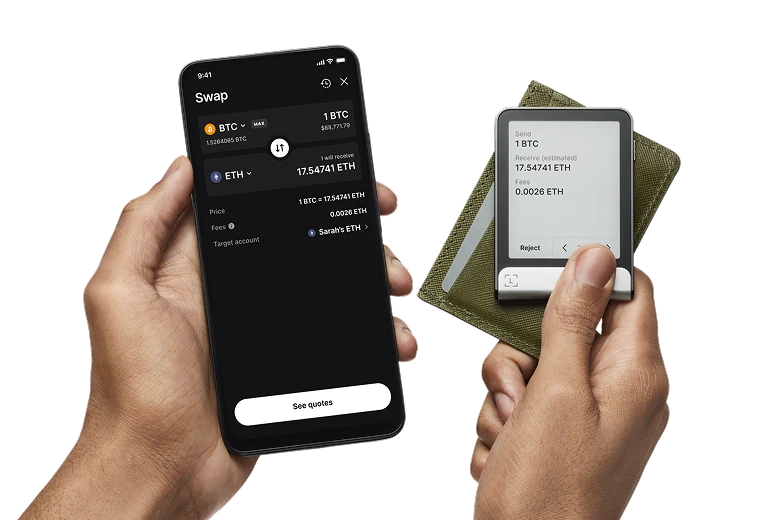
The pictured example is a swap request. The phone shows the quote, while Flex shows the BTC to send, estimated ETH to receive and fee. Compare what the device displays with the request you intended to make; the estimated receive amount is not a promise of the final result.
Receiving Bitcoin is a different task: add a Bitcoin account in Ledger Wallet, choose Receive and verify the generated address on Flex before using it for an exchange withdrawal or sharing it with a sender. When moving funds from an exchange, Ledger’s Flex guide recommends a small test transfer first.
Flex colour and themed options are not different Bitcoin-only and multi-asset firmware editions. Choose the finish you prefer, then check what the exact offer includes. The standard Graphite offer lists one Flex, one USB-C to USB-C cable, one blank recovery sheet, one Recovery Key card and a getting-started guide.
The sheet is for the recovery words you write down during setup. The card also needs to be configured by you before it can serve as a backup; an unused card in the box does not already contain your wallet.
Keep your complete written recovery phrase independently of Flex. To restore an existing 12-, 18- or 24-word BIP39 backup, choose manual restoration on a new or reset Flex and enter the complete list on its touchscreen. Then install the currency apps on Flex through Ledger Wallet and add the relevant accounts in the app. The old device PIN is not needed to restore from the words; you choose a PIN for the replacement.
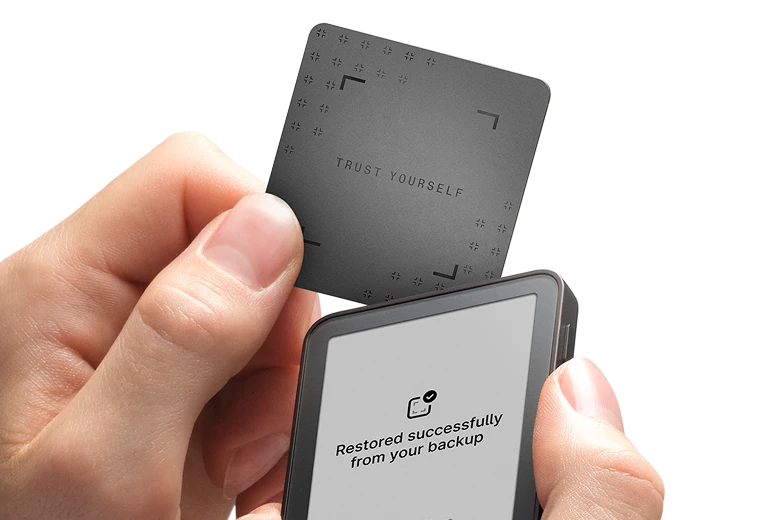
To configure Recovery Key, update Flex, enable NFC and unlock the device with its PIN. Hold the card against the back of Flex and follow the prompts to choose a separate 4–8-digit card PIN and save the backup. Restoring from that configured card requires a compatible device, the card and its PIN; you set a new device PIN during restoration. Keep the written phrase as a fallback. The card does not back up an additional passphrase.
For an imported 12- or 18-word BIP39 phrase, manual restoration is the supported route. Card support is a separate question: Ledger’s FAQ describes 24-word support, while Flex release notes include a fix for restoring a 12-word phrase with Recovery Key. Those sources do not establish 18-word card support. Check exact device and Ledger OS support before relying on the card for a shorter phrase.
Official guidance
An optional passphrase works with your recovery words to open different accounts, with different addresses. Setting a passphrase does not move funds from your existing accounts. To return to accounts you have used before, you need the same recovery phrase and the exact passphrase used for them. On Flex, you can enter the passphrase for each session or link it to a second device PIN.
If you use this option, keep an exact written copy of the passphrase separately from the recovery words and plan how to retrieve both after losing the device. Flex cannot show you the passphrase after setup. The second PIN is a shortcut on this Flex, not a replacement for the passphrase when restoring access. Neither Recovery Key nor Ledger Recover backs up this additional secret.
Official guidance
Ledger’s Recovery Check app compares the words you recorded with the recovery phrase held by Flex. Install it through My Ledger and unlock Flex with your regular device PIN if you also use a passphrase PIN. Open Recovery Check on Flex, choose 12, 18 or 24 words and enter the complete list on the device.
A successful check confirms that the words match; it does not verify an additional passphrase. If the words do not match, check the selected phrase length, the spelling and their order against your written backup.
Official guidance
No. You can use Flex with a written recovery phrase, and configure a Recovery Key card where supported, without subscribing to Ledger Recover. Recover is a separate optional service that backs up the recovery phrase and requires enrolling beforehand. It is not the physical card included in the box, and it does not back up an additional passphrase.
Ledger OS is the software that runs on Flex. You can update it through Ledger Wallet on mobile over Bluetooth or on a computer over USB. Before starting, update Ledger Wallet and keep your complete recovery phrase available as a precaution. When an update appears in the app, follow the device prompts, remain in Ledger Wallet and let the restarts finish. A computer is not required for the ordinary mobile update procedure.
Updates are released in stages, so the latest version may not appear for everyone at once. Ledger’s procedure restores settings and apps after the update. If Flex becomes stuck in Update Mode, the documented fallback is to resume the update with Ledger Wallet on a computer.
Official guidance
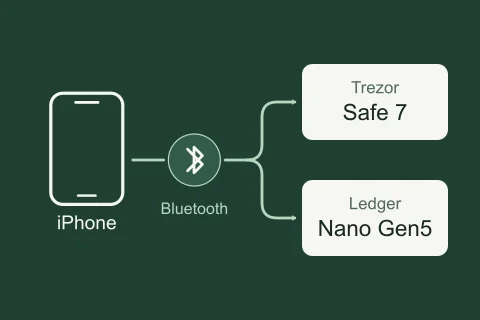
Flex has a rechargeable battery and charges through USB-C; it does not support wireless charging. With an iPhone, Ledger Wallet requests travel over Bluetooth. Android supports Bluetooth and USB with Ledger Wallet. The diagram shows the iPhone routine, with Bluetooth for requests and a USB-C cable for charging.
A computer connects through USB. NFC serves Recovery Key and the Ledger Security Key app, which lets you use Flex as a login key for compatible services. For ordinary crypto requests in Ledger Wallet, use Bluetooth or USB.
| Detail | Value |
|---|---|
| DisplayDisplay type | E Ink |
| Screen diagonal | 2.8″ |
| Resolution | 480 × 600 px |
| Colour mode | Grayscale |
| Shades of grey | 16 |
| MemoryStorage space | 1.5 MB |
| Size and weightDimensions | 78.4 × 56.5 × 7.7 mmDimensions as listed by the manufacturer |
| Device weight | 57.5 g |
| Power and chargingBattery | Rechargeable |
| Battery life | Up to 10 hrUsage conditions not stated |
| Charging methods | USB-C |
| Wireless charging | Not supported |
| Device connectionsUSB port | USB-C |
| Bluetooth version | 5.2 |
| NFC functions | Ledger Recovery Key · Ledger Security Key |
| Security and softwareSecurity chip | ST33K1M5 · CC EAL6+ |
| Device software | Ledger OS |
| Key datesReleased | July 26, 2024 |
FIDO2 · U2F
Required device app: Security Key
USB or NFC for registration and sign-in
For iPhone sign-in, use NFC with Chrome, Safari, or Firefox; the phone needs NFC.
Ledger lists Chrome on Android 14, with the Google Play system update dated March 1, 2024 or later. Firefox on Android is unsupported.
Passkeys stored on the key (resident or discoverable credentials) are not supported.
A compatible service and browser are required.
The device must also be registered as a security key with the website; installing the app alone does not register it.
Credentials from the older Ledger FIDO U2F app do not work with the Security Key app. Register the device as a new security key while keeping another working sign-in method.
Ledger documents restoring the Security Key app’s credentials on a new or reset Ledger set up with the same 24 recovery words. This does not cover resident credentials.
Keep another working sign-in method before relying on recovery.
Contents of this offer
Ledger Flex GraphiteThis page is based on manufacturer documentation.
Documentation checked: · · · · ·
How we compareLedger Flex