A good fit if
You want a USB computer routine with a device screen and confirmation button, and are comfortable entering your PIN through positions in the companion app.


A hardware wallet for USB use with KeepKey Desktop on Windows, macOS or Linux. Read requests on its OLED screen and approve with the device button.

Approve transactions with
Controls
Physical buttons
Backup
Recovery phrase
Power
USB power
Is it right for you?
You want a USB computer routine with a device screen and confirmation button, and are comfortable entering your PIN through positions in the companion app.
You need a documented phone-signing routine, or prefer entering your PIN and recovery words directly on a touchscreen.
Choose Safe 5 for a colour touchscreen with device PIN and recovery-word entry, using Trezor Suite over USB on a computer or compatible Android phone. It does not sign with an iPhone.
Compare KeepKey and Safe 5Choose Flex for Ledger Wallet over Bluetooth on an iPhone or Android phone, with touchscreen entry and review. Installing the current iPhone app requires iOS 15.1 or later; on Android, Ledger Wallet requires Android 10 or later.
Compare KeepKey and FlexPhones and computers
Check the app and connection for each device. Setup and transaction signing are confirmed separately.
USB
Linux
KeepKey works with KeepKey Desktop on a Windows, macOS or Linux computer. Connect it with a USB data cable, which also supplies operating power. The app prepares transactions and shows your accounts; the hardware provides the screen and button for checking and approving requests.
The current app requires Windows 10 or later, 64-bit; macOS 13 or later; or Linux x86_64 with glibc 2.35 or newer. On a Mac, choose the arm64 installer for Apple Silicon or x64 for Intel. Installer files may still say KeepKey Vault: that is the current companion app.
KeepKey’s phone app can show your accounts. Its current instructions leave it unclear how to get a transaction from the phone to the device for approval. Use the computer USB setup described here, or compare Flex below for Bluetooth signing from your phone.
The Classic-finish store offer includes the KeepKey device, a USB cable, two recovery cards and a quick-start guide. The cards give you a place to record your own new recovery words during setup.
Official guidance
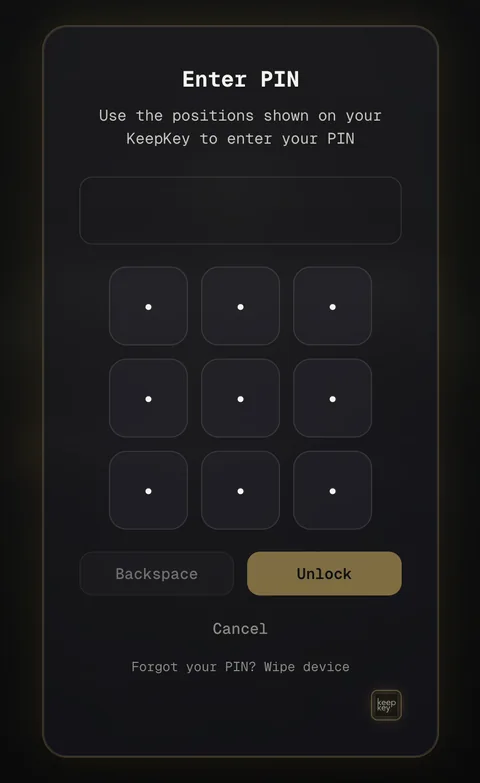
You choose a device PIN during setup. When you enter it, KeepKey’s screen shows digits in a shuffled 3×3 grid. KeepKey Desktop shows nine blank positions. Find each digit of your PIN on the device and click the corresponding position in the app. The layout changes for the next unlock, so use the arrangement currently shown on KeepKey.
The current PIN guide accepts PINs 1–9 digits long and recommends at least four. Incorrect guesses lead to longer waits before another attempt; they do not automatically wipe the device. If you forget the PIN, the app’s forgotten-PIN option intentionally wipes KeepKey and starts recovery. Have the recorded recovery phrase, and the exact passphrase if you used one, available before choosing that route.
Official guidance
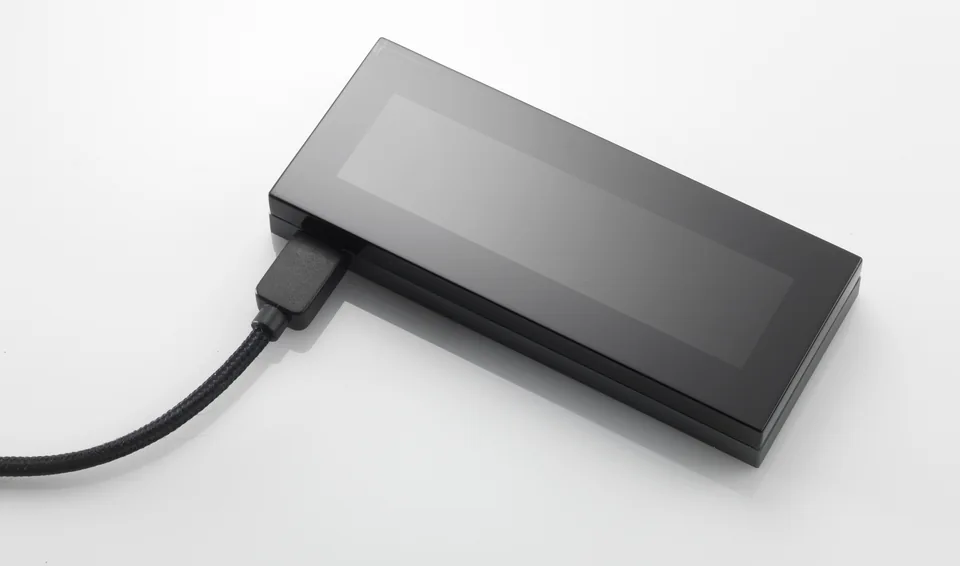
For an ordinary transfer, choose Send on the asset card in KeepKey Desktop. Enter the recipient address and amount, choose a fee priority and select Build Transaction. Review the destination, amount and network fee in the app. Then read the full recipient address and amount on KeepKey and approve or reject with its button according to the device prompts.
Approval returns the signed transaction to Desktop. Choose Broadcast Transaction to send it to the network; signing on the device is not this final sending action. Cancelling during device review has not broadcast the payment. After broadcast, Desktop shows the transaction ID and tracks its status while the network confirms it.
Official guidance
Bitcoin and Ethereum are supported in the documented KeepKey Desktop computer routine. To receive, choose Receive on the intended asset card. Compare the complete address shown in Desktop with the address on KeepKey before sharing it with the sender.
Bitcoin receiving choices include Legacy, SegWit and Native SegWit accounts. Choose the account type you intend to fund; these use different address paths. When withdrawing from an exchange, select the supported coin or token you want to receive and a withdrawal network matching the receiving account’s network. A name such as USDT alone does not determine that network.
The address QR in Desktop helps the sender copy the receiving details. It is not a QR signing connection. Once the checked address is shared, KeepKey does not need to stay connected while the incoming transfer arrives on the blockchain.
Official guidance
For a new wallet, choose Create New Wallet in Desktop. Expand Seed length to choose 12, 18 or 24 words. KeepKey recommends 12 as the default. The device generates and displays the words for you to write down in order. This is a BIP39 recovery phrase: one ordered word list used to restore the wallet if the device is lost or replaced.
For an existing backup, choose Recover Existing Wallet on a new or wiped KeepKey and select 12, 18 or 24 to match the phrase exactly. KeepKey uses the English BIP39 wordlist. During recovery, the device’s scrambled alphabet tells you which mapped letters to enter in Desktop. Follow the dedicated cipher procedure below; the real words are not entered in an ordinary text field.
Restoring the words and finding the original accounts are separate parts of the task. Use the original assets, networks and supported account/address paths, then compare the receiving addresses with the originals. If you used a hidden-wallet passphrase, you need that exact passphrase too.
Official guidance
Use Verify Now during setup, or the backup check under Settings → Device later. Read from your written record and follow the device-guided check. The result tells you whether that record matches the recovery phrase held by KeepKey; this is a check, not a new-wallet creation or restoration.
If the check does not match, keep a funded device intact while you review the written order and retry the documented check. Do not wipe it to test recovery.
Official guidance
A passphrase is an optional additional recovery password. KeepKey combines it with your recovery words to open a separate wallet with its own addresses and accounts. Enable BIP-39 Passphrase under Desktop’s Settings → Security; the app then asks you to enter it whenever you unlock. Different spelling, capitalization or spaces open a different wallet rather than producing a wrong-password error.
To restore those accounts, retain the original words and exactly the same passphrase. Before funding a hidden wallet, note its receiving address, disconnect and reconnect KeepKey, enter the passphrase again and check that the same address returns. This checks that you can reproduce the hidden wallet; it is separate from checking the written recovery words.
Official guidance
KeepKey Desktop is the computer app; firmware is the software on KeepKey. The device’s bootloader provides its update mode. Each has its own version number. For the app, use Settings → Application → App Version → Check for Updates and follow the update or installer prompts for your computer. KeepKey Desktop also handles device updates, replacing the retired KeepKey Client and KeepKey Updater.
Update the device
A retired ShapeShift-era app also used the KeepKey Desktop name and can hold the USB connection; quit old software if the current app cannot open the device.
Official guidance
| Detail | Value |
|---|---|
| DisplayDisplay type | OLED |
| Resolution | 256 × 64 px |
| Power and chargingOperating power | USB power |
| Materials and finishMaterials | Body: Aluminium |
| Security and softwareSecurity chip | No Secure Element |
| ProcessorControllers | Sources disagree |
This page is based on manufacturer documentation.
Documentation checked: · ·
How we compareKeepKey

