A good fit if
You want to stay with Trezor Suite while approving transactions on an iPhone, or prefer a touchscreen that can be used without a USB cable. Wireless connectivity is the practical reason to compare it with Safe 5.


The wireless Trezor option, with a touchscreen, rechargeable battery and support for iPhone signing.

Approve transactions with
Backup
Recovery phrase
Power
Battery or USB power
Is it right for you?
You want to stay with Trezor Suite while approving transactions on an iPhone, or prefer a touchscreen that can be used without a USB cable. Wireless connectivity is the practical reason to compare it with Safe 5.
You only use a computer and prefer to avoid pairing and battery management. Safe 5 offers a simpler wired routine; paying for wireless capability only helps if you will use it.
For a wired touchscreen when wireless use is unnecessary.
Compare Safe 7 and Safe 5For BitBoxApp and a microSD backup with iPhone support.
Compare Safe 7 and NovaFor an E Ink touchscreen and Bluetooth use with Ledger Wallet.
Compare Safe 7 and FlexPhones and computers
Check the app and connection for each device. Setup and transaction signing are confirmed separately.
USB or Bluetooth
Windows · macOS · Linux
Bluetooth
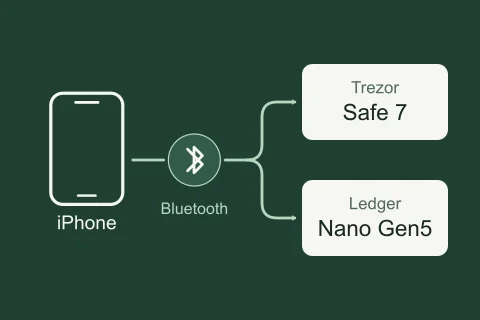
Setup and signing use the Trezor Suite app over Bluetooth. Installing the current iPhone app requires iOS 16.4 or later. USB-C is for charging. Check that Suite supports the asset and network you want to use; the Bitcoin-only edition is limited to Bitcoin.
USB or Bluetooth
Setup and signing use the Trezor Suite app on Android 12 or later, over Bluetooth or a supported USB-C connection. Check that Suite supports the asset and network you want to use; the Bitcoin-only edition is limited to Bitcoin.
Pair with Trezor Suite for supported wireless use and confirm transaction details on the device. USB remains an option on a computer, and Bluetooth can be disabled in settings. The battery is built in, so charging is part of the wireless routine; Trezor says the device also works when powered by USB. Trezor rates the device IP54 for resistance to dust and splashes. It is not designed for immersion in water.
With Trezor Suite, iPhone setup and signing use Bluetooth. Installing the current iPhone app requires iOS 16.4 or later. USB-C is for charging. Android requires version 12 or later and can use Bluetooth or a supported USB-C connection. On a compatible computer, Suite offers USB or Bluetooth. Check the exact asset, network and app before moving funds.
If iPhone is your only host, read the firmware-update preparation below before relying on it for every task.

Official guidance
Check whether you are buying the Universal or Bitcoin-only model. iPhone compatibility does not change the selected edition's asset scope. Verify the particular coin, network and app workflow rather than relying on a broad supported-coins total.
On a Universal Safe 7, Suite provides the ordinary switch between Universal and Bitcoin-only firmware. Bitcoin-only firmware hides other network accounts; it does not delete the assets. Return to Universal firmware to manage those supported assets again. Have your backup ready before changing firmware.
The dedicated Bitcoin-only offer has no ordinary Switch to Universal button. Trezor documents a separate advanced Safe 7 procedure for manually installing official Universal firmware. It can erase the device’s memory or leave it unusable; use it only with a strong reason and the necessary knowledge. Choose the edition that fits your needs when buying.
Safe 7 can also act as a security key with FIDO2 or U2F, but registration and sign-in require USB; Bluetooth does not support this task. FIDO2 supports passwordless sign-in on services that offer it; U2F adds a second factor alongside your password. Both require Universal firmware and are unavailable with Bitcoin-only firmware, even on a Universal device.
Official guidance
Use the official Safe 7 setup guide for your phone or computer. For a new wallet, have a pen and somewhere private to write the backup. To keep an existing wallet, choose Recover and follow the recovery route instead.
The default is a single-share, 20-word SLIP39 backup: that one share is the complete backup. BIP39 creation uses 12 or 24 words. Multi-share SLIP39 is an optional configuration with a chosen minimum number of shares, called the threshold; each share has its own words. Record the format and configuration you actually choose.
Pairing connects the devices; Trezor Host Protocol adds a separate authenticated app connection over USB or Bluetooth. Neither check approves a future payment. If Safe 7 is not detected, follow the official pairing help rather than changing recovery or resetting the wallet.
Official guidance
In Suite, receiving starts with the account on the network the sender will use. These steps cover an ordinary on-chain payment in a supported Suite account; the Bitcoin-only edition remains limited to Bitcoin.
A QR code helps copy the address; it does not verify it. Once you have checked a receiving address, an ordinary payment can arrive while Safe 7 is disconnected. Receiving it does not require a transaction signature.
Official guidance
Suite prepares the payment; Safe 7 shows the request for you to approve. Signing on the wallet and broadcasting from Suite are separate steps. These instructions are for an ordinary transfer, not every dApp permission or contract request.
Official guidance
Safe 7 can compare your saved words with the backup on the device without connecting to Suite. Use this while you can unlock the wallet. It does not replace the saved wallet and is different from restoring access on a replacement.
A staggered multi-share check can retain entered shares while you travel between their locations. Safe 7 remains in check mode until the required shares are entered; exiting early loses the checking progress. Complete or exit that task before using the device for payment or address-checking tasks. Already verified addresses can still receive network payments.
The setup word questions and this full backup comparison are different checks. Neither result demonstrates restoration on another device or verifies an optional passphrase.
Official guidance
To regain access after a lost or broken Safe 7, you need the complete backup for that wallet and the exact optional passphrase if you used one. Choose a replacement that supports that format, passphrase, assets, networks and accounts. A Trezor 20-word backup uses SLIP39; BIP39 support alone does not establish compatibility.
Before any wipe or reset
Start restoration in Trezor Suite with a new or empty Safe 7: choose Recover, then Start recovery. Select the word count on the device and enter the backup there using its touchscreen. The supported restoration formats are distinct from the defaults offered when creating a new wallet.
One complete single-share backup can restore that wallet. A multi-share backup requires enough valid shares to meet its threshold. For staggered multi-share restoration, you can enter shares at separate locations after starting in Suite, but the official guide requires the final share with Safe 7 connected to a computer running Suite. Set a PIN immediately afterwards.
The PIN is entered on Safe 7’s touchscreen. An optional passphrase can be entered there or in Trezor Suite on your connected computer or phone. The passphrase is separate from the PIN: a different value opens a different wallet. A matching word backup does not check it. If restored accounts look empty, check the exact passphrase, selected network and intended accounts before concluding the funds are missing. If the device and complete recovery information are both lost, no route is established here that can recreate the wallet.
Official guidance
Trezor estimates about a day of regular use per charge. The battery is built in and cannot be replaced. If it stops working, Trezor says the device still works over USB. Wireless charging requires a Qi2-compatible charger.
Keep Suite updated, and treat a device-firmware update as a separate task. Before starting it, have the complete usable backup and any optional passphrase available. An interrupted or failed update can require recovery.
Later firmware updates on iPhone remain unconfirmed in the checked documentation. The Safe 7 setup guide describes initial firmware installation on iPhone, while the general update guide says iOS firmware updates are unsupported and directs users to a computer. Initial installation does not settle later updates. If iPhone is your only host, check the current official instructions and resolve this requirement before relying on it for maintenance; the computer update route is documented. This uncertainty does not change Safe 7’s documented iPhone setup and signing support.
Official guidance
| Detail | Value |
|---|---|
| DisplayScreen diagonal | 2.5″ |
| Resolution | 520 × 380 px |
| Colour mode | Colour |
| Size and weightDimensions | 75.4 × 44.5 × 8.3 mmDimensions as listed by the manufacturer |
| Device weight | 45 g |
| Power and chargingBattery | Rechargeable |
| Battery capacity | 330 mAh |
| Operating power | Battery or USB power |
| Wireless charging | Qi2-compatible |
| Materials and finishBuilt-in magnets | Yes |
| Device connectionsUSB port | USB-C |
| Security and softwareSecurity chip | OPTIGA Trust M (V3) · CC EAL6+; TROPIC01 |
| Operating conditionsOperating temperature | 0 °C … 45 °C |
| Key datesReleased | October 21, 2025 |
| ProtectionDust and water protection | IP54 |
FIDO2 · U2F
Multi-coin edition only
Requires Universal firmware
USB only for registration and sign-in
Contents of this offer
Trezor Safe 7 Charcoal BlackTrezor Safe 7 Bitcoin-onlyThis page is based on manufacturer documentation.
Documentation checked: · · · · ·
How we compareTrezor Safe 7Multi-coin edition