A good fit if
You prefer physical buttons and plan to use your wallet with a computer or Android phone over USB. There is no battery to keep charged.


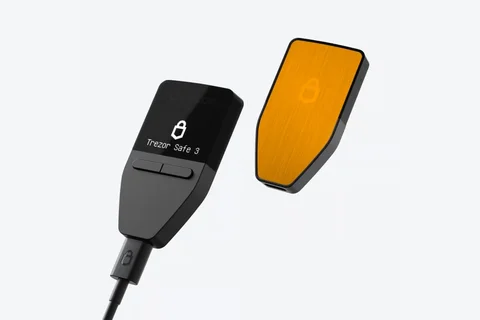
A button-operated Trezor for people who prefer a wired setup and do not need a touchscreen.

Approve transactions with
Controls
Physical buttons
Backup
Recovery phrase
Power
USB power
Is it right for you?
You prefer physical buttons and plan to use your wallet with a computer or Android phone over USB. There is no battery to keep charged.
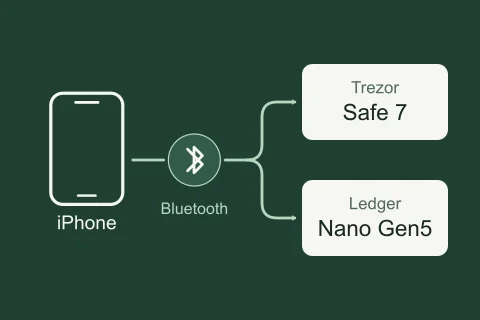
You want to send from an iPhone, or prefer a touchscreen for entering a PIN and reviewing details. Safe 3 does not approve transactions with an iPhone.
A colour touchscreen for reviewing details and entering information, while keeping USB use.
Compare Safe 3 and Safe 5For iPhone signing and wireless use within Trezor’s range; it needs charging and pairing.
Compare Safe 3 and Safe 7A larger E Ink touchscreen and Bluetooth phone use, with cryptocurrency support depending on the app.
Compare Safe 3 and FlexPhones and computers
Check the app and connection for each device. Setup and transaction signing are confirmed separately.
USB
Windows · macOS · Linux
USB
Setup and signing use the Trezor Suite app on Android 12 or later over USB. Your phone needs USB-C support and a suitable data cable. Check that Suite supports the asset and network you want to use; the Bitcoin-only edition is limited to Bitcoin.
Day to day
What decides the purchase, then each owner task in the order you’ll meet it.

Hardware, backup and editions
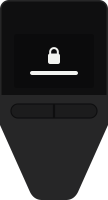
Two buttons, no touchscreen
You check each address and payment on Safe 3’s own screen, and confirm with its two buttons.
Enter your PIN on Safe 3; recovery words go there during checks or restoration. Passphrases can also be entered in Suite.
Bitcoin-only: no easy way back
Choose carefully: the Bitcoin-only edition has no ordinary switch back to Universal.
Switching firmware type on a Universal device wipes it. Check your backup and passphrase first.
FIDO2 and U2F on Universal
With Universal firmware, Safe 3 also works as a FIDO2 or U2F security key.
Unavailable with Bitcoin-only firmware, even on a Universal device.
USB power, no charging routine
No battery to charge: Safe 3 runs on USB power while it’s plugged in.
Write your own backup offline
The backup you write down is what restores the wallet if it’s lost or erased.
Older units may default to 12 words, newer ones to 20.
Check the cable fits your host
Check the included cable against your computer or phone before setup.

Getting ready to use it
Stop if the seal is damaged
Check the seal, let Suite install firmware, then write down your backup and set a PIN on Safe 3.
Seal missing or damaged, or words already on the cards? Stop and contact Trezor.
Optional · can’t be recovered
An optional passphrase opens a separate wallet; restoring it needs both passphrase and backup.
Trezor can’t recover a forgotten passphrase, and one different character opens a different wallet.
Accounts belong to networks
Each account belongs to one network; you can add more than one account on that network.
Confirm the exact asset, network and app in Trezor’s coin list before transferring.

Each time you receive or pay
Verify the address on Safe 3
Compare the full address on Safe 3 with the final address you paste or share.
The sender must use the same network as your receiving account.
Approve on Safe 3, send in Suite
Approve the transaction on Safe 3, then send it from Suite.
Check the full address, amount and fee on Safe 3. You can cancel until you broadcast.

Before an update or a reset
Doesn’t erase · on a computer
Check your written backup against Safe 3 without erasing the wallet.
It doesn’t test your passphrase, or whether another wallet accepts the same backup format.
Check your backup first
Use the firmware update offered in Suite; it handles the download and installation.
Check your backup first: an interrupted installation can erase the device.

Lost, wiped, forgotten or failed
Backup plus any passphrase
Restore onto a new or wiped Safe 3 with your recorded backup, plus any passphrase you used.
Reset erases it: backup first
Getting back in means resetting Safe 3, which erases it, then restoring from your backup.
Don’t reset until you have your backup and any passphrase the wallet needs.
Don’t wipe it: move funds first
If Safe 3 can still approve payments, move the funds to a new wallet with a checked backup.
Don’t wipe or update the device while it’s your only way to approve those payments.
Before you buy · 1 of 16
You check each address and payment on Safe 3’s own screen, and confirm with its two buttons.
Enter your PIN on Safe 3; recovery words go there during checks or restoration. Passphrases can also be entered in Suite.
Practice with 69352, never your own PIN. Left and Right move; press Both to select. Choose ENTER to end this exercise at ENTER NEW PIN.
Current choice: 6
Current choice: 6
Interactive illustration.
Before you buy · 2 of 16
Choose carefully: the Bitcoin-only edition has no ordinary switch back to Universal.
Switching firmware type on a Universal device wipes it. Check your backup and passphrase first.
Choose Universal if you might manage other supported cryptocurrencies later.
Before you buy · 3 of 16
With Universal firmware, Safe 3 also works as a FIDO2 or U2F security key.
Unavailable with Bitcoin-only firmware, even on a Universal device.
Before you buy · 4 of 16
No battery to charge: Safe 3 runs on USB power while it’s plugged in.
Before you buy · 5 of 16
The backup you write down is what restores the wallet if it’s lost or erased.
Older units may default to 12 words, newer ones to 20.
Only the newer 20-word SLIP39 format can add a multi-share backup directly. Backups created before June 2024 cannot; neither can 12- or 24-word BIP39 backups.
Adding a multi-share backup keeps the same wallet and leaves the original backup valid. Keep it private; don’t mix shares from separate backup sets.
Before you buy · 6 of 16
Check the included cable against your computer or phone before setup.
Trezor Safe 3
Trezor Safe 3 Bitcoin-only
First day · 7 of 16
Check the seal, let Suite install firmware, then write down your backup and set a PIN on Safe 3.
Seal missing or damaged, or words already on the cards? Stop and contact Trezor.
Creating a new wallet generates a new backup. To restore an existing wallet onto a new or wiped Safe 3, choose recovery instead.
Package
Step 1:Check the package
Check that the port seal is intact and the backup cards are blank. Peeling an intact seal normally leaves VOID residue.
Seal missing or damaged on arrival, or cards already filled in? Stop and contact Trezor through its authenticity guide.
You · USB
Step 2:Install Suite and connect
Get Trezor Suite from Trezor’s official site and connect Safe 3.
In Suite
Step 3:Firmware and authenticity
Install firmware and start the authenticity check in Suite, then follow the prompts on Safe 3.
In Suite
Step 4:Create a new wallet
ComputerCreate a new wallet
AndroidGet started
Restoring an existing wallet instead? Restore from your backup
In Suite
Step 5:Choose your backup type
Check the backup option before continuing.
Default formats and multiple shares Your backup
6On Safe 3
Step 6:Confirm wallet creation
Confirm Create wallet on Safe 3 to generate a new wallet.
On paper
Step 7:Write down the words
Write the words Safe 3 shows, in order. Keep them private and offline.
8On Safe 3
Step 8:Check the words and set a PIN
Complete the word check. For PIN entry, left and right move; both together select.
Never type recovery words into Suite, a website or a support chat.
First day · 8 of 16 · Optional
An optional passphrase opens a separate wallet; restoring it needs both passphrase and backup.
Trezor can’t recover a forgotten passphrase, and one different character opens a different wallet.
Use the standard wallet unless you’ve deliberately chosen a passphrase wallet. A passphrase is not your PIN.
In Suite
Step 1:Turn on passphrase wallets
ComputerSettings → Device → Use Passphrase wallets. Then, in the wallet switcher: + Passphrase wallet → New passphrase, or Open previously used.
AndroidWallet menu → Device settings → Wallet backup & passphrase, and turn it on. Then Open passphrase from the wallet menu.
You
Step 2:Choose where to enter it
Choose Enter passphrase on Trezor for device entry, or type it in Suite.
3On Safe 3
Step 3:Check it before confirming
Check it on Safe 3 before confirming: letters, capitals and spaces all count.
In Suite
Step 4:Show a check address
Before funding it, open Receive → Verify in your coin’s first account.
On paper
Step 5:Note the check address
Read the address on Safe 3. Write the coin and its last eight characters beside your passphrase.
In Suite
Step 6:Eject both wallets
ComputerThe eject icon on each wallet card in the top-left wallet menu.
AndroidSettings → Eject wallets, then the eject icon.
In Suite
Step 7:Reopen and compare
Reopen from your written passphrase, show the same first address on Safe 3, and compare its last eight characters with your note.
Suite can’t tell an intentional empty wallet from a mistyped passphrase. This check proves you can reopen it; payments still need full-address checks.
First day · 9 of 16
Each account belongs to one network; you can add more than one account on that network.
Confirm the exact asset, network and app in Trezor’s coin list before transferring.
In Suite
Step 1:Add an account
Add an account on the asset’s network.
ComputerThe plus next to Accounts
AndroidMy assets → the plus
In Suite
Step 2:Missing from Send or Receive?
Check that its network is enabled.
ComputerSettings → Networks
Address shapes and tickers can look alike across networks. Trezor’s coin list shows which asset, network and app work together.
Every day · 10 of 16
Compare the full address on Safe 3 with the final address you paste or share.
The sender must use the same network as your receiving account.
In Suite
Step 1:Open Receive
Choose the account on the sender’s network and open Receive.
In Suite
Step 2:Show the address on Safe 3
Choose Verify to display the full address on the device.
You
Step 3:Compare the final destination
Paste into its destination field, then compare the whole pasted address with Safe 3. Select the matching network. Stop if anything differs.
Compare the address you’ll share with Safe 3. Send it with the network; ask the sender to check their final destination.
You can unplug Safe 3; funds arrive without it. Suite may show the payment as unconfirmed at first. A new Bitcoin address helps avoid linking payments; older ones still receive.
Never ask a sender for their recovery words, or send yours.
Every day · 11 of 16
Approve the transaction on Safe 3, then send it from Suite.
Check the full address, amount and fee on Safe 3. You can cancel until you broadcast.
In Suite
Step 1:Start the payment
Open the account holding the funds and choose Send. For a token, choose it within its network’s account.
In Suite
Step 2:Enter the details
Match the account’s and recipient’s networks. Paste their address from original instructions into Suite’s Send form, never from transaction history; enter amount and fee.
ComputerReview & send
AndroidReview and sign
3On Safe 3
Step 3:Compare on Safe 3
Compare the full address with the original, and check the amount and fee. Cancel if anything is wrong or unclear.
4On Safe 3
Step 4:Approve
Approving with the buttons signs the payment. It isn’t sent yet.
In Suite
Step 5:Broadcast
This sends it. Then follow it in the account’s history.
ComputerSend
AndroidSend transaction
Now and then · 12 of 16
Check your written backup against Safe 3 without erasing the wallet.
It doesn’t test your passphrase, or whether another wallet accepts the same backup format.
Trezor’s Safe 3 steps for this use a computer.
In Suite
Step 1:Start the check
With Safe 3 unlocked, open Settings → Device → Wallet backup → Check backup. Acknowledge the explanation, then Start.
2On Safe 3
Step 2:Enter the words
Enter the PIN, choose the word count and enter the words in order: left and right move, both together select.
3On Safe 3
Step 3:Read the result
The result appears on Safe 3.
Check the spelling, order and selected words. To leave without wiping: at the Backup check screen press left, scroll down with right, then press right under Cancel.
Now and then · 13 of 16
Use the firmware update offered in Suite; it handles the download and installation.
Check your backup first: an interrupted installation can erase the device.
A Suite app update is not a firmware update. Firmware arrives through Suite on a computer or an Android phone.
In Suite
Step 1:Start the update
ComputerUpdate now in Suite’s notification, or Settings → Device → the firmware update → Install firmware.
AndroidUpdate in the notification → Update firmware, then acknowledge the backup reminder.
2On Safe 3
Step 2:Confirm on Safe 3
Confirm the prompts, including a restart into bootloader mode if asked.
In Suite
Step 3:Let it finish
Keep the cable connected until installation finishes.
AndroidAfter restarting, Suite may ask you to reconnect and enter your PIN on Safe 3.
If an interrupted update erased the wallet: reconnect, finish the official firmware installation, then restore from your backup.
Switching between Universal and Bitcoin-only firmware, or installing a firmware file by hand, is a separate operation.
If something goes wrong · 14 of 16
Restore onto a new or wiped Safe 3 with your recorded backup, plus any passphrase you used.
Trezor’s Safe 3 steps for this use a computer.
In Suite
Step 1:Start recovery
Connect Safe 3 to Suite on a computer, install firmware if asked, then Recover wallet → Start recovery.
2On Safe 3
Step 2:Enter the words on Safe 3
Choose your word count and enter the words in their original order with the buttons and word suggestions.
In Suite
Step 3:Reopen the right wallet
If you used a passphrase, reopen that wallet with the exact same spelling, capitals and spaces.
In Suite
Step 4:Bring your accounts back
Enable the networks you used and check the expected history and balances.
Enter recovery words on Safe 3, never on the computer’s keyboard or clipboard.
It can mean a different passphrase, or a network you haven’t enabled yet.
If something goes wrong · 15 of 16
Getting back in means resetting Safe 3, which erases it, then restoring from your backup.
Don’t reset until you have your backup and any passphrase the wallet needs.
Use the lost-PIN section of Trezor’s reset instructions: it starts in bootloader mode. The ordinary wipe in Suite asks for the PIN you’ve forgotten.
To verify your backup on a device that still unlocks, use Check backup instead. It doesn’t erase anything.
If something goes wrong · 16 of 16
If Safe 3 can still approve payments, move the funds to a new wallet with a checked backup.
Don’t wipe or update the device while it’s your only way to approve those payments.
Trezor’s single-device reset needs a valid original backup, so it can’t fix a missing one.
This page is based on manufacturer documentation.
Documentation checked: · · · · · · ·
How we compareTrezor Safe 3Multi-coin edition