A good fit if
You already use Model T and want to keep its touchscreen setup with a computer or compatible Android phone over USB. Ending sales did not end its documented support.


Discontinued
A USB wallet with a color touchscreen for PIN entry, wallet recovery and transaction checks. Its microSD slot supports optional protection for unlocking the device; it is not a wallet-backup slot.
Page set to Multi-coin firmware Change

Approve transactions with
Backup
Recovery phrase
Power
Not confirmed
Phones and computers
Check the app and connection for each device. Setup and transaction signing are confirmed separately.
USB
Setup and signing use the Trezor Suite app on Android 12 or later over USB. Use a data cable or adapter matching the phone and Model T’s USB-C port. Bitcoin-only firmware is limited to Bitcoin; ETH requires Universal firmware.
USB
Windows · macOS · Linux
Use current Trezor Suite and compatible firmware. Bitcoin-only firmware is limited to Bitcoin. Universal firmware supports Bitcoin and ordinary ETH transfers on Ethereum.
Trezor stopped selling Model T through its own shop on 8 January 2026. Its published commitment is basic maintenance and new coin support until at least 2031, with critical security updates until at least 2036.
Those are separate support commitments, not a guarantee that every future asset, app or feature will work. Ending sales alone does not mean you need to replace a working Model T. Keep checking the support requirements for the tasks you use it for.
Official guidance
Trezor Suite is the app on your computer or phone. Model T connects over USB for setup and transaction signing. The current Android app requires Android 12 or later and a compatible USB data cable or adapter. On iPhone, Suite can show balances and activity for eligible accounts synced from your wallet, but Model T cannot connect to it to sign a transaction.
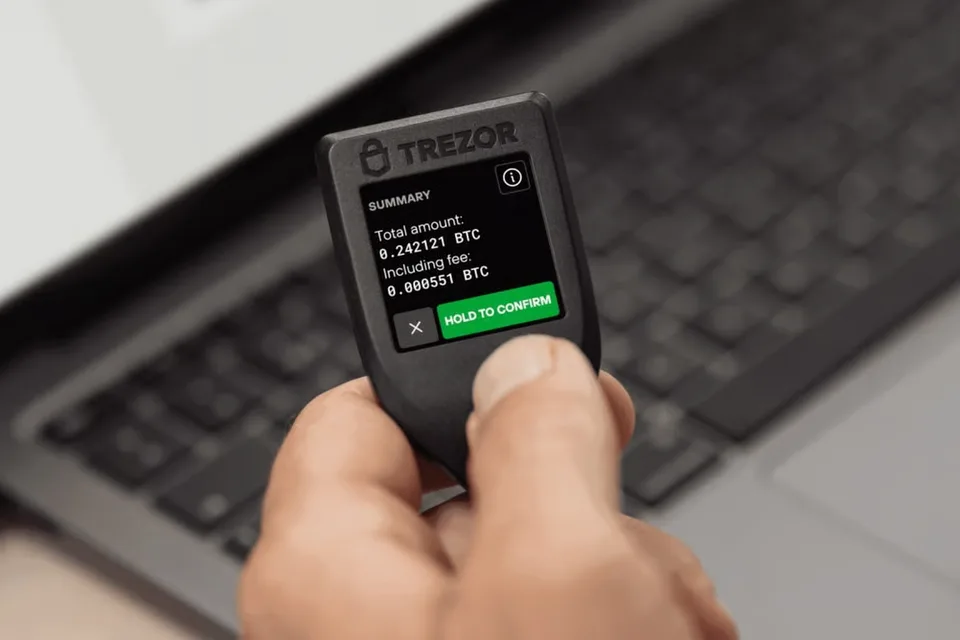
For an ordinary payment, prepare it in the correct account and network in Suite. On Model T, compare the displayed recipient address with the address supplied by the person or service you intend to pay. Check the amount and fee on Model T before approving. After signing on the device, use the final send button in Suite to broadcast the transaction. For receiving, verify the address on Model T before using it; the device can then be disconnected while funds arrive.
Universal and Bitcoin-only are firmware choices on the same Model T hardware. Bitcoin-only is limited to Bitcoin; Ethereum and other supported crypto require Universal. In Trezor’s asset directory, select Model T and check your exact asset, network and app. Universal does not mean every asset or task works in Suite.
Model T can also act as a security key with FIDO2 or U2F. FIDO2 supports passwordless sign-in on services that offer it; U2F adds a second factor alongside your password. Both require Universal firmware and are unavailable with Bitcoin-only firmware, even on a Universal device.
Official guidance
For a new Model T wallet, Trezor Suite recommends a 12-word BIP39 recovery phrase. Current desktop Suite also lets you choose a 24-word BIP39 phrase. Suite supports SLIP39 backups with 20-word recovery shares. A single-share backup is one complete word list. With a multi-share backup, recovery needs the number of matching shares you chose during setup; splitting an ordinary phrase into pieces does not create that backup.
Creating an 18-word BIP39 phrase or 33-word SLIP39 shares uses advanced tools such as trezorctl, Trezor’s command-line tool. The advanced rows in the table also include formats available in ordinary Suite setup. Model T can restore the listed BIP39 and SLIP39 formats, but the replacement’s firmware must support the type of backup you have.
Firmware 2.7.2 or later is needed for the newer SLIP39 backups that allow you to create further backups of the same wallet. Older Model T firmware already supported Shamir backups, but cannot restore this newer type. Updating firmware does not convert an existing BIP39 phrase into SLIP39.
If you lose the device, you need the complete recovery phrase or enough matching recovery shares, plus the exact passphrase if you used one. The PIN unlocks the device; it does not replace this recovery information. To restore onto a new or reset Model T, start recovery in Suite and enter the backup words on the device’s touchscreen, never in the app or a website. Before resetting an existing device, make sure you have the backup and any passphrase needed to restore its wallet.
The microSD card serves optional device-unlocking protection and is not the wallet backup. The separate guide explains enabling that feature and what to do if its paired card is missing.
Official guidance
While Model T still works, its Check backup feature can compare your saved words with the wallet backup on the device without replacing the wallet. Trezor’s Model T procedure uses Suite on a computer: connect and unlock the device, open Device settings and choose Check backup. Follow the device prompts and enter the words on Model T.
Before updating firmware, have the backup and any passphrase available. If the backup check fails, resolve that before an update or reset; do not erase the device while it is your only way to authorize transactions. The check confirms the backup, not whether you remember the correct passphrase.
Suite shows when a firmware update is available. Model T updates use USB with a computer or Android phone. Follow the current procedure and keep the connection in place until installation finishes: an interrupted update can leave you needing to restore the wallet.
Official guidance
| Detail | Value |
|---|---|
| DisplayDisplay type | LCD |
| Screen diagonal | 1.54″ |
| Resolution | 240 × 240 px |
| Colour mode | Colour |
| Size and weightDimensions | 64 × 39 × 10 mmDimensions as listed by the manufacturer |
| Device weight | 22 g |
| Materials and finishMaterials | Casing: PC/ABS |
| Device connectionsUSB port | USB-C |
| Memory card slot | microSD |
| Security and softwareSecurity chip | No Secure Element |
| Conformity marks | CE · RoHS |
| ProcessorCore and clock speed | ARM Cortex-M4 · 180 MHzClock speed applies from firmware 2.6.0 |
| Controllers | STM32F42x |
| Operating conditionsOperating temperature | -20 °C … 60 °C |
FIDO2 · U2F
Requires Universal firmware
This page is based on manufacturer documentation.
Documentation checked: · · · ·
How we compare