A good fit if
You want a touchscreen wallet for both your phone and computer, and prefer a round aluminium body with USB-C for the wired connection.


A round aluminium hardware wallet with a 2.8-inch touchscreen, USB-C for a computer and Bluetooth for a phone.

Approve transactions with
Backup
Recovery phrase
Power
Rechargeable battery
Is it right for you?
You want a touchscreen wallet for both your phone and computer, and prefer a round aluminium body with USB-C for the wired connection.
You prefer a lighter rectangular device. W20 offers the same 2.8-inch screen and phone app, but weighs 62 g rather than 120 g and uses Micro-B instead of USB-C.
A lighter rectangular model with the same screen size and phone app, using Micro-B for USB.
Compare SecuX V20 and SecuX W20A compact USB touchscreen wallet for a computer or supported Android phone if you prefer Trezor Suite.
Compare SecuX V20 and Safe 5Phones and computers
Check the app and connection for each device. Setup and transaction signing are confirmed separately.
USB
Linux
Bluetooth
Bluetooth
Prepare a transfer in SecuX Wallet on your phone or SecuXess on your computer. V20 shows the recipient address and amount on its 2.8-inch colour touchscreen for you to review and approve. You then return to the app to send the transaction.
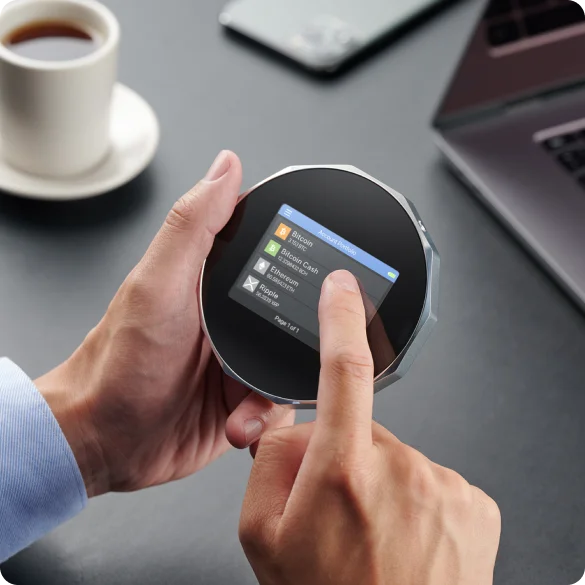
On iPhone and Android, V20 connects to SecuX Wallet over Bluetooth. The iPhone app requires iOS 13 or later. For a wired computer connection, use SecuXess in Chrome and a USB-C cable; turn off Bluetooth on the wallet when connecting by USB.
SecuX’s USB guide lists Windows 10 or later, macOS 10.13.6 or later, Linux and Chrome OS, using Chrome 71 or later.
Firmware updates use a different app or the web updater. The computer method needs USB and Chrome. For phone updates, SecuX provides the separate SecuX Firmware Update app for iOS and Android, which supports V20. SecuX Wallet is the app for everyday transfers.
Official guidance
For Bitcoin and Ethereum transfers, you can use V20 with SecuX Wallet on your phone or SecuXess on your computer.
For a token such as USDT, the network matters as much as the name. Look up the coin or token in SecuX’s supported-assets list, then use the entry for your network and the desktop or mobile app you plan to use. The list has separate columns for the two apps, so a desktop entry alone does not confirm phone support.
When receiving USDT or USDC in SecuX Wallet, you choose the network before getting the receiving address. That network must match the withdrawal network at your exchange. Use Verify on device to display the receiving address on V20 and compare it with the app’s address before transferring.
Official guidance
When you create a new wallet, V20 generates a 24-word recovery phrase on the device. Write the words in order and keep them offline, separate from the wallet. Those words restore access to your wallet if the device is lost; the device PIN only unlocks the unit you have.
To restore an existing wallet, V20 accepts phrases of 12, 18 or 24 words entered on its touchscreen. Moving from another wallet also requires a compatible recovery format and support for the accounts and assets you need.
SecuX’s optional Hidden Wallet creates a separate wallet using an extra password, called a passphrase, and gives it its own PIN. Restoring that wallet requires the recovery phrase and exactly the same passphrase. Keep both in your recovery plan if you use this feature.
You can check your written phrase on the device through Settings → SEED while the wallet is working. This lets you check the backup without resetting the wallet.
Official guidance
Choose V20 if you prefer USB-C and the round aluminium body. W20 has the same screen size and uses the same phone and computer apps, so it is worth choosing instead if you prefer a lighter rectangular device and Micro-B suits your setup.
| Detail | Value |
|---|---|
| DisplayDisplay type | LCD |
| Screen diagonal | 2.8″ |
| Resolution | 360 × 240 px |
| Colour mode | Colour |
| Size and weightDevice weight | 120 g |
| Power and chargingBattery | Rechargeable |
| Battery life | 7 hr in use |
| Battery capacity | 600 mAh |
| Charging methods | USB-C |
| Materials and finishMaterials | Aluminium |
| Device connectionsUSB port | USB-C |
| Bluetooth version | 5.0 |
| Security and softwareSecurity chip | Infineon SLE 97 · CC EAL5+ |
| ProcessorControllers | Nordic nRF52840 |
This page is based on manufacturer documentation.
Documentation checked: · · ·
How we compareSecuX V20

