A good fit if
You want a thin card-shaped wallet for transfers from your phone and prefer physical buttons to a touchscreen. Shield BIO weighs 8 g; its fingerprint pad also serves as the Confirm control.


A thin card-shaped hardware wallet for phone transfers over Bluetooth, with a 1.1-inch e-paper screen and optional fingerprint verification.

Approve transactions with
Controls
Physical buttons
Backup
Recovery phrase
Power
Rechargeable battery
Is it right for you?
You want a thin card-shaped wallet for transfers from your phone and prefer physical buttons to a touchscreen. Shield BIO weighs 8 g; its fingerprint pad also serves as the Confirm control.
You want a larger touchscreen, or computer transactions are essential. Shield BIO’s documented current workflow uses a phone; computer transactions remain unverified. V20 has an established USB computer workflow and a 2.8-inch touchscreen.
For phone transfers with a 2.8-inch colour touchscreen instead of Shield BIO’s card buttons and small e-paper screen.
Compare Shield BIO and NeoGoldFor a 2.8-inch touchscreen, USB-C computer transfers and Bluetooth phone use.
Compare Shield BIO and SecuX V20Phones and computers
Check the app and connection for each device. Setup and transaction signing are confirmed separately.
Bluetooth
Connect by Bluetooth to SecuX Wallet. Fingerprint verification for transactions is on by default but can be disabled; the fingerprint pad still confirms actions when biometric verification is off.
Bluetooth
Connect by Bluetooth to SecuX Wallet. Fingerprint verification for transactions is on by default but can be disabled; the fingerprint pad still confirms actions when biometric verification is off.
Use SecuX Wallet on iPhone or Android and connect the unlocked Shield BIO over Bluetooth. Enter the recipient address and amount in the app, then review the transaction on the card’s 1.1-inch e-paper screen before confirming with its pad. Return to the app for the final Send action.
The card has Up and Down buttons for navigation rather than a touchscreen. You also use them to enter your PIN and step through recovery words during setup, so choose Shield BIO if that small-screen, button-based routine suits you.
The current iPhone app requires iOS 13 or later. The Android app is available, but its current minimum Android version was not established in the checked listing; check whether your phone can install it before buying.
Official guidance
You can unlock Shield BIO with a registered fingerprint or its PIN. Enrolling a fingerprint requires the PIN, and the device accepts up to two fingerprints.
For transaction approval, SecuX’s setting named 2FA requires a registered fingerprint and is enabled by default. If you switch it off, you still confirm transactions on the same pad, but it no longer checks your fingerprint.
Shield BIO works with Bitcoin and Ethereum in SecuX Wallet. Other Ethereum-compatible networks are supported through manual token addition, as described in SecuX’s April 2025 app release. For the coin or token you plan to use, check its exact network in the Mobile column of the V20/W20/Shield BIO asset list.
When receiving a token available on several networks, such as USDT, choose its network in the app and use Verify on device to compare the receiving address with the card. At your exchange, select the intended token and confirm that this receiving account supports it. The withdrawal network must match that account’s network.
Official guidance
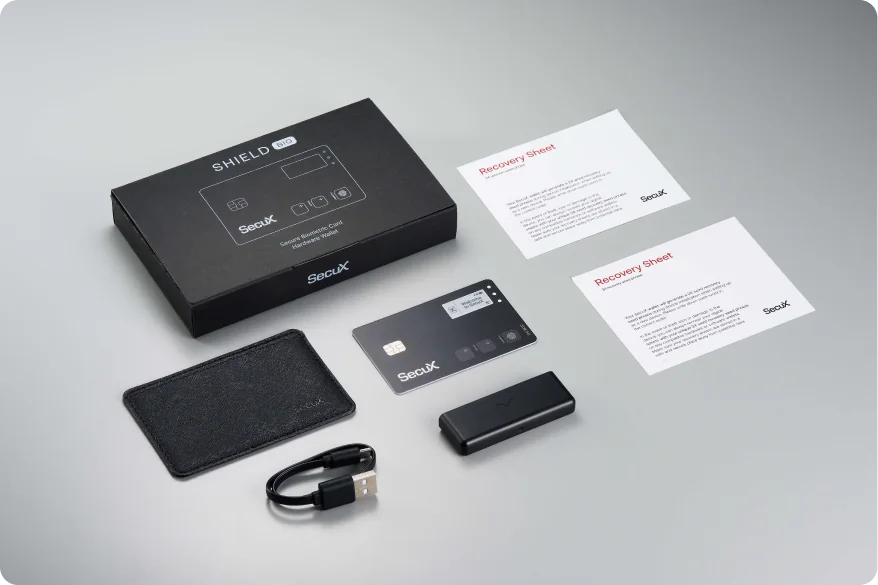
For a new wallet, Shield BIO offers a 12- or 24-word recovery phrase, with 24 words shown as the suggested option. It displays three words at a time on the card. Use the buttons to move between pages, record the words in order and confirm them on the device. The kit includes two paper recovery sheets.
The manufacturer’s April 2024 restore instructions document entering a compatible 12-, 18- or 24-word phrase on the card using its buttons and pad. The backup must use the BIP39 recovery-phrase format, and the app must support the accounts and networks you intend to restore.
An additional recovery password, or passphrase, is unconfirmed for Shield BIO. If your existing backup uses a passphrase, we cannot recommend this model for replacing that wallet.
The recovery words are the backup for replacing a lost or damaged card. Keep them offline, separate from Shield BIO; a registered fingerprint and the device PIN do not replace them.
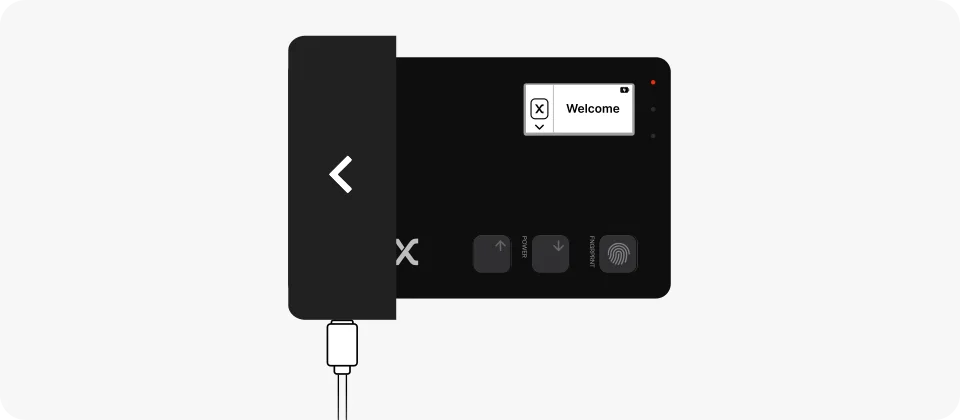
Insert Shield BIO into its charging dock with the metal contacts aligned, then connect the dock to USB power. The red LED indicates charging. SecuX recommends charging for at least two hours before first setup and keeping the card in its dock during setup.
SecuX estimates 50–60 minutes of continuous use on a full charge. This is a manufacturer estimate for active use, not standby time.
Firmware updates use SecuX Wallet over Bluetooth. With the card powered on, unlocked and connected, the app checks for updates; select Update when it offers one. The dock supplies power, while the app connection handles the firmware task.
Official guidance
Choose Shield BIO for its thin card shape and the option to verify transactions with a fingerprint. NeoGold offers a 2.8-inch colour touchscreen for phone use instead. Choose V20 if you also need an established USB computer workflow; it combines a 2.8-inch touchscreen with USB-C and Bluetooth phone use.
| Detail | Value |
|---|---|
| DisplayDisplay type | E Ink |
| Screen diagonal | 1.1″ |
| Size and weightDevice weight | 8 g |
| Power and chargingBattery | Rechargeable |
| Battery capacity | 14 mAh |
| Materials and finishMaterials | PVC |
| Device connectionsBluetooth version | 5.0 |
| Security and softwareSecurity chip | Infineon SLE 97 · CC EAL5+ |
This page is based on manufacturer documentation.
Documentation checked:
How we compareSecuX Shield BIO

