A good fit if
Choose X1 if you want to use the SafePal phone app with a Bluetooth connection and a physical keypad. The phone prepares transfers and shows your balance; X1 holds the signing keys and authorizes payments with its own PIN.


SafePal’s Bluetooth wallet with a physical keypad, for using the SafePal mobile app without exchanging transaction QR codes.

Approve transactions with
Controls
Physical buttons
Backup
Recovery phrase
Power
Rechargeable battery
Is it right for you?
Choose X1 if you want to use the SafePal phone app with a Bluetooth connection and a physical keypad. The phone prepares transfers and shows your balance; X1 holds the signing keys and authorizes payments with its own PIN.
Choose another model if you want a touchscreen or prefer exchanging transaction data through QR codes. You also need a computer for X1 firmware updates, even if you normally manage payments on your phone.
Choose S1 if you prefer SafePal phone payments with two-way QR scanning instead of Bluetooth.
Compare SafePal X1 and SafePal S1Choose the multi-asset Safe 3 if you prefer USB with Trezor Suite on a computer or compatible Android phone. It does not sign with an iPhone.
Compare SafePal X1 and Safe 3Phones and computers
Check the app and connection for each device. Setup and transaction signing are confirmed separately.
Bluetooth
Bluetooth
X1 works with the SafePal App on iPhone and Android through Bluetooth. The current iPhone app requires iOS 15.0 or later. The current app’s minimum Android version is unconfirmed, so check that you can install it on your phone before choosing X1.
The app displays your balances and prepares transfers using network data. X1 holds the signing keys and authorizes requests; its asset-list screen does not show a live network balance.
Check your exact asset and network, rather than its name alone. SafePal’s directory lists native Bitcoin on Bitcoin and native Ethereum on Ethereum for X1; a similarly named asset on another network needs its own support check.
Official guidance
In the app, choose Hardware Wallet, then SafePal X1. The initial connection and activation come before creating or recovering the wallet on the device. When activation succeeds, the app shows the device serial number and activation time, and X1 shows a success message.
For a new wallet, choose Create New Wallet on X1. Select 12, 18 or 24 recovery words, write them down in order and confirm the ordered words on the device. Then set the device PIN, which accepts 6–12 digits, and name the wallet. Complete adding it to the app and confirm the pairing with OK on X1.
Pairing asks for the app’s security password. X1’s PIN authorizes actions on the device. The recovery words let you restore the wallet; neither password replaces them. Pairing the app with X1 is different from entering the hardware wallet’s recovery words into a software wallet.
Official guidance
X1 has a 12-button keypad with directional controls and an OK button. You navigate and enter the device PIN on X1 rather than using a touchscreen. Its 1.8-inch monochrome LCD has a resolution of 128 × 64 pixels.
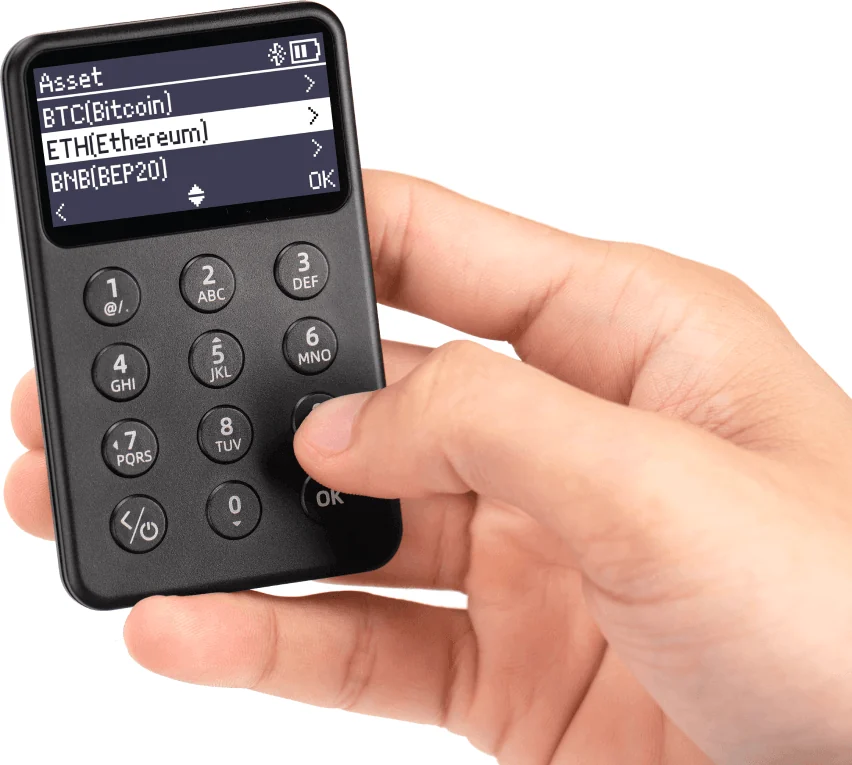
Open the X1 wallet in the SafePal App, add or select the asset and choose Receive. Copy or share that account’s address for the intended network. If the receiving service requires a memo or destination tag, include it too.
Adding an asset can involve a separate device step. For coins such as SOL, LTC and XRP, SafePal’s guide includes a PIN confirmation on X1 when you add them. It says Ethereum-compatible asset additions do not require that synchronization. This setup step is different from signing an outgoing payment.
An ordinary incoming transfer does not need your signature. Once funds reach the selected address, check their status in the app or the sending service. For a new route, a small test that meets the receiver’s minimum deposit can help you check that the funds arrive where you intended.
Official guidance
In the paired X1 account, choose the asset, open Send and enter the recipient address and amount. Check the network, recipient, amount and fees before submitting the request. If the details differ from your intended payment or the request is unclear, stop before authorizing it.
The checked X1 procedure shows the phone’s confirmation request and the device’s PIN prompt. It does not establish that every address, network and fee is displayed in full on X1. Do not assume that entering the PIN provides a second complete review of the payment.
When the app shows Awaiting confirmation, turn on X1 and enter its PIN to authorize the signature.
After X1 signs, the transaction is broadcast to the network. That is not confirmation that the recipient has received the funds. Check the transaction status in the app and, when provided, its link to the correct blockchain explorer.
Official guidance
X1 has a rechargeable 200 mAh battery and a USB-C charging port. SafePal states two hours of continuous use on a full charge. Its manual asks for a DC 5 V mobile charger and warns against using a laptop charger.
Before updating, have your recovery words securely backed up and stored, as SafePal requires. If the words are missing or you are unsure they are usable, keep X1 configured and do not start the update. Use the guide below if X1 can still approve payments.
Firmware maintenance needs a computer; SafePal’s X1 update procedure excludes mobile updates. It uses a serial-number-based firmware download, Upgrade Mode on X1 and a USB connection that exposes a virtual disk. Copy the correct upgrade.bin file there, then start the update as instructed. This maintenance connection is separate from ordinary Bluetooth payment signing.
Official guidance
Keep the recovery words after setup. If you replace X1, its Recover My Wallet flow accepts a saved 12-, 18- or 24-word phrase, entered on the device. SafePal documents BIP39/44 recovery, including importing an S1 wallet into X1 using its phrase.
If your recovery words are missing or you are unsure they are usable, keep X1 configured; do not reset it or change its firmware. If X1 can still approve payments, follow the guide below to move funds to a separate wallet with its own new backup. A displayed balance alone does not mean you can authorize a transfer.
Pairing a phone with an existing X1 uses the hardware-wallet connection process; replacing the device uses recovery. A device PIN or app security password is not a substitute for the saved words.
For a replacement, follow the exact X1 recovery procedure and check the accounts and networks you used. Support for a recovery-word format alone does not guarantee that every asset or account from another wallet will appear automatically.
Official guidance
| Detail | Value |
|---|---|
| DisplayDisplay type | LCD |
| Screen diagonal | 1.8″ |
| Resolution | 128 × 64 px |
| Colour mode | Monochrome |
| Power and chargingBattery | Rechargeable |
| Battery life | 2 hr in use |
| Battery capacity | 200 mAh |
| Charging methods | USB-C |
| Device connectionsUSB port | USB-C |
| Bluetooth version | 5.0 |
| Operating conditionsOperating temperature | Sources disagreeSafePal’s store gives −20 to 50 °C for operation; its manual gives 0 to 45 °C. The manual’s −20 to 60 °C range is for storage. |
This page is based on manufacturer documentation.
Documentation checked: ·
How we compareSafePal X1

