A good fit if
You want to manage supported assets through the SafePal phone app and approve transfers on a separate device. You prefer scanning codes to keeping a Bluetooth connection and are comfortable using a small screen with a directional pad.


A camera-based SafePal that exchanges transaction QR codes with the companion mobile app.

Approve transactions with
Controls
Physical buttons
Backup
Recovery phrase
Power
Rechargeable battery
Is it right for you?
You want to manage supported assets through the SafePal phone app and approve transfers on a separate device. You prefer scanning codes to keeping a Bluetooth connection and are comfortable using a small screen with a directional pad.
You want a touchscreen or a workflow without repeated camera scans. You also need access to a computer for S1 firmware updates; managing payments on your phone does not make every maintenance task phone-only.
A Bluetooth alternative within SafePal if you prefer a phone connection to two-way QR scanning.
Compare SafePal S1 and SafePal X1A larger touchscreen and QR workflow if easier on-device reading matters more than a small card-shaped device.
Compare SafePal S1 and Titan 2.0Bluetooth phone use with a larger E Ink touchscreen and a different companion-app ecosystem.
Compare SafePal S1 and FlexPhones and computers
Check the app and connection for each device. Setup and transaction signing are confirmed separately.
QR
QR
Pair S1 with the SafePal App as a hardware wallet. When sending, the app shows a QR code containing the transaction. Scan it with S1, check the recipient, amount and other details on the device, then authorize it with the device PIN.
The phone then scans the signed result from S1. Confirm Broadcast in the app to send the transfer to the network. A signature is not confirmation that the network has completed it. Check the result in the app, and make sure the asset and network are supported by both the app and S1 before preparing the payment.
The 1.3-inch screen and directional pad make this a different review experience from a phone touchscreen. You will switch between the phone camera and the device camera during the process.
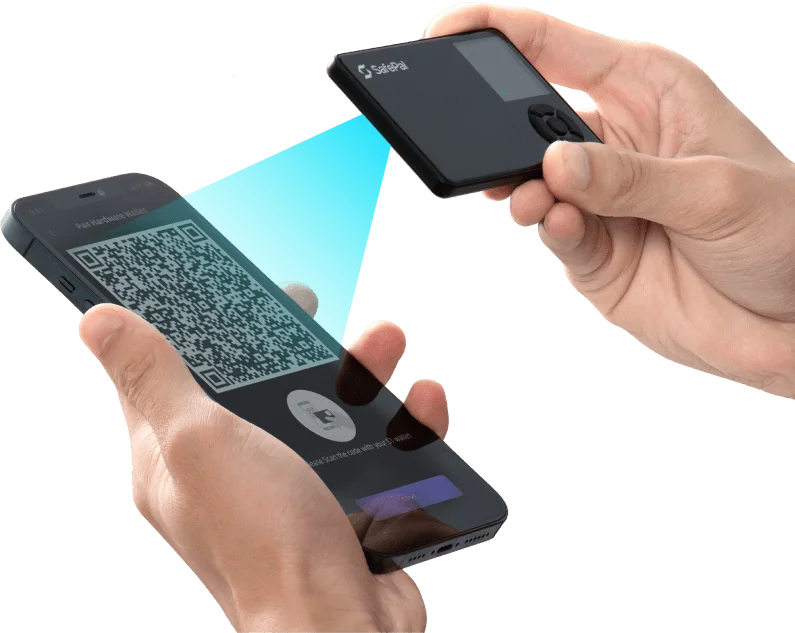
S1 does not use Bluetooth, Wi-Fi or NFC for its connection. Its rechargeable battery charges by USB. Firmware updates also use a USB cable to a computer: the device enters a dedicated upgrade mode and receives the official firmware file.
You do not sign an ordinary transfer through that computer connection. Keep your recovery information available before updating, and follow SafePal’s maintained instructions for the firmware download and upgrade mode.
Official guidance
The device PIN authorizes actions on S1; the SafePal App has its own security settings. Neither replaces the recovery phrase. Create or restore the hardware wallet on S1, then pair the app with it rather than importing the hardware wallet’s phrase into a software wallet.
With Seed Verification, you enter the words from your backup on S1 to check them; the feature does not display the original phrase again. If you use an optional passphrase, preserve that exact passphrase too: a different one leads to a different wallet. Check your backup before you need it to replace a lost or damaged device.
Official guidance
| Detail | Value |
|---|---|
| DisplayDisplay type | IPS LCD |
| Screen diagonal | 1.3″ |
| Resolution | 320 × 320 px |
| Colour mode | Colour |
| Power and chargingBattery | Rechargeable |
| Battery capacity | 400 mAh |
| Materials and finishMaterials | ABS · PVC |
| Security and softwareSecurity chip | CC EAL6+ |
| Operating conditionsOperating temperature | Sources disagreeSafePal’s store gives −20 to 70 °C for operation; the S1 manual gives 0 to 55 °C. The manual’s −20 to 60 °C range is for storage. |
This page is based on manufacturer documentation.
Documentation checked: · · · ·
How we compareSafePal S1


