A good fit if
You want SafePal’s phone-and-QR workflow with a metal-and-glass device and a larger battery than S1. You are comfortable reviewing payments on a small screen and exchanging codes between the phone and hardware wallet.


A metal-and-glass SafePal wallet with a 1.3-inch screen, button controls and QR signing through the phone app.

Approve transactions with
Controls
Physical buttons
Backup
Recovery phrase
Power
Rechargeable battery
Is it right for you?
You want SafePal’s phone-and-QR workflow with a metal-and-glass device and a larger battery than S1. You are comfortable reviewing payments on a small screen and exchanging codes between the phone and hardware wallet.
You want a touchscreen or fewer camera scans. S1 Pro retains S1’s 1.3-inch screen and directional pad, and firmware updates still require a computer. Choose by those everyday tasks, not by the Pro name alone.
Choose S1 if you want the same screen size and QR approach without making the Pro’s metal-and-glass construction or larger battery a priority.
Compare S1 Pro and SafePal S1Choose X1 if you prefer Bluetooth phone signing to exchanging QR codes and want to stay with the SafePal App.
Compare S1 Pro and SafePal X1Phones and computers
Check the app and connection for each device. Setup and transaction signing are confirmed separately.
QR
QR
Choose S1 Pro if you want SafePal’s QR workflow with an aluminum-alloy body, tempered-glass front and a 500 mAh rechargeable battery. The standard S1 has a 400 mAh battery; both have a 1.3-inch color screen and a directional pad.
The Pro is a separate hardware model, not an S1 firmware edition. You still navigate with buttons and review payments on a small screen. Its metal-and-glass construction does not establish that it is safer overall than S1.
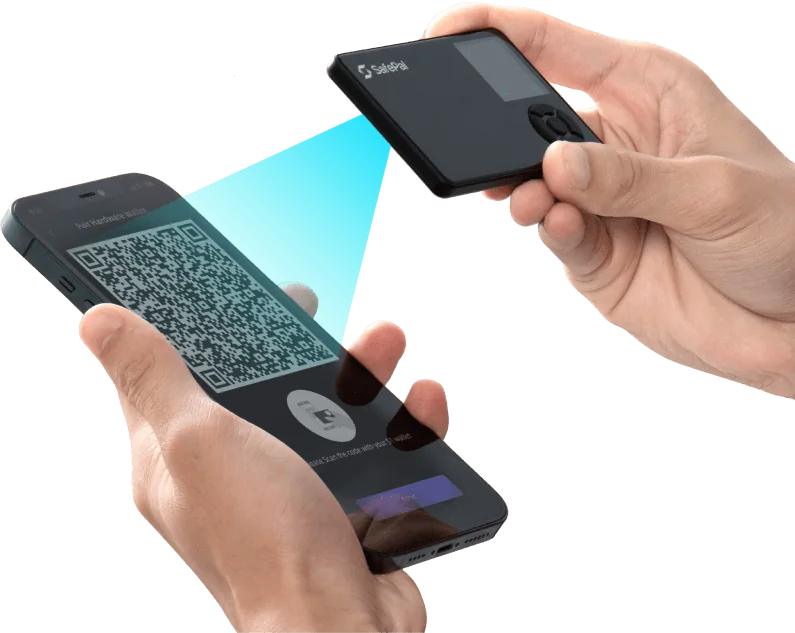
For the phone workflow, the SafePal App prepares transfers and reads blockchain balances; S1 Pro keeps the signing keys and authorizes transactions offline. You exchange QR codes between their cameras. Bluetooth and NFC are not available for signing, and plugging in a USB cable does not create a signing connection.
SafePal also lists S1 Pro as compatible with its browser extension. That is separate from the phone procedure described here and from USB firmware maintenance. Extension support does not establish that every coin, network or desktop task works through it.
Start in a private place with the charged S1 Pro, paper and a pen. Check the packaging and device for damage or signs of prior use. On first startup, select a language and complete Device Authentication before creating a wallet.
SafePal explicitly uses the same authentication procedure for S1 and S1 Pro. Choose Next on the device to show its verification QR, then scan that QR with your phone to open SafePal’s verification page. Press OK on the device to display a six-digit code, enter that code on the page and choose Authenticate. The result should identify a genuine device that has not previously been used. If it reports otherwise, stop and contact SafePal support. SafePal’s contact guide explains how to open Submit A Request from its website, select the issue category and describe the problem. If the request page will not open, leave the device unchanged and try again later.
After a successful result, choose Next on the device and use its camera to scan the activation QR shown on the phone. Wait for activation to finish. This check is SafePal’s authentication mechanism, not an independent guarantee against every possible defect.
For a fresh wallet, choose Create New Wallet, then Create Now. Select 12, 18 or 24 words and write every word in its displayed order. Complete the device’s word-verification prompts, set a 6–12 digit device PIN and name the wallet. Keep the words offline; do not photograph them or enter them into a phone, website or support message.
If you already have recovery words for the wallet you want to use, choose Recover My Wallet instead and follow the restoration section. Creating a new wallet produces different addresses; it does not recover an old balance.
Official guidance
Download the SafePal App through SafePal’s official download page. On first use, set the app’s Security Password; fingerprint and pattern options are optional. The app password protects the app, while the device PIN authorizes actions on S1 Pro.
In the app, choose Hardware Wallet and read the pairing instructions. Choose Next and enter the app’s security password to display the pairing QR. On S1 Pro, open Scan and scan the phone’s QR. Enter the device PIN and confirm with OK.
Choose Next in the app to open its camera, then scan the sequence of QR codes displayed by S1 Pro. When pairing finishes, the hardware wallet appears in the app. Check its name before using it, especially if the app also contains a software wallet.
Pairing does not require typing the hardware wallet’s recovery words into the app. If you replace or lose your phone but still have S1 Pro and its PIN, install the official app on the replacement phone and repeat this pairing process with the existing device wallet. Do not reset S1 Pro or create another wallet just to reconnect.
For browser use, SafePal’s App-to-extension guide uses the extension’s Import Wallet option and a QR scanned by the phone app. Use that connection route rather than importing recovery words. The confirmed S1 Pro extension capability is broader than the specific phone setup and signing procedures recorded in our compatibility table.
Official guidance
Before sending funds to S1 Pro, open SafePal’s supported-assets list. Set Wallet to S1/S1 Pro Hardware, choose the intended Network and search for the asset. Check the matching result rather than relying on its name alone: the sender and receiver must use the same network.
If the asset does not appear with those filters, or its network or token contract is unclear, ask SafePal support before transferring. Give the asset name, network and token contract if applicable, but no recovery words. The app’s ability to display an asset does not by itself prove hardware signing support.
The S1 Pro manual directs owners to SafePal’s S1 receiving instructions. On the device, open Asset Management, select the intended asset, choose Receive and enter the PIN to display its address QR. In the paired hardware account in the app, select that same asset and network and choose Receive. Check the complete app address against the device before copying or sharing it.
If the asset is missing from the device, do not substitute a similarly named coin or an address from another network. Use SafePal support to confirm the required asset setup first. For a first deposit, send a small amount and check its confirmation and balance in the app before transferring more.
S1 Pro does not fetch live blockchain balances. Its offline screen and Signing Record are not proof that an incoming payment has completed. The paired app retrieves balances and transaction status; a missing display balance is not a reason to reset the device.
Official guidance
Use the paired hardware account in the SafePal App to prepare a transfer. Confirm the recipient’s address, asset, network and amount, including any memo or tag the recipient requires. Check the fee and keep enough of the network’s fee-paying asset available.
S1 Pro’s documented role is to authorize the transfer offline; the app broadcasts it. Use the device’s Scan function for the app’s transaction QR and review the payment details on the device before approving. Reject a request that differs from the payment you intended or that you cannot understand. Having paired the app does not make every later request trustworthy.
SafePal’s detailed QR sending tutorial is labelled S1, rather than S1 Pro. It describes opening Send in the app, preparing the transaction QR, reviewing and authorizing on the device with its PIN, scanning the signed QR sequence back into the app, and confirming Broadcast. It is a useful reference for the QR exchange; we have not confirmed every illustrated button and screen on S1 Pro.
Follow the prompts for your current app and device version through the return scan and broadcast. If they differ from the reference in a way you cannot resolve, stop and use SafePal support instead of approving an unclear request. After broadcasting, check the transaction result in the app: an offline signature alone does not establish network confirmation.
Official guidance
S1 Pro has Settings → Seed Verification for checking the saved recovery words. Have your written backup and device PIN ready, open that menu on S1 Pro and follow its prompts to enter the words on the device. Keep them off the phone and computer.
The Pro manual confirms this feature; SafePal’s detailed walkthrough is labelled S1. That walkthrough selects the word count, enters the saved words in order and reports whether they match. It checks a backup rather than displaying the original phrase again. Do not reset your wallet to perform a backup check.
If verification fails, first compare the word order and spelling with your original record and check your entry. If the problem remains, preserve S1 Pro as it is and contact SafePal without sharing the words. A successful word check does not verify an optional passphrase or prove that you can restore every account on another model.
If the backup is lost or unusable but you can still authorize transactions on S1 Pro, set up a separate wallet with its own new backup and check that backup using the new wallet’s supported method. Verify its receiving address and network, send a small test amount from S1 Pro, and confirm that it has arrived in the new wallet before moving the remaining funds. Keep S1 Pro unchanged until you have confirmed the transfers. Do not erase the only device that can still approve payments. If you can only view balances, that is not signing access.
Official guidance
To recover the existing wallet on a replacement S1 Pro, you need its original recovery words in order and the exact optional passphrase, if you used one. The device PIN and app password do not replace that information.
Authenticate a new replacement first. Choose Recover My Wallet on the device, select the saved word count of 12, 18 or 24, and enter the words in order using the device controls. After configuration, set a new device PIN and wallet name, then pair the app with the restored wallet.
S1 Pro supports an optional passphrase through Settings → Passphrase. If your old wallet used one, the recovery words alone are insufficient: you must also use the same passphrase. Preserve it separately and exactly. The Pro manual does not give a complete passphrase restoration walkthrough, so use SafePal support if you cannot identify how to reopen that wallet; never send support the passphrase or words.
Check that the expected accounts, receiving addresses and balances appear before relying on the restored wallet. If they do not, check the account, network and whether a passphrase was used. Do not assume an empty account means the funds have disappeared, and do not immediately overwrite the backup or reset another device.
A forgotten device PIN can leave you unable to sign even while the phone still shows a balance. Secure and check the available recovery information before taking a reset or replacement route. If neither a usable backup nor a device that can authorize transactions remains, a replacement device cannot recreate the missing keys.
Official guidance
S1 Pro charges through USB-C. SafePal’s manual specifies a DC 5V mobile charger and warns against using a laptop charger. Firmware updates require a computer and a USB data connection; SafePal’s S1 Pro update page says mobile updates are not supported.
Before updating, check that your recovery words are correctly saved and that you have the exact optional passphrase, if used. If your backup is missing or fails verification but the device can still authorize transactions, resolve that problem using the backup guidance first. An update failure must not leave you dependent on an untested backup.
Open Settings → About on S1 Pro to find its serial number and current firmware version. On SafePal’s official S1 Pro upgrade page, enter that serial number and download the firmware for this model. Keep the file named upgrade.bin; if the browser added a duplicate-download suffix, remove that suffix. Do not use an S1 or X1 file or open the downloaded file as a program.
Connect S1 Pro to the computer with a USB data cable. On the device, open Settings → Upgrade and explicitly choose Enter Upgrade Mode. When the wallet appears as a virtual disk on the computer, copy upgrade.bin into it and choose Upgrade on S1 Pro. Keep it connected and powered until the update finishes, then check the version in About.
If the virtual disk does not appear, check that you actually entered upgrade mode and try another known data cable or USB port. If it still fails, contact SafePal with the model, firmware version and error. Never supply recovery words to diagnose an update.
Official guidance
| Detail | Value |
|---|---|
| DisplayDisplay type | IPS LCD |
| Screen diagonal | 1.3″ |
| Resolution | 320 × 320 px |
| Colour mode | Colour |
| Power and chargingBattery | Rechargeable |
| Battery capacity | 500 mAh |
| Charging methods | USB-C |
| Device connectionsUSB port | USB-C |
This page is based on manufacturer documentation.
Documentation checked: · ·
How we compareSafePal S1 Pro

