A good fit if
You want the original Pro’s touchscreen, optional fingerprint access and choice between a direct app connection and QR signing.


The original OneKey Pro has a touchscreen, fingerprint unlock and a choice of USB, Bluetooth and compatible QR workflows.
Page set to Multi-coin firmware Change

Approve transactions with
Backup
Recovery phrase
Power
Battery or USB power
Is it right for you?
You want the original Pro’s touchscreen, optional fingerprint access and choice between a direct app connection and QR signing.
You expect every asset supported by OneKey App to work through QR. QR support depends on the network and firmware, and some tasks need a direct connection.
Choose Pro 2 for an AMOLED touchscreen and a thinner body. Check its specifications and supported connections before choosing.
Compare OneKey Pro and Pro 2Choose it if you want a QR-focused touchscreen wallet and its supported app integrations fit your assets.
Compare OneKey Pro and Keystone 3 ProChoose it if you want a touchscreen and prefer to manage your accounts in Ledger Wallet.
Compare OneKey Pro and FlexPhones and computers
Check the app and connection for each device. Setup and transaction signing are confirmed separately.
Bluetooth
QR
QR signing needs an initialized, unlocked Pro, compatible current app and firmware, and a working phone or computer camera with permission enabled. Support depends on the task and network; Bitcoin-only firmware signs only Bitcoin. Follow OneKey’s QR pairing and signing procedure.
USB
Windows · macOS · Linux
Bluetooth
Windows · macOS
Use an initialized, unlocked Pro with current compatible OneKey desktop app and firmware for the selected mode. Turn AirGap Mode off. Enable Bluetooth on Pro, in the app and on your computer, with the required permissions. Disconnect USB: the cable takes priority. Initial setup is unconfirmed; Bitcoin-only firmware signs only Bitcoin.
QR
Windows · macOS · Linux
QR signing needs an initialized, unlocked Pro, compatible current app and firmware, and a working phone or computer camera with permission enabled. Support depends on the task and network; Bitcoin-only firmware signs only Bitcoin. Follow OneKey’s QR pairing and signing procedure.
Bluetooth
QR
QR signing needs an initialized, unlocked Pro, compatible current app and firmware, and a working phone or computer camera with permission enabled. Support depends on the task and network; Bitcoin-only firmware signs only Bitcoin. Follow OneKey’s QR pairing and signing procedure.
Create a new wallet on Pro, then connect it as a hardware wallet in OneKey App.
To restore existing accounts, use your backup. Creating a new wallet will not restore them.
Choose ordinary recovery words for one complete backup word list. Choose SLIP39 for separate shares, where enough complete shares must meet your chosen recovery threshold; Pro needs firmware 4.15 or later. Use OneKey’s creation procedure to choose the share count and threshold. Do not split an ordinary phrase.
Use the official download before connecting Pro.
After creation and verification, you can back up an ordinary 12-, 18- or 24-word phrase to OneKey Lite. Follow its procedure to validate the words on Pro and set a separate card PIN; wait for Back Up Complete. Lite cannot replace lost words; its procedure does not establish SLIP39 support.
Already initialized this Pro? Reconnect it as a hardware wallet; do not create another wallet to find the old accounts.
Official guidance
In OneKey App, choose the hardware-wallet connection for an initialized Pro. QR is a separate connection you add to the app; an existing Bluetooth connection does not become QR automatically.
The browser extension uses USB through WebUSB. If it still uses the retired connection method, choose Settings → Network → Hardware communication → WebUSB. For a device that still does not appear, follow the troubleshooting instructions for your platform. Connection availability alone does not establish every network or task.
Before a deposit, confirm that OneKey supports the exact asset and network on Pro. The app-support column describes the software wallet; look for the supported hardware model too. Neither column alone proves a QR workflow.
On a custom Ethereum-compatible (EVM) network, Pro may show EVM Address, the chain ID and derivation path instead of the custom network name. If you cannot establish that it is the intended network, stop before confirming or sharing the address.
Official guidance
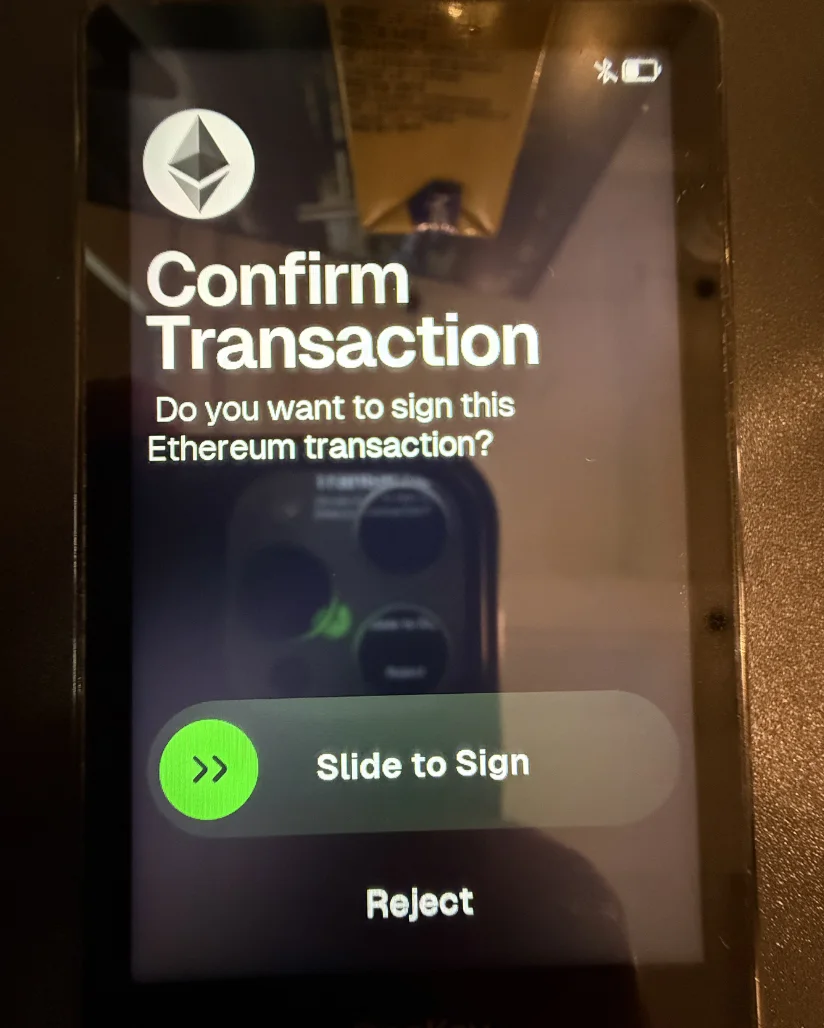
OneKey App prepares the payment; Pro signs after you review it. The app then submits it to the network. Device approval alone does not mean it arrived.
Get current receiving details from the destination account’s official Receive or Deposit view. If paying another person, confirm their address and network through a trusted channel. Keep any required memo or tag with those details.
The steps below use a direct USB or Bluetooth connection. To send by QR, follow the pairing and two-way scanning procedure instead.
App requirements
Official guidance
QR pairing needs an initialized Pro, compatible current OneKey App and Pro firmware, and a working phone or computer camera with permission enabled.
Unlock Pro, swipe up to its apps and open Connect App Wallet → OneKey Wallet. In OneKey App’s account-name menu, choose Add Wallet → Connect Hardware Wallet → QR code and scan Pro’s connection code. A QR symbol identifies the added device. This shares account information, not recovery words.
Get current receiving details from the destination’s official Receive or Deposit view, or confirm them with the recipient through a trusted channel. Reject token-spending permissions if you intended to make an ordinary transfer; reject any request you cannot explain.
The older QR guide omits Solana QR wallets added in Pro firmware 4.13 and Tron AirGap in 4.16. Support still depends on network, firmware and task; Bitcoin-only signs only Bitcoin. If the app cannot prepare your QR account or request, use a documented direct route with AirGap Mode off.
In Settings → AirGap Mode, turn on Air Gap and confirm Enable to disable USB, Bluetooth and NFC data transfer. QR pairing is separate.
Official guidance
Fingerprint access is an optional convenience on Pro. Keep the device PIN available: neither it nor a fingerprint restores the wallet on another device.

To add or remove a fingerprint, open Settings → Security → Fingerprint on Pro. Enrollment requires the device PIN; follow OneKey’s instructions for the power-button sensor.
Restoring Pro needs the wallet’s complete backup and exact passphrase if you used one. A PIN, fingerprint or app balance cannot replace them.
If your backup or passphrase is missing or uncertain but Pro can still approve payments, keep it configured. Do not reset Pro or update its firmware. Follow the guide below to move funds to a separate wallet with its own new backup. If you have also forgotten the PIN and Pro is currently unlocked, keep it unlocked and do not press its lock button during that transfer. Do not assume a fingerprint will restore access after locking.
SLIP39: Pro firmware 4.15 and later supports SLIP39. Restore through Import Wallet → Recovery Phrase, select 20 words and supply enough complete shares to meet the original threshold. Fewer shares cannot restore it; these are not pieces of an ordinary phrase. Keep shares apart. Reopen any passphrase wallet with its exact passphrase before assessing its accounts.
OneKey Lite: Lite is an optional card backup of an existing 12-, 18- or 24-word phrase, with its own PIN. It cannot replace words already lost, and its procedure does not establish SLIP39 support. For restoration on a new or reset Pro, follow the official procedure with the card and its PIN, distinct from Pro’s PIN. Reopen any passphrase wallet with the exact passphrase before assessing its accounts.
Restore an ordinary recovery phrase
Use only the Rebinding OneKey App section in the linked instructions; Pro is already restored. A new Pro with no old app connection needs no removal.
If you used a passphrase, reopen the same passphrase wallet before assessing its accounts.
Choose the original asset and network, then check the expected accounts before transferring anything. If accounts are missing, check the account and exact passphrase first; do not create another wallet.
If you cannot authorize and have no usable backup or other signing device, reinstalling the app cannot recreate the keys. Use OneKey’s forgotten-PIN route for your situation; never send recovery words to support.
A passphrase creates a different set of accounts from the same backup. Record it securely and separately before funding those accounts: different spelling opens different accounts.
Desktop entry: Enable passphrases on Pro and connect by USB. Enter and confirm the passphrase in OneKey App’s Add hidden wallet route, then check and confirm it on Pro and finish with Done in the app. OneKey limits it to 50 characters from its documented ASCII set; check its instructions before choosing unfamiliar symbols.
Bound-PIN requirements: The shortcut requires Pro firmware 4.15 or later and OneKey App 5.12 or later. Use the official binding procedure.
If expected accounts are missing, check that you opened the same passphrase wallet before transferring anything. A third-party app needs passphrase support; an empty account does not prove your funds disappeared.
Updating OneKey App and updating Pro’s firmware are separate operations. Update the app first, then use its device-update route for Pro.
If an app-based Pro update stalls at 90–95% and restarts, OneKey directs you to its computer-connected firmware update website. Follow the official update procedure for detecting Pro, selecting its firmware and confirming installation. If that fails too, email the address on OneKey’s Contact Us page with the exact error. Do not reset Pro merely to clear an update problem, or send recovery words or a passphrase.
Official guidance
Bitcoin-only firmware restricts this Pro’s device/app workflow to Bitcoin. It is a configuration of the same device, and does not transfer or convert assets you already hold on other networks.
To return to Standard Mode, use the corresponding Device management route and prepare the same recovery information first. Keep the old network/account details and exact passphrase so you can find those accounts again with the appropriate firmware.
Official guidance
Pro has a rechargeable battery and can run essential operations from USB power as its battery capacity declines. A power-button restart does not erase the wallet; Reset Device does.
Follow the official power troubleshooting route if Pro remains unresponsive, then email OneKey’s Contact Us address with your charging checks and observed error, never recovery words. Keep the backup available. OneKey rates the battery for at least 500 charge cycles with at least 80% capacity remaining under its standard test conditions; this is its rating, not our measurement or a promised device lifetime.
Official guidance
| Detail | Value |
|---|---|
| DisplayDisplay type | IPS LCD |
| Screen diagonal | 3.5″ |
| Resolution | 480 × 800 px |
| Colour mode | Colour |
| Brightness | 400 nits |
| Touch input | Multitouch |
| Size and weightDimensions | 90.1 × 54.4 × 7.6 mmDimensions as listed by the manufacturer |
| Device weight | 65 g |
| Power and chargingBattery | Rechargeable |
| Battery chemistry | Lithium-ion polymer |
| Battery capacity | 530 mAh |
| Nominal voltage | 3.8 V |
| Capacity after charge cycles | At least 500 charge cycles with at least 80% capacity remaining |
| Storage while switched off | Can still power on after approximately 7 months stored switched off, starting fully chargedTypical manufacturer laboratory results. Performance varies with temperature, usage, and self-discharge. For long-term storage, keep the device in a cool, dry place at 40–60% charge. |
| Operating power | Battery or USB power |
| Compatible USB charging input | 5 V / 2 A |
| Wireless charging power | 2.5 W |
| Charging methods | USB-C · Compatible Qi charger |
| Wireless charging | Qi2-compatible |
| Materials and finishMaterials | Back: Glass (Frosted finish) · Frame: Aluminium (Polished finish) |
| Device connectionsUSB port | USB-C |
| Camera | Present |
| Security and softwareSecurity chip | 4 × CC EAL6+ |
| Conformity marks | RoHS |
| Operating conditionsOperating temperature | 0 °C … 45 °C |
| Storage temperature | -10 °C … 45 °C |
FIDO2 · U2F
USB only for registration and sign-in
This page is based on manufacturer documentation.
Documentation checked: · · ·
How we compareOneKey ProMulti-coin firmware