A good fit if
You want physical buttons and a small screen for checking payments, without a battery to charge or maintain. Pure fits a routine with a USB power source always available.


A button-operated OneKey without a battery, powered by an external USB connection.
More Bitcoin-only wallets
Approve transactions with
Controls
Physical buttons
Backup
Recovery phrase
Power
USB power
Is it right for you?
You want physical buttons and a small screen for checking payments, without a battery to charge or maintain. Pure fits a routine with a USB power source always available.
You want cable-free phone use or a larger touchscreen. Pure stays on USB power even with Bluetooth; compare Classic 1S for its battery, or Pro 2 and the original Pro for touchscreen controls.
Choose Classic 1S if you want Bluetooth phone use away from a USB power source; it has a rechargeable battery.
Compare Classic 1S Pure and Classic 1SChoose Pro 2 for an AMOLED touchscreen and fingerprint access instead of Pure’s buttons.
Compare Classic 1S Pure and Pro 2Choose the original Pro for touchscreen controls and the option to switch the same device to Bitcoin-only firmware.
Compare Classic 1S Pure and OneKey ProPhones and computers
Check the app and connection for each device. Setup and transaction signing are confirmed separately.
Bluetooth
USB power requiredOneKey Classic 1S Pure needs USB power throughout use, including while connected by Bluetooth.
USB
Windows · macOS · Linux
OneKey Classic 1S Pure needs USB power throughout use, including while connected by Bluetooth.
Bluetooth
USB power requiredOneKey Classic 1S Pure needs USB power throughout use, including while connected by Bluetooth.
Keep Pure connected to USB power throughout use. Reconnect an existing wallet as a hardware wallet; never enter recovery words to reconnect.
Connect an iPhone or Android phone
On a computer, connect Pure by USB and choose Create wallet → Connect hardware wallet in OneKey App; this connects the device without creating new keys. Current app and firmware support Bluetooth on Windows and macOS, but a connected USB data cable takes priority. The browser extension uses USB through WebUSB. Linux Bluetooth remains unconfirmed.
If pairing fails, check Pure’s Bluetooth setting and the app’s phone permissions; Android also needs the documented location permission. Use the official platform-specific troubleshooting for persistent problems.
Official guidance
General is Pure’s multi-asset edition. BTC-Only is supplied with Bitcoin-only firmware.
Choose the networks you need
Changing firmware does not convert or transfer coins. Keep the original network, account and optional passphrase information so you can find those accounts again.
In OneKey App’s Device Management, use the documented Switch to Universal procedure below. Enter recovery words only on Pure, reconnect afterward and check your expected accounts. An app display filter does not change the device firmware.
Official guidance
Create New Wallet generates new keys. Keep Pure powered through USB throughout setup.
To restore existing accounts on an uninitialized Pure, use Import Wallet instead.
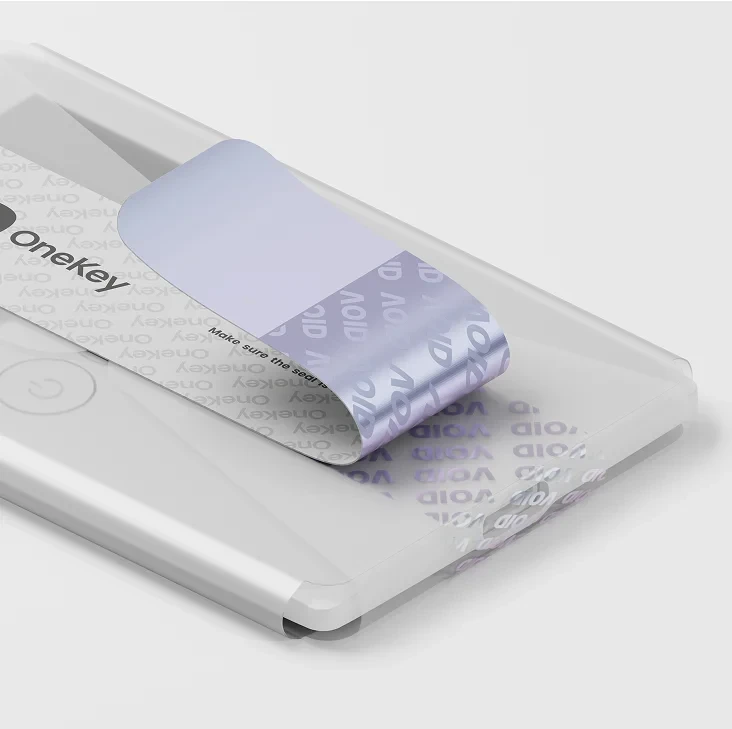
Install OneKey App from its official download before connecting Pure to a computer.
Official guidance
Check support for the exact asset, network and hardware task first. Non-Bitcoin networks need multi-asset firmware; an app listing alone does not prove support.
BTC-Only restricts this device to Bitcoin.
The receiving QR code shares an address; Pure does not sign by scanning it. For custom Ethereum-compatible networks, Pure may show EVM Address, a chain ID and derivation path. Do not proceed if you cannot establish the intended network.
Official guidance
OneKey App prepares the payment; Pure’s screen and buttons let you review and approve it. Keep USB power attached.
Token spending permissions are different from payments. App warnings and newer firmware parsing do not make every request readable or replace your hardware-screen check.
OneKey Classic 1S Pure needs USB power throughout use, including while connected by Bluetooth.
App requirements
Official guidance
Pure can compare your written phrase with its stored phrase without resetting. These steps apply to Classic firmware 3.20.0; keep USB power connected.
A match verifies only the stored phrase. Reopen your funded account with the exact optional passphrase; the phrase check does not verify that access.
A phrase match does not establish replacement-wallet support for your backup, assets or networks. Older firmware menus may differ; do not update just to obtain this check before establishing usable recovery information.
A passphrase opens separate accounts with your recovery phrase. Keep its exact spelling securely and separately before funding that wallet.
Enable Passphrase in Pure’s Security menu and use OneKey’s documented USB desktop route: select the device in the app → Edit → Add hidden wallet. Enter and confirm the passphrase in OneKey App, then check and confirm it on Pure. The limit is 50 characters from the specified ASCII set; the official guide gives those rules.
From firmware 3.14.0, Pure supports up to three hidden-wallet PIN bindings; the official Bind PIN guide carries the steps. If accounts appear empty, check the same passphrase, network and account. Third-party apps must support passphrases; an empty view does not prove lost funds.
Official guidance
To restore Pure, keep its complete recovery phrase and exact optional passphrase ready. A PIN or app balance cannot replace them; maintain USB power.
For the passphrase step, follow the documented device/app entry route. Restoring keys does not move coins. If accounts are absent, check the passphrase and account selection before creating another wallet or transferring. Without a usable backup or another device that can approve, reinstalling the app cannot recreate the keys.
Stop guessing a forgotten PIN: current firmware resets after five consecutive wrong entries; older guides say ten. A hidden-wallet PIN does not replace the main PIN. Reset only with established recovery information, never to test a backup. Check Recovery Phrase needs its menu and the main PIN. The official reset guide covers old app pairing. Never send words or passphrases to support.
Official guidance
Have the correct recovery phrase and exact optional passphrase ready before updating. Updating OneKey App and updating Pure’s firmware are separate operations.
Use the non-destructive phrase check if your current firmware offers it and you know the main device PIN.
If the firmware update stalls at 90–95% and restarts, use the official computer firmware-website route below. Let the tool detect Pure; do not select files by a similar model name. If that fails too, contact OneKey with the model and error, never recovery words. Do not reset to clear an update error.
Official guidance
A dark screen and a startup error need different checks. Pure has no battery; battery-model charging and storage advice does not apply.
Official guidance
| Detail | Value |
|---|---|
| DisplayDisplay type | OLED |
| Screen diagonal | 1.3″ |
| Power and chargingBattery | No battery |
| Operating power | USB power |
| Device connectionsUSB port | USB-C |
This page is based on manufacturer documentation.
Documentation checked: · ·
How we compareOneKey Classic 1S PureBitcoin-only edition


