A good fit if
You want to prepare payments on an iPhone or Android phone and review them on a colour touchscreen, exchanging requests and signatures by QR. You are comfortable recording a Perfect Key or its equivalent 24-word backup.


A hardware wallet with a four-inch colour touchscreen, used with LIQUID on iPhone or Android. The phone prepares payments; you review and sign them on ZERO through QR exchanges.

Approve transactions with
Backup
Perfect Key or recovery phrase, depending on setup. GRAPHENE plates are optional.
Power
Rechargeable battery
Is it right for you?
You want to prepare payments on an iPhone or Android phone and review them on a colour touchscreen, exchanging requests and signatures by QR. You are comfortable recording a Perfect Key or its equivalent 24-word backup.
You prefer Bluetooth phone signing or USB computer transactions, or want the device to show recovery words during the initial new-wallet setup. ZERO’s current new-wallet process begins with Perfect Key, with the 24-word view available afterward.
Choose Flex for touchscreen signing with Ledger Wallet over Bluetooth on an iPhone or Android phone, and USB use with a computer. Installing the current iPhone app requires iOS 15.1 or later; on Android, Ledger Wallet requires Android 10 or later.
Compare NGRAVE ZERO and FlexChoose Safe 5 for Trezor Suite over USB with a computer or a compatible Android phone running Android 12 or later, and colour-touchscreen input and review. It cannot sign with an iPhone.
Compare NGRAVE ZERO and Safe 5Phones and computers
Check the app and connection for each device. Setup and transaction signing are confirmed separately.
QR
QR
ZERO is a hardware wallet with a four-inch colour touchscreen. Use NGRAVE’s LIQUID app on an iPhone or Android phone to see balances and prepare payments. ZERO holds the signing keys and shows requests for you to review before signing offline. It does not fetch your live balances. LIQUID currently requires iOS 15.1 or later on iPhone. On Android, LIQUID requires Android 12 or later.
On iPhone, LIQUID must be available in your Apple account’s App Store country. NGRAVE currently names restricted countries including Mainland China and El Salvador. Check the app’s availability in that store before choosing ZERO for iPhone use.
To bring your accounts into LIQUID, open Settings → Sync → LIQUID by NGRAVE on ZERO and scan its animated account-sync QR with the app. This shares public account information so the app can show your portfolio. It is separate from sending a payment.
You enter the mandatory eight-digit PIN on ZERO’s touchscreen. Fingerprint authentication is optional: under Settings → Device protection → 2-factor authentication, choose whether to require it for unlocking, signing, both or neither. New-wallet setup also uses fingerprint input to help generate the Perfect Key.
Official guidance
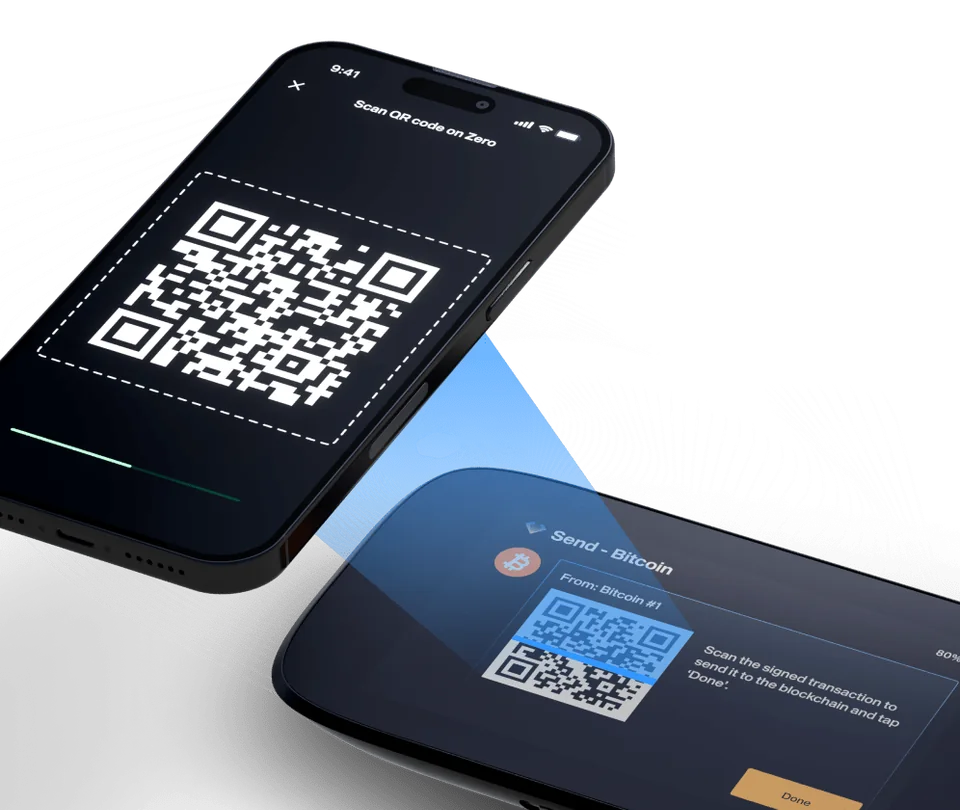
Start an ordinary transfer in LIQUID by choosing the sending coin and account, entering the recipient address and amount, and selecting an available fee option. Review the proposed payment in the app. LIQUID displays an unsigned transaction QR for ZERO to scan.
Read the transaction details on ZERO and compare them with the payment you intended: recipient, amount and fee. In firmware 1.8, Fee means an exact fee, while Max fee is an upper bound. If the request is correct, sign with your device PIN and a fingerprint if you enabled one for signing.
ZERO then displays the signed response as a QR. Scan it with LIQUID: the app broadcasts the transaction to the network and shows its transaction hash. Approving on ZERO alone has not sent the payment. The network’s confirmation comes afterward.
Bitcoin and Ethereum are supported with LIQUID on iPhone or Android. Open the intended coin and account in LIQUID and choose Receive. The app shows the full address as text and a QR and lets you copy it for the sender. On ZERO, the account’s Receive screen supplies an address QR.
Choose the supported coin or token you want to receive and a withdrawal network matching that receiving account. A token name such as USDT does not determine the network. Receiving an address QR is different from scanning a transaction request or signed response.
ZERO firmware 1.8, released in August 2026, adds Polygon tokens and removes BNB Beacon Chain and Groestlcoin. BNB on BNB Smart Chain remains supported. Use the current coin directory together with the firmware changes when checking another asset. MetaMask and Rabby are separate integrations; their wider network and app features are not all native LIQUID features.
Official guidance
A newly created ZERO wallet starts with a Perfect Key: 64 hexadecimal characters, using digits and the letters A–F, arranged in eight groups of eight. During setup, ZERO generates the key and guides you through recording and checking the backup.
After setting up a new Perfect Key wallet, open Settings → Display secret key on ZERO to view the same backup as a Perfect Key or as 24 BIP39 recovery words. BIP39 is a recovery-phrase format used by compatible wallets. These are two representations of the same backup, not two separate wallets or two factors you must combine. Since firmware 1.5, the new-wallet procedure starts with Perfect Key rather than a direct word-creation menu.
To restore an existing backup, choose Import a wallet on ZERO. Select NGRAVE wallet for a Perfect Key, or Mnemonic wallet for a 12-, 18- or 24-word recovery phrase. Enter the characters or words on ZERO’s touchscreen. These import choices are separate from creating a new Perfect Key.
After import, add the original coins and accounts and replace the old LIQUID sync with the restored wallet’s sync. The receiving addresses should match the accounts you are restoring. Another wallet’s backup also needs compatible assets, networks and account paths; if it used a passphrase, that exact passphrase is required too.
On ZERO, open Settings → Display secret key and confirm with your PIN and any configured fingerprint. Choose NGRAVE wallet → Make or verify your backup → Verify your existing backup. Select paper or GRAPHENE, then enter every character from your saved record.
The device identifies characters that do not match and offers Correct error to show the right character. This checks the Perfect Key backup against the wallet already on ZERO, without resetting the device or importing another wallet.
GRAPHENE is an optional backup accessory for the hexadecimal Perfect Key. Its upper plate provides the character layout; you punch the corresponding positions into the lower plate. The two plates together let you read the backup. Store them separately after recording the key.
Keep a separate record of the Ultimate Recovery Code printed on the upper plate. If that plate is lost or damaged, NGRAVE can recreate it using your saved code and a manufacturer-held key. The service replaces only the upper plate: it cannot recreate a missing lower plate, your lost key or a forgotten passphrase. GRAPHENE stores the hexadecimal record rather than a list of recovery words.
Official guidance
A passphrase is an optional additional recovery password that creates separate wallet addresses from your original backup. Open Settings → Passphrase on ZERO and enter and confirm it on the device. For recovery, you need the original Perfect Key or recovery words and exactly the same passphrase; the main backup alone does not restore these accounts.
ZERO accepts 1–512 printable ASCII characters: unaccented English letters, digits, spaces and ASCII punctuation, except the backtick (grave accent). Case and spaces matter. Different text opens different accounts rather than a wrong-password error. A replacement wallet must also accept the passphrase’s length and characters.
ZERO works in one wallet at a time, while LIQUID can keep several wallets synced. Before signing from a passphrase account in LIQUID, open that same passphrase wallet on ZERO and make sure the account is added there. The passphrase is held encrypted for the active session and cleared after standby or power-off, so you must enter it again to reopen that wallet. The device PIN and fingerprint settings stay the same.
ZERO has a built-in rechargeable 1,200 mAh battery. Charge it through USB-C with a wall charger; NGRAVE recommends turning it off after use to limit standby drain. USB-C also handles firmware updates from a computer. It does not carry LIQUID transaction requests or account sync.
Before updating, fully charge ZERO. If a wallet is already set up, confirm that you have its saved Perfect Key or recovery words. NGRAVE’s guided update starts by asking whether the device already has a wallet, then directs you to the appropriate instructions.
The official firmware updater uses a separate update mode on ZERO. NGRAVE recommends Windows 10 or later or macOS 12 for the updater, while saying older versions may work. Linux has its own command-line update procedure.
Firmware 1.8 entirely replaces the older QR format with Universal QR for account sync and transactions. LIQUID must understand the QR format that ZERO uses, so the app and device firmware versions need to be compatible.
Official guidance
| Detail | Value |
|---|---|
| DisplayDisplay type | LCD |
| Screen diagonal | 4″ |
| Colour mode | Colour |
| Size and weightDimensions | 125 × 70 × 13 mm |
| Device weight | 214 g |
| Power and chargingBattery | Rechargeable |
| Battery capacity | 1,200 mAh |
| Charging methods | USB-C |
| Device connectionsUSB port | USB-C |
| ProtectionDust and water protection | IP55 |
This page is based on manufacturer documentation.
Documentation checked: · ·
How we compareNGRAVE ZERO

