A good fit if
You want a larger touchscreen for reviewing transactions and prefer Bluetooth when using an iPhone. Wireless charging is useful to you, and you are comfortable keeping a rechargeable device ready.


A curved E Ink touchscreen and wireless charging, with an emphasis on a larger display for reviewing transactions.

Approve transactions with
Backup
Recovery phrase
Power
Rechargeable battery
Is it right for you?
You want a larger touchscreen for reviewing transactions and prefer Bluetooth when using an iPhone. Wireless charging is useful to you, and you are comfortable keeping a rechargeable device ready.
You mainly use a computer and would rather have a simpler USB wallet without a battery. A flat touchscreen may also suit you if the curved display and wireless charging are not priorities.
A flat E Ink touchscreen and Bluetooth phone use, if you do not need Stax’s curved display or wireless charging.
Compare Stax and FlexA smaller Bluetooth wallet with two buttons, if you prefer that form to a touchscreen.
Compare Stax and Nano XA battery-free USB wallet for a computer or Android phone; it cannot approve payments with an iPhone.
Compare Stax and Nano S PlusPhones and computers
Check the app and connection for each device. Setup and transaction signing are confirmed separately.
USB or Bluetooth
Not supported: Tablets
USB
Not supported: Surface Pro
Linux
Bluetooth
Not supported: iPad and Tablets
Stax uses Bluetooth with Ledger Wallet on an iPhone. With Android, you can use Bluetooth or a USB data cable; on a computer, use USB. Ledger Wallet is the companion app previously called Ledger Live. It prepares transactions and shows your accounts; you approve payments on Stax.
Check the exact asset, network and wallet app before choosing Stax. Some supported assets need another compatible app, so hardware support does not mean every asset can be managed in Ledger Wallet.
Stax charges through USB-C or a compatible Qi charger. Ledger explicitly excludes Apple MagSafe chargers and accessories, and does not guarantee every Qi charger will work. Wireless charging is a convenience, not a reason to assume your existing phone charger is suitable.
Start at Ledger’s official setup page to get Ledger Wallet for your phone or computer. Keep a blank recovery sheet ready. These steps create a new wallet; if you want to restore existing accounts, use the recovery section instead.
Keep the words offline: do not photograph them or enter them into a phone, computer app or website. Your PIN unlocks this Stax; the recovery words restore the wallet if the device is lost or reset.
If Stax already holds the wallet you want, connecting it to another phone or computer does not require a new wallet or a reset. Connect it to the official app and add its existing accounts.
Official guidance
Stax needs a blockchain app for the asset you want to use. Ledger Wallet then adds an account so you can view its balance and prepare transfers. For Bitcoin, install the Bitcoin app on Stax and add a Bitcoin account.
An account already used with the same recovery phrase can be found again after restoration. Installing a blockchain app alone does not add that account to Ledger Wallet. Other coins and tokens can require different apps or networks; follow their specific instructions.
If you need more space, you can uninstall a blockchain app and reinstall it later. This does not remove your private keys from Stax or your crypto from its blockchain.
Official guidance
Choose the account and network that should receive the funds. Have Stax connected and unlocked, with the required blockchain app installed. For an exchange withdrawal, its selected withdrawal network must match the receiving account’s network.
For a new destination, send a small first transfer and wait for it to reach the intended account before sending more. The transfer guide explains fees and minimum-deposit checks. After verifying the address, you can disconnect Stax; it does not need to stay connected for funds or network confirmations to arrive.
Official guidance
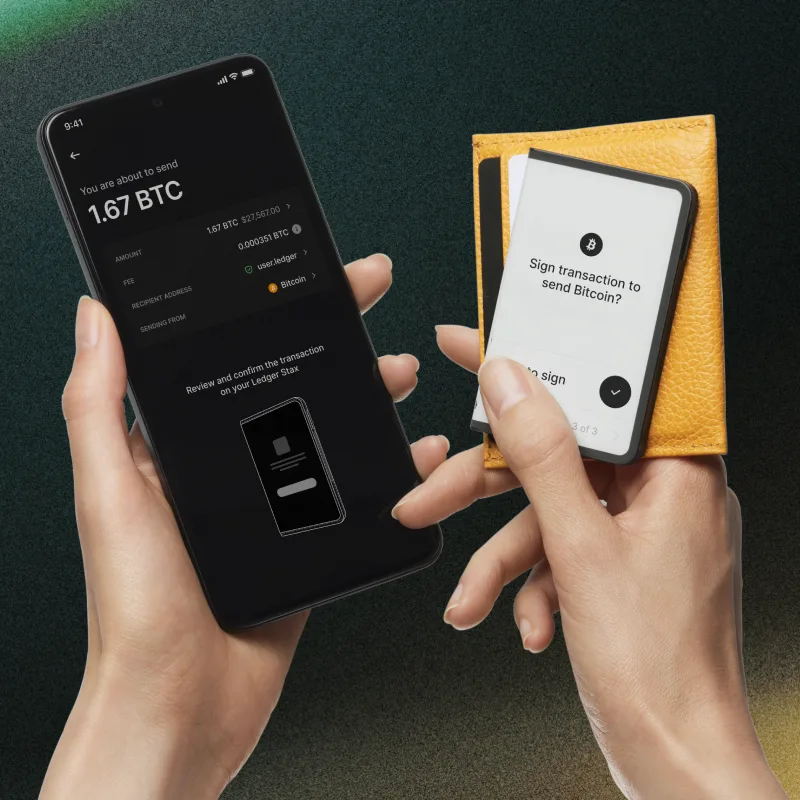
Stax has a 3.7-inch grayscale E Ink touchscreen. You prepare the transaction in a wallet app, then review the details on Stax. For an ordinary payment, that means checking the recipient, amount and fee before approving on the device.
In Ledger Wallet Desktop, start with Send on Home or the account page. On mobile, use Transfer → Send. Choose the sending account, enter the recipient and amount, and review the network and fee. The recipient must accept that asset on the selected network.
Connect and unlock Stax, then open the blockchain app requested by Ledger Wallet. Compare the transaction details on Stax with the payment you intend to make. Approve only when they are correct; reject a mismatch. Your approval lets Stax sign the transaction; Ledger Wallet then sends it to the network. Use the transaction details in Ledger Wallet to check its confirmation status.
A larger screen does not make an unfamiliar request trustworthy. What the device can explain depends on the app and transaction. If you cannot understand what you are authorising, stop rather than assuming the touchscreen has checked it for you.
Official guidance
Recovery Check compares the recovery words you enter on Stax with the phrase stored on the device. It checks your written copy without replacing the wallet. Have that copy ready, and unlock Stax with its ordinary PIN, without an optional passphrase enabled.
A matching result does not verify an optional passphrase or demonstrate recovery on another model. Keep a separate secure record of the exact passphrase if you use one. You can uninstall Recovery Check after the check.
If the backup is missing or still fails, keep Stax configured: do not reset it or start an OS update. If you can still approve payments, prepare a separate wallet with its own new backup, check that backup and its receiving address, then transfer the assets to it. Keep the original Stax configured in case you missed an account. Ledger’s lost-phrase instructions explain this preservation route; start with transferring assets, not resetting the device. If you cannot approve payments, or are unsure how to proceed, contact official support without sharing recovery secrets.
Official guidance
Use the existing-wallet recovery route on a new or reset Stax when you need the accounts from a saved phrase. Creating a new wallet generates different keys and will not recover those accounts. Do not reset a working device just to test its backup.
For passphrase accounts, use Ledger’s linked passphrase instructions and start with the Ledger Stax touchscreen branch: Settings → Advanced → Set passphrase. Enter your existing passphrase exactly, rather than choosing a new one. If you attach it to a PIN, complete that procedure, turn Stax off and unlock it with that passphrase PIN before adding the accounts. If you use the temporary-passphrase option, add the accounts while that passphrase session is active.
Stax creates 24-word BIP39 phrases during normal new-wallet setup. It can restore compatible 12-, 18- or 24-word phrases. Backup-format compatibility does not establish that every asset, network or account works in the app you choose.
If you forgot the device PIN, stop guessing: three incorrect attempts reset Stax. A usable backup and any required passphrase let you restore access after a reset; Ledger cannot retrieve a forgotten PIN or recovery phrase for you. If you can still unlock Stax and approve payments but lack a usable backup, follow the preservation steps in the backup-check section first. Viewing a balance in Ledger Wallet alone does not mean you can approve a transfer.
Official guidance
The current Stax offer includes Ledger Recovery Key, a separate PIN-protected card. For a normal Stax-created 24-word wallet, it provides an additional backup that you can restore onto a compatible Ledger touchscreen device over NFC. Keep the written recovery phrase too.
Recovery Key does not save an additional passphrase. If your accounts use one, you must apply that exact passphrase on the restored Stax before adding those accounts. Three wrong card-PIN attempts erase the card’s backup, which is another reason to retain your written words.
The card is different from Ledger Recover, the optional subscription service, and from the Recovery Check app that checks your written words. Neither the card nor the subscription is required to use Stax with a written phrase. Ledger’s FAQ and Stax release notes disagree about Recovery Key support for shorter restored phrases; these instructions cover the normal 24-word wallet.
Official guidance
Ledger OS is the software on Stax. Updating it is separate from updating Ledger Wallet on your phone or computer and updating blockchain apps. Before an OS update, have your written recovery phrase and any passphrase available. If the backup is missing or fails its check, preserve access using the steps above before proceeding.
First update Ledger Wallet from its official source. On a computer, connect and unlock Stax over USB and open My Ledger. Select the available OS update, read the instructions and continue. Confirm Install on Stax when it displays the update request. Follow the prompts, enter the PIN when requested and wait for Ledger Wallet to report that the OS is up to date. Use Restore apps when offered.
Ledger also documents Stax OS updates over Bluetooth in Ledger Wallet Mobile. Connect the paired Stax, choose Update now when offered and unlock it when prompted. Keep Ledger Wallet open and follow the instructions while Stax restarts. Unlock it after the final restart and wait for the up-to-date message; the device settings and apps are then restored.
If no update appears, Ledger may still be rolling it out. Some updates change Bluetooth pairing, so follow the release notes if you need to pair again. If Stax becomes stuck in Update Mode, Ledger directs you to resume the update with Ledger Wallet on a computer; use the linked troubleshooting instructions before attempting a reset.
Official guidance
| Detail | Value |
|---|---|
| DisplayDisplay type | E Ink |
| Screen diagonal | 3.7″ |
| Resolution | 400 × 670 px |
| Colour mode | Grayscale |
| Shades of grey | 16 |
| MemoryStorage space | Sources disagreeLedger’s comparison lists 1.5 MB without saying what that capacity includes. The Stax FAQ gives 1.8 MB total, with about 1.1 MB available for apps, settings and a lock-screen picture. |
| Size and weightDimensions | 85 × 54 × 6 mmDimensions as listed by the manufacturer |
| Device weight | Sources disagreeLedger’s comparison lists 45.2 g; its product page lists 44.2 g. |
| Power and chargingBattery | Rechargeable |
| Battery life | Up to 10 hrUsage conditions not stated |
| Charging methods | USB-C · Compatible Qi charger |
| Wireless charging | Supported |
| Materials and finishMaterials | Aluminium · Plastic |
| Colour | Graphite |
| Built-in magnets | Yes |
| Device connectionsUSB port | USB-C |
| Bluetooth version | 5.2 |
| NFC functions | Ledger Recovery Key · Ledger Security Key |
| Security and softwareSecurity chip | ST33K1M5 · CC EAL6+ |
| Device software | Ledger OS |
FIDO2 · U2F
Required device app: Security Key
USB or NFC for registration and sign-in
For iPhone sign-in, use NFC with Chrome, Safari, or Firefox; the phone needs NFC.
Ledger lists Chrome on Android 14, with the Google Play system update dated March 1, 2024 or later. Firefox on Android is unsupported.
Passkeys stored on the key (resident or discoverable credentials) are not supported.
A compatible service and browser are required.
The device must also be registered as a security key with the website; installing the app alone does not register it.
Credentials from the older Ledger FIDO U2F app do not work with the Security Key app. Register the device as a new security key while keeping another working sign-in method.
Ledger documents restoring the Security Key app’s credentials on a new or reset Ledger set up with the same 24 recovery words. This does not cover resident credentials.
Keep another working sign-in method before relying on recovery.
Contents of this offer
Ledger Stax + Ledger Recovery KeyThis page is based on manufacturer documentation.
Documentation checked: · · · · · ·
How we compareLedger Stax