Ledger Nano X

A compact OLED hardware wallet with two buttons for reviewing transactions. Use Ledger Wallet over Bluetooth with iPhone or Android, or USB with a computer or Android phone.

Ledger Nano X

Approve transactions with

  • Computer: Approve transactions
  • iPhone: Approve transactions
  • Android: Approve transactions

Controls

Physical buttons

Backup

Recovery phrase

Power

Battery or USB power

Is it right for you?

Is this the right wallet for you?

A good fit if

You want a compact Ledger for phone transactions over Bluetooth and are comfortable checking details in stages on a small OLED display. Nano X has a rechargeable battery for wireless use and also works over USB with a computer or Android phone.

Consider another model if

You prefer reviewing addresses on a larger touchscreen, or want a USB wallet without a battery to charge. If iPhone is your only device, a Nano X running Ledger OS below 2.4.1 first needs a USB update from a computer or Android; Bluetooth updates become available after that.

Worth comparing

Phones and computers

Check compatibility with your phone or computer.

Check the app and connection for each device. Setup and transaction signing are confirmed separately.

Computer

Ledger Wallet

USB

  • Windows 10 or later (x86-64)
  • macOS 12.0 or later
  • Ubuntu 20.04 or later (x86-64)

Not supported: Surface Pro

Linux

  • Set up the wallet
  • Approve transactions
More wallets for computers

iPhone

Ledger Wallet

Bluetooth

  • iOS 15.1 or later

Not supported: iPad and Tablets

  • Set up the wallet
  • Approve transactions
More wallets for iPhone

Android

Connection for signing

Ledger Wallet

USB or Bluetooth

  • Android 10 or later

Not supported: Tablets

  • Set up the wallet
  • Approve transactions
More wallets for Android

Bluetooth with a phone; USB with a computer or Android

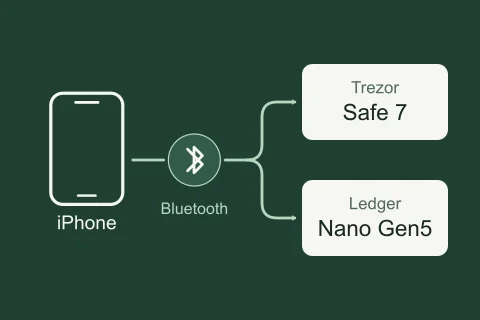
Nano X uses Bluetooth with iPhone or Android, and USB with a computer or Android phone. Ledger Wallet does not support desktop Bluetooth pairing or an iPhone USB connection. Installing the current iPhone app requires iOS 15.1 or later. On Android, Ledger Wallet requires Android 10 or later.

For Bluetooth pairing, unlock Nano X and stay on its dashboard with no blockchain app open. Enable Bluetooth, select the device in Ledger Wallet and compare the codes on phone and wallet. Confirm the matching code on the phone and with both device buttons, then allow My Ledger when prompted. This connects the devices; payments still need their own review and approval.

Android USB needs an OTG connection, which lets the phone communicate with an attached device, and a cable that carries data. The ordinary kit includes a USB-C-to-USB-A cable. A phone or computer with only USB-C ports may need a suitable data cable or adapter.

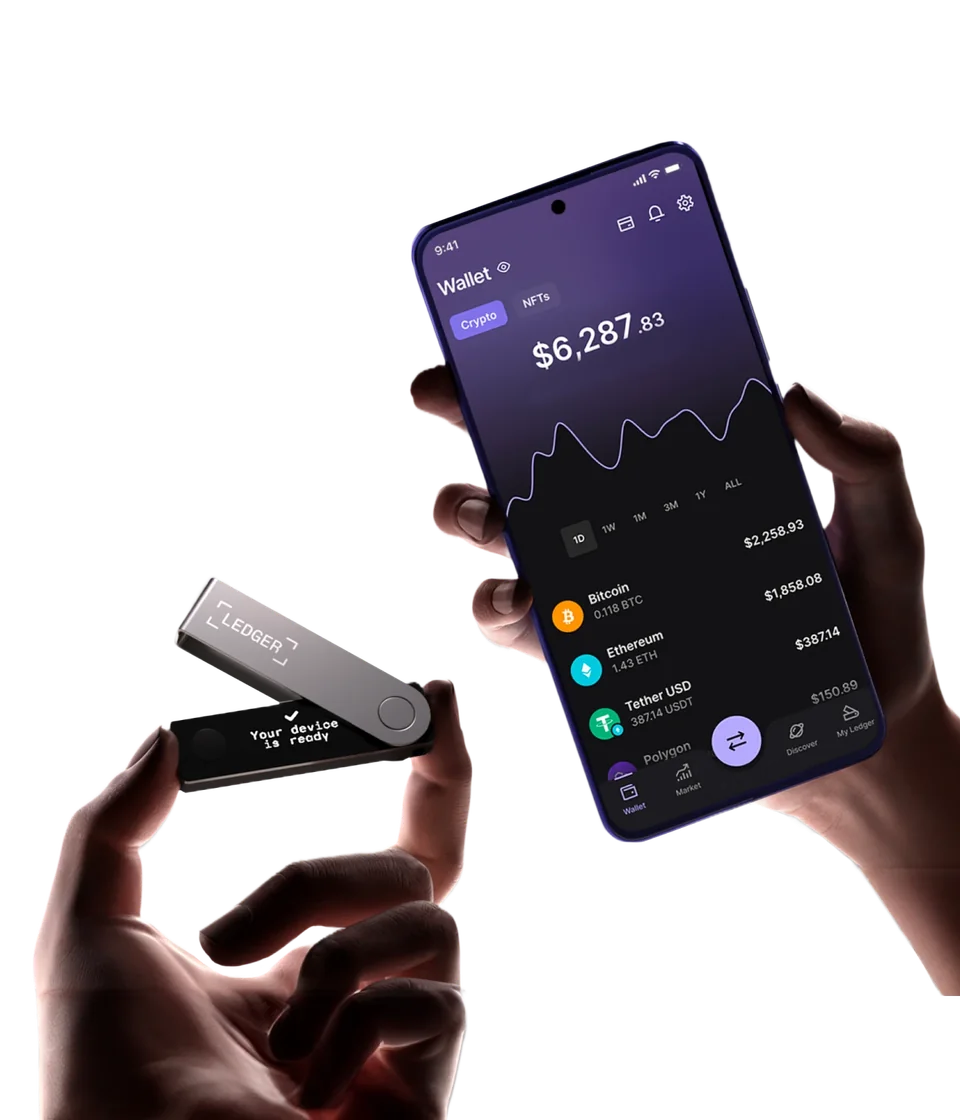
Ledger product image of hands holding Nano X with its metal cover open and Your device is ready on the display, beside a phone showing a crypto portfolio.
Ledger product image: Nano X on its ready screen beside the phone’s portfolio.

Start a new wallet or restore one you already have

Install Ledger Wallet using the download link in Ledger’s Nano X setup instructions. If you already have recovery words for the accounts you want to use, choose restoration on the device. Choose Set up as new device only when you want Nano X to create a new wallet with new recovery words.

To start a new wallet, press the button beside the USB port until the Ledger logo appears, then release it. Use the left and right buttons to move through the instructions and briefly press both at Set up as new device. Choose your own 4–8-digit PIN on Nano X and enter it again to confirm. The PIN unlocks this device; it does not replace the wallet backup.

Write down the 24 recovery words Nano X displays, in order, and confirm them using the device buttons. Keep this record private and offline: someone with the words can access the wallet without your Nano X or PIN. Do not enter them into Ledger Wallet, a website or a support message. If a new device arrives with a PIN or completed recovery sheet, stop and contact Ledger Support through the setup instructions rather than using the supplied credentials.

When Nano X shows Your device is ready, press both buttons to reach its dashboard. You can then connect Ledger Wallet, install the required blockchain app and add an account. These steps do not put any cryptocurrency in the account; receiving is a separate task.

For a new wallet (BIP39)
Word count: 24

Bitcoin, Ethereum and the separate jobs of apps and accounts

Nano X supports Bitcoin and Ethereum through Ledger Wallet. Install the Bitcoin or Ethereum blockchain app on Nano X using My Ledger, then add the corresponding account in the companion app. The signing keys stay on Nano X. The device app enables signing for its network; the Ledger Wallet account stores public-address information and displays your balance. Once added, you can view that balance without connecting the device. Nano X itself does not show the portfolio balance.

For another coin or token, check the exact network and whether Ledger Wallet supports sending and receiving it or needs a compatible third-party wallet. The device’s 2 MB of storage limits the apps installed together, not the amount of crypto in your accounts. App sizes and Ledger OS affect the available space. Removing a device app frees space without deleting the wallet keys or moving the assets; reinstall it when needed.

Check the network and receiving address before a transfer

In Ledger Wallet mobile, tap Transfer, then Receive via crypto address. Choose the asset and account you intend to receive into. On desktop, start with Receive on the home page and choose Via Crypto address. If the account is not added yet, add it first with the matching blockchain app installed on Nano X.

Connect and unlock Nano X, open the matching blockchain app when asked, and request address verification in Ledger Wallet. Read the full address on Nano X and compare it with the app. Confirm on the device only if they match. If they differ, choose Reject and do not send to that address.

Copy the verified address into the sending wallet or exchange. To display it on Nano X again, return to the receiving flow in Ledger Wallet and select Re-verify on desktop or Verify your address on mobile. Compare the full address displayed on Nano X with the pasted destination before confirming it on the device. If they differ, reject it and do not send.

At an exchange, choose the supported asset you intend to receive and a withdrawal network matching your Ledger Wallet account’s network. The same token name can appear on several networks, so the name alone is not enough.

Send a small amount first and check that it reaches the intended account before transferring more. Once you have verified the receiving address, Nano X can be disconnected: the transfer arrives on the blockchain, not inside the device.

Read every screen, then briefly press both buttons

For an ordinary transfer in Ledger Wallet, prepare the account, network, recipient address and amount, and review the fee before proceeding. Connect and unlock Nano X, then open the blockchain app the companion app requests. Use the left and right buttons to read all the transaction details on the device, including the full recipient address, amount and fee. At the final Accept or Sign choice, briefly press both buttons to approve; the app then sends the signed transaction to the network. Reject is a separate choice on the device.

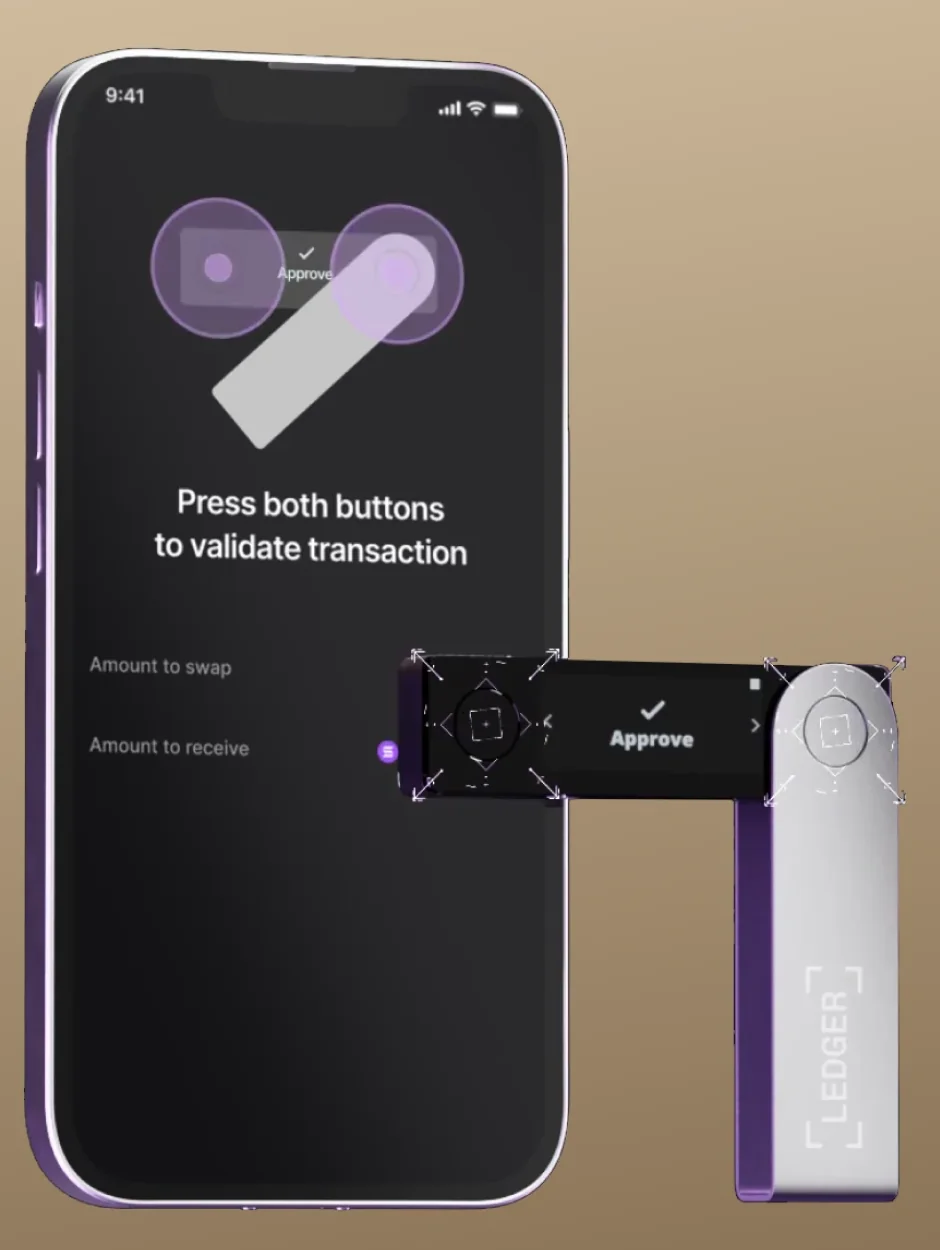
A short simultaneous press selects or confirms. Holding both buttons opens Control Center instead, so a long press does not approve a payment. For token transfers, a token contract address can appear before the recipient address: continue through the review screens to the actual final approval choice.

Approval signs the transfer and lets the app send it to the network; it does not mean the network has confirmed it yet. Open View details in Ledger Wallet to follow its status. Other requests, such as interacting with a dApp, can ask for different permissions: do not treat them as an ordinary payment or approve details you cannot understand.

Ledger’s swap-validation illustration shows Nano X with Approve on its screen, overlays on both round buttons and a phone instruction to press both buttons.
Ledger’s swap example shows the Approve choice and the instruction to press both buttons.

Check your written backup without resetting Nano X

Ledger’s Recovery Check app compares your written recovery words with the wallet on Nano X. It does not reset the device or move your funds. Use it to check that you have the right words in the right order, particularly before relying on the backup for recovery or an OS update.

Unlock Nano X with your regular PIN, with no passphrase active. In Ledger Wallet, open My Ledger, allow access on the device if asked, and install Recovery Check from the app catalog. If you need space, you can remove a blockchain app and reinstall it later without deleting the wallet’s keys or moving the assets.

Open Recovery Check on Nano X and start the check. Select the actual phrase length: 24 words for a wallet created on Nano X, or 12, 18 or 24 for a compatible phrase you previously restored. Enter the words in order using the device buttons, never the phone or computer. Phrase is correct is the successful result. You can then uninstall Recovery Check through My Ledger to recover the storage space.

If the check fails, do not reset the device. Check that you are using the backup for this Nano X, the correct phrase length and word order, and the regular wallet without an active passphrase. Follow Ledger’s troubleshooting instructions if you cannot resolve the mismatch.

Recovery Check does not verify an optional passphrase or its accounts. Keep a separate reliable record of that exact passphrase. Recovery Check is also different from Ledger Recover, Ledger’s optional paid recovery service. A successful check also does not prove that a different wallet model will restore the same accounts.

Restore your wallet and any passphrase accounts

Before restoring a wallet, check which recovery information you have and whether Nano X can still authorize payments. Resetting the device erases its current keys and settings; it is not a way to test a backup.

If you have forgotten the PIN, do not keep guessing: three incorrect entries reset Nano X and erase its stored keys and settings. Restoring afterwards requires a usable recovery phrase and the exact optional passphrase for any passphrase accounts. Ledger cannot retrieve your PIN or recovery words for you.

If your backup is missing or still fails its check, keep Nano X configured and postpone an OS update. If you can still unlock it, read the transaction details and approve payments, you can transfer to a separate wallet with its own new backup. First confirm that destination supports your assets and networks, then save and check its backup using that model’s procedure. Verify that transferred funds arrive and keep the old device configured. Viewing a balance in Ledger Wallet is not enough: if you cannot authorize a transfer, use Ledger Support before changing the device.

BIP39 is the recovery-word format Nano X uses. Restoration accepts a compatible 12-, 18- or 24-word BIP39 phrase. Select restoration on a new or reset Nano X and enter the words with its buttons, rather than into Ledger Wallet. Then reinstall the blockchain apps and add the accounts you used before. The same word format does not guarantee that every other wallet’s account rules are identical; compare restored receiving addresses with your original ones.

An optional additional recovery password, called a passphrase, opens different accounts with their own addresses. Set it on the device under Settings → Security → Passphrase; Nano X accepts up to 100 characters. Attach to PIN creates a secondary PIN for those accounts, while the primary PIN continues to open the standard wallet. Set temporary uses the passphrase accounts for the session; after restarting, the normal PIN returns to the standard accounts. After attaching a passphrase to a PIN, restart Nano X and unlock it with the secondary PIN to use those accounts; add the accounts in Ledger Wallet with that wallet active.

Creating accounts with a new passphrase gives you empty accounts; funds in the standard accounts do not move automatically. Restoring accounts you previously used with a passphrase instead recovers access to those same accounts. You need the original recovery words and exactly the same passphrase, then add the accounts in Ledger Wallet with that passphrase wallet active. The secondary PIN is a device-unlock shortcut, not a substitute for that recovery information. Changing a phone or pairing Bluetooth again is a separate connection task.

To restore a wallet (BIP39)
Word count: 12, 18, or 24

USB-C charging and the iPhone firmware-update condition

Nano X charges through USB-C and can run on its battery or USB power. Ledger’s battery estimates differ: the product page says five hours without a stated usage mode, while its comparison lists three to four hours in use and eight hours on standby. Keep access to USB power for longer mobile sessions.

Device-app updates and Ledger OS updates are different tasks. Nano X can update Ledger OS over phone Bluetooth only when version 2.4.1 or later is already installed. Below that version, first update over USB from a computer or Android phone. An iPhone alone cannot perform that initial wired update; once it is done, subsequent OS updates can use Bluetooth.

Have a usable recovery-word backup before an OS update. If you are unsure it matches this Nano X, run Recovery Check first; if it is missing or still fails, follow the missing-backup guidance above before updating. Remember that this check does not verify an optional passphrase. Keep the backup available; you do not enter the words into Ledger Wallet to update the device.

To find the installed version, hold both buttons to open Control Center, then go to Settings → General → Ledger OS version.

For a USB update from a computer, connect and unlock Nano X, open My Ledger in Ledger Wallet and allow access on the device. Choose Update OS when its notification appears, read the instructions and confirm the update and PIN on Nano X.

For Bluetooth updates on a Nano X already running OS 2.4.1 or later, connect it to Ledger Wallet mobile and use the update notification. Unlock Nano X when prompted, let installation finish and unlock it again after its final restart.

Follow the Nano X branch of Ledger’s instructions. Keep the device connected while it is processing. After the update and final unlock, Ledger Wallet reports that the OS is up to date and reinstalls the device apps. If Bluetooth pairing needs to be reset, forget the old pairing on the phone and pair again; that is a connection task. If Nano X instead returns to its initial welcome screen, follow the restoration instructions to recover the existing wallet rather than creating a new one.


Hardware details

DetailValue
DisplayDisplay typeOLED
Screen diagonal1.1″
Resolution128 × 64 px
Colour modeMonochrome
MemoryStorage space2 MB
Size and weightDimensions72 × 18.6 × 11.75 mmDimensions as listed by the manufacturer
Device weightSources disagreeLedger’s comparison lists 46 g; its product page lists 34 g.
Power and chargingBatteryRechargeable
Battery lifeSources disagreeLedger’s comparison gives 3–4 hours in use and 8 hours on standby. Its product page lists 5 hours without specifying the usage mode.
Operating powerBattery or USB power
Materials and finishMaterialsStainless steel (Brushed finish) · Plastic
Device connectionsUSB portUSB-C
Bluetooth version5.2
Security and softwareSecurity chipST33J2M0 · CC EAL5+
Device softwareLedger OS
Key datesAnnouncedJanuary 7, 2019

Wallet access and sign-in

Wallet access

PIN entry
On the hardware wallet
Passphrase entry
On the hardware wallet

Security key sign-in

FIDO2 · U2F

Device software

Required device app: Security Key

Requires Ledger OS 2.1.0 or later

Connection

USB only for registration and sign-in

Bluetooth is not supported for security-key registration or sign-in.

Phone requirements

Security-key sign-in is unavailable on iPhone

Ledger lists Chrome on Android 14, with the Google Play system update dated March 1, 2024 or later. Firefox on Android is unsupported.

Website requirements

Passkeys stored on the key (resident or discoverable credentials) are not supported.

A compatible service and browser are required.

The device must also be registered as a security key with the website; installing the app alone does not register it.

Credentials from the older Ledger FIDO U2F app do not work with the Security Key app. Register the device as a new security key while keeping another working sign-in method.

Credential recovery

Ledger documents restoring the Security Key app’s credentials on a new or reset Ledger set up with the same 24 recovery words. This does not cover resident credentials.

Keep another working sign-in method before relying on recovery.

What comes in the box

Contents of this offer

Ledger Nano X
  • 1 × Ledger Nano X
  • 1 × USB-C to USB-A cable
  • 3 × Recovery word sheet
  • 1 × Keychain strap
  • 1 × Safety and regulatory information
Sources

This page is based on manufacturer documentation.

Documentation checked: · · · · ·

How we compare