Back to wallets

Blockstream Jade Classic

The original compact Jade, with a camera for Bitcoin QR signing alongside USB and Bluetooth connections.

Blockstream Jade Classic

Approve transactions with

  • Computer: Approve transactions
  • iPhone: Approve transactions
  • Android: Approve transactions

Controls

Physical buttons

Backup

Recovery phrase

Power

Battery or USB power

Is it right for you?

Is this the right wallet for you?

A good fit if

Choose Jade Classic if you want a compact wallet for Bitcoin and Liquid, with its own screen, wheel/button controls and a camera for Bitcoin QR signing. The Blockstream app works with it over USB on a computer or Android device, or Bluetooth on a compatible iPhone or Android phone. Plan for charging and for the PIN-service connection used in its ordinary saved-wallet routine.

Consider another model if

Choose BitBox02 Multi if you need supported assets such as Ethereum as well as Bitcoin, and a USB connection to a computer or compatible Android phone suits you. Choose Ledger Flex if a larger touchscreen is the way you want to review payments. If QR will be your only connection, settle the current Classic setup and unlock procedure before buying.

Worth comparing

Phones and computers

Check compatibility with your phone or computer.

Check the app and connection for each device. Setup and transaction signing are confirmed separately.

Computer

Connection for signing

Blockstream app

USB

Windows · macOS · Linux

  • Set up the wallet
  • Approve transactions
Connection requirements

This workflow uses Bitcoin mainnet in the Blockstream app. The standard firmware also supports Liquid, so it is not Bitcoin-only.

Sparrow

QR

Webcam required for QR

Windows · macOS · Linux

  • Support for wallet setup is unconfirmed
  • Approve transactions
Connection requirements

Prepare Jade QR mode and use a webcam with Sparrow. QR signing supports Bitcoin, not Liquid.

More wallets for computers

iPhone

Blockstream app

Bluetooth

  • iOS 16.0 or later
  • Set up the wallet
  • Approve transactions
Connection requirements

This workflow uses Bitcoin mainnet in the Blockstream app. The standard firmware also supports Liquid, so it is not Bitcoin-only.

More wallets for iPhone

Android

Connection for signing

Blockstream app

USB or Bluetooth

  • Set up the wallet
  • Approve transactions
Connection requirements

This workflow uses Bitcoin mainnet in the Blockstream app. The standard firmware also supports Liquid, so it is not Bitcoin-only.

More wallets for Android

Choose the app, connection and power routine

Jade Classic is the original Jade with a small color display, a click-wheel and an application button. Use its wheel and button to navigate choices and confirm the item shown on the screen. It has a rechargeable battery and a USB-C port for connection and charging.

With the Blockstream app, use USB on a Windows, macOS or Linux computer. Android supports USB or Bluetooth; iPhone uses Bluetooth. The checked Bluetooth route is the mobile app, so do not assume it will work on your computer. We have not confirmed minimum operating-system versions for these Classic routes.

Bluetooth carries data while Classic runs from its charged battery. Charge it before initial setup and keep a way to recharge it later. The store lists a 240 mAh battery; the mobile quickstarts recommend charging before use, without establishing a battery-life result we have tested.

The Blockstream app can also be used as a standalone software wallet. Select its Jade connection when you want the hardware wallet to sign; importing Jade’s recovery phrase into the software wallet would give the phone or computer access to that wallet’s keys.

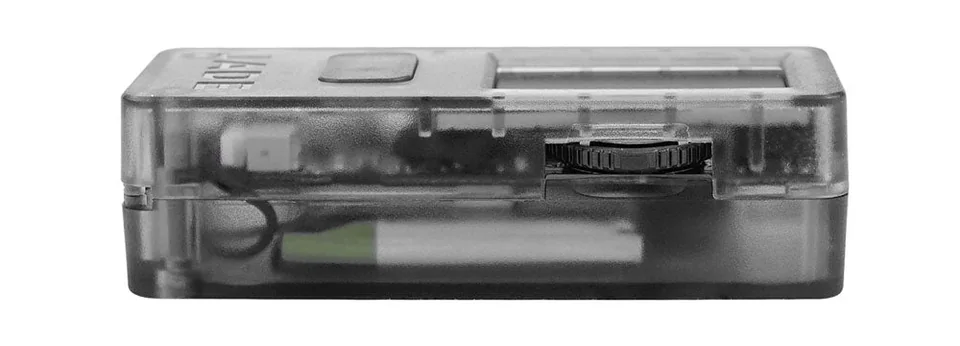
Manufacturer side-view photograph of the transparent-black Jade Classic, showing its ridged click-wheel and the application button on the front face.
The manufacturer’s side detail shows Classic’s click-wheel and front application button beside its small display.

What the PIN service does when you unlock Jade

In the normal PIN-protected routine, your companion device exchanges encrypted messages with a blind oracle, a service involved in unlocking the wallet stored on Jade. Blockstream provides the default service. Enter the PIN on Jade; the app carries the messages.

The oracle does not hold your recovery phrase or know your actual PIN. It supplies part of the material needed for the device to unlock. This means ordinary PIN access depends on reaching the service, even when the hardware is connected.

If the service is unavailable, use Options → Temporary Signer to enter your complete recovery phrase directly on Jade, with the exact optional passphrase if you used one. The official manual-entry instructions linked here do not require a PIN unlock or reset. Your PIN alone cannot recreate the wallet; keep the backup even if PIN unlocking usually works.

Three incorrect PIN attempts remove the secrets used for the saved-wallet access and require recovery from the phrase. If you are unsure of the PIN, stop guessing and read the recovery instructions.

Keep the network and wallet policy with your backup

For a first ordinary on-chain Bitcoin wallet, Standard or Singlesig means one signing key controls spending. The Blockstream app also offers 2FA Protected, previously called Multisig Shield, with additional spending and recovery conditions. This wallet-policy choice is separate from Jade’s PIN unlock service.

With 2FA Protected, an additional key is held by the service and transactions follow its two-factor and account rules. Record which policy and network you used. Restoring the same phrase under a different policy or network can open a different wallet view, with none of the balance you expected.

These instructions use the ordinary on-chain Bitcoin route. If you already use a 2FA Protected account, follow its official recovery instructions rather than assuming a generic phrase import removes its spending conditions. Liquid assets use their own network and a USB or Bluetooth connection; the checked QR route is Bitcoin-only.

Create the wallet, record its backup and finish PIN setup

For a new wallet, start with a charged Classic and the official Blockstream app for your chosen connection. Generate the new recovery phrase on Jade, record the complete sequence privately offline and complete the device’s word-selection check.

  1. Turn on Classic by USB power or its power button. Choose new-wallet setup when creating a wallet you have not used before; choose restoration only if you intend to use an existing backup.
  2. Write down every recovery word in order and complete the verification shown on Jade.
  3. Connect Classic to the companion app using the supported method for your host. For Bluetooth, compare the pairing codes on phone and Jade and confirm only a match.
  4. Choose the intended network and wallet policy, then set and confirm the six-digit PIN on Jade. Finish the app/device prompts before adding funds.

The current setup instructions say the recovery phrase is not saved persistently to Jade until PIN setup is complete. Recording words alone does not finish that saved-wallet setup.

Keep the backup private, separate from the device and available for recovery. Do not photograph it or send it to support. The setup word check is different from the later check against the saved wallet described below.

For a new wallet (BIP39)
Word count: 12
For a new wallet (BIP39)Advanced setup
Word count: 24

Check the receiving address on Classic before sharing it

In the intended Jade-connected Bitcoin wallet in the Blockstream app, open Transact and Receive. Choose Verify on Device, then connect and unlock Classic if prompted. Compare the address displayed by Jade with the one in the app before confirming the check.

If they do not match, cancel rather than sending to the address. After a match, confirm on Jade and share the checked address. Compare it again after pasting it into a withdrawal form.

Receiving an ordinary on-chain payment and waiting for network confirmation are different from approving a payment you send. The linked transfer guide explains the network, fees and any minimum deposit for a small first transfer; wait for credit to the intended wallet and check the details again before sending more.

Review the full recipient and approve on Classic

Prepare the on-chain Bitcoin payment in the app, then use Classic to review and sign it. The app sends the signed transaction to the Bitcoin network; pressing the hardware confirmation does not mean the network has confirmed it.

  1. In the app, enter the recipient and amount and choose the network fee. Compare the recipient with the intended receiving details.
  2. Send the request to Jade and connect/unlock it if prompted. Review the recipient and amount on Classic. Select the address field to read the full address, as described in the official sending procedure.
  3. Confirm on Classic only when the details match the payment you intend. The signed transaction returns to the app for broadcast; follow its recorded status afterwards.

Check the fee in the app before approval. The ordinary procedure documented here is an on-chain Bitcoin transfer, not a claim that every app feature or payment type uses the same hardware approval.

Bitcoin QR signing is a separate routine

Classic’s camera can scan a Bitcoin transaction prepared by a compatible app, and its display returns the signed transaction as QR codes. The checked Sparrow route exchanges transaction data in both directions; it is not a shortcut past reviewing the payment on Jade.

Sparrow prepares and displays the unsigned transaction for Classic to scan. Jade shows the details for review and confirmation, then displays the signed result for Sparrow to scan back and broadcast. Liquid is not supported through this QR route.

Before choosing QR as your only routine, confirm the current Classic setup and unlock steps with Blockstream. We have not verified a complete current Classic QR-unlock procedure, and some prerequisites linked from the Sparrow reference are now written for Jade Plus.

Check the written backup against the PIN-saved wallet

The manufacturer documents a Temporary Signer check that does not overwrite your PIN-saved wallet. While you can still unlock Classic, note the saved wallet’s fingerprint, then compare it with the temporary wallet opened from your written backup.

  1. Unlock Jade with its PIN and note the eight-character wallet fingerprint shown on its ready screen.
  2. Log out or restart, then choose Temporary Signer from Options. Read its warning: this temporary wallet will be forgotten when the session ends or the device restarts.
  3. Enter the complete recovery phrase in order on Jade. If the original wallet used a passphrase, ensure you are prompted for it and enter that same passphrase on the device.
  4. Connect the temporary session to a compatible app using the documented method. Compare its fingerprint with the one recorded from PIN access. A match identifies the same saved wallet for this check.

Keep the complete backup after checking: a temporary session is not a new persistent wallet backup. A setup word-selection check, this fingerprint comparison and actual restoration on a replacement are different tasks.

Recover after a lost Classic, forgotten PIN or service problem

A lost or broken Classic, or a forgotten PIN, requires your complete recovery backup to regain access. If an optional passphrase was used, you need its exact original value too. If you still have Jade but the PIN service is unavailable, turn it on and choose Options → Temporary Signer, then enter the complete recovery phrase manually and select the communication method for your compatible companion app. This route does not require unlocking the saved PIN wallet or resetting Jade.

Before any reset or replacement

  • Do not reset your only working device to test an uncertain backup. Have the complete recovery record and understand the applicable recovery route first. If either is unclear, ask official support before resetting; never share the phrase or passphrase.
  • Record and restore the intended network, wallet policy and accounts. For a 2FA Protected wallet, follow its additional recovery/spending conditions. Temporary access to Jade does not remove those conditions.

Temporary Signer leaves the saved PIN wallet unchanged, and Jade forgets the temporary wallet when you turn it off. Keep the backup for your next session. This gives access for signing; the compatible companion app still prepares transactions and arranges broadcast through an online device. Use the intended network, wallet policy and accounts, including any 2FA Protected spending conditions.

The checked restoration procedure offers manual word entry on Jade or a QR-backed recovery choice. Choose a compatible replacement that supports the backup format and the assets, network and accounts you need; a BIP39 label alone does not promise every account will appear.

An optional passphrase creates a separate wallet from the phrase alone. It is distinct from the PIN and must be the exact original value. If you open an empty view after recovery, check the passphrase, network, policy and intended accounts before assuming the funds have disappeared.

Blockstream cannot supply a lost recovery phrase. If the usable device and complete recovery information are both gone, no recovery route is established here that can recreate the wallet.

To restore a wallet (BIP39)
Word count: 12 or 24

Update Classic firmware using the appropriate connection

The app on your phone or computer and the firmware on Classic are separate software. The checked ordinary desktop update route uses the Blockstream app with Classic connected by USB; follow its firmware prompt and confirm the update on Jade.

Check the existing-device preparation first

  • The manufacturer gives special reset preparation if Jade shipped with firmware older than 1.0.38. Before following any reset instruction, have the complete recovery backup and understand the recovery route. Do not treat reset as a universal update step.
  • Use instructions for Classic. The JadeLink accessory update method is explicitly for Jade Plus and does not establish an update route for Classic.

On desktop, the Blockstream app’s hardware-device area supplies the firmware prompt when an update is available. The official document also offers a computer USB WebSerial portal. Mobile update prompts appear after initial setup; use the supported Classic connection for your host, with Bluetooth on iPhone.

If an upgrade fails, use the official troubleshooting instructions and their backup conditions before any destructive step. We have not performed a firmware update on Classic or checked the exact labels in an installed app.

Hardware details

DetailValue
DisplayColour modeColour
Size and weightDimensions60 × 24 × 17 mmDimensions as listed by the manufacturer
Device weight21 g
Power and chargingBatteryRechargeable
Battery capacity240 mAh
Operating powerBattery or USB power
Charging methodsUSB-C
Materials and finishMaterialsBody: Plastic
Device connectionsUSB portUSB-C
Security and softwareSecurity chipNo Secure Element
ProcessorControllersESP32

Wallet access

PIN entry
On the hardware wallet
Passphrase entry
On the hardware wallet
Sources

This page is based on manufacturer documentation.

Documentation checked: · · ·

How we compare

Blockstream Jade Classic

Check price at Blockstream