A good fit if
You prefer QR signing and backup cards you keep yourself.


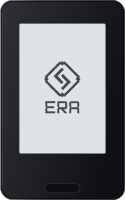
An E-Ink touchscreen wallet for reviewing and signing transactions exchanged with compatible apps by QR.
Page set to Multi-coin firmware Change

Approve transactions with
Backup
Backup cards
Power
Rechargeable battery
Is it right for you?
You prefer QR signing and backup cards you keep yourself.
You want USB or Bluetooth signing, or a wallet you can set up and maintain without a phone.
Choose Trezor Safe 3 in the multi-coin edition for USB setup and signing with Trezor Suite on a computer, with no battery to charge.
Compare Wallet and Safe 3Choose Ledger Flex for touchscreen review with Ledger Wallet over Bluetooth on an iPhone or Android phone.
Compare Wallet and FlexChoose Keystone 3 Pro with Multi-Coin firmware to keep QR signing while preparing firmware updates on a computer by USB or microSD.
Compare Wallet and Keystone 3 ProPhones and computers
Check the app and connection for each device. Setup and transaction signing are confirmed separately.
QR
Windows · macOS · Linux
Use Sparrow for Bitcoin with an ERA already set up and a computer webcam for QR exchange. Review and approve transactions on ERA. A phone is still needed for first activation and NFC firmware updates.
QR
First activate ERA with the ERA Wallet Companion app on a phone using the two-way authenticity QR check. Set the device PIN or password and create or restore the wallet on ERA afterward.
QR
The ERA Wallet signing app is separate from Companion. It requires a phone with NFC and a camera, plus an ERA already set up and linked by QR. Review and approve transactions on ERA.
QR
MetaMask on your phone must already have a software wallet. Add ERA as a QR-based hardware account and choose the path option that shows the same address as ERA. Ethereum signing requires Multichain firmware.
QR
First activate ERA with the ERA Wallet Companion app on a phone using the two-way authenticity QR check. Set the device PIN or password and create or restore the wallet on ERA afterward.
QR
The ERA Wallet signing app is separate from Companion. It requires a phone with NFC and a camera, plus an ERA already set up and linked by QR. Review and approve transactions on ERA.
QR
MetaMask on your phone must already have a software wallet. Add ERA as a QR-based hardware account and choose the path option that shows the same address as ERA. Ethereum signing requires Multichain firmware.
Day to day
What to choose before buying, then activation, QR use and recovery when you need it.

Hardware, backup and editions
Take it off the charging pad
Review on the touchscreen; take ERA off its charging pad before scanning a QR code.
Keep the charging pad with it
ERA needs its wireless charging pad; keep it available when you travel.
Full copies and shares differ
One full card can restore a wallet; a split backup needs enough matching shares.
Same device; switchable firmware
Use Multichain for Ethereum; the same ERA can switch to Bitcoin-only firmware.
You supply the power adapter
The kit provides the charging pad and backup cards; you still need a USB power adapter.



Getting ready to use it
Companion activates the device
Activate with Companion, then create the wallet on ERA and save its backup separately.
Activation comes first
Link the app to an already prepared ERA by scanning its public-account QR.
Re-enter it after power-off
A passphrase opens different addresses; ERA forgets it when it powers off.
Find the same address in the app
Choose the intended wallet and network, then make the app show the same address as ERA.

Each time you receive or pay
Compare the app and ERA addresses
Compare the app’s receiving address with ERA before sharing it or using it for a withdrawal.
QR in, review, QR back
Scan the app’s request with ERA, review and approve it, then return its signed QR to the app.

Before an update or a reset
One share is not the whole backup
Recovery Manager can read a card; one readable share alone does not establish a complete backup.
Companion and an NFC phone
Use Companion on an NFC phone for updates, even when daily Bitcoin signing uses a computer.

Lost, wiped, forgotten or failed
Keep card PIN and passphrase
Restore from your saved card or words; a split backup needs enough matching shares.
Keep the accessible wallet intact
If ERA still opens the wallet, save a new full backup or an adequate set of share cards.
Keep ERA and its wallet intact
For ERA-held funds, link its public-account QR to another compatible app without resetting ERA.
Before you buy · 1 of 16
Review on the touchscreen; take ERA off its charging pad before scanning a QR code.
Five wrong device codes erase every wallet on ERA. Five consecutive wrong optional wallet PINs or passwords delete that wallet.
Before you buy · 2 of 16
ERA needs its wireless charging pad; keep it available when you travel.
The charging pad connects to a USB power adapter. ERA itself charges wirelessly; the adapter is not included.
Before you buy · 3 of 16
One full card can restore a wallet; a split backup needs enough matching shares.
Three included cards do not automatically make a 2-of-3 backup. You choose full copies or the split-backup settings when saving it.
Before you buy · 4 of 16 · Multi-coin firmware
Use Multichain for Ethereum; the same ERA can switch to Bitcoin-only firmware.
These are official software builds for the same ERA hardware, not separate device purchases. Changing the build uses Companion’s NFC update route.
The maker says switching in either direction retains the wallets. Keep your recovery backups usable before changing firmware.
Before you buy · 5 of 16
The kit provides the charging pad and backup cards; you still need a USB power adapter.
First day · 6 of 16
Activate with Companion, then create the wallet on ERA and save its backup separately.
In the app
Step 1:Activate ERA
Start verification in Companion. Scan the phone’s challenge with ERA, then scan ERA’s response with the phone. Continue only after success.
2On ERA
Step 2:Set the device credential
Set your PIN or password on ERA. It is separate from the Recovery Card PIN.
3On ERA
Step 3:Create a new wallet
Choose CREATE → STANDARD and follow the generation prompts. Use Expert mode only if you need its additional choices.
4On ERA
Step 4:Save the backup
On ERA BACKUP, choose the card or paper route.
Choose START, set the separate card PIN, then hold a blank card to ERA’s upper back until BACKUP SAVED! appears.
Choose NO CARD; write the displayed words on paper and complete ERA’s word check. Keep this backup; cards can be added later.
5On ERA
Step 5:Finish the wallet
Finish the naming prompts. You can link an app now or skip linking and do it later from the wallet’s settings.
First day · 7 of 16
Link the app to an already prepared ERA by scanning its public-account QR.
On ERA, open the wallet’s settings → Link and choose the app. Follow its guide below to import the public account, not the recovery words.
Before adding ERA’s hardware account, MetaMask must already contain a software wallet. Choose its derivation path option that shows the same address as ERA.
First day · 8 of 16 · Optional
A passphrase opens different addresses; ERA forgets it when it powers off.
1On ERA
Step 1:Apply it before linking
Open the wallet’s settings → Passphrase → Create. Enter and confirm the exact passphrase on ERA.
You
Step 2:Return to the same wallet
After power-off, apply that exact passphrase again before linking the app or checking its original accounts.
Losing the passphrase can leave its wallet inaccessible even with the recovery backup. Keep its exact capitalization and spaces.
First day · 9 of 16
Choose the intended wallet and network, then make the app show the same address as ERA.
ERA can hold separate wallets. Select the one you intend to use; a different passphrase also gives different addresses.
Every day · 10 of 16
Compare the app’s receiving address with ERA before sharing it or using it for a withdrawal.
Start on the guide’s Bitcoin example. Tap Address-0, choose Address-1, then go back. Never send funds to these example addresses.
Bitcoin receiving address, Address-0.
Bitcoin receiving address, Address-0.
Interactive illustration.
1On ERA
Step 1:Show the destination
Open the intended wallet and tap DEPOSIT. On Multichain, choose the network you expect to receive on.
You
Step 2:Compare the full address
Compare the full address on ERA with the app’s Receive page for the same wallet, network, address format and number.
You
Step 3:Use the checked receiving details
Use the matching network and keep the full address you verified on ERA.
Share the checked address and network. Ask the sender to compare the final pasted address with those original details.
Paste the checked address into the service’s withdrawal form. Compare it with ERA again and choose the matching network before submitting.
Ask the sender for a small test, or make a small withdrawal yourself. The test must meet the receiving minimum and allow for fees. Confirm arrival in this account, then tell the sender to send the remainder or withdraw it yourself.
Every day · 11 of 16
Scan the app’s request with ERA, review and approve it, then return its signed QR to the app.
In the app
Step 1:Prepare the request
In the linked app, prepare the recipient’s original address, amount and fee, then display its unsigned transaction QR.
2On ERA
Step 2:Scan the unsigned request
On the wallet page, tap SIGN. Point ERA’s camera at the app’s QR and wait for the full request.
3On ERA
Step 3:Check before approving
Compare the full destination and amount with the intended transfer. Check the fee, network and signing wallet.
4On ERA
Step 4:Approve the reviewed request
Swipe through every review page to the last. Tap APPROVE only if the details match; cancel requests you cannot understand.
You
Step 5:Return the signature and send
Scan ERA’s signed QR and send in the app. Check its transaction status; check your receiving account or ask the recipient to confirm arrival.
On Multichain, unknown contract functions can still be offered for blind signing. Cancel a request you cannot understand; Ethereum also requires Multichain firmware.
Now and then · 12 of 16
Recovery Manager can read a card; one readable share alone does not establish a complete backup.
Do not format a card or erase ERA just to test a backup. A read error alone does not prove the saved backup is lost.
Now and then · 13 of 16
Use Companion on an NFC phone for updates, even when daily Bitcoin signing uses a computer.
In Companion, open Settings → Update wallet. On ERA, use SETTINGS → Updates, then follow the guide to transfer and install the update over NFC.
Position the phone as ERA’s download screen shows and leave both devices in place. Do not power ERA off during installation.
If something goes wrong · 14 of 16
Restore from your saved card or words; a split backup needs enough matching shares.
If the original wallet used a passphrase, apply its exact value on ERA after restoration and before linking the original account in the app.
If something goes wrong · 15 of 16
If ERA still opens the wallet, save a new full backup or an adequate set of share cards.
Do not erase ERA, its wallet or the only remaining card while your recovery material is missing. Keep the accessible signing device intact.
Save a new full backup or write a fresh share-card set from the accessible wallet’s Backup route. Keep enough distinct matching shares, their card PIN and any passphrase separately.
If ERA can still approve transfers, use a separately backed-up destination and the complete migration plan below. Keep ERA configured until every planned transfer arrives.
If something goes wrong · 16 of 16
For ERA-held funds, link its public-account QR to another compatible app without resetting ERA.
This route concerns the account whose keys are held on ERA. Link the intended wallet again from its settings; do not import the recovery words into the phone.
This page is based on manufacturer documentation.
Documentation checked:
How we compareERA WalletMulti-coin firmware


