A good fit if
You want a compact touchscreen wallet for the ELLIPAL phone app and are happy to scan QR codes in both directions when paying.


A compact touchscreen wallet that exchanges payment QR codes with the ELLIPAL phone app.

Approve transactions with
Backup
Recovery phrase
Power
Rechargeable battery
Is it right for you?
You want a compact touchscreen wallet for the ELLIPAL phone app and are happy to scan QR codes in both directions when paying.
You want more room to read transaction details or a documented USB desktop workflow. Mini also needs its separate adapter and a microSD card for firmware maintenance.
Choose the larger four-inch screen if you want more room to review payments within ELLIPAL’s phone-and-QR workflow.
Compare Titan Mini and Titan 2.0Choose its multiple-cryptocurrency edition if your supported assets and routine suit USB computer use instead of phone-camera exchanges.
Compare Titan Mini and Safe 3Phones and computers
Check the app and connection for each device. Setup and transaction signing are confirmed separately.
QR
QR
Mini has a 2.7-inch touchscreen; Titan 2.0 offers a larger four-inch screen if reading space matters more. Keep Mini’s separate charging and update adapter with it. We have not measured screen readability or battery life.
Manufacturer sources disagree about Mini’s size and weight; the hardware details below retain both conflicting records. Do not rely on an unqualified weight or dimensions comparison.
Follow the Mini-specific firmware preparation route.
Check the exact asset, network and task before choosing Mini. Our compatibility entries cover Bitcoin and Ethereum; an app buy, swap or staking listing does not establish every hardware-signing route.
Find the network and confirm the sending or receiving task you need.
App 4.X uses the network’s + control; the official procedure supplies its name and unlisted-token routes.
ELLIPAL lists MetaMask support, but our computer entry remains unconfirmed for complete Mini setup and signing on each operating system. Preparing a firmware card on a computer is separate from signing.
Create account makes new keys. To restore a wallet on Mini, use Recover via Seed Phrase.
Restore an existing wallet here instead of creating new keys.
Get and install the official app. Have Mini powered on, with paper ready in private.
For an account already on Mini, contact support for reconnection help; do not create or recover it to connect the app.
The exact Mini guide supplies App 4.X’s route and help with QR visibility, brightness and lighting.
For a new wallet only
Before the first deposit, verify the intended receiving address on Mini.
Match account, network and address format on both screens; a receiving QR needs no Mini signature.
A small first transfer must meet the receiving minimum; wait until credited before sending more.
Mini does not fetch balances. If a deposit is missing, check account, network, token and transfer status.
Official guidance
Start with an account already created or restored on Mini and connected to the app. Get receiving details from the official Receive/Deposit page for the account where funds should arrive; confirm recipient-provided address and network through a trusted communication channel. Keep enough fee currency. Reject a token spending permission when intending an ordinary transfer.
If the account is not ready or connected, follow setup first.
At Mini’s hardware step, select the intended account and network. Reject mismatches or unexplained requests before approval; hardware may not display every field. Account-connection and receiving QR codes are not signing requests.
The exact Mini procedure supplies App 5.0 and 4.X’s detailed clicks.
Official guidance
Mini checks newly generated words during setup. A separate later backup-check procedure is not confirmed: ELLIPAL’s Verify Seed Phrase guide names Titan 2.0. Do not treat restoring over an account as a backup check.
Keep any passphrase safely offline. You do not need to add one simply because Mini supports it.
Before choosing a replacement, check its backup format, passphrase support, assets and account arrangement. Matching word count alone is insufficient.
For replacement or a forgotten account password, restore with the original phrase and exact optional passphrase. Enter them only on Mini, never the app or support forms. Keep any existing signer until the restored accounts are checked.
If Mini reports an existing address and asks to overwrite, stop unless replacing that account is intentional and its complete recovery details are ready. This is not a harmless backup test.
The exact Mini procedure supplies the app-version pairing route for the restored account.
If you cannot identify the corresponding address, consult the original wallet’s recovery instructions before deciding the phrase is wrong. A different address alone does not mean funds disappeared.
If the corresponding address matches but funds are missing, check the account’s networks, tokens, balances and history. Keep the old signer until checks pass.
Without complete recovery details or another device that authorizes, ELLIPAL cannot recreate access.
Official guidance
Keep Mini’s adapter for charging and card-based firmware maintenance. Updating the phone app is separate; a computer used to prepare a card is not a USB signing connection.
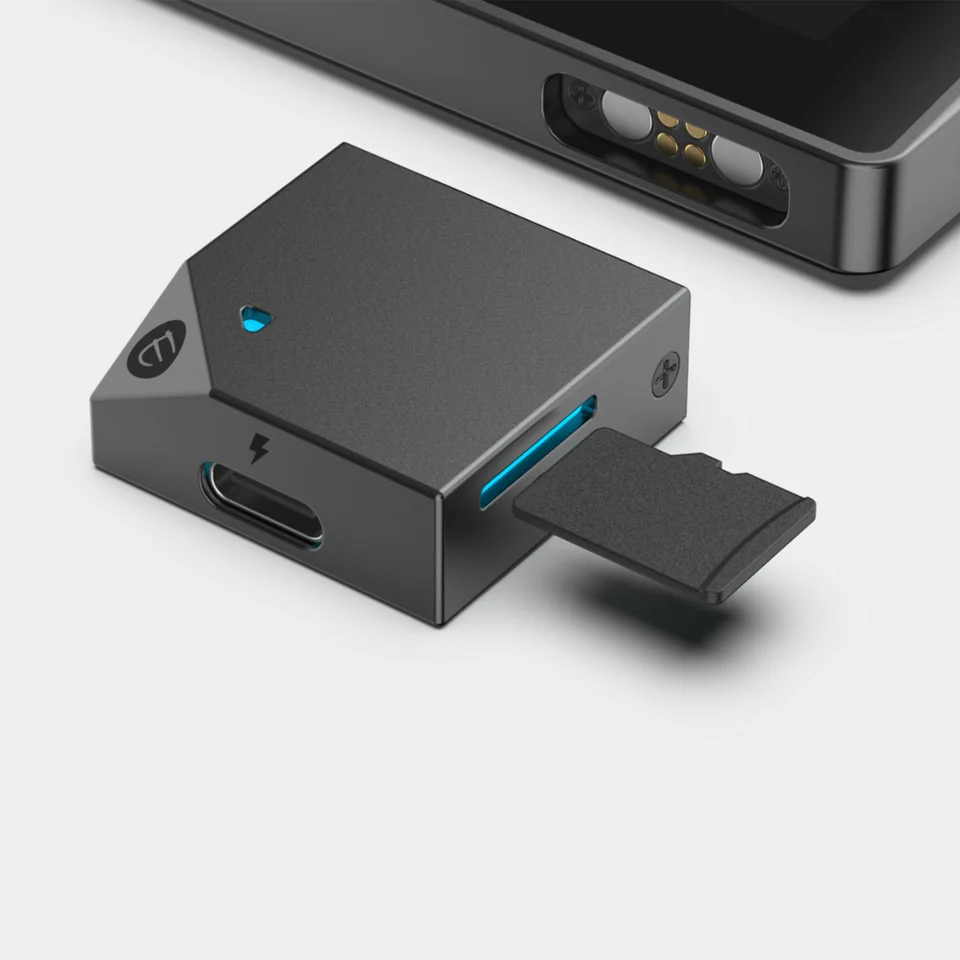
Prepare an 8, 16 or 32 GB FAT32 microSD card, computer, reader and Mini adapter with its power supply. Save unrelated files before formatting, which erases them. Keep the adapter unpowered until card insertion.
Use the official Mini version/download entry and detailed card-preparation instructions before copying firmware.
A USB-C Android phone with external-storage support and a compatible microSD reader can prepare the card. That reader is separate from Mini’s adapter; the documented download method excludes iPhone.
For missing card detection, interrupted installation or failure, follow the exact-model troubleshooting conditions. Any exceptional filename-change repair is conditional, not routine preparation. Do not erase the wallet as an update fix.
| Detail | Value |
|---|---|
| DisplayScreen diagonal | 2.7″ |
| Size and weightDimensions | Sources disagreeELLIPAL’s Mini product page lists 75 × 71 × 10.5 mm; its January 2023 comparison lists 55 × 85 × 15 mm. We have not established a correction or hardware revision. |
| Device weight | Sources disagreeELLIPAL’s Mini product page lists 120 g; its January 2023 comparison lists 100 g. We have not established a correction or hardware revision. |
| Power and chargingBattery | Rechargeable |
| Battery capacity | 600 mAh |
| Security and softwareSecurity chip | CC EAL5+ |
This page is based on manufacturer documentation.
Documentation checked: · ·
How we compareELLIPAL Titan Mini

