A good fit if
You want a large touchscreen for checking payments and prefer a phone app with QR exchange to a USB or Bluetooth signing connection. You are comfortable keeping the separate charging and update adapter with the device.


A four-inch touchscreen and camera for QR transaction exchange with the ELLIPAL mobile app.

Approve transactions with
Backup
Recovery phrase
Power
Rechargeable battery
Is it right for you?
You want a large touchscreen for checking payments and prefer a phone app with QR exchange to a USB or Bluetooth signing connection. You are comfortable keeping the separate charging and update adapter with the device.
You want a small pocket device or fewer camera scans. Titan 2.0 is 118 × 66 mm and weighs 140 g; its four-inch screen comes with more bulk than a card-shaped wallet. The everyday workflow covered here uses the ELLIPAL phone app, and firmware updates need separate equipment.
A smaller QR device if you accept its 1.3-inch screen and directional pad.
Compare Titan 2.0 and SafePal S1Bluetooth phone use and an E Ink screen if you prefer a connected signing workflow.
Compare Titan 2.0 and FlexAnother touchscreen QR option; check the exact companion app and edition for your assets.
Compare Titan 2.0 and Keystone 3 ProPhones and computers
Check the app and connection for each device. Setup and transaction signing are confirmed separately.
QR
QR
Create account makes a new wallet on Titan. To restore an existing wallet, use Recover via seed phrase. If the account is already on this Titan, reconnect it without creating keys or importing words into the app.
To bring back an existing wallet from its backup, follow the restoration route.
Download and install the official ELLIPAL App. Have Titan powered on, with paper and a pen ready in a private place.
If the account is already on Titan, select it → Connect to App for the intended network. Scan its connection QR using your app version’s route in the official setup guide below. You do not create another account or backup.
ELLIPAL’s creation sources disagree: the product specification lists 24 words; the setup guide says 12 or 24. Record every word actually shown, without shortening the backup. Do not photograph it or store words on a phone, computer or cloud service.
For a new wallet only
Pause holds the current QR still; the app still needs the complete sequence. The official setup guide supplies App 4.X’s connection route. For a black camera view, check the app’s camera permission.
Keep the written backup offline and check it before relying on it.
Before the first deposit, compare the receiving address with Titan.
Check the exact asset and network in ELLIPAL’s coin list first. A token name alone does not establish support. Add and sync its network before enabling the token in the app.
Check support for the transfer network you intend to use.
In App 5.0, open the network → Manage Tokens, search and enable the token. For ambiguous names or an unlisted token, check the contract against the project’s official information for that exact network. Additions such as XRP trustlines require a transaction and fee; understand the request before approving.
If a supported network is missing, check for an app update. Before any Titan firmware update, verify the phrase and retain the exact optional passphrase; the checker does not verify it.
If either secret is missing or uncertain but Titan still approves payments, preserve that signing access before maintenance.
Only after recovery preparation, follow the firmware procedure and check for the network again.
Official guidance
Check the intended account, network and complete receiving address on Titan before sharing it. A receiving-address QR is not a signing request; receiving requires no Titan signature.
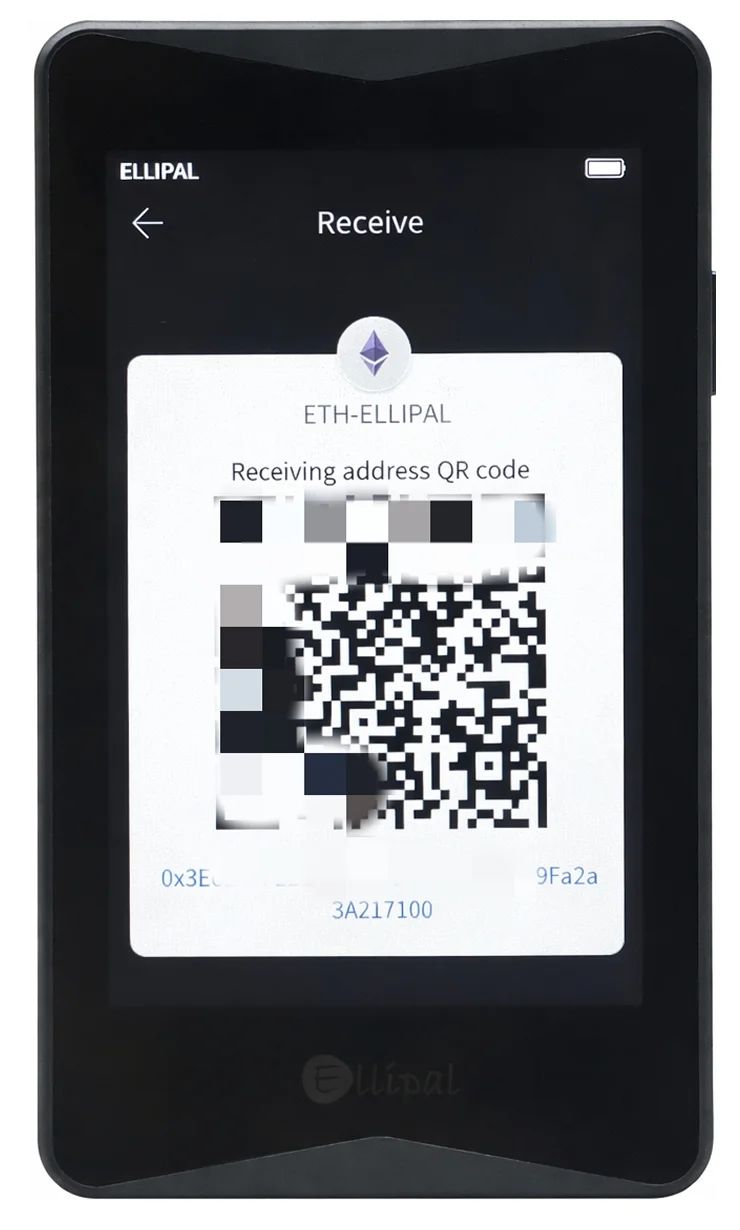
For a first transfer, use a small amount that meets the receiving minimum and wait until it is credited before sending more.
Check deposits in the app; Titan does not fetch live balances. For a matching address with missing funds, check network and token display first.
Official guidance
Start with an account already created or restored on Titan and connected to the app. Get current receiving details from your receiving account’s official Receive/Deposit page; for recipient-provided details, confirm the address and network through a trusted communication channel. Keep enough fee currency. If you intend a transfer, reject a token spending permission.
If you still need to create, restore or connect the account, follow setup first.
At Titan’s signing step, select the intended account and network. Reject differences or unexplained requests before approval. Titan may not show every field; check the complete receiving details in the app and the details available on hardware. The connection QR and receiving-address QR are not signing requests.
App-version clicks and Titan’s details control are in the official sending procedure.
Official guidance
Verify Seed Phrase checks whether your physical backup matches an account’s stored words without changing the wallet. Have Titan powered on and unlocked. This checker cannot verify an optional passphrase.
The account password authorizes account actions; it is distinct from screen unlocking and does not replace recovery words. A passphrase changes which wallet those words restore; neither secret replaces the phrase.
Keep the exact optional passphrase offline: case, spaces and characters matter. Settings → Passphrase → Open enables it for new accounts; it does not move existing funds into a passphrase wallet.
For a replacement, check account, asset, network, address type and derivation path as well as backup format.
Official guidance
Restore with the original recovery phrase and exact optional passphrase on Titan itself, never the app or support forms. You can set a new account password during recovery.
Against the previous wallet, compare its corresponding address from the same original account, network, address type, derivation path and position in the address sequence. An arbitrary old address or matching account name is insufficient.
If the corresponding address differs, check words, order, exact passphrase and type. If you cannot establish which address corresponds, consult the original wallet’s recovery instructions or support; BIP39 alone does not guarantee every account.
If the address matches but the balance does not, check networks, tokens and transaction history before relying on the replacement. Keep the old signer available until checks pass.
Without usable recovery details or another device that can authorize, ELLIPAL cannot recreate the keys. Reinstalling the app cannot restore them.
Official guidance
Keep the Security Adapter: it charges Titan 2.0 and holds the microSD card for firmware updates. Updating the phone app is separate. Titan does not use a computer USB connection to sign payments.
Use Verify Seed Phrase only with Titan unlocked and its checker available. It confirms words, not the optional passphrase.
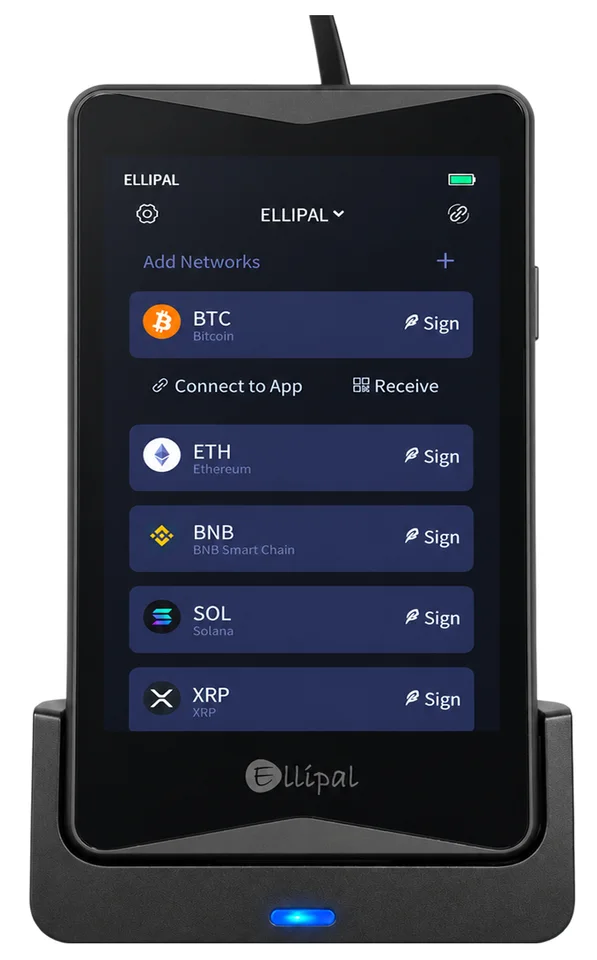
Prepare an 8, 16 or 32 GB FAT32 microSD card, reader, computer and adapter with its power supply. Save unrelated card files before formatting, which erases them. Leave the adapter unpowered until inserting the card.
The official procedure supplies downloads and detailed computer/Mac card preparation.
A USB-C Android phone with external-storage support and a compatible card reader can prepare the card through the official method. That download route excludes iPhone; ordinary iPhone wallet use still works.
For a missing card, interrupted update or failure, follow the exact-model troubleshooting conditions; do not reset. Its exceptional interrupted-update filename instructions are not routine file preparation.
Existing passphrase accounts remain after updating even if the toggle returns to OFF. Enable it again only if you intend to create another passphrase account.
| Detail | Value |
|---|---|
| DisplayDisplay type | IPS LCD |
| Screen diagonal | 4″ |
| Colour mode | Colour |
| Size and weightDimensions | 118 × 66 × 9.7 mmDimensions as listed by the manufacturer |
| Device weight | 140 g |
| Power and chargingBattery | Rechargeable |
| Battery capacity | 1,400 mAh |
| Security and softwareSecurity chip | CC EAL5+ |
This page is based on manufacturer documentation.
Documentation checked: · · ·
How we compareELLIPAL Titan 2.0