DCENT X

A 2.4-inch AMOLED touchscreen wallet for Bluetooth phone transactions, with fingerprint or PIN approval and firmware updates from iPhone or Android.

DCENT X

Approve transactions with

  • Computer: Not confirmed
  • iPhone: Approve transactions
  • Android: Approve transactions

Backup

Recovery phrase

Power

Rechargeable battery

Is it right for you?

Is this the right wallet for you?

A good fit if

You want to review phone transactions on a 2.4-inch AMOLED touchscreen, then approve them with a fingerprint or device PIN. X connects to iPhone or Android over Bluetooth and can also update its firmware through the phone, so iPhone users do not need a computer for that maintenance task.

Consider another model if

You need verified transactions over USB, or want to set up a new wallet without a recovery-card accessory. Android USB account synchronization is documented, but USB transaction signing remains unconfirmed. The standalone offer does not include an R3covery card; DCENT’s current new-wallet instructions tell standalone buyers to prepare one separately.

Worth comparing

Phones and computers

Check compatibility with your phone or computer.

Check the app and connection for each device. Setup and transaction signing are confirmed separately.

ComputerYour device

  • Support for wallet setup is unconfirmed
  • Support for signing is unconfirmed
More wallets for computers

iPhone

DCENT app

Bluetooth

  • iOS 15.5 or later
  • Set up the wallet
  • Approve transactions
More wallets for iPhone

Android

DCENT app

Bluetooth

  • Android 9 or later
  • Set up the wallet
  • Approve transactions
More wallets for Android

Read the transaction, scroll to the end, then confirm

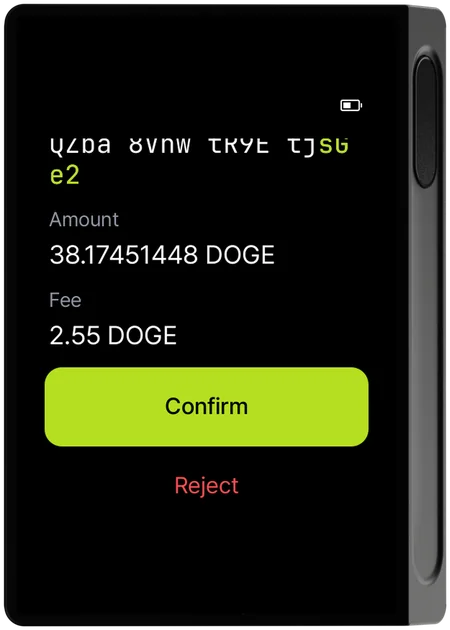
In the DCENT phone app, enter the recipient address and amount, choose a network-fee level and tap Send to request a signature. X displays the network, transaction type, recipient address, amount and fee. Review those details on the device, scroll to the end and choose Confirm or Reject. Confirm leads to fingerprint or device-PIN authentication; after approval, the signature returns to the app for broadcast.

Confirm and Reject sit at the bottom of the scrolling transaction details, so they may be out of view when the screen first opens. The touchscreen handles navigation and data entry; the fingerprint sensor is on the right side of the device. X can hold two registered fingerprints, and its signing instructions also allow PIN approval. Initial setup registers the first fingerprint; the Later option skips adding a second.

DCENT’s X transaction-screen example after scrolling, with the DOGE amount and fee above the Confirm and Reject controls.
Manufacturer illustration: Confirm and Reject appear at the end of the transaction details. This is DCENT’s DOGE example.

QR pairing starts Bluetooth; USB and NFC have different jobs

Use DCENT Wallet version 10.0.0 or later and select “Biometric Wallet” on the app’s wallet-selection screen. Scan the connection QR code on the device to begin Bluetooth pairing, match the pairing codes and allow the connection on X. The QR code is a pairing step, rather than a way to carry a transaction between disconnected devices.

The current iPhone app requires iOS 15.5 or later; the current Android app requires Android 9 or later.

Android can connect through a USB data cable and synchronize accounts. The X sending guide, however, specifies Bluetooth for sending, so USB signing is not a confirmed buying option. The USB connection guide excludes iPhone. NFC is used with the R3covery backup card, separately from everyday transaction signing.

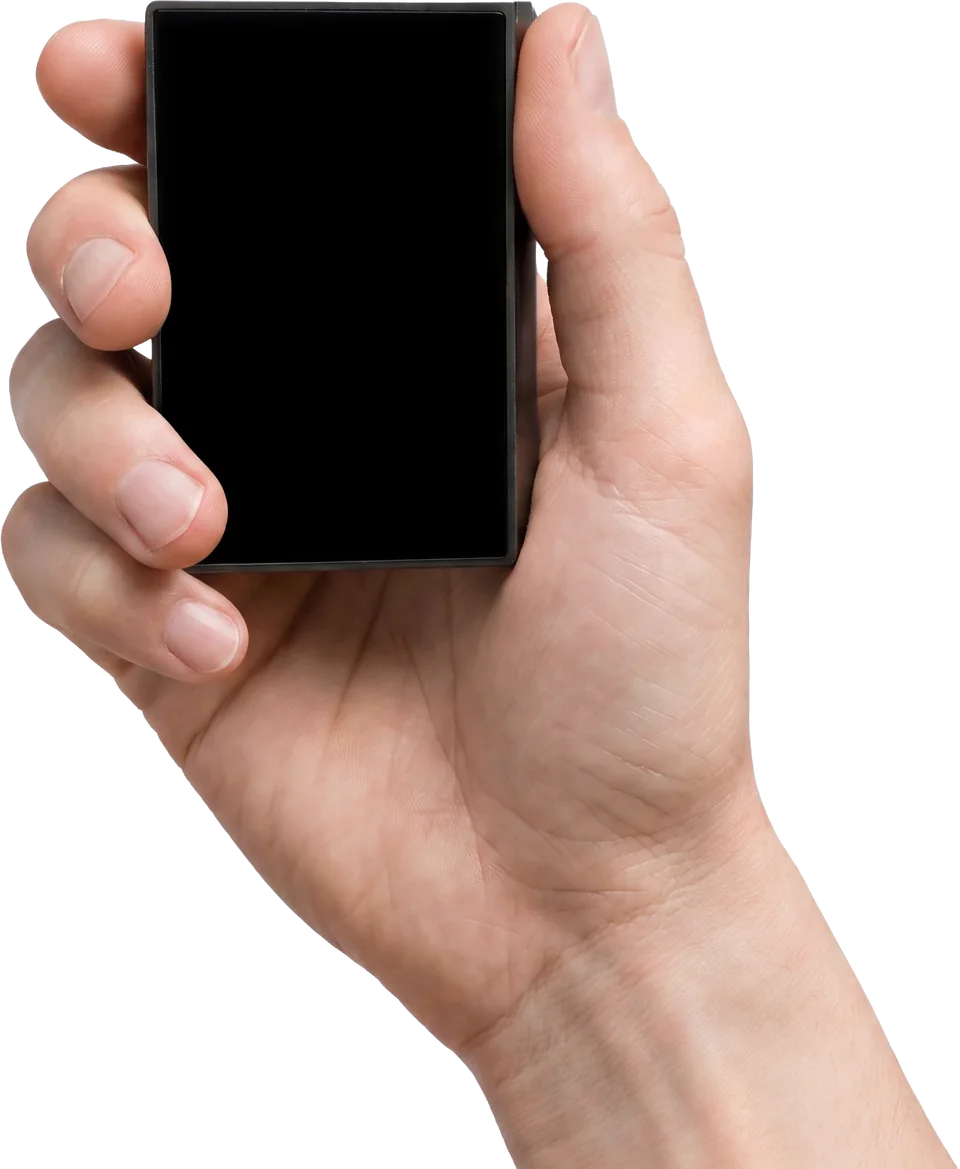
A hand holds DCENT X with a thumb against its right side; the touchscreen is blank.
DCENT product photo: the touchscreen and right-side fingerprint control in the hand. The screen is blank.

Bitcoin, Ethereum and your exact receiving network

X supports Bitcoin and Ethereum through the DCENT phone app. For another coin or token, select DCENT X in the official asset directory and check the exact network before choosing the wallet. A familiar token name alone does not establish that the version on your exchange’s withdrawal network is supported.

Add the intended coin or token account in the app and synchronize it with X. The device shows the account list and receiving addresses in text or QR form; balances and transaction history remain in the app. Before withdrawing from an exchange, select the supported token you intend to receive and a withdrawal network that matches the receiving account’s network.

Standalone device, separate card and a 24-word backup

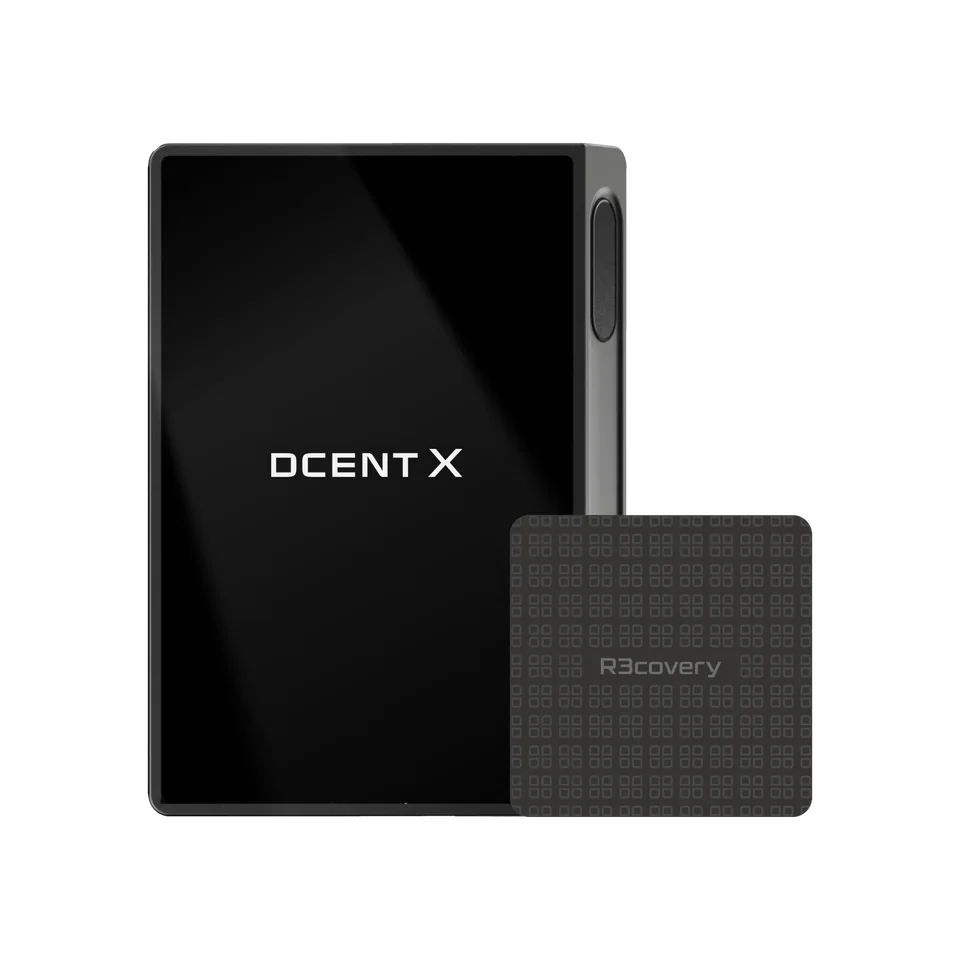
The standalone X offer contains the device and a USB-C-to-USB-C cable, without an R3covery card. DCENT’s current new-wallet setup starts with preparing that card separately, backing up to it, then viewing and verifying 24 recovery words on the touchscreen. Plan for the card before following that setup.

Write the 24 words in order and keep them offline, separately from the device. X has a 4–8-digit device PIN; the R3covery card uses a separate six-digit PIN. Restoring from the card requires that card PIN, and ten consecutive wrong attempts erase the card’s backup. The written words remain a separate recovery route.

For an existing compatible backup, X’s manual restoration accepts 12, 18 or 24 words, entered on its touchscreen’s grouped-letter keypad (T9). BIP39 is the recovery-word format used here. Another wallet can derive different addresses from the same words, so check its account and network rules and compare the restored addresses with the original ones.

After restoring from words or the card, re-add the coin accounts you used before and synchronize them with the app. If you used an additional passphrase, enter exactly the same passphrase afterward. The card backs up the default wallet’s recovery information; it does not store that extra passphrase.

For a new wallet (BIP39)
Word count: 24
To restore a wallet (BIP39)
Word count: 12, 18, or 24
Manufacturer image of DCENT X beside a separate DCENT R3covery card.
DCENT’s X and R3covery card kit image. The card shown here is a separate accessory and is not included in the standalone X offer.

Permanent and One-Time wallets use separate accounts

An additional recovery password, called a passphrase, derives a separate wallet and its own accounts from your recovery words. X lets you save a Permanent passphrase wallet in a dedicated slot and switch between it and the default wallet. A One-Time passphrase is not saved: powering off returns X to the default wallet. Re-entering the same One-Time passphrase opens its accounts again; the funds do not disappear when the setting is cleared.

Enter the passphrase on the device. X accepts up to 100 characters, including numbers and symbols, and treats uppercase, lowercase and trailing spaces as different input. Recovery requires the original words or card backup plus exactly that passphrase. Neither the device PIN, card PIN nor fingerprint substitutes for it.

Although the detailed Wallet guide documents switching back to the default wallet, DCENT’s shorter FAQ advises moving existing funds to another address before enabling a Permanent passphrase. It does not explain the reason for this advice. Read both instructions before changing a funded wallet.

USB-C charging and Bluetooth updates from the phone

X charges through USB-C; DCENT estimates about two hours for a full charge. Firmware updates use Bluetooth in the phone app on both iPhone and Android. The update starts only with at least 20% battery on X and 15% on the phone.

Keep the devices close and powered throughout the update. X reboots during the process, so Bluetooth can disconnect and reconnect as part of the normal procedure. Let the app finish before using the wallet again. The manufacturer does not provide a downgrade to older firmware.

Hardware details

DetailValue
DisplayDisplay typeOLED
Screen diagonal2.4″
Colour modeColour
Power and chargingBatteryRechargeable
Battery capacity530 mAh
Charging methodsUSB-C
Device connectionsUSB portUSB-C
Bluetooth version5.0
Security and softwareSecurity chipCC EAL6+
Device softwareSecureOS

Wallet access

PIN entry
On the hardware wallet
Passphrase entry
On the hardware wallet
Sources

This page is based on manufacturer documentation.

Documentation checked: ·

How we compare