DCENT S

A battery-free NFC signing card for an Android or iPhone app, paired with a separate R3covery backup card. Review the transaction and enter the card PIN on your phone.

DCENT S

Approve transactions with

  • Computer: Not confirmed
  • iPhone: Approve transactions
  • Android: Approve transactions

Controls

No controls on the wallet

Backup

Backup cards

Power

No battery

Is it right for you?

Is this the right wallet for you?

A good fit if

You want a battery-free card for transactions from an NFC phone and are comfortable reviewing the payment and entering the card PIN in the phone app. The offered kit has one S signing card and one R3covery backup card, with different jobs.

Consider another model if

You want to verify the recipient address and amount on the wallet’s own screen, or enter recovery words on the hardware. S has no display, buttons or fingerprint control. Its optional written backup is shown in the phone app, and manual restoration enters the words there too. For an existing passphrase backup, S compatibility is not established.

Worth comparing

Phones and computers

Check compatibility with your phone or computer.

Check the app and connection for each device. Setup and transaction signing are confirmed separately.

ComputerYour device

  • Support for wallet setup is unconfirmed
  • Support for signing is unconfirmed
More wallets for computers

iPhone

DCENT app

NFC

  • iOS 15.5 or later
  • Set up the wallet
  • Approve transactions
More wallets for iPhone

Android

DCENT app

NFC

  • Android 9 or later
  • Set up the wallet
  • Approve transactions
More wallets for Android

Review on the phone, enter the S PIN, then hold the card

In the DCENT phone app, select the account, enter the recipient address and amount, and choose a network-fee level. Review the transaction on the phone and tap Send. Enter the S card’s six-digit PIN in the app, then hold S against the phone’s NFC antenna until the task completes. The card signs, and the app broadcasts the transaction.

S has no screen for checking the address, amount or fee independently of the phone. Choose it if this phone-based review suits your routine; choose a model with a display if hardware review is a requirement. The R3covery card is not used for sending and cannot act as a second signer.

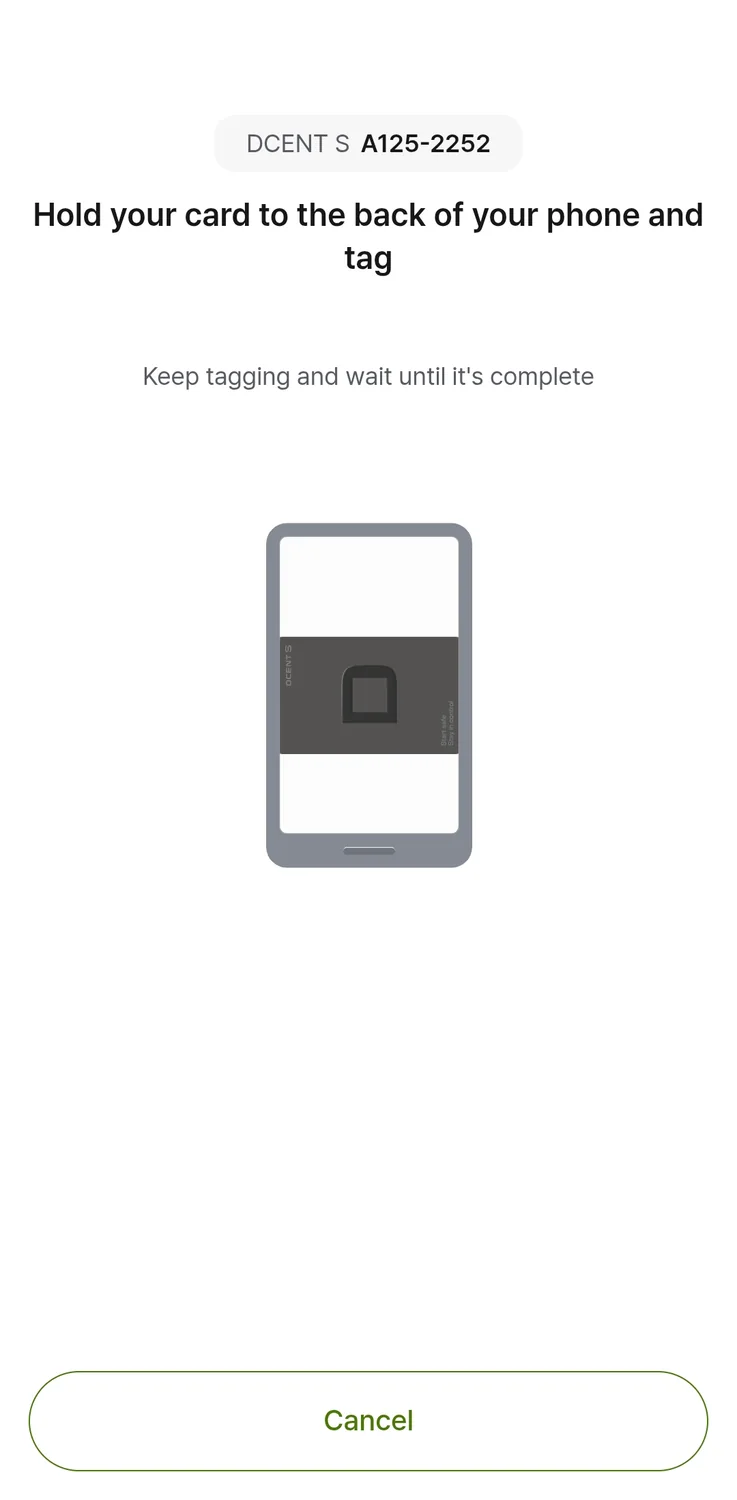
Manufacturer app illustration identifies DCENT S A125-2252 and asks the user to hold the card against the back of the phone until completion, with Cancel below.
DCENT’s sending example, after entering the S card PIN: hold the signing card until the app finishes. The NFC antenna position depends on the phone.

NFC phone compatibility and a card that needs no charging

S works with Android and iPhone through NFC, so your phone must support NFC card reading. Use the current DCENT Wallet app and select Card Wallet mode. On Android, enable NFC tag read/write; iPhone NFC is enabled by default. The current iPhone app requires iOS 15.5 or later; the current Android app requires Android 9 or later.

Hold the card flat against the phone’s actual NFC antenna and keep it there until the app finishes. A thick case, another physical card in the case or metal and magnetic accessories can interfere. If scanning fails, remove those items and use the manufacturer’s antenna-position instructions for your phone.

The S card has no battery to charge, and DCENT documents no card firmware updates. Keep the phone app current for its supported networks and account management; this is separate from updating firmware on X or Biometric Wallet.

Bitcoin, Ethereum and the receiving account in the app

S supports Bitcoin and Ethereum through the DCENT phone app. For another coin or token, select DCENT S in the official asset directory and check the exact network. Add the intended account in the app; account creation normally requires the S PIN and an NFC tap, so keep the signing card available.

Open Receive for that account to see its address or QR code on the phone. S has no device display for a second address check. At your exchange, choose the supported token you intend to receive and a withdrawal network matching the receiving account’s network.

S signs; R3covery stores the backup; words are optional

The original S + R3covery kit contains the S signing card and a dedicated R3covery backup card. R3covery stores encrypted recovery information and cannot sign transactions. Keep it separately from S. Set its own card PIN during backup; the S PIN, R3covery PIN and optional app-lock password serve different tasks.

The backup procedure uses the phone: identify the R3covery card, authorize with the S PIN and S tap, then set the R3covery PIN and tap that card to save the backup. Setup allows you to complete this backup later; receiving the kit does not mean either card is already configured.

After initial card backup, the app offers a written 24-word recovery phrase. It shows these words only once on the phone, then asks you to verify their order. Record them offline if you want the alternate recovery route when cards or their PINs are unavailable. This display happens in the app, rather than on S.

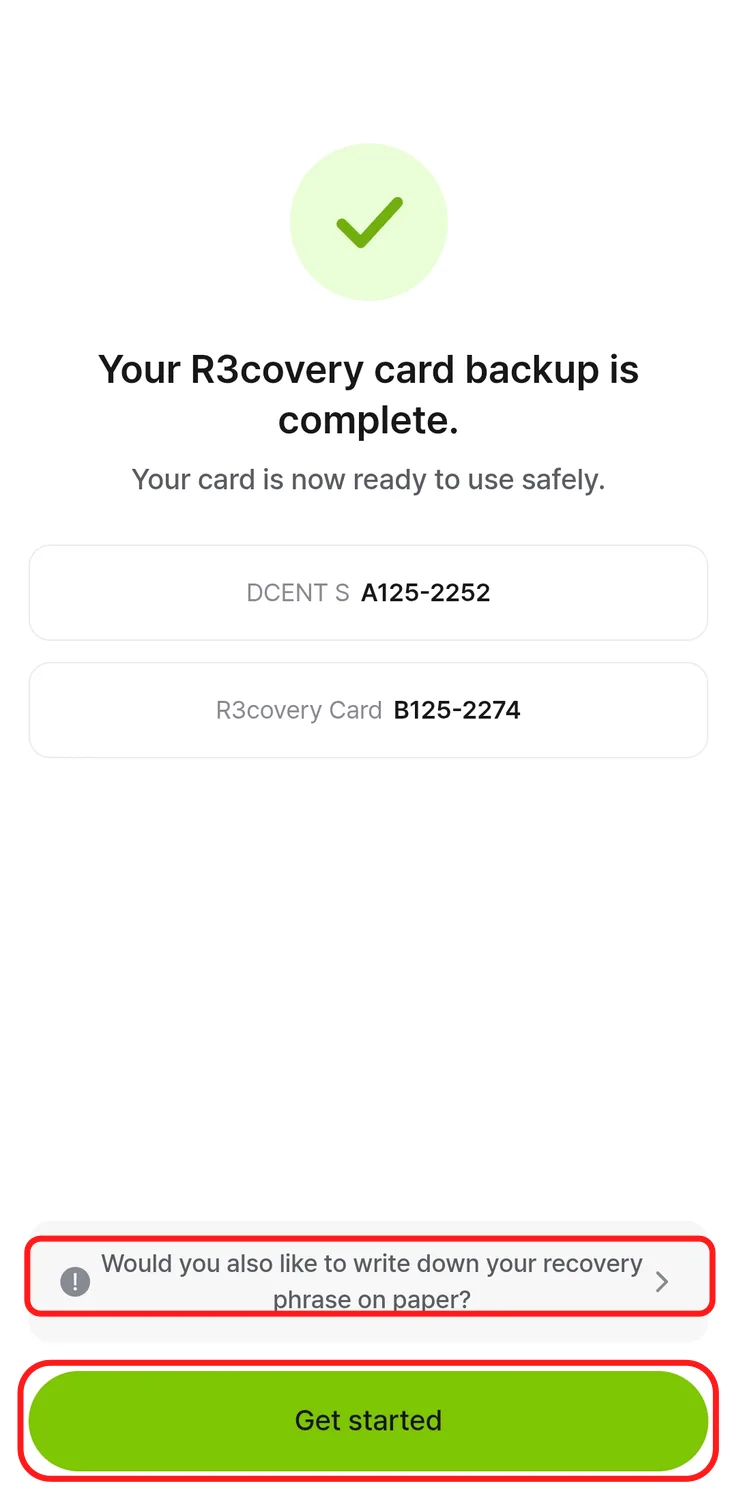
Manufacturer completion-screen example lists the S card A125-2252 and R3covery card B125-2274, with an optional paper recovery-phrase action above Get started.
DCENT’s backup-completion example identifies both cards and offers the optional written-word backup.

Restore onto an empty S, then add your accounts again

To restore from R3covery, you need the saved backup card, its PIN and a new or reset empty S card. In the phone app, read R3covery, set a new S PIN and tap the replacement S to write the wallet onto it. A card already holding another wallet cannot receive this restoration without being reset.

If R3covery or its PIN is unavailable, the documented alternative is your previously recorded S recovery phrase of 24 words. Enter those words in the phone app and import the wallet onto an empty S. BIP39 is the documented recovery-word format, but that does not establish every other wallet’s account or passphrase compatibility. The checked S procedure restores its own 24-word backup; it does not establish 12- or 18-word import.

After either route, add the coin accounts and networks you used before. Recovery restores the signing information, while the app needs those account entries to show the balances. Keep a record of your accounts alongside the information needed for recovery.

Ten consecutive wrong S PIN entries reset the signing card and erase its keys. R3covery has its own failed-PIN reset limit. After an S reset, restoration needs a backup made before that reset.

For a new wallet (BIP39)
Word count: 24
To restore a wallet (BIP39)
Word count: 24

Hardware details

DetailValue
Size and weightDimensions85.6 × 54 × 0.9 mm
Power and chargingBatteryNo battery
Security and softwareSecurity chipCC EAL6+
Operating conditionsOperating temperature-30 °C … 50 °C
ProtectionDust and water protectionIP69

Wallet access

PIN entry
In the wallet’s companion app
Sources

This page is based on manufacturer documentation.

Documentation checked: ·

How we compare