DCENT Biometric Wallet

A hardware wallet with an OLED display, four navigation buttons and optional fingerprint approval. Use Bluetooth with a phone or USB with Android and Windows/macOS computers.

DCENT Biometric Wallet

Approve transactions with

  • Computer: Approve transactions
  • iPhone: Approve transactions
  • Android: Approve transactions

Controls

Physical buttons

Backup

Recovery phrase

Power

Rechargeable battery

Is it right for you?

Is this the right wallet for you?

A good fit if

You want phone and computer transactions with an OLED screen and physical navigation buttons, plus the option of fingerprint approval. Biometric Wallet connects to a phone over Bluetooth, to Android over USB as well, and to a supported Windows or macOS computer through DCENT Wallet for Chrome.

Consider another model if

You prefer a touchscreen to four-button navigation, or your existing backup needs a passphrase longer than eight characters or containing symbols. Biometric Wallet’s optional passphrase accepts only 1–8 letters or numbers and requires a compatible security-chipset version. iPhone users also need a computer or Android phone for USB firmware updates.

Worth comparing

Phones and computers

Check compatibility with your phone or computer.

Check the app and connection for each device. Setup and transaction signing are confirmed separately.

ComputerYour device

DCENT Wallet for Chrome

USB

Windows · macOS

  • Set up the wallet
  • Approve transactions
More wallets for computers

iPhone

DCENT app

Bluetooth

  • iOS 15.5 or later
  • Set up the wallet
  • Approve transactions
More wallets for iPhone

Android

Connection for signing

DCENT app

Bluetooth or USB

  • Android 9 or later
  • Set up the wallet
  • Approve transactions
More wallets for Android

Phone transfers: review, press OK, then authenticate

Set the DCENT phone app to Biometric Wallet mode, unlock the hardware and connect over Bluetooth on iPhone or Android. Enter the recipient address and amount in the app, choose a network-fee level (Slow, Normal or Fast), review the details and tap Send. The wallet then displays the transaction: check its details, press OK and give final approval with your registered fingerprint. If no fingerprint is registered, enter your PIN instead.

Up and Down move through menus or change an input value; OK confirms, and Back returns or cancels. The fingerprint sensor is separate from those four navigation buttons. You can skip fingerprint enrolment during setup, register up to two fingerprints later, and use the PIN when fingerprint authentication fails.

Android also has a wired option: connect a data cable that matches the phone and wallet ports, allow the USB connection and let the accounts sync in Biometric Wallet mode. The current iPhone app requires iOS 15.5 or later; the current Android app requires Android 9 or later.

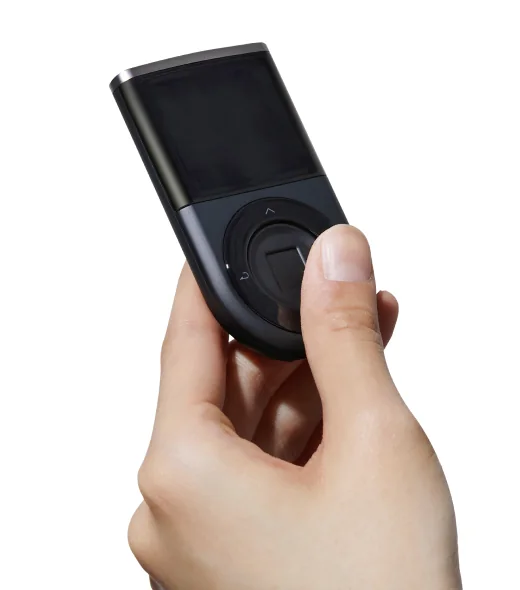
A hand holds a DCENT Biometric Wallet with a thumb on the central fingerprint sensor and four surrounding navigation buttons; the screen is blank.
DCENT product photo: a thumb on the central fingerprint sensor, with four navigation buttons around it.

USB computer transactions through DCENT Wallet for Chrome

Biometric Wallet has a dedicated Chrome extension for managing accounts, receiving and sending on a 64-bit Windows or macOS computer. Connect the unlocked device with a USB data cable matching its port. The extension prepares the transaction, and the hardware still requires review and fingerprint or PIN approval.

The extension has its own unlock password, separate from the hardware PIN and phone-app password. Close the phone app or turn off Bluetooth while using the USB computer connection. You can manage the wallet from the computer without launching the phone app.

Bitcoin, Ethereum and a matching receiving account

Biometric Wallet supports Bitcoin and Ethereum through the DCENT app, with USB computer use documented through DCENT Wallet for Chrome. For another coin or token, select Biometric Wallet in DCENT’s asset directory and check the exact network. A token can be added manually only on a supported network.

Create the matching coin account before receiving. On the hardware, select that account and press OK to open its information, then OK again to display the text address. Compare it with the app’s receiving address. At your exchange, select the token that this account supports; the withdrawal network must match the account’s network.

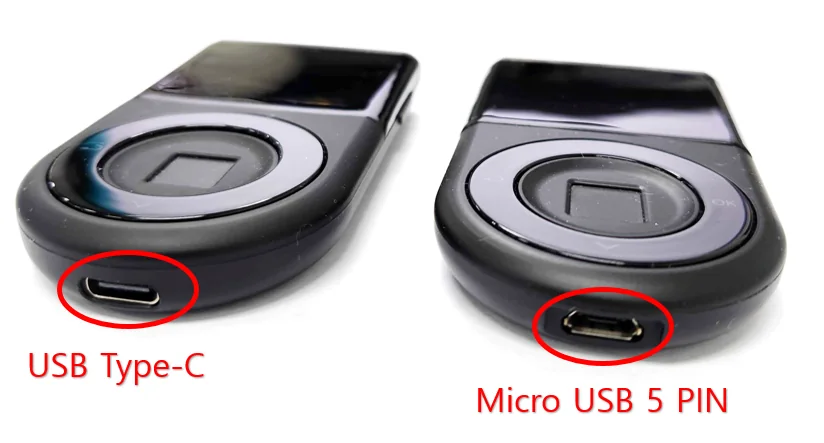
Current USB-C and older Micro-B Biometric units

The current offered Biometric Wallet uses USB-C, and the store lists a USB-C-to-USB-C cable in its kit. Older Biometric units have a Micro-B 5-pin port. For an existing device, choose the data cable that matches its actual port; an Android connection may also need an adapter matching the phone.

Manufacturer comparison of DCENT Biometric Wallet ports: USB-C on the left and older Micro-B 5-pin on the right, marked with red circles.
DCENT’s port comparison: USB-C on the left, older Micro-B on the right. Check your own unit before choosing a cable.

24-word backup, restored accounts and the optional passphrase

Biometric Wallet generates 24 recovery words on the device during new-wallet setup and shows four words per screen. Write them in order, then verify them on the device using its buttons. Keep the words offline and separate from the wallet; the fingerprint and device PIN do not replace this backup.

Restoring your Biometric Wallet means entering its 24 words on a new or reset device, syncing with the app and re-adding every coin account you previously used. Keep a record of those accounts. Some legacy accounts or custom tokens need their original account type or token details to show the same balances.

BIP39 is the recovery-word format used here. When moving a backup from another wallet, the same words can produce different account addresses because wallets may use different rules for deriving accounts. Check the supported accounts and networks and compare the restored receiving addresses with your original ones.

The optional additional recovery password, called a passphrase, requires the device’s KSM security-chipset version to be 1.1 or later. Check it under Setting → Device Info; a USB-C port does not establish this version. The passphrase is entered on the hardware and accepts 1–8 letters or numbers. To recover that wallet, you need its 24 words and exactly the same passphrase.

Setting a passphrase replaces the wallet currently held by the device. DCENT instructs users with funds in that wallet to transfer their assets before enabling it. The original wallet can be restored with its original 24 words; read the exact procedure before changing a funded wallet.

For a new wallet (BIP39)
Word count: 24
To restore a wallet (BIP39)
Word count: 24

USB charging and firmware updates from a computer or Android

Charge through the USB port using the cable for your hardware generation. DCENT estimates up to four hours of continuous powered-on use.

Biometric firmware updates use a USB data connection on Windows, macOS or Android. On a computer, use the firmware updater in Chrome, separate from the extension used for transactions. On Android, open the app’s Settings → More → Firmware Update with the wallet connected by a data cable. If iPhone is your phone, use a computer or Android device for this maintenance task.

Have your 24-word backup and any passphrase available in case recovery is needed; an ordinary firmware update does not require entering those words. Keep the device connected until the procedure finishes. The manufacturer’s update instructions do not allow reverting to older firmware.

Hardware details

DetailValue
DisplayDisplay typeOLED
Size and weightDevice weight36 g
Power and chargingBatteryRechargeable
Battery lifeUp to 4 hr in use
Battery capacity530 mAh
Device connectionsUSB portUSB-C
Bluetooth version4.1
Security and softwareSecurity chipCC EAL5+

Wallet access

PIN entry
On the hardware wallet
Sources

This page is based on manufacturer documentation.

Documentation checked: ·

How we compare

DCENT Biometric Wallet

Check price at DCENT