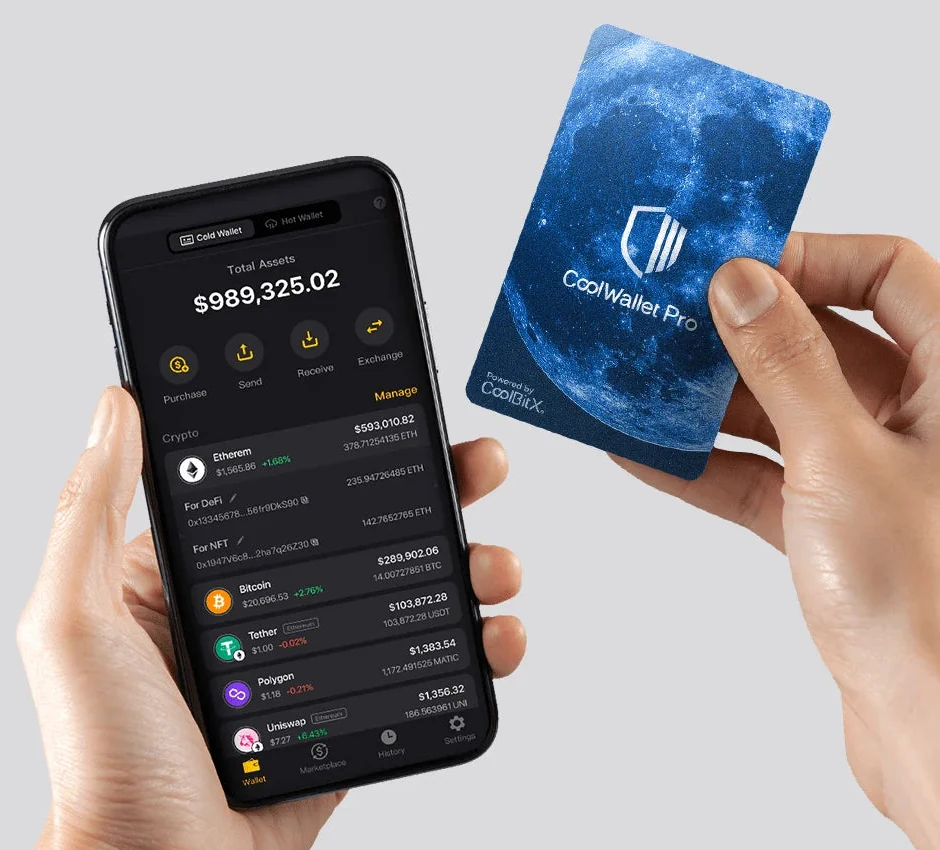
CoolWallet Pro is a rechargeable card used with the CoolWallet phone app over Bluetooth. Check the recipient and amount on the card, then approve with its button.
Choose CoolWallet Pro if you want a slim card for approving payments from your phone, with its own small screen and a physical button. It connects to the CoolWallet app over Bluetooth. It suits phone use if your coins and networks are supported and you are willing to keep the card charged and protect a written recovery backup.
Consider another model if
Choose Tangem Wallet if avoiding a battery and charger matters more than having a screen on the card, and your phone has the required NFC support. Choose Ledger Flex if you want a larger touchscreen or computer use. Our checked Pro procedures cover phone use over Bluetooth; computer signing remains unconfirmed.
Choose Tangem Wallet if your phone has the required full NFC support and you want cards without a battery to charge. The cards have no screen, so you check payments on your phone.
Choose Ledger Flex if you want a larger touchscreen or computer use. Ledger Wallet works over USB on a computer or Bluetooth with a compatible iPhone or Android phone. Check which device app and wallet app you need for your coin or token and its network.
Pro works with the CoolWallet app on Android 7.0 or later, or an iPhone with iOS 15.6 or later. The phone prepares transactions; you check and approve on the card with its button, and the app broadcasts the signed payment.
Select the wallet connected to your Pro card. The same app also offers HOT, a separate software wallet with its signing key on the phone. Do not import your Pro recovery phrase into HOT: that would give the phone access to the same wallet keys.
CoolWallet describes Pro as using a CC EAL 6+ secure element and encrypted Bluetooth. These are manufacturer-documented security properties; they do not replace checking the payment or protecting the recovery backup.
The manufacturer’s photo shows the Pro card beside its app. Cold Wallet is the hardware-wallet view; Hot Wallet is a separate software wallet. The pictured interface is an example, not a setup or payment we tested.
CoolWallet names native Bitcoin and Ethereum among Pro’s supported blockchains. For any coin or token, check the network you actually use and support for Pro specifically. An app-wide listing may include other card models or HOT wallets.
Start with the manufacturer’s supported-crypto page. We could read its explanations, but its complete current coin-and-network table did not load in our research. If it also fails for you, ask official support to confirm your exact asset, network and Pro requirements before buying.
The sender’s withdrawal network must match your receiving network. BTCB on BNB Smart Chain, for example, is a token rather than Bitcoin on the Bitcoin network. A familiar ticker alone does not establish a match.
Adding a custom token needs its network and contract address, the identifier for that token on the blockchain. Adding a custom network is a separate task: Pro’s documented procedure accepts EVM-compatible networks, which run Ethereum-style smart contracts, and requires an HTTPS RPC address so the app can connect.
Keep the contact charger supplied with Pro: its rechargeable 15 mAh battery needs that charger set. The package contains one Pro card, the charger set, a getting-started guide and two recovery-phrase cards.
CoolWallet recommends a full charge at least monthly, even when unused. Its estimate of up to two weeks assumes about two transactions a day; standby is described in months.
The product page contradicts itself on a full charge: about two hours in the battery details, but four to six hours in the FAQ. We cannot give one confirmed charging time.
Connect the card before setting up the wallet
Install the official CoolWallet app, turn on Pro with its button and allow the app to use Bluetooth. Select the number matching your card, enter the pairing code shown on its screen in the app, then confirm with the card button.
This connects the phone and card. It does not create the wallet or make a recovery backup. Next, choose to create a new wallet, or recover an existing one if you already have its complete backup.
The code shown during Bluetooth pairing differs from the pairing password used to authorize a new phone. Neither replaces the recovery phrase.
Create and check the recovery backup before adding funds
Pro’s setup guide offers 12, 18 or 24 BIP39 recovery words, a standard wallet-backup format. You can generate the backup on the card or in the app. Choose card generation if you want the recovery information displayed on Pro rather than on your phone.
Two ways to create a Pro recovery backup
Generation method
What you see
What to record
Check during setup
Generated by the card
What you seeNumber groups appear on the card. CoolWallet says they correspond to English BIP39 words.
What to recordWrite down every group in the order shown.
Check during setupAdd the numbers and enter their total in the app.
Generated by the app
What you seeEnglish words are generated and displayed on your phone.
What to recordWrite down the complete word sequence in order.
Check during setupConfirm the word order in the app.
Before a test that resets the card
Have the complete recovery record and a record of the wallet’s addresses ready. Reset erases the wallet data on the card.
If the wallet already holds funds, the manufacturer recommends temporarily moving them to another wallet or exchange before resetting, in case the backup is wrong. Read its full preparation first; do not reset your only working card to try an unchecked backup.
Keep the complete sequence in order on paper or another physical backup, privately and separate from the phone and card. The arithmetic total used to check number groups cannot restore the wallet. Do not photograph the backup or share it.
The setup checks in the table are not a restoration test. The manufacturer’s separate backup test resets the card, restores the wallet and compares the recovered addresses with those recorded beforehand. Do this before funding a new wallet if you want to check that the backup actually restores it.
The illustrated creation guide is from 2024; CoolWallet announced a redesigned Pro/S setup in 2025. Its documented backup choices are useful, but the labels in your installed app may differ.
In the wallet connected to Pro, open Receive and select the coin or token on the network the sender will use. Share that receiving address or its QR code. An address from your HOT wallet or another network is not a substitute.
We could not confirm a way to verify the receiving address independently on Pro’s screen. The documented card-screen checks in the next section apply to a payment you send.
For a new destination, a small first transfer can help check the route. The linked transfer guide explains how to account for fees and any minimum deposit. Wait for the transfer to reach the intended wallet, and check the receiving details again before sending more.
Prepare the payment in the Pro wallet in the app, then compare the recipient and amount on the card before approval. The card’s button authorizes the signature; network confirmation happens afterwards.
In the app, enter the recipient and amount, and review the network fee. Check the pasted address against the recipient’s trusted receiving details.
Compare the recipient address and amount shown on Pro with the app. Approve with the card button only if they match the payment you intend.
The app broadcasts the signed transaction. Open History to follow its progress; the balance updates after network confirmation.
Check the fee in the app. We could not confirm fee display or scrolling through the full address on Pro’s screen. Do not assume that its small screen can show every transaction detail.
Connect a new phone or recover after losing the card
If Pro is lost or broken, your complete backup is the route to restoring access with a replacement wallet that supports the recovery format, networks and accounts. The phone-change routes below require a working Pro card. If your old app still works, use its pairing password to authorize the new phone. If the old app is gone, the manufacturer documents a reset-and-recovery route using the card and your saved backup.
Which phone-change route applies to you?
Your situation
Manufacturer’s route
Old phone and app still work
Manufacturer’s routeShow the pairing password in the old app’s Card Settings, then use it to connect the new phone to the card. An ordinary transfer between iPhones does not transfer this authorization.
Old app is no longer usable
Manufacturer’s routeHave the card and complete 12-, 18- or 24-word BIP39 backup ready. Follow the official phone-change instructions: reset and reconnect the card, then choose recovery with the saved phrase.
Before resetting the card for a phone change
Stop if you do not have the complete recovery record. Reset erases the current wallet data on the card. Read the official phone-change instructions and the app’s reset warnings first.
The recommendation to move funds elsewhere before a reset comes from the manufacturer’s backup test, while you can still send. If the old app is unavailable, moving funds first may not be possible; the phone-change guide describes recovery with the card and saved backup for that situation.
If you are unsure whether the backup is complete and correct, or whether the recovery instructions apply to your situation, ask official CoolWallet support before resetting. Never share your recovery information with support.
If Pro is lost or broken, a phone connection cannot replace it for signing. Your complete backup is the route to restoring access with a compatible replacement wallet. Check its recovery format, supported networks and accounts first; BIP39 words alone are not a promise that every replacement will display every account.
If you recorded numbers from Pro, use the manufacturer’s conversion instructions to obtain the corresponding English words for the word-entry recovery route. The arithmetic total is not the backup.
Reset removes wallet data, not funds from the blockchain. After recovery, the app may need other coins, custom tokens and additional receiving addresses added back. Keep a separate record of those accounts so you can compare the restored wallet with the original.
App updates install on your phone; firmware updates change the software on Pro. Keep both in mind when checking support for a new coin or network.
To view the card firmware version, CoolWallet directs you to Settings → Card Settings → Firmware Update. For example, its RLUSD instructions specify both an app version and a Pro firmware version: updating the phone app alone does not satisfy both requirements.
We could not confirm a complete current Pro firmware-update procedure. Follow instructions for Pro specifically, and use official support if an update is unclear; instructions only for CoolWallet S do not establish the Pro procedure.
We also have not confirmed Pro’s handling of an optional BIP39 passphrase, an extra recovery password. If your existing wallet uses one, confirm the recovery requirements before choosing Pro as its replacement.