A good fit if
You want a Bitcoin-only device with a large screen, physical keyboard and a choice of ways to exchange transaction data. You are comfortable setting up a compatible wallet app rather than relying on one mandatory companion app.


A Bitcoin-only signing device with a keyboard and QR scanner, used with a separate wallet app.
More Bitcoin-only wallets
Approve transactions with
Controls
Physical buttons
Backup
Recovery phrase
Power
Batteries or USB power
Is it right for you?
You want a Bitcoin-only device with a large screen, physical keyboard and a choice of ways to exchange transaction data. You are comfortable setting up a compatible wallet app rather than relying on one mandatory companion app.
You want a smaller device, a touchscreen or one app for several cryptocurrencies. Q needs a separate app to prepare and broadcast payments, and its current setup guidance deserves attention before you create or fund a wallet.
A smaller Bitcoin-only device if you do not need Q’s keyboard or built-in QR scanner.
Compare COLDCARD Q and COLDCARD Mk5A simpler Trezor Suite workflow over USB, if you prefer guided setup to choosing a separate coordinator app.
Compare COLDCARD Q and Safe 3A camera-equipped alternative with USB and QR workflows, if Jade’s PIN-unlock requirements fit your routine.
Compare COLDCARD Q and Jade PlusPhones and computers
Check the app and connection for each device. Setup and transaction signing are confirmed separately.
microSD
Windows · macOS · Linux
Sparrow exchanges unsigned and signed Bitcoin transaction files (PSBTs) with Q through microSD. Your computer needs a compatible card reader.
QR
Windows · macOS · Linux
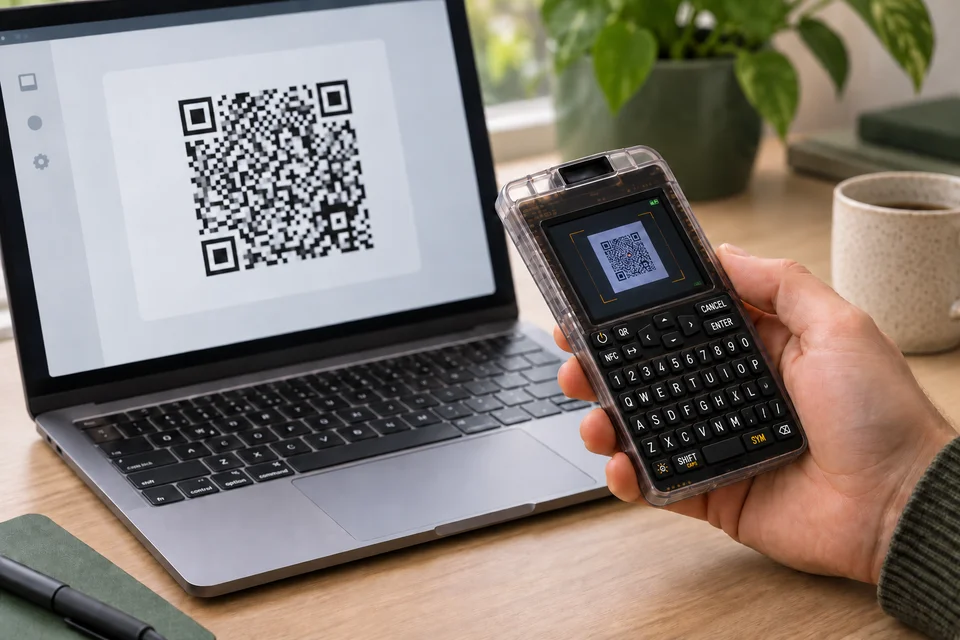
Set up Q’s wallet in Sparrow. Q scans the unsigned transaction QR, then Sparrow uses your computer’s camera to scan the signed result from Q.
USB
Q already set up and unlocked · USB enabled · data cable requiredWindows · macOS · Linux
Set up Q’s wallet in Sparrow and exchange unsigned and signed Bitcoin transaction files (PSBTs) over USB. Q must already be initialized and unlocked, with USB enabled and a data-capable USB-C cable.
NFC
Use Nunchuk on a compatible NFC phone, with an already initialized Q powered on and NFC enabled, to exchange Bitcoin transaction files (PSBTs).
NFC
Use Nunchuk on a compatible NFC phone, with an already initialized Q powered on and NFC enabled, to exchange Bitcoin transaction files (PSBTs).
Coinkite’s current advisory covers a seed-generation flaw that also affected Q. For a new Q, package inspection and PIN setup come before the firmware update. Before generating or importing a seed, restoring a backup or funding the wallet, Q must run the recommended firmware, with the download’s signature and installed version verified. Creating new BIP39 recovery words also requires private physical input, such as genuine dice rolls.
If you already have a wallet, check how its seed was originally generated. Updating the device does not repair a seed created on affected firmware, and restoring that same seed on new hardware does not repair it either. Use Coinkite’s migration instructions and keep your existing wallet and recovery information intact while preparing the move.
MS1 encodes the wallet’s BIP32 master seed directly, rather than using recovery words.
Secret size: 128 or 256 bits
Start with a PIN set and no wallet, or use the Temporary Seed menu to keep your existing Master Seed.
This creation route combines device randomness with required input from key presses, dice rolls or coin flips.
The new wallet activates after you complete the verification quiz.
You cannot apply a BIP39 passphrase to an MS1 wallet.
Codex32 (MS1) was introduced in COLDCARD Q firmware 1.5.3Q.Official guidance
Q works with apps such as Sparrow on a computer or Nunchuk on a phone. The app shows the wallet’s history and prepares a payment; you review and approve the transaction on Q before it signs. A computer or phone then sends the signed transaction to the Bitcoin network.
The app must track the wallet you intend to use. For a microSD or QR export of public wallet information, that wallet and any BIP39 passphrase must already be active on Q. Never enter recovery words in the app. Before funding, the app’s full receiving address must match Q’s address or pass Q’s ownership verification. Do not use an address that differs or remains unverified.
For example, Sparrow can show the unsigned transaction as QR codes for Q to scan. Review the recipient, amount and fee on Q before approving. Sparrow then scans the signed result from Q’s screen and broadcasts it, so your computer needs a working camera for that route. A microSD workflow is another option if scanning is inconvenient.
Official guidance
Q asks for a two-part PIN and shows two anti-phishing words between the parts. Check that they match the words you recorded for that device before entering the rest of the PIN. These two words help identify your device; they are not the recovery phrase.
For a BIP39 wallet, keep the recovery phrase separately from Q. A BIP39 passphrase needs an exact backup kept separately from those words: a different passphrase opens a different wallet. Coinkite recommends a strong, unique passphrase for funds whose loss would matter to you. Before funding, the saved passphrase must return you to the recorded wallet fingerprint (wallet identifier) after restarting Q and reapplying it. This confirms wallet identity; it does not replace a tested plan for restoring from your backups.
Q accepts a passphrase through its physical keyboard or QR scanner, with confirmation on Q. The optional advanced ckcc command-line tool sends it over encrypted USB from a trusted desktop computer; confirmation still happens on Q.
A forgotten PIN cannot be reset to unlock the existing device. Access then depends on the recovery information you saved and a compatible wallet. Optional destructive PIN features are advanced tools, not steps you need to enable for ordinary use.
MS1 encodes the wallet’s BIP32 master seed directly, rather than using recovery words.
Secret size: 128, 256, or 512 bits
Start with a PIN set and no wallet, or use the Temporary Seed menu to keep your existing Master Seed.
A complete MS1 secret with index S can activate its wallet directly.
For recovery from shares, use the required number of distinct, complete shares from the original set. Their prefix, ID, threshold and length must match. An individual share cannot activate a wallet.
You cannot apply a BIP39 passphrase to an MS1 wallet.
Codex32 (MS1) was introduced in COLDCARD Q firmware 1.5.3Q.Official guidance
| Detail | Value |
|---|---|
| DisplayDisplay type | LCD |
| Screen diagonal | Sources disagreeCoinkite lists 3.2 inches on the Q product page and 2.3 inches in its Q documentation overview. The screen diagonal remains unresolved. |
| Resolution | 320 × 240 px |
| Colour mode | Colour |
| Size and weightDimensions | 120 × 75 × 22 mmDimensions as listed by the manufacturer |
| Weight without batteries | 93 g |
| Power and chargingBattery | Replaceable batteries |
| Replaceable cells | 3 × AAA |
| Operating power | Batteries or USB power |
| Device connectionsUSB port | USB-C |
| Memory card slot | microSD |
| Security and softwareSecurity chip | Microchip ATECC608; Maxim DS28C36B |
This page is based on manufacturer documentation.
Documentation checked:
How we compareCoinkite COLDCARD Q


