Coinkite COLDCARD Mk5

A compact Bitcoin-only keypad wallet for reviewing payments on its screen, with Sparrow microSD or USB signing, or Nunchuk NFC signing after initial setup.

More Bitcoin-only wallets
Coinkite COLDCARD Mk5

Approve transactions with

  • Android: Approve transactions
  • Computer: Approve transactions
  • iPhone: Approve transactions

Controls

Physical buttons

Backup

Recovery phrase

Power

USB power

Is it right for you?

Is this the right wallet for you?

A good fit if

Choose Mk5 if you want a Bitcoin-only wallet with a numeric keypad and a screen for reviewing payments, and are comfortable using a separate wallet app. Plan for USB-C power during use, a card reader for Sparrow’s microSD route or a data-capable cable for its USB route, and a checked recovery plan.

Consider another model if

Choose another wallet if you want a complete first setup through your phone, touch input or support beyond Bitcoin. Mk5’s documented phone route signs with an already initialized device; it still needs external power.

Worth comparing

  • Block Bitkey

    Choose Bitkey for Bitcoin-only setup and use led by your phone. Its required cloud backup, security alerts and service-assisted recovery must suit your plan; it does not use a conventional seed phrase.

    Compare COLDCARD Mk5 and Bitkey
  • Ledger Flex

    Choose Ledger Flex for a larger monochrome touchscreen and support beyond Bitcoin. Its documented routine uses Ledger Wallet over Bluetooth on a compatible iPhone or Android phone, or USB on a computer. Check the exact asset, network and required wallet and device apps before choosing it.

    Compare COLDCARD Mk5 and Flex

Phones and computers

Check compatibility with your phone or computer.

Check the app and connection for each device. Setup and transaction signing are confirmed separately.

AndroidYour device

Nunchuk

NFC

  • Support for wallet setup is unconfirmed
  • Approve transactions
Connection requirements

Use Nunchuk on a compatible NFC phone with an already initialized Mk5, powered on and with NFC enabled. Import the wallet’s public account into Nunchuk before exchanging Bitcoin transaction files (PSBTs).

More wallets for Android

Computer

Connection for signing

Sparrow

microSD

Windows · macOS · Linux

  • Set up the wallet
  • Approve transactions
Connection requirements

Sparrow exchanges unsigned and signed Bitcoin transaction files (PSBTs) with Mk5 through microSD. Your computer needs a compatible card reader.

Sparrow

USB

Mk5 set up and unlocked · verified current firmware · USB data enabled · data cable

Windows · macOS · Linux

  • Set up the wallet
  • Approve transactions
Connection requirements

Start with a Mk5 already initialized under its setup guide, running the verified current recommended standard firmware. Keep Mk5 unlocked, enable USB data and use a data-capable USB-C cable. Then add its wallet to Sparrow and sign Bitcoin transactions over USB.

More wallets for computers

iPhone

Nunchuk

NFC

  • Support for wallet setup is unconfirmed
  • Approve transactions
Connection requirements

Use Nunchuk on a compatible NFC phone with an already initialized Mk5, powered on and with NFC enabled. Import the wallet’s public account into Nunchuk before exchanging Bitcoin transaction files (PSBTs).

More wallets for iPhone

A keypad and screen, with USB-C power throughout

Mk5 pairs a 1.54-inch monochrome LCD with a numeric keypad.

Power and card readiness

  • USB-C power throughoutIt has no internal battery: connect USB-C power whenever you use it, including when signing by NFC.
  • A microSD card and a computer readerFor the desktop microSD route, have a FAT12- or FAT32-formatted card, 512 MB–32 GB, and a way to read it on your computer.

Use the number keys to enter your PIN. Check the payment details on Mk5 before confirming a transaction.

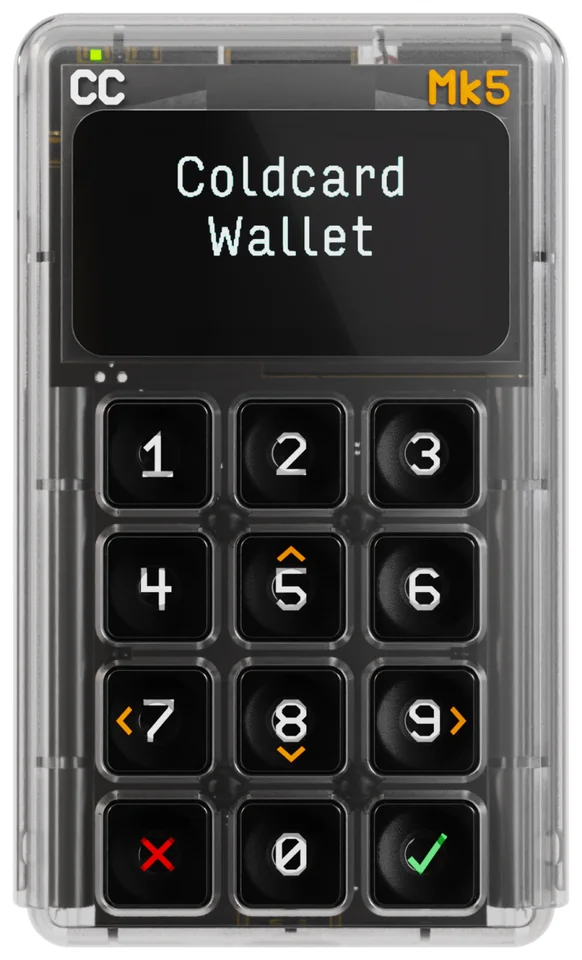
COLDCARD Mk5 front with its clear housing, startup message and twelve keypad keys.
  1. Navigate with the arrow keys

    Use 5 to move up, 8 down, 7 left and 9 right.

  2. Go back or confirm

    Press X at the bottom left to cancel or go back. Press ✓ at the bottom right to accept or confirm.

Reusing a seed? Check where it was originally generated

Coinkite’s July 2026 advisory concerns a firmware bug that weakened generated seeds. Standard and Edge are separate release tracks. The version installed today does not tell you whether an older seed is affected.

Check where the seed was originally generated
Seed originWhat the advisory means
Mk5 standard firmware before 5.6.0
Affected unless the exact dice exception applies
Use the original Add Dice Rolls exception below only if all its conditions are established. If they are not, follow Coinkite’s complete migration guide.
Mk5 Edge firmware before 6.6.0X
Affected unless the exact dice exception applies
Use the original Add Dice Rolls exception below only if all its conditions are established. If they are not, follow Coinkite’s complete migration guide.
Securely generated outside the affected COLDCARD flow, then imported
Import alone does not weaken it
A seed securely generated outside the affected COLDCARD flow is not weakened merely by importing it.
The original Add Dice Rolls workflow
Narrow exception; every condition matters
The advisory has a narrow exception for the original Add Dice Rolls workflow: at least 50 fair, independent rolls, kept private, unrecorded and unexposed, with the final words shown after those rolls actually used for the funded wallet. If those conditions are uncertain, the maker directs you to migrate. A remembered dice step alone does not establish the exception.
You cannot establish the seed’s origin or the required exception conditions
Treat as affected
Follow Coinkite’s complete migration guide.

As reviewed on 16 October 2026, Coinkite recommends standard firmware 5.6.3. The minimum fixed releases, 5.6.0 for standard and 6.6.0X for Edge, identify the remediation boundary; they are not the current standard recommendation.

Updating, restoring or cloning an affected seed, changing hardware or adding a passphrase does not repair it. If the advisory applies, or you cannot establish the seed’s origin, follow Coinkite’s complete migration guide: it requires a new independent wallet, verified recovery records and addresses, then checked transfers of every funded wallet identity. Keep the working wallet and its backups until the migration is verified.

Set the PIN, verify firmware, then create or restore the wallet

Start with the named Mk5 setup guide.

  1. Inspect the bag and match its identifier with the device, then set the PIN on Mk5. The PIN has two parts of 2–6 digits each. After the first part, the device shows its anti-phishing words; check those before entering the second part at later logins.
  2. Verify firmware before any seed or restoreWith the PIN set, stop before selecting a seed or restore option. Verify the signed firmware release manifest and the firmware file’s SHA-256 hash, install the current recommended standard release, then confirm the installed version. Updates require the PIN. Do this before generating or importing a seed, restoring a backup or funding the wallet.
  3. For a new BIP39 wallet, choose 12 or 24 words. Current standard firmware requires one method of adding your own randomness before the final words appear: at least 65 key presses with irregular timing, 50 fair, independent rolls of a physical six-sided die or 128 fair, independent flips of a physical coin. Follow the actual input procedure and keep those inputs private and unrecorded. Write the final words in order on paper or metal, keep that record private and offline, and complete the device’s word quiz. Advanced Dice Rolls Only is a different procedure.

To restore existing words, the documented import accepts English BIP39 phrases of 12, 18 or 24 words. Use the intended wallet’s actual account rules and any exact passphrase when rebuilding it. For this word-and-passphrase route, the exact original value must fit Mk5’s 100-character ASCII input limit; do not alter it to fit. The word format alone does not identify every account. A later power cycle checks that your recorded PIN and anti-phishing words work as expected.

For a new wallet (BIP39)
Word count: 12 or 24
For a new wallet · Codex32 (MS1)

MS1 encodes the wallet’s BIP32 master seed directly, rather than using recovery words.

Secret size: 128 or 256 bits

Start with a PIN set and no wallet, or use the Temporary Seed menu to keep your existing Master Seed.

This creation route combines device randomness with required input from key presses, dice rolls or coin flips.

The new wallet activates after you complete the verification quiz.

You cannot apply a BIP39 passphrase to an MS1 wallet.

Codex32 (MS1) was introduced in COLDCARD Mk5 firmware 5.6.3.

A passphrase opens a separate wallet

An optional BIP39 passphrase combines with the seed words to open a different wallet with its own addresses. A different value, including a typo, opens another wallet. Funds do not move automatically from the base wallet to the passphrase wallet. Mk5 accepts at most 100 ASCII characters: letters without accents, numbers and symbols. Ordinary word-and-passphrase restoration requires the exact original value to fit; do not alter it to fit.

Coinkite recommends a strong, unique passphrase for a balance whose loss would materially harm you. That adds a recovery responsibility: keep the exact value separately from the seed words and record the wallet fingerprint. Check the same fingerprint after a power cycle and re-entry, then test the complete recovery process before funding. The fingerprint is the wallet identifier you compare to check that you opened the intended wallet.

Enter and confirm the passphrase on the Mk5 keypad. Apply it before exporting that wallet to Sparrow or creating its backup. The separately documented advanced ckcc method can send it from a trusted desktop through an encrypted USB protocol and still confirms on-device; this is a specific command-line option, not a general companion-app entry method.

Export the intended wallet, then compare its receiving address

Sparrow on Windows, macOS or Linux watches the public account exported from Mk5. That export describes the public key, account derivation path and address type; it does not import the seed into Sparrow. Sparrow shows balances and prepares payments, while Mk5 supplies the signature.

After verifying the address below, copy the checked Bitcoin address. Share it with another payer, or follow the transfer guide before approving your own withdrawal from a wallet or exchange.

Use the maker’s microSD export procedure for the wallet you intend to use. If a passphrase is active, the export describes that wallet; the base wallet needs a separate export and Sparrow wallet. After import, compare the full receiving address in Sparrow with the matching address in Mk5’s Address Explorer before funding.

Once verified, that address can receive an ordinary Bitcoin payment while Mk5 is unplugged. The network records the payment; receiving it does not require a signature from Mk5 or keeping the device awake.

The maker also documents adding an initialized Mk5 wallet to Sparrow and signing Bitcoin transactions over USB, with Mk5 unlocked, USB data enabled and a data-capable USB-C cable. USB-C power and that live data connection are different jobs. The microSD routine described here does not require enabling USB data.

Move the request to Mk5 and the signed result back to Sparrow

A PSBT is a partially signed Bitcoin transaction file. Use an initialized Mk5 with the intended wallet backed up, its public account exported to Sparrow and its receiving address checked. Have a FAT12- or FAT32-formatted microSD card, 512 MB–32 GB, and a computer reader. The computer and Mk5 do not need a live data connection for this card round trip.

Get the recipient’s current receiving details through a trusted source first; use the guide to check the transfer before approval.

  1. Prepare the recipient, amount and fee in Sparrow, finalize the request and save its PSBT to the microSD card.
  2. Move the card to the powered, unlocked Mk5 and load the intended request for review.
  3. On Mk5, compare the full recipient address, amount and fee with the payment you intended. If anything differs or is unclear, cancel. Use the checkmark to approve and sign only after that review. The device writes the signed result to the card.
  4. Return the card to the computer and load the signed PSBT or ready-to-broadcast .txn file in Sparrow.
  5. Review the finalized payment, then broadcast it. Signing authorizes the transaction; broadcasting submits it to the Bitcoin network; confirmation comes later.
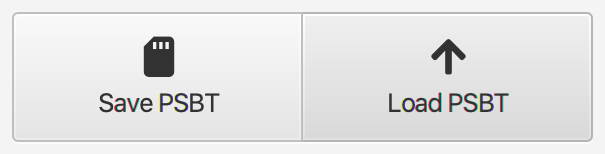
Sparrow’s Save PSBT and Load PSBT buttons, shown in COLDCARD’s guide.
Save PSBT exports the request to the card; Load PSBT brings the signed result back into Sparrow.

Nunchuk NFC signing starts with an initialized Mk5

Use Nunchuk on a compatible NFC-capable iPhone or Android phone with a Mk5 that is already initialized, powered and unlocked. Enable NFC Sharing on Mk5 and import the intended wallet’s public account into Nunchuk before signing. This documented route assumes setup is complete; it does not establish fresh Mk5 setup through the phone.

Get the recipient’s current receiving details through a trusted source first; use the guide to check the transfer before approval.

  1. Build and check the payment in Nunchuk.
  2. Before transferring the request by NFC, choose Advanced/Tools → NFC Tools → Sign PSBT on Mk5. Then transfer the request by NFC.
  3. Review the full recipient address, amount and fee on Mk5. If anything differs or is unclear, cancel; otherwise confirm the signature.
  4. Transfer the signed result back to the phone and broadcast from Nunchuk.

The NFC exchange is not network confirmation.

If the tap does not register, check that NFC Sharing is enabled and hold the phone’s NFC area flat near Mk5’s top-right corner, steady for a few seconds. The linked official guide also covers a missing NFC export option and a wrong-wallet warning. Numerical phone OS requirements for this workflow remain unconfirmed.

Seed words, backup password and active wallet have different roles

For a BIP39 wallet, keep the seed words as the base wallet’s recovery material. A BIP39 passphrase is a separate secret if you use one. The device PIN unlocks Mk5; it does not restore these keys on a replacement. For ordinary word-and-passphrase restoration, the exact original passphrase must fit Mk5’s 100-character ASCII input limit; do not alter it to fit.

Encrypted backup contents and restoration limits
Backup questionWhat it contains or restores
The file and its separate passwordCOLDCARD can also create an encrypted .7z backup file with a separate twelve-word password. Those password words are unrelated to your seed words. Keep the file and the password needed to decrypt it; a PIN is not that password.
Which wallet Backup System capturesFrom Mk4/Mk5 firmware 5.6.1, Backup System captures the wallet currently in effect and its associated data. If a passphrase wallet is active, the backup contains that wallet’s effective extended private key, or XPRV. It does not contain the parent seed words or passphrase, and it does not preserve the parent wallet’s Seed Vault or other parent settings. A separate backup made with the base wallet active preserves the base seed, Seed Vault and other base-wallet settings. Keep the exact BIP39 passphrase separately; that backup does not contain it.
What an effective-XPRV backup cannot rebuildAn effective-XPRV backup can recover the wallet it captured, but it does not reconstruct the original parent seed-and-passphrase structure. Anyone with that backup file and its decryption password can use the captured XPRV without the original BIP39 passphrase. Keep the parent words and exact passphrase if your recovery plan needs that structure. The device PIN is not preserved in the backup.
To restore a wallet (BIP39)
Word count: 12, 18, or 24
To restore a wallet · Codex32 (MS1)

MS1 encodes the wallet’s BIP32 master seed directly, rather than using recovery words.

Secret size: 128, 256, or 512 bits

Start with a PIN set and no wallet, or use the Temporary Seed menu to keep your existing Master Seed.

A complete MS1 secret with index S can activate its wallet directly.

For recovery from shares, use the required number of distinct, complete shares from the original set. Their prefix, ID, threshold and length must match. An individual share cannot activate a wallet.

You cannot apply a BIP39 passphrase to an MS1 wallet.

Codex32 (MS1) was introduced in COLDCARD Mk5 firmware 5.6.3.

Check restoration, not just whether a backup file is intact

A forgotten Mk5 PIN cannot be recovered. Coinkite documents thirteen failed attempts before permanent device bricking, so trying more PINs is not a recovery method. A lost or unusable device does not erase Bitcoin on the blockchain; restoring access depends on the saved recovery material for the intended wallet.

Check the recovery method you will rely on

  • File integrity is not a restoration testVerify Backup performs a CRC32 integrity check without decrypting the file. It can detect file damage, but it is not a complete restoration test or cryptographic proof that the file is authentic.
  • Follow the restoration procedure and compare the walletUse the manufacturer’s restoration procedure and compare the expected wallet fingerprint. For MS1, keep the original wallet and backup intact while testing enough combinations of your recorded shares to include every share you will keep. Each recovered wallet must have the original fingerprint and reproduce a known receiving address using the same network, address type, derivation path and wallet configuration.
  • Keep your working wallet while you checkRestoring a backup as the Master Seed requires a COLDCARD with no Master Seed, or a deliberate wipe of its existing Master Seed. The maker separately documents testing a backup as a Temporary Seed without wiping the Master Seed. Do not erase your only working wallet to investigate a problem: follow the complete maker procedure with verified recovery records.

Cloning copies an existing wallet; it is not the advisory’s migration to a new independent seed.

Hardware details

DetailValue
DisplayDisplay typeLCD
Screen diagonal1.54″
Colour modeMonochrome
Power and chargingBatteryNo battery
Operating powerUSB power
Device connectionsUSB portUSB-C
Memory card slotmicroSD

Wallet access

PIN entry
On the hardware wallet
Passphrase entry
On the hardware wallet or in supported software on a connected device
Sources

This page is based on manufacturer documentation.

Documentation checked:

How we compare

Coinkite COLDCARD Mk5

Check price at Coinkite