Block Bitkey

A Bitcoin wallet with a touchscreen and a recovery design shared between hardware, phone and server.

More Bitcoin-only wallets
Block Bitkey

Approve transactions with

  • Computer: Not confirmed
  • iPhone: Approve transactions
  • Android: Approve transactions

Backup

Phone, hardware and server keys with assisted recovery. Check service and country availability.

Power

Rechargeable battery

Is it right for you?

Is this the right wallet for you?

A good fit if

You want a Bitcoin-only wallet built around a phone app, with recovery options that do not depend on writing down a seed phrase. You are willing to maintain your cloud backup, recovery contacts and security notifications.


  • Bitcoin-only
  • Phone app with hardware approval
  • No seed phrase to write down

Consider another model if

You want a conventional recovery phrase you can restore in another compatible wallet, support for other cryptocurrencies or a workflow independent of a recovery service. Bitkey uses its own three-key arrangement and recovery procedures.

  • No standard recovery phrase
  • Bitcoin only
  • Relies on Bitkey’s recovery service

Worth comparing

Phones and computers

Check compatibility with your phone or computer.

Check the app and connection for each device. Setup and transaction signing are confirmed separately.

Computer

  • Support for wallet setup is unconfirmed
  • Support for signing is unconfirmed
More wallets for computers

iPhone

Bitkey app

NFC

  • iOS 15.2 or later
  • Set up the wallet
  • Approve transactions
Connection requirements

Needs an NFC phone and the Bitkey app. Setup requires a cloud backup and email alerts; recovery depends on the keys and backup access you retain.

More wallets for iPhone

Android

Bitkey app

NFC

  • Android 7.0 or later
  • Set up the wallet
  • Approve transactions
Connection requirements

Needs an NFC phone and the Bitkey app. Setup requires a cloud backup and email alerts; recovery depends on the keys and backup access you retain.

More wallets for Android

How Bitkey’s three keys work

A Bitkey wallet has three keys: one on the hardware, one in the phone app and one held by Bitkey’s service. Two keys are needed to spend, so the service cannot move your bitcoin on its own. If you lose your phone or hardware, the recovery route depends on what you still have.

Two of three keys approve a payment
  • Bitkey hardware
  • Phone app
  • Bitkey’s service
    • Phone app
    • Bitkey hardware
    Everyday payments

    You approve on the hardware. This is the default.

    • Phone app
    • Bitkey’s service
    Transfers without hardware

    Optional: eligible payments within the cumulative daily limit you set. Extra approval can still require the hardware.

    • Bitkey’s service
    Bitkey’s service alone

    Cannot move your bitcoin.

Set up Bitkey: app, device and cloud backup

You need an NFC phone and an email address for critical security alerts. On iPhone, sign in to iCloud and enable iCloud Drive; on Android, sign in to your Google account. The cloud backup is required.

  1. Install Bitkey from its official app-download page, open it and choose Set up new wallet.
  2. Touch the fingerprint sensor to wake the device, hold it to your phone’s NFC area and follow the fingerprint-enrolment prompts. Hold it to the phone again to save the fingerprint.
  3. Tap Back up to create the cloud backup, then set up critical alerts and transaction notifications.
  4. On the touchscreen model, finish the final confirmation on the device, then return it to the phone when prompted to complete setup. Older screenless devices finish after the notification step.
  5. Check the backups before adding fundsOpen the Security hub and confirm the backup statuses described in the next section.

If NFC doesn’t connect, keep both devices touching and still, unlock your phone, and remove thick cases or nearby cards. Antenna positions vary; Bitkey’s connection guide shows where to hold it.

These steps create a new wallet. If you already have a Bitkey wallet, use the recovery or upgrade route instead.
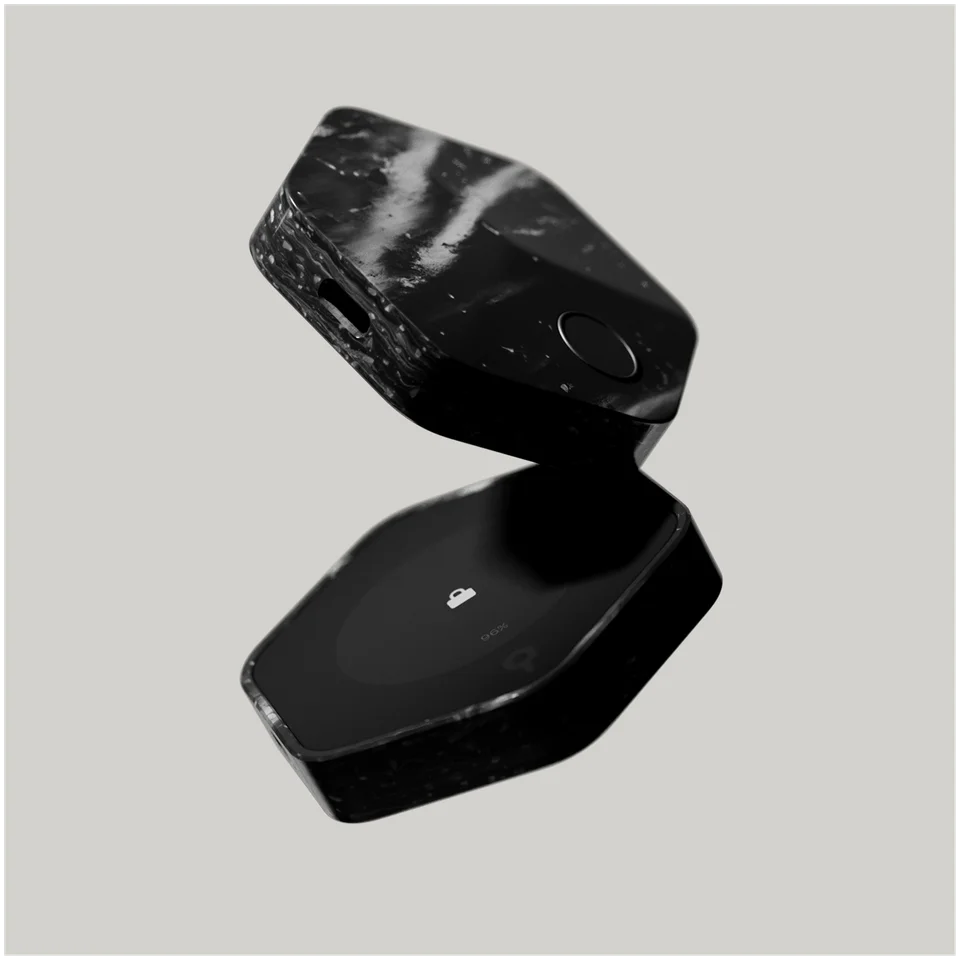
Manufacturer illustration of the current Bitkey: the rear fingerprint sensor above and the front OLED touchscreen below.
Bitkey’s own illustration: the front OLED touchscreen is shown below; the fingerprint sensor is on the back, shown above.

Check your backups and add a Recovery Contact

Open the Security hub (the shield icon on the Home screen) after setup and from time to time, even when the shield shows no notification dot: a cleared dot doesn’t mean every recommendation is resolved.

What to check

  • Cloud BackupGreen: healthyFlagged: open it and follow the fixCloud Health Check monitors it when you open the app and in the background. Healthy means the backup is available, not that a recovery has been tested.
  • Emergency Exit KitGreen: healthyFlagged: open it and follow the fixThe kit you would use if Bitkey’s app or service were unavailable.
  • Recovery ContactActive on both phonesOptional at setup, but needed if you lose both your phone and the hardware. Invite from Security hub → Recovery Contacts → Invite, approve with the hardware and share the invitation. Your contact accepts in the Bitkey app: an existing Bitkey user opens the link and approves with their unlocked hardware; a new user installs the app, chooses More options → Enter the invite code and follows its invitation prompts. After they accept, reopen your app and check that you both see each other listed as Active.

You can add up to three contacts; one active contact is enough. They help decrypt your cloud-backed app key during recovery and never get access to your funds. You still need your cloud backup. If an invitation expires, remove it and invite them again.

Keep access to the original cloud account and to the email or other channels you use for critical alerts.

Verify a receiving address before you share it

Tap Receive in the app to show your bitcoin address. Receiving needs no hardware approval, but the touchscreen Bitkey lets you check the address on the device first; older screenless devices offer no hardware check.

On the touchscreen model

  1. Tap Verify and hold your unlocked Bitkey to the phone.
  2. Compare the full address on the device with the one in the app. If they don’t match, stop.
  3. Copy or share the address you checked.

If someone else is paying you, ask them to compare the full address entered on their sending screen with the address you supplied and check the network, amount and fees before approving. For a new destination, ask them to use the small-test checks below. Confirm that the test is credited to your intended Bitkey wallet before they send the rest, and ask them to recheck the network, full address, amount and fees. If the address differs or the request is unclear, stop and check it together.

If you are withdrawing from your own exchange or wallet, use its bitcoin sending form and check the network. Enter the checked Bitkey address and compare the full entered address with the one you checked, then review the amount and fees. For a new destination, follow the small-test guide below before approving; it covers the test amount, arrival and recheck before sending the rest.

A broadcast payment appears as pending on the Home screen and changes when confirmed. Use Refresh in the receive screen’s top-right corner to get a new address for the next payment and reduce address reuse.

Send bitcoin: review in the app, approve on Bitkey

Outgoing payments need the hardware by default. Check every detail before you approve: a bitcoin payment to a wrong address cannot be reversed.

  1. For your own receiving wallet or exchange account, use its Receive or Deposit screen for the current bitcoin address. If paying someone else, ask them to obtain theirs from their own receiving account and confirm it through a trusted channel. In Bitkey, tap Send, enter that address or scan the recipient’s QR code, enter the amount and tap Continue.
  2. Compare the full destination address with those receiving details, then review the amount, network fee and estimated delivery time. If the address differs or the request is unclear, stop before approving.
  3. If the app requests hardware approval, hold your unlocked Bitkey to your phone. On the touchscreen model, review the request on the device and follow its prompts, then hold it to the phone again to complete verification.
  4. The app prepares and sends the transaction.

USB-C charges the device; it isn’t how the device connects to the phone for approvals.

Illustration of the current touchscreen Bitkey held against a phone’s back, with a padlock on the device screen.
This illustration shows NFC positioning. For approval, follow the request on Bitkey’s screen and return it to the phone when prompted; the phone’s NFC position varies.

Transfers without hardware, up to a daily limit

Transfer without hardware is optional. It lets the app and Bitkey’s service approve payments up to a daily limit you set, without the device. Anyone who can use the Bitkey app on your unlocked phone could spend within that limit.

  • Turn it onSettings → Transfers: enable it, choose a daily limit and confirm the limit with your device.
  • Within the limitThe app and Bitkey’s service approve eligible payments while the day’s total stays within your limit.
  • Above the limitYou need the device if this payment would take the day’s total beyond your limit, or whenever additional approval is required.
  • Turn it offReturn to the same Transfers screen and switch it off.

Bitkey recovery depends on what you still have

Choose the route by what you still have. Cloud Recovery restores your existing wallet from its encrypted app-key backup; Delay + Notify replaces a lost app or hardware key and moves your funds to a new wallet after a security waiting period. Never choose Set up new wallet to get existing funds back.

Recovery routes

If a prerequisite is uncertain, check Bitkey’s recovery guidance before deciding Yes or No. Not knowing whether your cloud backup is available is not the same as having no backup. If only a required replacement is missing, prepare it before starting that route.

Review Bitkey’s recovery methods

What you still have

  1. Do you have a replacement phone with the same operating system, working original hardware and the original cloud backup?

    • Working hardware(Available)
    • Original cloud backup(Available)
  2. Do you have a replacement phone and working original hardware, but no accessible cloud backup?

    • Working hardware(Available)
    • Original cloud backup(Unavailable)
  3. Do you have a configured Bitkey app on a phone with access to your existing wallet’s app key, replacement hardware ready and the original hardware unavailable?

    • App-key access on your phone(Available)
    • Original hardware(Unavailable)
  4. Are both original devices unavailable, with an active Recovery Contact, the original cloud backup and a replacement phone using the same operating system?

    • Original phone(Unavailable)
    • Original hardware(Unavailable)
    • Original cloud backup(Available)
    • Active Recovery Contact(Available)

None of these routes matches the prerequisites you have established. Check Bitkey’s recovery guidance before changing your wallet.

Review Bitkey’s recovery methods

Restore your wallet from the original cloud backup

Do you have a replacement phone with the same operating system, working original hardware and the original cloud backup?

  • Working hardware(Available)
  • Original cloud backup(Available)
In the app
Use a replacement phone with the same operating system (iOS or Android), and sign in to the cloud account used during setup. In Bitkey: More options → Restore your wallet → Restore Bitkey Wallet. Hold your unlocked Bitkey to your phone to approve. If prompted to confirm on the hardware, follow its screen instructions and hold it to the phone again to complete verification.
What happens
Cloud Recovery: your existing wallet is ready when restoration finishes.

Recover on a new phone without a cloud backup

Do you have a replacement phone and working original hardware, but no accessible cloud backup?

  • Working hardware(Available)
  • Original cloud backup(Unavailable)
In the app
When no backup is found: More options → Restore your wallet → Recover your wallet. Follow the app’s recovery instructions and approve with your unlocked Bitkey to begin Delay + Notify.
What happens
After the waiting period, approve the fund transfer to the new wallet and check the resulting balance, less the network fee.

Replace your Bitkey hardware using the configured app

Do you have a configured Bitkey app on a phone with access to your existing wallet’s app key, replacement hardware ready and the original hardware unavailable?

  • App-key access on your phone(Available)
  • Original hardware(Unavailable)
In the app
Security hub → Bitkey Device → Replace device. Continue starts the waiting period; follow the replacement’s fingerprint setup.
What happens
After the wait, confirm the replacement and approve the transfer. Check the new balance: the network fee is deducted and earlier history does not carry over.

Recover after losing both phone and hardware

Are both original devices unavailable, with an active Recovery Contact, the original cloud backup and a replacement phone using the same operating system?

  • Original phone(Unavailable)
  • Original hardware(Unavailable)
  • Original cloud backup(Available)
  • Active Recovery Contact(Available)
In the app
Use a replacement phone with the same operating system and sign in to the original cloud account. More options → Restore your wallet → I’ve lost my Bitkey device. Select your contact, speak by phone or video and share the recovery code; continue when they complete their part and you see Verified.
What happens
The app key is restored first. Seeing your balance is not completed recovery: finish replacement-hardware setup and Delay + Notify, approve the fund transfer and check the new balance after the fee.

After Delay + Notify, Bitkey creates new keys, updates the cloud backup and saves a new Emergency Exit Kit. Give exchanges and other senders a newly generated receiving address, and check the backup statuses again.

Watch your critical alerts during the waiting period. If you did not request a recovery, cancel it using Bitkey’s guidance below.

The Emergency Exit Kit: moving funds without Bitkey

If Bitkey’s app or service is unavailable, the Emergency Exit Kit moves your funds to another wallet using your existing app and hardware keys. It doesn’t replace lost keys; for that, use the recovery routes above.

What you need

  • The current kit PDFIt’s stored in your cloud account. Bitkey updates it after Delay + Notify changes your keys; an older saved copy describes the old keys.
  • Your working BitkeyThe hardware is used to decrypt the app key.
  • An NFC Android deviceThe standalone utility doesn’t run on iOS. iPhone users can retrieve the PDF from iCloud and use an Android device for this step.
  • Internet accessThe utility is installed outside the app store and doesn’t use Bitkey’s servers.

Before you need it, check the kit’s status in the Security hub and make sure you can retrieve the current PDF. When using the kit, follow its instructions to obtain and verify the standalone utility before using your hardware to decrypt the app key and move funds.

Bitkey Inheritance: leave your bitcoin to a beneficiary

Inheritance lets you name one beneficiary in the Bitkey app. They need their own Bitkey wallet—hardware and app—to accept the invitation. They cannot see your balance or access the funds before the six-month security period ends and Bitkey releases the encrypted app key.

Set up and activate your beneficiary

  1. Invite and approveOpen Settings → Inheritance → Beneficiaries → + Add, review the information, enter the beneficiary’s name and continue. Enable the required critical alerts, review and accept the terms, then choose Save beneficiary. Hold your unlocked Bitkey to your phone to approve. If prompted to confirm on the hardware, follow its screen instructions and hold it to the phone again to complete verification. Share the invitation link and code.
  2. Your beneficiary acceptsYour beneficiary follows the invitation in their own Bitkey app to accept it.
  3. Complete activationAfter they accept, reopen your Bitkey app to finish activation. Check that you both see each other listed as Active.

If your beneficiary makes a claim

  1. Start a claimIf you pass away, your beneficiary starts a claim in their app.
  2. Six-month security periodBitkey sends periodic claim alerts to your configured channels throughout the six-month period. If a claim starts while you are still alive, you can stop it; your beneficiary can also stop it during this period.
  3. Transfer after the security periodWhen the period ends, your beneficiary’s app can decrypt your app key and, co-signing with Bitkey’s server key, transfer the funds to their own Bitkey.

Bitkey calls Inheritance a companion to traditional estate planning, and advises consulting an estate-planning professional about local requirements.

Update the firmware or upgrade your Bitkey

Firmware updates and app updates are separate: updating the phone app doesn’t update the device. Check Security hub → Bitkey Device → About for the installed version.

  1. When an update is offered, the Security hub shows Update firmware and an orange dot on the device tile. Tap it and choose Update.
  2. Approve with the unlocked hardware, including any confirmation on the touchscreen.
  3. Keep the phone and Bitkey in NFC contact unless the app tells you to separate them for a step. Return it to the phone when instructed, then check About again for the installed version and any remaining update notice.

Upgrading needs the old and new Bitkey devices and no pending transactions. Before starting, read the official upgrade guide linked below for its requirements and fund transfer steps. Authorising the upgrade with the old device makes it irreversible. Start in Security hub → Bitkey device → Upgrade device and follow the app’s new-device setup prompts. Then authorise with your unlocked old device and complete verification with your unlocked new device as the app directs.

After these upgrade approvals, the app checks your wallet. If it has more than 200 UTXOs (unspent parts of your current bitcoin balance), follow its guided consolidation to fewer than 200; wait for those transactions to confirm, then return to the upgrade flow. If the app offers a fund transfer, review the network fee and approve with your old device. If the balance is too low to cover that fee, the upgrade and cloud-backup update can still finish with funds in the previous wallet. Check the result and follow the official guide’s steps for it.

Hardware details

DetailValue
DisplayDisplay typeOLED
Size and weightDimensions66 × 60 × 13.6 mmDimensions as listed by the manufacturer
Device weight79 g
Power and chargingBatteryRechargeable
Charging methodsUSB-C
Materials and finishMaterialsCorian Solid Surface
Device connectionsUSB portUSB-C
Sources

This page is based on manufacturer documentation.

Documentation checked: · · ·

How we compare