A good fit if
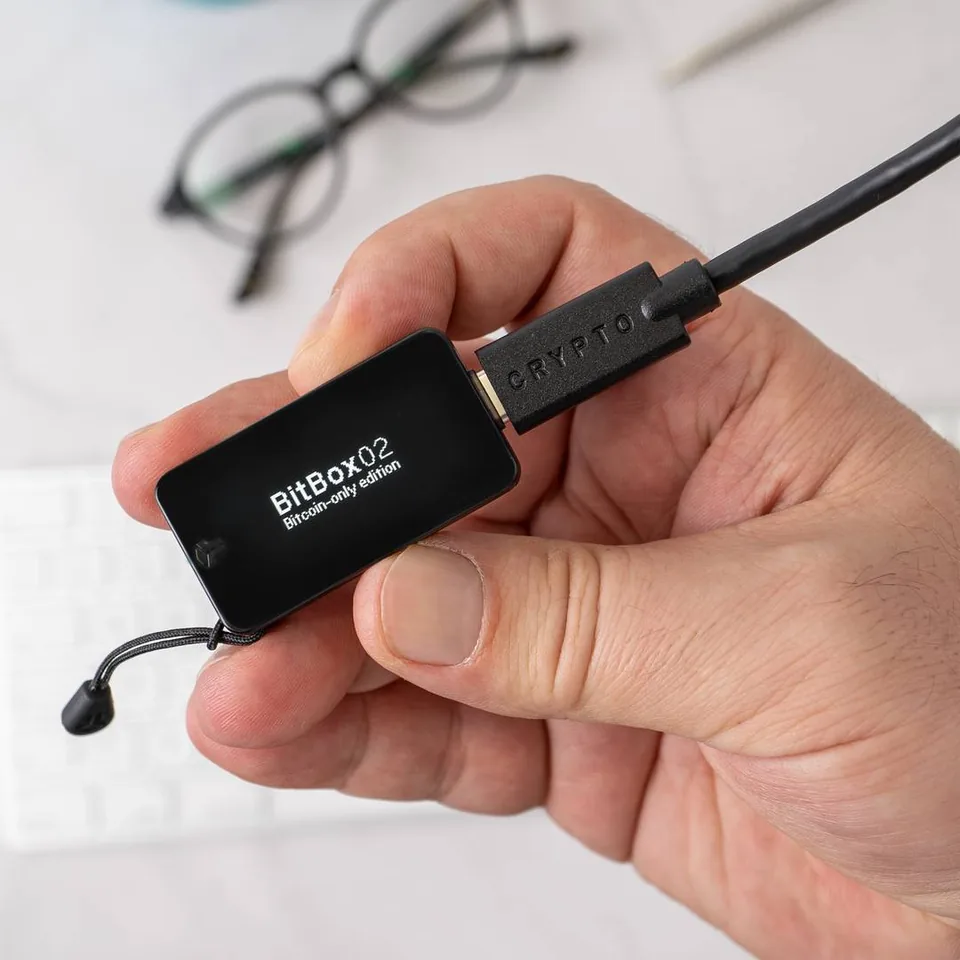
Choose the original BitBox02 for a compact USB wallet with edge touch controls and a microSD backup, used with a compatible computer or Android phone. Choose the edition for your assets.


The original USB BitBox, with touch controls and recovery data saved on microSD, for computers and Android phones.
Choose this edition at the store.

Approve transactions with
Controls
Touch sensors
Backup
microSD backup and recovery phrase
Power
USB power
Is it right for you?
Choose the original BitBox02 for a compact USB wallet with edge touch controls and a microSD backup, used with a compatible computer or Android phone. Choose the edition for your assets.
Choose Nova for an iPhone: the original BitBox02 cannot connect to an iPhone or iPad. Choose a larger touchscreen model if you prefer reviewing payments that way; the original has a small screen and edge sensors.
For iPhone support with BitBoxApp and microSD backup.
Compare BitBox02 and NovaFor a colour touchscreen in a wired setup.
Compare BitBox02 and Safe 5For an E Ink touchscreen and phone use over Bluetooth.
Compare BitBox02 and FlexPhones and computers
Check the app and connection for each device. Setup and transaction signing are confirmed separately.
USB
Not supported: Chromebook
Linux
Ethereum requires the Multi edition. A Bitcoin-only hardware edition cannot be converted to Multi.
USB
Ethereum requires the Multi edition. A Bitcoin-only hardware edition cannot be converted to Multi.
Connect the original BitBox02 to BitBoxApp by USB on a supported computer or Android device. USB supplies power.
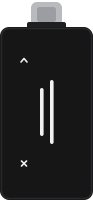
Choose a character or menu item.
Briefly touch an edge, then lift your finger.


Read through an address.
Keep contact while moving your finger along the edge.


Confirm a critical action, such as signing.
Touch both edges at the same time and keep holding to confirm.


Gesture illustrations: Shift Crypto AG / BitBox. Source stills and extracted animation frames; simplified device illustrations. Original BitBox02 features · CC BY 4.0. Images were resized and converted to static formats. Read each pair from left to right.
Use a supported 64-bit desktop system. Windows on ARM is not officially supported; ChromeOS is unsupported. Check the exact Linux distribution and version, including Debian, Fedora and openSUSE, in the requirements.
Android needs USB OTG: the phone’s ability to communicate with a USB device. An app that opens does not establish that connection.
Official guidance
Choose Bitcoin-only for Bitcoin alone, or Multi for other supported assets. Both editions are fixed; firmware updates cannot convert either.
Multi → Bitcoin-only. Requires another device; restoring its backup on Bitcoin-only does not add other assets.
Price at BitBoxChoose this edition at the store.
Bitcoin-only → Multi. Requires another device.
Price at BitBoxChoose this edition at the store.
Check the exact asset, network and app. Bitcoin and Ethereum use BitBoxApp; Cardano uses AdaLite or NuFi.
Both price actions open the same store page. Select the intended edition there before ordering.
Multi also supports FIDO U2F website sign-in alongside your website password, separately from cryptocurrency approval.
For a new wallet, prepare the official BitBoxApp, your BitBox02, the included microSD and a supported USB host.

Already have the intended wallet on this device? Pair it with the new compatible host and compare codes; do not create another wallet.
Official guidance
For Bitcoin on a computer, use BitBoxApp with your BitBox02 after completing setup and backup. Check the receiving coin and network.
The BitBox02 can be disconnected while Bitcoin arrives or awaits confirmation. Use the linked small-transfer checks for a new destination.
Official guidance
Prepare Bitcoin payments in BitBoxApp; the connected BitBox02 signs them. Network confirmations come afterwards. Have enough Bitcoin for the amount and fee.
The documented device checks here concern recipient and amount. A pending payment is not a prompt to send again; check its recorded status.
Official guidance
Use Check backup with a working BitBox02, its device password and BitBoxApp on a computer. Keep the wallet configured; this check needs no reset.
If checking fails, create and check another compatible card backup while the device still works.
This checks a readable matching card; it does not demonstrate restoration, verify a separate written backup or recover an optional passphrase.
To check a written backup, display the words on the BitBox02 and compare each word with your written record, including spelling and order. Then complete the device’s word-by-word verification. Never photograph the words or enter them into BitBoxApp.
Official guidance
Lost or broken device, or forgotten device password? Restore an existing backup on a compatible device and set a new password; the old device and password are unnecessary.
Only the card is missing, and the device still unlocks? Create and check another backup while access remains.
Treat a missing card as potentially exposed. Another copy does not revoke it; use a wallet with new recovery words if someone may have accessed the backup.
Restore from a microSD backup
For written words, follow the separate restoration procedure; enter the full ordered sequence only on the BitBox02.
If previously used, re-enable the optional passphrase after restoring, then enter its exact original value on the BitBox02.
An empty view calls for checking accounts, synchronization and the exact passphrase; a different passphrase opens another wallet. If neither a usable device nor any backup remains, the wallet cannot be recovered.
Official guidance
App and device updates are separate. Update the official BitBoxApp first, then connect and unlock the BitBox02 for its offered firmware update.
If installation fails or repeats, do not reset or restore the wallet to fix it. Do not disconnect while the app shows installation in progress. Follow the official failure procedure; give support versions and the failed stage, never wallet secrets.
| Detail | Value |
|---|---|
| DisplayDisplay type | OLED |
| Resolution | 128 × 64 px |
| Colour mode | Monochrome |
| Size and weightDimensions | 54.5 × 25.4 × 9.6 mmDimensions as listed by the manufacturer · Includes the connector |
| Device weight | 12 g |
| Power and chargingOperating power | USB power |
| Device connectionsUSB port | USB-C |
| Memory card slot | microSD |
| Security and softwareSecurity chip | ATECC608B |
| ProcessorCore and clock speed | Cortex-M4F · 120 MHz |
| Controllers | ATSAMD51J20A |
| Key datesAvailable since | September 25, 2019 |
U2F
This page is based on manufacturer documentation.
Documentation checked: · · · ·
How we compareBitBox02Multiple cryptocurrencies
Choose this edition at the store.