A good fit if
You want BitBoxApp on an iPhone and a computer, and prefer creating a microSD backup during setup. You are comfortable operating touch-sensitive edges rather than a touchscreen.


A hardware wallet controlled at its edges, with a microSD wallet backup. Use USB with a computer or Android; iPhone and iPad use Bluetooth for data.
Choose multi-coin or Bitcoin-only at the store.

Approve transactions with
Controls
Touch sensors
Backup
microSD backup and recovery phrase
Power
USB power
Is it right for you?
You want BitBoxApp on an iPhone and a computer, and prefer creating a microSD backup during setup. You are comfortable operating touch-sensitive edges rather than a touchscreen.
You want a touchscreen, prefer Trezor Suite or Ledger Wallet, or need phone use without an external power connection.
Choose Safe 7 for a colour touchscreen and Trezor Suite, with Bluetooth signing on iPhone or Android and a rechargeable battery.
Compare Nova and Safe 7Choose Flex for an E Ink touchscreen, Ledger Wallet and its recovery-word or supported Recovery Key route. It uses Bluetooth with iPhone or Android.
Compare Nova and FlexPhones and computers
Check the app and connection for each device. Setup and transaction signing are confirmed separately.
USB
Phone needs USB OTGYour Android phone needs USB OTG support to connect to Nova over USB. Ethereum requires the Multi edition; a Bitcoin-only device cannot be changed to Multi.
USB
Not supported: Chromebook
Linux
Ethereum requires the Multi edition. A Bitcoin-only hardware edition cannot be converted to Multi.
Bluetooth
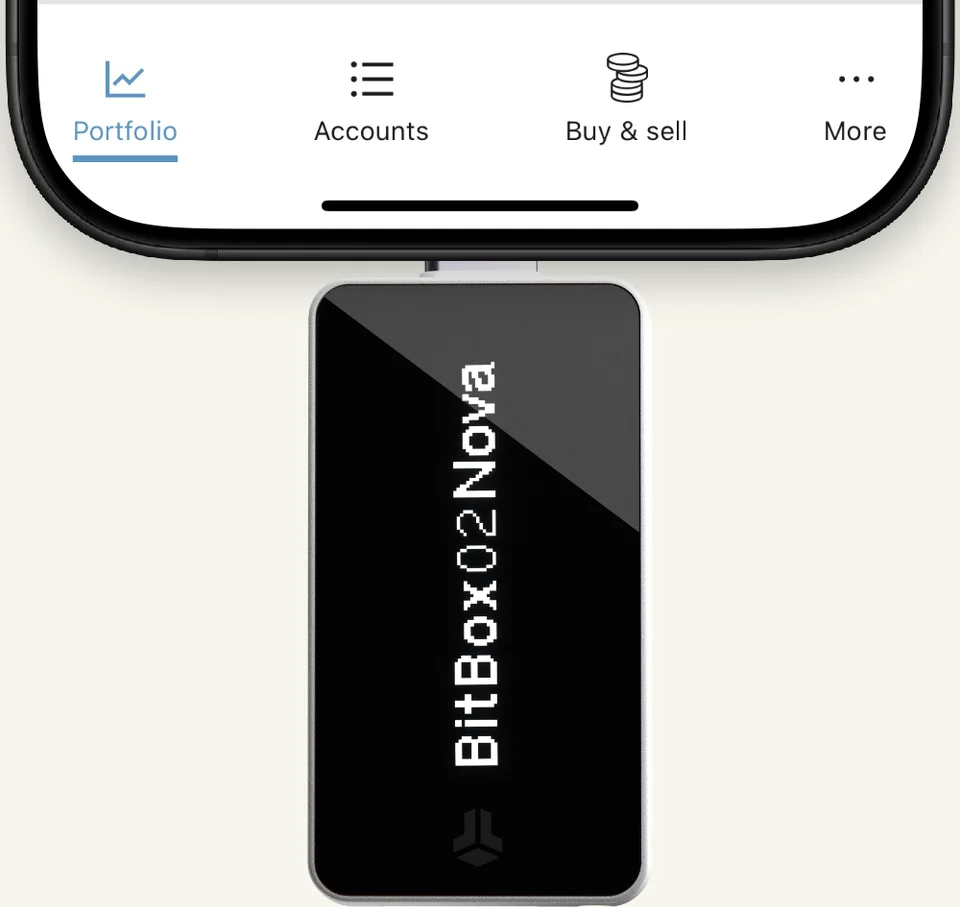
Must stay plugged inWith an iPhone, plug BitBox02 Nova into the phone or another suitable power source. It uses Bluetooth to exchange data. Ethereum needs the Multi edition; the Bitcoin-only edition cannot be changed to Multi.
Choose Multi for Ethereum and other supported assets, or Bitcoin-only for a device dedicated to Bitcoin.
Multi → Bitcoin-only. This device cannot become Bitcoin-only. A reset or firmware update does not change its edition.
Bitcoin-only → Multi. This device cannot become Multi. A reset or firmware update does not change its edition.
For Multi, check the exact asset, network and wallet app; not every supported asset works in BitBoxApp.
Multi also offers FIDO U2F for a second sign-in check on compatible websites. Its supported connections, including Bluetooth on iPhone, remain unconfirmed.
With iPhone or iPad, Nova needs both Bluetooth data and a physical USB power connection, even on a USB-C phone.
Desktop and Android use USB for data and power; Android also needs USB OTG hardware support. The compatibility cards list minimum versions.
For iPad, use iPadOS 16 or later. Desktop requires a 64-bit system; Windows on ARM is not officially supported.
Official guidance
Nova’s edges sense tap, slide and hold gestures; its display is not a touchscreen.
Select a character.
Briefly touch the edge below the displayed choice, then lift your finger.


Confirm the entry.
Touch both edges together and keep holding while Nova confirms.


Shift Crypto AG / BitBoxApp animation; blue markers indicate touch. Password-entry source · Apache 2.0. Extracted, cropped and resized from an illustrative password animation.
Use the official BitBoxApp. On iPhone or iPad, check that its App Store publisher is Shift Crypto AG. Card backups are unencrypted by default; Nova’s password does not protect them. Keep backup cards private and use them only in a BitBox.
Already have a wallet backup? Restore it instead of creating a new wallet.
For a new wallet with microSD backup
Only a never-initialized Nova needs first firmware installation. Resetting or restoring does not reinstall it.
Official guidance
On a computer, send ordinary on-chain Bitcoin with BitBoxApp and Nova over USB.
Receiving needs a full address check on Nova before you share or use the address. Nova can disconnect afterward while the payment arrives.
Official guidance
Keep Nova and its microSD backup separately: the password protects access to the device, not the removed card.
Ordinary use does not need the card. Remove it after setup; use it only in a BitBox for documented backup tasks.
Forgotten password? Recovery needs a valid backup and any exact optional passphrase you used.
After unlocking Nova with its device password, enter and verify the passphrase on the device. Daily use needs no backup card; restoration needs the backup and that exact passphrase.
Turning the prompt on or off does not move funds. Use BitBox’s procedure to enable it and check that you can reopen the intended wallet.
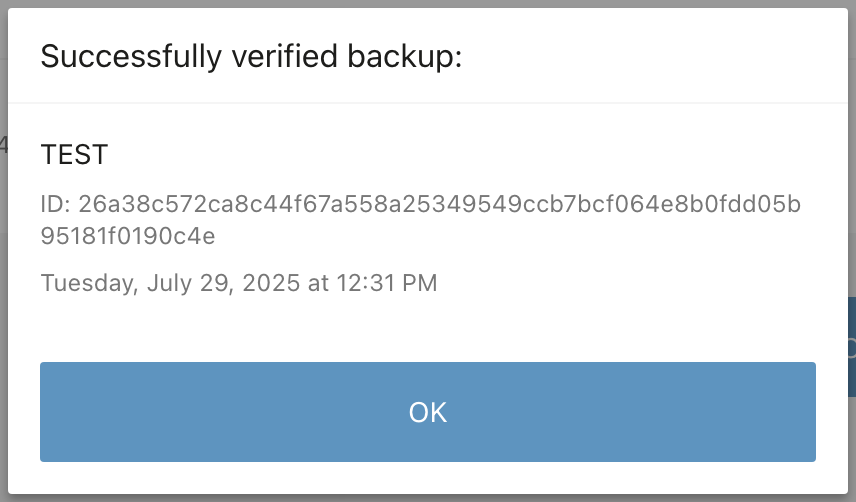
Check while Nova still works, using BitBoxApp on a computer. This checks the card backup, not a separate passphrase.
If the check fails, use another suitable card to create a fresh backup while Nova still gives you access.
Official guidance
Use an existing backup with a new or reset compatible Nova; the old device and password are not required. Choose the computer procedure for your backup below; each sets a new device password.
For microSD, use card restoration. Identify the saved wallet by name, date and ID; the procedure ends with removing and securely storing the card.
For a complete 12- or 24-word BIP39 phrase, use word restoration. Enter the words in order only on Nova, never in an app or website.
After either restoration route
Original BitBox02 backups work on compatible Nova editions. The edition and app must support your accounts: Bitcoin-only restores Bitcoin access, not other assets. Creating a new wallet does not move the old balance.
Official guidance
BitBoxApp is the companion app; firmware runs on Nova. Later updates can be offered on iPhone/iPad or through desktop USB.
When a compatible firmware update is offered
Official guidance
| Detail | Value |
|---|---|
| DisplayDisplay type | OLED |
| Resolution | 128 × 64 px |
| Colour mode | Monochrome |
| Size and weightDimensions | 54.5 × 25.4 × 9.6 mmDimensions as listed by the manufacturer · Includes the connector |
| Device weight | 13 g |
| Power and chargingOperating power | USB power |
| Device connectionsUSB port | USB-C |
| Memory card slot | microSD |
| Security and softwareSecurity chip | OPTIGA Trust M V3 |
| ProcessorCore and clock speed | Cortex-M4F · 120 MHz |
| Controllers | ATSAMD51J20A · DA14531 |
| Key datesAnnounced | June 20, 2025 |
U2F
Confirmed for the Multi-coin edition
This page is based on manufacturer documentation.
Documentation checked: · · ·
How we compareBitBox02 Nova
Choose multi-coin or Bitcoin-only at the store.